Managing Schedules
Everything on the day-to-day side of a schedule: the calendar and its Actions menu, event requests, followers, team access, your plan, and the audit log.
Feature overview: Team scheduling
Overview
Click a schedule's name in the sidebar to open its admin panel: the pages you run that schedule from, day to day. Under the schedule's name is its public address, with Copy beside it, and View once the schedule's email address is verified. Below that is a row of tabs, each of which is its own page (on a phone the row is a dropdown). A tab with something to count shows the number beside its name.
Not every tab is offered to every schedule: some depend on the schedule type, some on your access level or on whether the site is eventschedule.com, and one appears only when there is something waiting for you. A tab your plan does not include is still there, and says what the plan adds.
| Tab | What it covers | When you see it |
|---|---|---|
| Schedule | Your events, a month at a time, plus anything without a date | Always |
| Templates | Saved event templates you can start a new event from | Owners and admins. Using it needs Pro - Requires the Pro plan |
| Videos | Match YouTube videos to the talent on your upcoming events | Curator schedules |
| Availability | Days you are not free to be booked | Talent schedules. Saving needs Enterprise - Requires the Enterprise plan |
| Appointments | Bookable time slots and the bookings they produce. The number is bookings waiting for your approval | Always |
| Seating plans | Reusable seating plans for your room, used to sell reserved seats | Venue schedules, owners and admins. Using it needs Enterprise - Requires the Enterprise plan |
| Requests | Submitted events and bookings waiting for your decision | Only while something is pending |
| Feeds | Addresses the schedule keeps reading for events, with drafts to review and decisions to make. The number is how many wait for you | Once the schedule has a feed, owners and admins. Using it needs Enterprise - Requires the Enterprise plan |
| Followers | People who follow the schedule or signed up by email, and your QR follow code | Always on eventschedule.com; on a selfhosted install, once someone has subscribed |
| Team | Who can get into the admin panel, and at what level | Always |
| Plan | Subscription, usage allowances, and billing | eventschedule.com only |
Two controls sit beside the schedule's name on every tab. Edit Schedule opens the schedule's settings, for owners and admins. The Actions menu holds importing, embedding, deleting the schedule and the Audit Log, which is a page of its own and not a tab.
Until the schedule's email address is verified, a notice above the tabs says Please verify the email address, with Resend Email beside it. Adding events, the View link and the list of requests all wait for that.
Schedules have three access levels: owner, admin, and viewer. Viewers get a read-only admin panel, cannot see ticket sales, and cannot open the schedule settings page at all. Following a schedule is not an access level and grants nothing in the admin panel. See Team.
Schedule
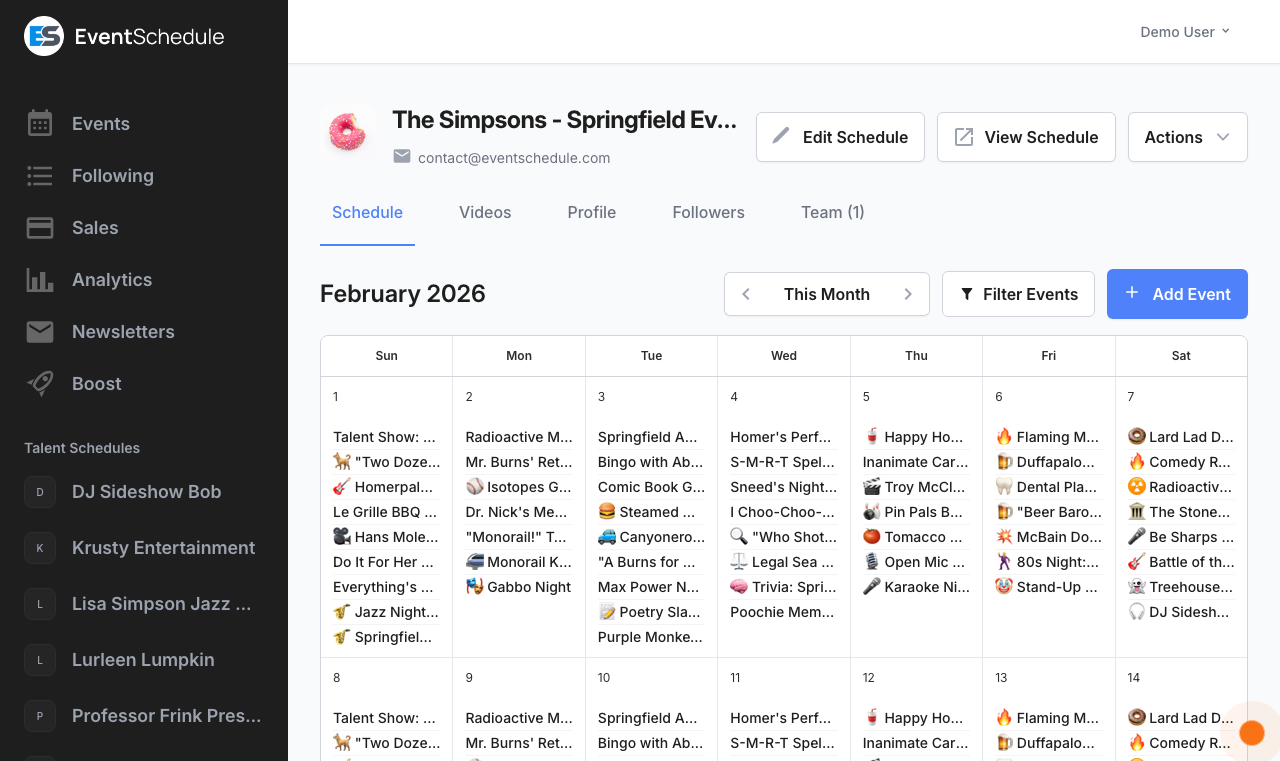
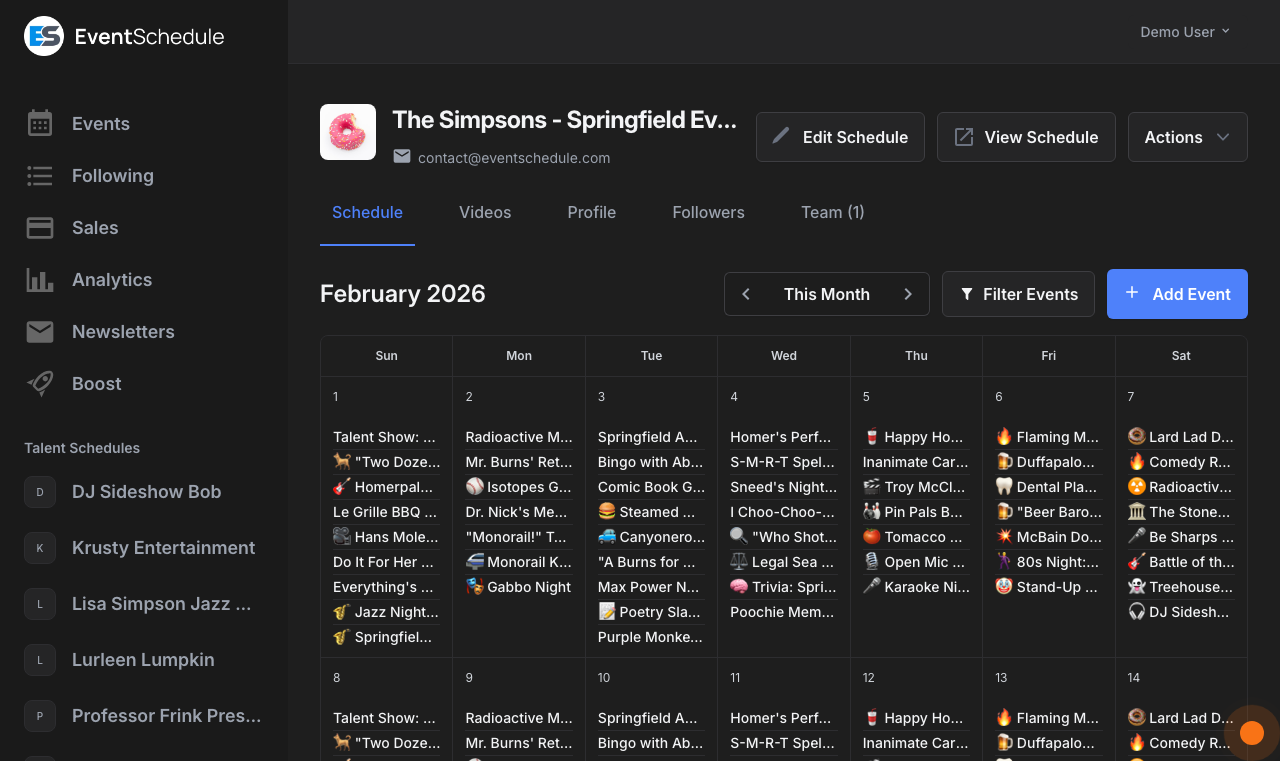
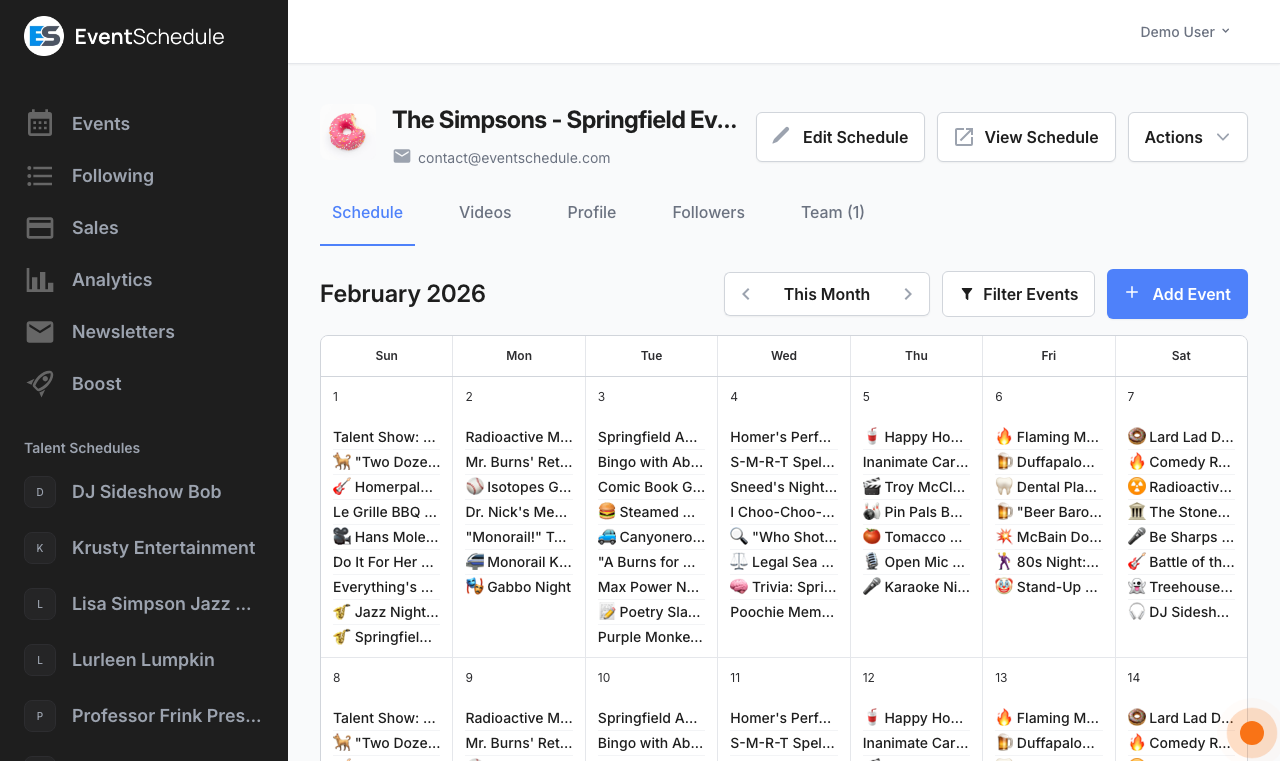
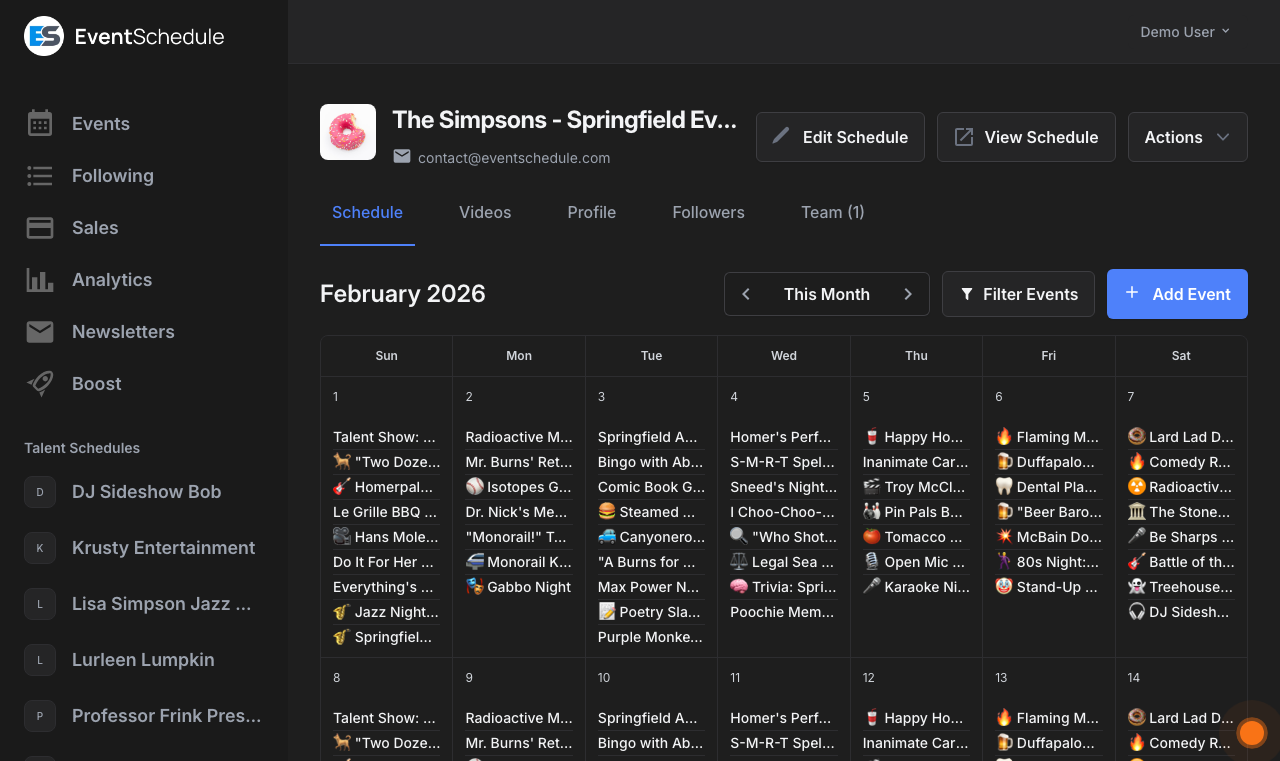
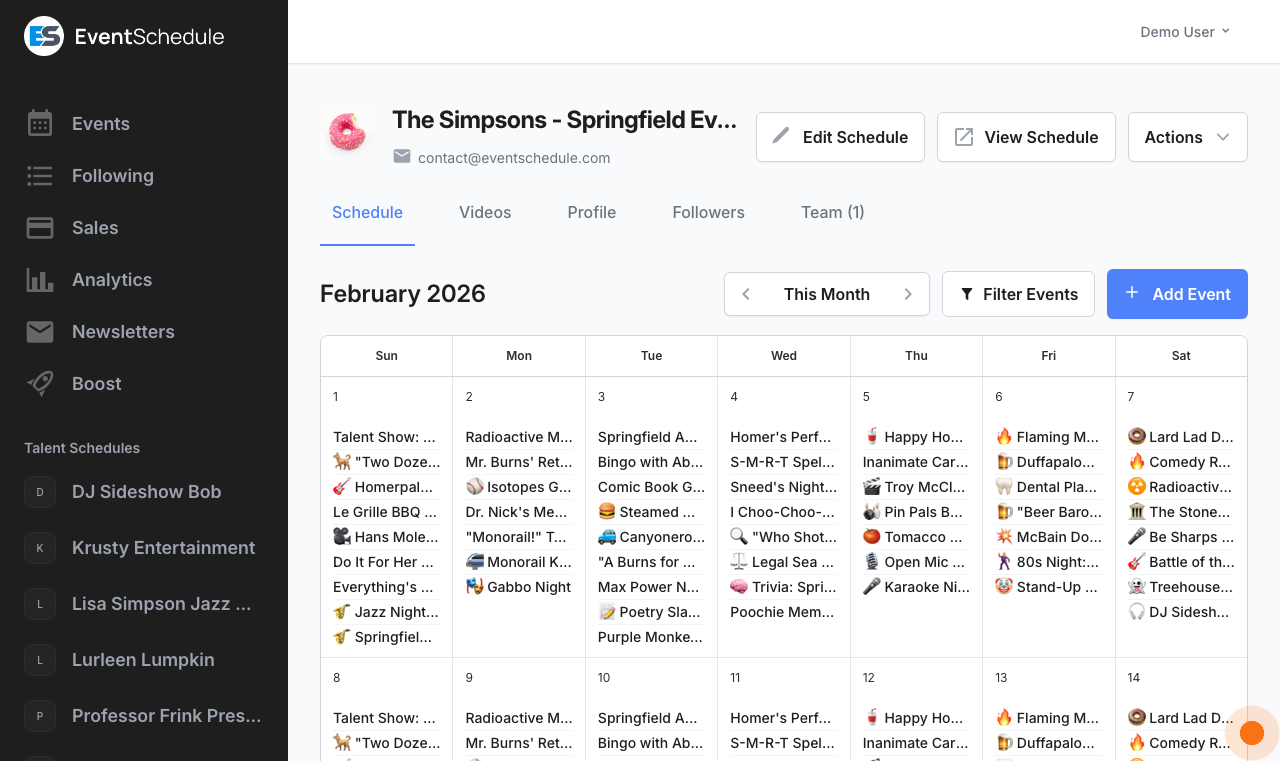
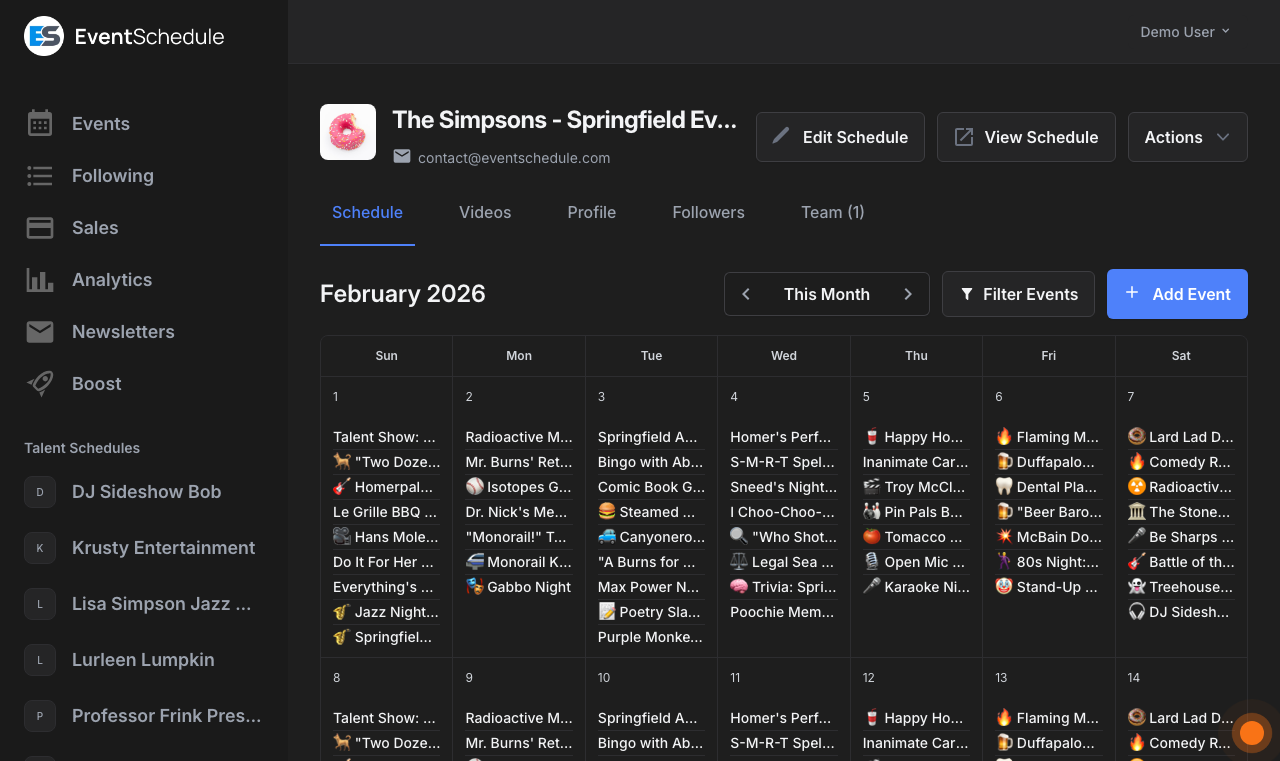
The Schedule tab is the calendar of everything on the schedule. On a wide screen it is a month grid, loaded one month at a time. On a phone it is a list of upcoming events, soonest first, with Show Past Events above it when the month has earlier ones. A long list stops after 200 dates, with Show more at its end.
Reading the calendar
- On the month grid, the arrow buttons step a month back or forward and This Month returns to today. The phone list has no month buttons
- Each event shows its name and its time, and one that is still to come says under them what state it is in: Now, Sold Out, Few left or Free entry. A day with one event shows its picture, and an event that runs over several days is one bar across them
- An event that is not public says so under its name, Draft or Internal, and a cancelled one says Cancelled, on days that are over as well
- Days that are over go quiet, and a week that is wholly over is drawn smaller, so the week it is now is not pushed down the page. Once an event of today has ended it gives its place to what is still to come and stands behind earlier today; when nothing is left today, the day's events stay in view
- A busy day shows its first three events, and more where the week has room. +N more, or the day's number, opens the whole day, and says how many of the events it holds are drafts
- Rest the pointer on an event, or move to it with the keyboard, and a card opens beside its day with its date, time and place, and with View Event and Edit Event. A click on the event itself opens its public page in a new tab. On a phone, use Edit Event on the card
- The arrow keys move between events and days, and Page Up and Page Down change the month
- On a Talent schedule, a day a team member marked as unavailable is tinted, and its info icon names who. See Availability
Adding events
- Add Event creates a new event by hand. It appears once the schedule's email address is verified, and is hidden from viewers
- On the month grid, owners and admins can use the plus that appears on a day, when the pointer is on it or it is reached with the keyboard, to start a new event on that date
- Use a Template sits beside Add Event once you have at least one saved template (Pro)
Saving a new event brings you back here, on the event's month, where a line above the calendar confirms it with Copy Link and View Event, plus Add location or Add tickets if it was saved without them. A draft has no public page yet, so it offers Edit Event instead. Your very first event gets a fuller panel with the same links. For the event form itself, see Creating Events.
Filter Events
Filter Events opens a panel that narrows what the calendar shows. The button is always there, even when this month has nothing to filter, and it carries a count while anything is applied.
| In the panel | What it does |
|---|---|
| Search box | Matches event names, short descriptions, venues, talent, categories, agenda parts and public custom field values. On the month grid it searches the month you are viewing and says so; on a phone it searches your upcoming events |
| Filters | Sub-schedule, category, venue, any custom field set to Show as Filter (Pro), and switches for free entry and online events. Only the ones that apply to the events in view are offered |
| Copy Link | Offered once a category or custom field filter is chosen. It copies your schedule's public address with that filter applied, ready to share or turn into a QR code |
While a filter or search is active, a row of filter chips above the calendar shows what is applied; remove one with its × or use Clear Filters. Past events are left out of the list until the filters are cleared. A sub-schedule chosen on its own shows no chips: the count on the button is what says it is on.
Unscheduled
On Venue and Talent schedules, events with no date at all are listed in an Unscheduled section below the calendar. Each card shows the talent on the event, with its picture, name and description, and links to that talent's public page. Owners and admins get two buttons on it: Schedule opens the event so you can give it a date, and Decline drops it from your schedule after a confirmation.
Notices on a Curator schedule
A Curator schedule gathers events from many sources, so its owners and admins may see one of two notices above the calendar:
- Duplicate venues. When venues on your upcoming events look like the same place entered twice, a notice counts the groups and opens Merge Duplicate Venues
- Events in another timezone. When upcoming public events use a different timezone than the schedule, a notice lists them, each a link to its event form, because they may publish at the wrong time in graphics and emails. Change these events moves them all to the schedule's timezone after a confirmation: their start times stay as written and are read in the schedule's timezone from then on. Dismiss hides the notice for you until the list of events changes
Actions menu
The Actions menu sits at the top right of every tab and gathers the operations that act on the schedule as a whole. On a phone it also carries Edit Schedule and View Schedule; on a wider screen Edit Schedule is a button of its own, and View is the link beside the schedule's address.
| Action | What it does | Shown to |
|---|---|---|
| Import Events | Opens AI Import to bring in events from a link, pasted text or a flyer image | Owners and admins |
| Scan Agenda | Reads a printed or photographed agenda and turns it into event parts | Owners and admins, on a phone or tablet, where the site has an AI provider configured. Enterprise - Requires the Enterprise plan |
| Sync Events | Runs a Google Calendar sync straight away, after a confirmation, instead of waiting for the next scheduled one | The owner only, once their Google account is connected and the schedule has a Google Calendar linked |
| Events graphic | Builds a shareable graphic of your upcoming events, with a caption to post beside it | Everyone, including viewers |
| Embed Schedule | Opens the embed dialog with the code to drop your calendar into another website | Everyone, including viewers |
| Audit Log | Opens the audit log for this schedule | Owners and admins |
| Delete Schedule | Permanently deletes the schedule and everything on it, after a confirmation | The owner only |
Scan Agenda is a shortcut for a device with a camera. On a wide screen you reach the same tool from the Import row on the Agenda tab of the event form. On eventschedule.com a schedule below Enterprise still sees the entry, and it opens the upgrade prompt.
Delete Schedule removes the schedule and everything on it. The confirmation says so first when the schedule still has gift cards with a balance left on them, which deleting voids, and when it has a paid plan: deleting the schedule cancels that plan immediately, and the rest of the billing period is not refunded.
Templates Pro - Requires the Pro plan
Save any event as a reusable template, then create new events from it in seconds. This suits an event you run again and again on a different date each time. The tab is offered to owners and admins; viewers do not see it.
- Open a saved event in the event form and choose Save as Template from its Actions menu. The template captures the event's details, tickets, add-ons, agenda and participants.
- The date is deliberately left blank so you set it fresh each time. A recurring day-of-week pattern is kept; an event password, the flyer image and a series' end date are not.
- On the Templates tab each template is a card with its name and the day it was saved. Use Add Event on the card to start a new event from it, the pencil icon to rename it, or the bin icon to delete it after a confirmation.
- On the Schedule tab, Use a Template next to Add Event opens the same list without leaving the calendar.
The new event opens in the normal event form, prefilled, so nothing is committed until you save it. See Creating Events.
The Templates tab is still there, but instead of your templates it shows what the feature does, with a button to upgrade for the owner. Templates you already saved are kept, and reappear if you move back to Pro.
Videos
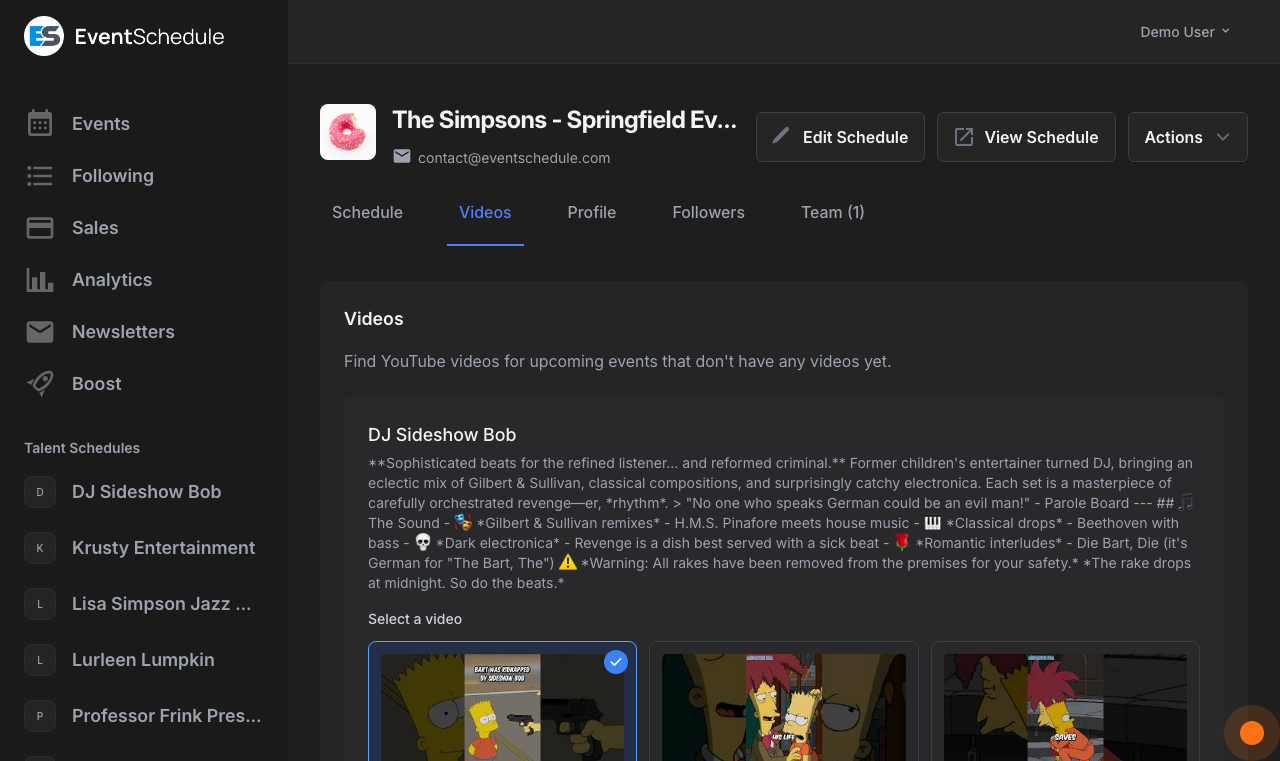
The Videos tab is on Curator schedules only. It helps you put a video on the page of every act you list. It shows the talent appearing on your upcoming accepted events who have no video yet and whose page nobody has claimed, and searches YouTube for each one by name as the page loads. An act that has claimed its page chooses its own videos, so it is not offered here.
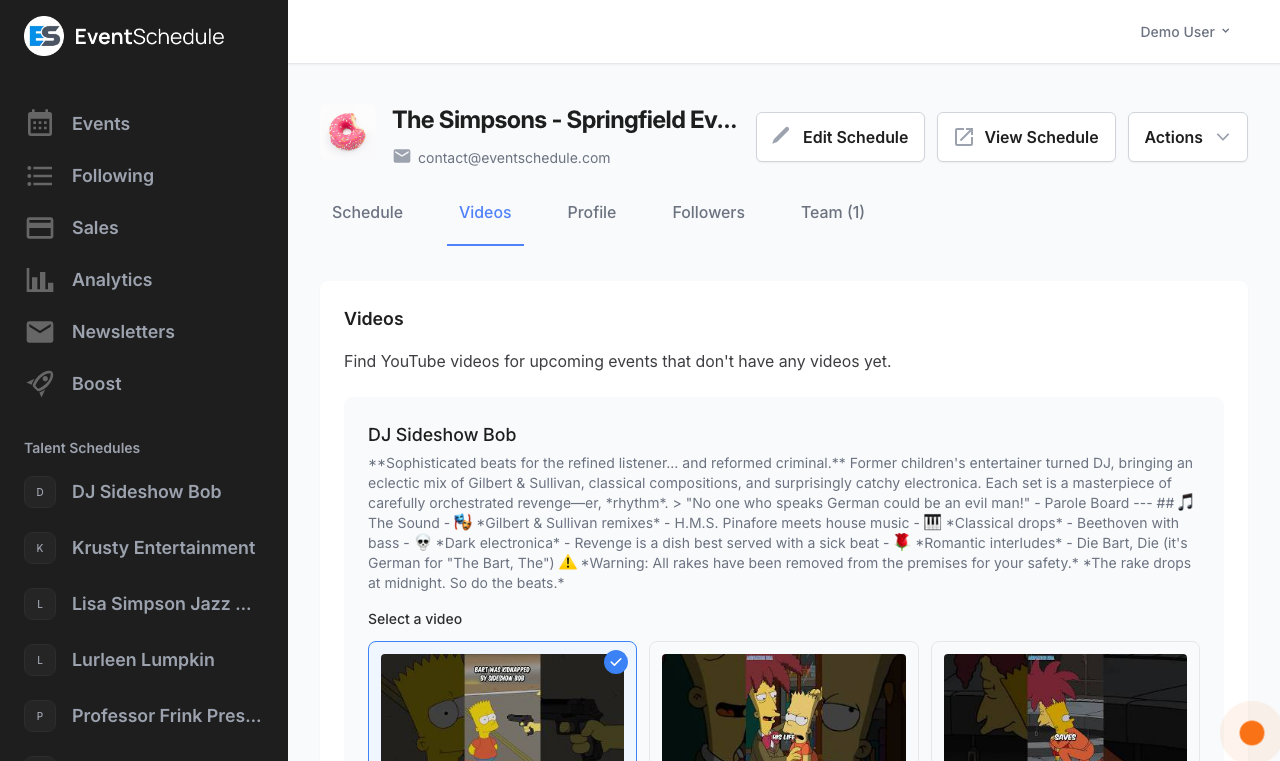
- Each act shows the event it is booked on and its date, and the event name opens that event's page in a new tab, so you can check you have the right act before picking a video
- Each act gets up to six suggestions, showing the thumbnail, title, channel, view count and like count, with a Watch link that opens the video on YouTube
- Only videos their owner allows to be played on other websites are suggested, so a saved video will not turn into YouTube's "Video unavailable" panel on your public pages
- Click the play button on a suggestion to watch it right there, in the same player your visitors get
- The closest match is preselected. Click another card to choose it instead, or click the selected card again to clear it
- Save Videos attaches your choice to that act's schedule, where it appears on their public page
- Skip takes the act off the list without attaching anything, so it stops coming back
- Either way the act disappears from the list, and once the list is empty the tab says so
If a video does stop working later, because its owner turned off embedding or deleted it, you do not have to come back here. Remove video appears under the video on your schedule page and on the event page for anyone who can edit the schedule, and takes just that one video away. A nightly check also removes saved videos that YouTube can no longer play.
Viewers can browse the suggestions and watch them, but cannot select, save or skip. The search needs the site to have a Google API key with the YouTube Data API enabled; without one the tab reports that no videos were found.
Availability Enterprise - Requires the Enterprise plan
The Availability tab is on Talent schedules only. Each owner and admin marks the days they are not free, which answers "can we book them that night" for the people who run the schedule with you. It is a note to your team: it is never shown publicly, and marking a day does not stop anything from being booked on it.
Setting Availability
- Click a date in the month grid to mark it, or move to it with the keyboard (the arrow keys go from day to day) and press Enter or Space. The day is tinted red and, on a wide screen, labelled Unavailable.
- Click the same date again to clear the mark.
- Click Save. The button stays disabled until you change something, so nothing is saved by accident.
- Save before you move to another month with the arrows. Moving loads a new page, and marks you have not saved are lost.
How Team Members See It
You edit only your own availability, but everyone's shows up together on the Schedule tab:
- Days on which someone is unavailable are tinted on the Schedule tab's month grid
- The info icon on such a day lists which team members are unavailable
- Viewers see the tab and everyone's marks on the Schedule tab, but cannot mark days of their own
On eventschedule.com a schedule below Enterprise still has the tab. A notice at the top says what the plan adds before you mark anything, and Save opens the upgrade prompt instead of saving. Selfhosted installs have no such gate.
Appointments Free - Available on the Free plan
The Appointments tab is where you offer bookable time slots, Calendly-style. Create appointment types with their own duration, weekly hours and optional price, and guests book a time on your public booking page.
- The tab has two views: Appointment types, where you set up what can be booked, and Bookings, filtered by Upcoming, Pending, Past and Cancelled and searchable by name or email
- A Your booking page panel gives you the link to share once a type is active, with Copy Link and Preview
- The tab's count, repeated on Bookings and on its Pending filter, is the bookings still waiting for approval, so you can see at a glance if something needs a decision. Those also appear on the Requests tab
- Bookings are private, so they never appear on your public schedule, and paid ones show up on your Sales page
Appointments are not Availability. Availability marks whole days your team is not free and is visible only to your team; Appointments publish specific time slots on a public booking page that anyone can book. For the full setup, see the Appointments guide.
Appointment booking itself is free. On eventschedule.com a free schedule can have one active appointment type; Pro removes the cap, and also adds paid bookings and the advanced scheduling rules. Selfhosted installs have no cap and no gate.
Seating plans Enterprise - Requires the Enterprise plan
The Seating plans tab is on Venue schedules only, for owners and admins. A plan is a drawing of your room that you sell specific seats from, and one plan can be reused across every date.
- New plan creates a plan and opens it in the designer, where you give it a name
- Each plan is a card with a small picture of the room, its seats and standing places, how many events use it, how many seats have sold, and when it was last changed
- Open designer edits the plan and Duplicate makes a copy of it
- Delete asks first, naming the plan and how many events use it. Those events fall back to selling by quantity, and seats already sold keep their places
On eventschedule.com a Venue schedule below Enterprise still has the tab, which shows what the feature does instead of your plans. To draw a plan, attach it to an event and run the box office, see Allocated Seating.
Requests
The Requests tab holds everything waiting for your decision, and it only appears while something is actually pending. Once you have cleared the list the tab disappears again. The tab label carries the count, so you can see how many are waiting without opening it.
What lands here
Each request is a card, newest first. A card says what is being asked for and who is asking, so most can be answered without opening them. Three kinds of thing arrive:
| Kind | Where it comes from | What the card shows |
|---|---|---|
| A request from your form | Anyone with your public request link, unless you have turned Accept requests off | The event's name under Booking Request (on a Talent schedule) or Submit Event, the person's name after From, the date and time, the sub-schedule it was filed under, the venue they named or Online, their email address and phone number, the answers to any questions you added to your request form, and their message |
| A date from another schedule | A schedule that adds you to one of its events, when your schedule reviews it first. A Talent schedule always does, unless that schedule is already on its approved list | The event's name, that schedule's picture and its name after From as a link to its page, the date and time, the sub-schedule, the venue when it is neither of you, and the opening of that schedule's description |
| An appointment booking | A guest booking an appointment type that has Require approval before confirming turned on | The appointment type, the guest's name, the chosen time, their email address and phone number, the price with Paid or Unpaid, and any note they left. A booking the guest has moved to a new time is marked Moved, so you can spot it in a long list |
While the schedule's email address is still unverified the tab lists nothing, even with requests waiting: verify the address first, from the notice above the tabs.
Working through the list
- View opens the public page for an event request so you can see the whole thing, and Edit opens it in the event form if you want to tidy it up before publishing. An appointment booking has neither: everything about it is on the card.
- Accept publishes the event on your schedule, or confirms the booking. The person who submitted it is emailed if they sent it from an account; a Booking Form guest with no account is not, so reply to them at the address on their card. A guest who booked an appointment gets their confirmation and calendar invite. On eventschedule.com every email about a booking, to the guest or to you, needs the schedule's own email settings.
- Decline asks you to confirm, then removes it from your schedule and emails the submitter, if they sent it from an account. Declining a booking also cancels it and frees the slot, but it does not return a payment. If the booking was paid, the email telling you it was cancelled gives the amount and payment reference, so you can return the money in Stripe or your payment provider. To refund from Event Schedule instead, use Refund Ticket on the Sales page before you decline: it is only offered while the sale is still paid.
- Accept All, shown at the top once more than one request is waiting, takes everything in one go, after a confirmation that names the count. There is no bulk decline: declining is one at a time, on purpose.
Only owners and admins get the Accept, Decline and Accept All buttons. Viewers see the same cards, and can open a request, but cannot decide it. An appointment whose start time has already passed is refused rather than confirmed, and Accept All steps over it instead of failing.
Being told about them
- From your request form. Event Schedule emails owners and admins as the request arrives. A busy day does not fill your inbox: that is at most one email every 15 minutes, and anything that arrives in between is in the daily summary. The email spells out each new request (the event, who asked, when, their contact details, their answers to your questions and their message), and a request is named in one email only, so searching your mailbox for an event's name finds it. One email spells out up to five requests, fewer when they are long, and names any others that arrived with them in a line each (the event, who asked and the day), which is what a programme sent through your import page looks like; their answers are on the Requests page. Past 35 at once, it says how many follow in the next email
- From another schedule. An event another schedule adds you to is announced once a day
- The setting is New event requests under Settings → Notifications. It is on unless you turn it off, and it is per person rather than per schedule. Viewers are never notified
- A shared mailbox can be added as the schedule's shared notification address, which gets a copy of each request email
- If the schedule does not require approval there is nothing to notify about, and no email is sent
To turn requests on, choose your request form, name schedules whose submissions skip approval, and set your request terms, see Creating Schedules: Requests. Talent schedules get a shorter version of those settings, because a request to book a performer is always reviewed by hand.
Feeds Enterprise - Requires the Enterprise plan
A feed is an address your schedule goes on reading, about once an hour: somebody else's calendar, an RSS feed, or a page that lists events. New events arrive on their own, a change at the source is copied to the event here, and anything you edited yourself is kept as you left it. It is the standing version of importing a link, which copies once and stops.
The Feeds tab appears once the schedule has a feed, for owners and admins. The number on it is how many things wait for somebody: drafts to look over, and decisions. On eventschedule.com feeds are part of the Enterprise plan. A selfhosted install has them.
Adding a feed
- Open Edit Schedule, choose Integrations, open the Feeds from other sites row and press Add a feed. Once the schedule has a feed, the same button is on the Feeds tab. On the import page, a link that was read as a calendar or as a page's own event data offers Keep this link in sync, which starts from the same place.
- Paste the address and press Check feed. The address is read once and nothing is added. You are shown how many upcoming events it holds, how many are already on your schedule, what was left out and why, and the first few with their times.
- Choose what happens to new events: Publish them, or Hold them as drafts for you to look over.
- Choose what happens when an event is no longer in the feed: Leave it, Mark it cancelled, or Remove it.
- Under More options you can name the feed, file its events under a sub-schedule, give them a category, and say which clock its times are on.
- Press Add feed. The first read starts within a minute. A feed with many events is taken in over several minutes.
A schedule can read up to ten feeds. An address is stored encrypted and is not shown again: every page names the site a feed reads, never the address, because for a private calendar the address is the key to it.
What can be a feed
| Kind | What is read | Knows when an event is gone |
|---|---|---|
| Calendar | An .ics or webcal address, including a Google or Outlook calendar's public link. Events up to a year ahead are taken. A repeating entry arrives as its next twelve dates, each an event of its own, and later dates arrive as earlier ones pass | Yes |
| Page | A page that lists its events with event data in its markup, as most venue and ticketing sites do | Yes, up to the last event the page shows. A page that lists only its next ten cannot say what became of the eleventh |
| RSS, Atom or JSON feed | Each post's own page is opened for the event's date and place. A post with no event date is left out and counted | No. It lists only its newest posts |
No AI is used to read a feed, so it costs nothing per read and reads the same way every time. A page that needs a sign-in, or one whose events are only in its pictures, cannot be a feed: import it instead.
New events
- An event that is already on your schedule, with the same name at the same time, is linked to the feed and not added again. The feed never changes or removes an event it only matched
- Followers are not emailed about the first read. Events that arrive later are announced like any new event
- A venue named in the feed is matched to a venue your team already has. Otherwise a new one is made for it, a few at a time
- A schedule's feeds add at most 500 new events a day between them, and leave room in the schedule's own daily allowance. What is left arrives the next day, and the feed's page says so
Reviewing drafts
With Hold them as drafts, new events wait on the feed's own page under Waiting for review, soonest first. Nobody sees a draft until you publish it. Each row has its date, when and where, and a line for what is missing, such as a picture or a place.
- View opens the event as visitors would see it and Edit opens its form
- Publish makes it public. Skip deletes the draft, and the feed does not add it again however long the source goes on listing it. It asks first. A draft you have already changed is not skipped: open it and delete it there if you do not want it
- Tick several rows for Publish selected or Skip selected
- Publish all publishes everything waiting, over the next few minutes. On a feed that is paused it publishes the next 25 at once, and you press it again for the rest
Changes at the source, and your own
A feed follows eight things about an event: its name, description, start, length, link, category, venue and picture. Each one follows the source until you change it yourself. From then on that one is yours, and the rest go on following. So you can rewrite a description and still have a new start time arrive on its own.
Whether an event is public is set once, when it is added, and never changed by the feed. On the event's own form, a line under its name says which feed it comes from. Tickets, promo codes, the agenda, photos and everything else you add to an event are never touched.
When an event leaves the feed
An event counts as gone when it has not started, was missing from two reads in a row with at least an hour and a half between its last sighting and the second, and is not listed again by this feed or by another of the schedule's feeds. Then your choice applies: it is left as it is, marked cancelled, or removed. An event the source marks as cancelled is cancelled here, and restored if the source puts it back on.
What you do by hand stands. An event you restore is not cancelled again for the same absence, and one you cancelled yourself is not restored by the feed. If you change this choice later, it also applies to events that have already left the feed and are still on your schedule, at the next read: the Edit feed page says how many before you save.
- Only what is the feed's alone is cancelled or removed. An event with sales, RSVPs or people who asked to be told about it is never changed without you. Nor is one removed that carries your own work: photos, videos, a poll, promo codes, an agenda, a seating plan, or a field you edited
- A large number missing at once is held. When more than three in ten of a feed's coming events, and at least five, are missing from one read, nothing is changed. It lets go by itself if they return
- A feed of posts lists only its newest, so it cannot tell that an event is gone. Its events stay
- A calendar that comes back empty while events are still to come is not taken as "everything is gone". Nothing changes until it lists something again
Needs your decision
When people have signed up for an event and the source moves it, calls it off or no longer lists it, the event is left alone and appears under Needs your decision with what the feed says and how many signed up. So does an event that carries your own work, where the feed would otherwise remove it. Keep the event leaves it, and the same difference is not raised again. Cancel the event or Move the event shows what will happen first, and where there is somebody the email would reach, lets you email the people who signed up with a note of your own.
Undoing the first read
For a day after a feed's first read, Undo first read removes the events that read added and pauses the feed. An event somebody signed up for, or one you already changed, stays. Use it when the times came out an hour off or the feed was not the one you meant, then fix the setting and resume. A resumed feed starts over as a first read: its events are published or held as its setting says, followers are not emailed about them, and it can be undone again.
Changing or removing a feed
Edit feed changes its name, the two choices, the sub-schedule, the category and the clock. Changes hold from the next read, and events already on the schedule keep how they are published. A new clock is the exception: the feed is read again at once and every start you have not changed moves with it. Pause stops a feed being read until you resume it.
Remove feed asks what becomes of its events. Keep them, and they are ordinary events from then on. Or delete the coming ones, which takes only events that have not started, that nobody signed up for and that you have not changed.
When a feed cannot be read
- A read that fails is tried again after an hour, then two, then six, then once a day. Nothing on your schedule changes while a feed cannot be read
- After a day the feed is marked in red. After three days the team is emailed. After two weeks the feed is paused, with one more email
- Read now tries at once. Resume starts a paused feed again with a clean slate
- A feed is also paused when the schedule changes hands and when the member who added it leaves the team, so that nobody inherits a feed they have not seen
- If the plan no longer includes feeds, they are not read. What they already made is still yours to publish, skip or remove
Three emails keep a feed from needing to be watched: drafts waiting for review, an event that needs your decision, and a feed that has stopped being read. Each is sent at most once a day per schedule, to every owner and admin who has Feeds switched on under Notifications, and to the shared notification address. A decision about an event within three days is sent at once, and a second decision on the same day is in the next day's email.
Followers
The Followers tab lists your audience: three figures that count it, then two lists, email subscribers and account followers. Both lists are default recipients when you send a newsletter.
People join in two ways. Somebody signed in who presses Follow becomes an account follower. Somebody signed out gives their email and name, in the Stay up to date panel on your schedule and event pages or in the dialog the Follow button opens for them, and becomes an email subscriber once they open the confirmation link. Nobody appears twice, because confirming a sign-up also sets up an account that follows your schedule, and those people are listed under Email subscribers with an Account badge.
Pressing Follow on its own does not sign anybody up for automatic email. Confirmed email subscribers are different: they asked to hear from you, so publishing sends them an automatic digest of the new public events your schedule creates, at most one every few days. You can turn that off under Settings → Notifications.
The three figures
| Figure | Who it counts |
|---|---|
| Can be emailed | The two figures beside it, added together |
| Get new-event emails | Email subscribers who confirmed and have not unsubscribed |
| Newsletter only | People who pressed Follow while signed in. They hear from you only when you send a newsletter |
Email subscribers
- The heading gives the total, and the line under it splits it into confirmed, awaiting confirmation and unsubscribed
- Each row has the person's name with their email address under it, a status and the date they signed up, ten rows to a page
- The status is Confirmed, Awaiting confirmation or Unsubscribed. Only confirmed addresses are ever emailed, and the tab says so while any are still waiting: they do not count as newsletter recipients until they click the link in the email sent to them
- An Account badge beside a name means that person also has an account here, so the schedule is on their Following page and they can manage it themselves
- A Website badge means the person signed up through the form embedded on your website
- Delete, for owners and admins, removes a subscriber after a confirmation. It removes them from both lists at once, so they stop receiving newsletters as well as the digest
Followers
- Each row has the follower's name with their email address under it, their own schedule if they run one, and the date they followed you
- Sort by name or date by clicking the column heading, and page through longer lists at the bottom, ten rows to a page
- There is nothing to press on a follower's row: unfollowing is theirs to do
Growing the list
- QR Code at the top right downloads a PNG ready to print on a poster or a flyer. Scanning it opens your public schedule page, or your custom domain if you have one, scrolled to the sign-up form
- Embed Signup Form, beside the QR code, gives you the code to put the sign-up form on your own website. See Embedding a Signup Form
- Before anyone has joined, the tab shows Your follow link with a Copy Link button. It opens the same place as the QR code
Names and email addresses are visible only to the schedule's own members, here and on the newsletter pages. They never appear on your public schedule, your embedded calendar, or your public stats. Somebody pressing Follow is told first that the schedule will see their name and email. The notice has a Don't ask me again box, so a person who ticked it on an earlier follow is not shown it again.
The QR code and the follow link are free on every plan. For more on growing your audience, see Sharing: Followers.
Team
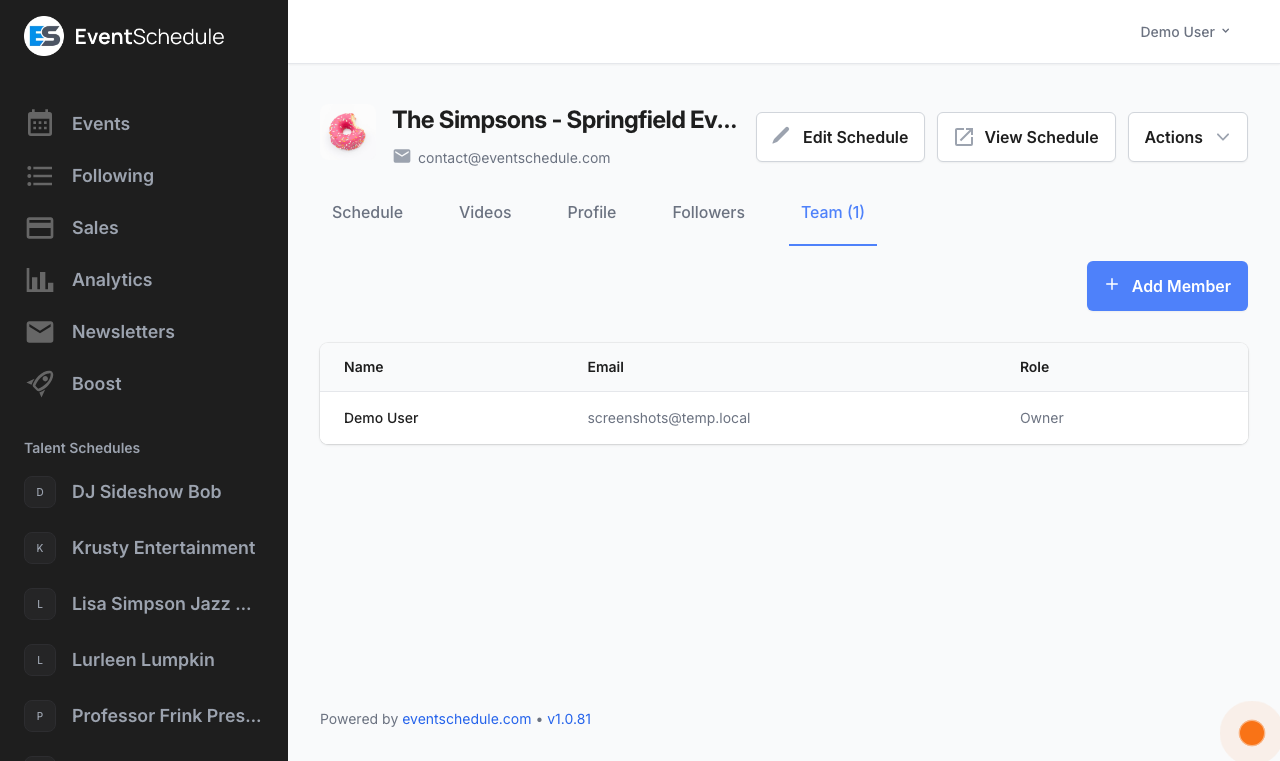
The Team tab lists everyone who can get into this schedule's admin panel, one row a member, with their access level in the Role column. Every schedule has exactly one owner: at first the person who created it, until ownership is transferred.
Access Levels
| Level | Can | Cannot |
|---|---|---|
| Owner | Everything an admin can, plus change a member's level, remove members, manage the plan and billing, transfer ownership, and delete the schedule | Be removed or demoted |
| Admin | Run the schedule day to day: add and edit events, accept and decline requests, edit the schedule settings, sell tickets, see the schedule's sales, waitlist and check-in dashboard, refund a sale, scan tickets at the door, invite new members | Change anyone's level, remove another member, manage the plan, transfer ownership, or delete the schedule; and while the owner has the team pick from ticket presets, type an event's ticket prices or change the presets |
| Viewer | Read the admin panel: browse the calendar, requests, followers, team and bookings, generate a graphic, grab the embed code, and scan tickets at the door | Add or change anything, act on requests, see ticket sales, the waitlist or the check-in dashboard, or open the schedule settings page at all |
Sales, refunds, the waitlist and the check-in dashboard cover the events on your schedule, with one exception: the team of a Curator schedule does not see the sales of an event it only lists, because that money belongs to the schedule that created the event.
Following is not an access level. Someone who follows your schedule from its public page is a member of your audience, not of your team, and gets no admin panel access at all.
Managing Members
- Click Add Member, which owners and admins both have, and give the person's name and email address. A phone number is optional, and Role starts on Admin. Click Save.
- They are emailed an invitation. On eventschedule.com, a new person you gave a phone number for is invited by text message instead, when text messaging is configured.
- Until they have signed up, their row is marked Pending and has a Resend Invite link, and, on eventschedule.com, a second Resend by text message link when you gave a phone number and text messaging is configured.
- Once they have signed up, the owner can change their level between Admin and Viewer from the dropdown in that row. It saves as soon as you pick.
- Remove revokes access, after a confirmation. Only the owner can remove someone else; anyone else can take themselves off with Leave on their own row, which is the one marked You. The owner's own row has neither.
- Sort the list by name by clicking the column heading.
On the Free and Pro plans a schedule has a single member: you. Adding anyone else needs the Enterprise plan. Below it, on eventschedule.com, the Add Member button carries a lock and opens the upgrade prompt. On eventschedule.com a team is capped at 5 members in total. Selfhosted installs count as Enterprise, so the button is available there without a subscription, and with no cap.
If the plan lapses
On eventschedule.com, invited members can only open the admin panel while the schedule is on Enterprise. If it drops to a lower plan they are turned away with a message asking the owner to upgrade, and the owner keeps full access on their own. The Team tab tells the owner so, with a notice above the list that team members cannot see the schedule's ticket sales or check-ins. Nobody is removed, so restoring Enterprise restores their access.
Transferring Ownership
Ownership can be handed to another account: a venue changes hands, an organizer leaves, or you set a schedule up for someone and want it to be theirs. It is available on every plan, and only the owner can start it. A schedule that nobody owns yet changes hands a different way, by being claimed - see Pages Created for Others.
- On the Team tab click Transfer ownership on your own row. The page says what happens when they accept; enter the new owner's email address.
- On Enterprise and selfhosted installs you can turn off Remove me from this schedule to stay on as an admin afterwards. Free and Pro schedules hold a single member, so there you are always removed.
- Click Send transfer request and confirm. They are emailed a link. Nothing moves yet: a notice on the Team tab names who you are waiting for and the day the request expires, seven days on, with Resend Invite and Cancel.
- To accept, they sign in with the address you sent it to. The link on its own is not enough, and if they do not have an account yet they can create one with that address. They can also decline: you are emailed, and nothing changes.
- As soon as they accept, the schedule is theirs: every event, follower, image and setting comes with it.
Ticket payments for this schedule's events start settling into the new owner's payment account, so the new owner should check their payment settings before the next sale. The previous owner's calendar sync for the schedule is disconnected, and their events, followers and settings all move across. Events curated in from other schedules are untouched: those still belong to whoever created them.
Billing on eventschedule.com. The previous owner is never charged for the schedule again: their subscription is cancelled at the end of the billing period already paid for and their saved card is removed. The schedule keeps its plan until that period ends. Before then the new owner adds their own billing details to keep it, otherwise the schedule moves to the free plan. Selfhosted installs have no billing step at all.
Plan
The Plan tab shows this schedule's subscription and what you have used of it. Plans are per schedule, so each schedule you run has its own.
What it shows
| Line | What it says |
|---|---|
| Current Plan | Free Plan, Pro Plan or Enterprise and, for a paid plan, the billing term: monthly or yearly |
| Status | Trial, Active, Cancelled, Past Due or Inactive. Shown once the schedule has a subscription or a trial |
| Trial Ends, Access Until or Expires On | The day a trial ends, with the days remaining; the day a cancelled subscription stops; or the day a plan held without a subscription runs out |
| Payment Method | The card on file, by type and last four digits. The line is left out when there is none |
| Newsletter Email Usage | Newsletter emails sent this month against the plan's allowance, and how many remain |
| Photo Usage | Fan photos on your events against the 25 a free schedule can hold. Pro and Enterprise read as unlimited |
Three more things appear when they apply. While a trial has 30 days or fewer to run, the owner sees a notice at the top with the days left and a prompt to add a payment method. While a plan's free trial runs, a line under its end date says that nothing has been charged yet, and which card is charged how much on which day. And a free schedule gets a Your plan panel that lists what Free includes and what Pro adds, with the price.
Each recipient counts as one email, so sending a single newsletter to 100 followers uses 100 of the allowance. Free schedules get 10 a month, Pro 100, Enterprise 1,000. A schedule that sends through its own email settings is unlimited, and so are selfhosted installs.
What you can do
These buttons are the schedule owner's; other team members see the plan but not the buttons. Each one is offered only when it applies, so an owner sees a few of them at a time.
| Button | What it does |
|---|---|
| Upgrade to Pro | Opens the page where you choose a paid plan. A free trial is offered beside the button if your account has not had one, on this schedule or any other. Each schedule has its own plan, so a second schedule is charged from the day it subscribes |
| Upgrade to Enterprise | Moves an active Pro subscription to Enterprise on the same billing term, after a confirmation. The price is beside the button |
| Manage Subscription | Opens the Stripe billing portal for invoices and card details |
| Switch to Yearly or Switch to Monthly | Changes the billing term. The price is on the button |
| Cancel Subscription | Opens a short form in place that asks why you are cancelling. Answering is optional. Keep my subscription backs out; cancelling leaves your paid features running until the end of the period you have paid for |
| Resume Subscription | Offered during that period. It undoes the cancellation |
| Change to Free Plan | For a Pro plan held without a subscription: moves the schedule to Free at once, after a confirmation |
Below the plan, a Referral Program card links to your referral dashboard, where referring other organizers earns free months. See Referral Program.
Ads on free schedules
Some Event Schedule sites cover their costs by showing ads at the bottom of free schedules' public pages. Where that is switched on, upgrading to Pro removes them, in the same way it removes the "Powered by Event Schedule" credit, and a notice at the top of the Plan tab says so while your pages are showing them. Paid schedules never carry ads.
Even on a site that does show them, ads stay off your embedded calendars, your shareable event graphics, password-protected pages, custom domains, any event page that is actively selling tickets, and any page you or your team members are viewing while signed in.
You do not have to upgrade to be rid of them. Do not show other schedules' promotions under Settings → Advanced turns off ads as well as promotions, and it is free on every plan.
This is a per-site choice made by whoever runs the Event Schedule installation you are on, and it is off unless they turn it on. eventschedule.com does not show ads on free schedules, so if that is where your schedule lives, none of this applies to you.
Audit Log
The Audit Log records the significant actions taken on your schedule so you can trace who did what and when. It is most useful on a shared schedule, and after the fact when something has changed and nobody remembers changing it.
Open it from Actions → Audit Log at the top right of the admin panel. It is a page of its own, newest entry first, with a link above its title that leads back to the schedule. It is available to owners and admins; viewers do not see the menu entry.
What is recorded
Entries fall into five categories, in the order the Category filter lists them:
| Category | Entries |
|---|---|
| Boost | Campaign created, paused, resumed, cancelled |
| Event | Created, updated, deleted, published, accepted, declined |
| Sales | Checkout, paid, cancelled, refunded, checked in, expired; an installment paid or failed; and, with allocated seating, seats held back, put back on sale, released, moved, or booked at the counter |
| Schedule | Created, updated, deleted; a member added or removed; a video removed; and an ownership transfer requested, accepted, declined or cancelled |
| Subscription | Created, changed, cancelled, resumed, and a selling trial started |
Reading and filtering it
- Each row gives the Time, the User who did it (or "System" for anything automatic), the Action, and a short line of Details
- The action is a status mark coloured by what happened: green for something that went through, such as a paid sale or an accepted event; red for something called off or removed; amber for something that needs a look, such as an expired sale or a failed installment
- Sort by any of the four columns by clicking its heading
- Narrow the list by Category, by a From and To date, and by a Search across the action and its details, then click Filter
- Clear appears once a filter is set and resets them all. Longer logs are paged 50 entries at a time
The log is scoped to this schedule: its own settings and subscription changes, its events, sales on those events, and its boost campaigns. Sign-ins and account-level changes are not shown here.
See Also
- Creating Schedules - Set up and configure your schedule
- Creating Events - Add and edit events on your schedule
- Appointments - Offer bookable time slots on a public booking page
- Newsletters - Email your followers about what is coming up
- Sharing Your Schedule - Share your schedule and grow your audience