Allocated Seating
Draw your room once, attach it to an event, and sell the seats in it. Buyers pick where they sit; your box office holds seats back, books by phone and moves people around.
Feature overview: Allocated seating
What allocated seating is
Ordinary ticketing sells by the number: ten left, take three. Allocated seating sells the seats themselves. You draw your room once as a seating plan, attach it to an event, and the buyer takes row C seat 14 off a map of your actual venue. Nobody can be sold a seat twice.
It lives in three places, and this page follows them in order: you draw plans on the Seating plans tab of a venue schedule, attach one to an event on the event's Tickets tab, and run the night from the Box office console. Allocated seating needs the Enterprise plan Enterprise - Requires the Enterprise plan on eventschedule.com and is included in every selfhosted install.
The most important thing to understand is what happens to quantity. An ordinary ticket type has a number you set. An allocated one does not: its inventory is the seats in its part of the plan, so the plan decides how many exist. A band that runs out is sold out even while another band is wide open.
A plan is a drawing of a room, not of one night. Attach it to a recurring event and every performance of the run sells from the same drawing, each date keeping its own bookings. A single date can be changed on its own when the piano takes out the front row.
One plan can hold both. A seated section carries individual seats a buyer chooses. A standing section carries a capacity and sells by the number, exactly like an ordinary ticket type - it never appears in the seat map. Rows at the front and a standing floor at the back is one plan with two price bands.
Step 1 - Build the plan
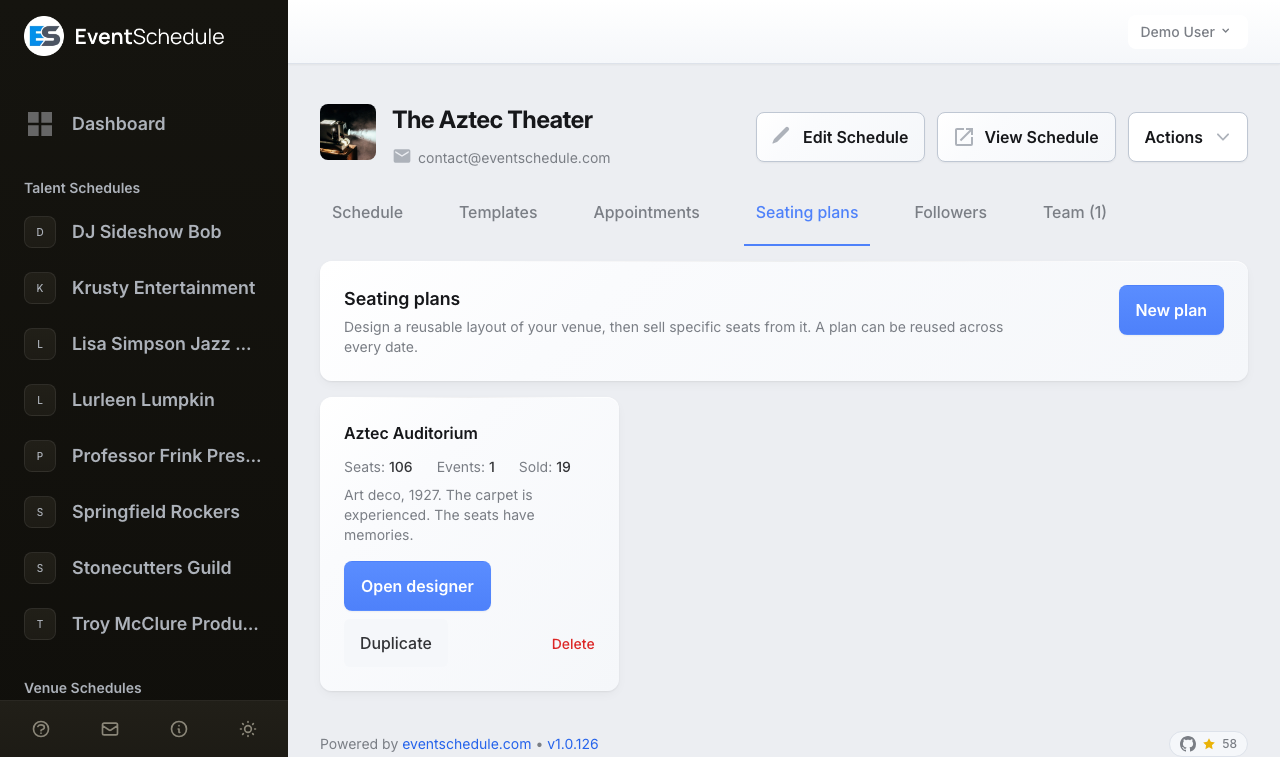
Open your venue schedule in the admin panel, go to the Seating plans tab and choose New plan, at the end of the line under the tabs. A plan is a drawing of a room, so the tab appears on venue schedules only, and only for the schedule's owner and admins, not for viewers. Plans belong to the schedule, not to an event, so one plan serves every show you put in that room.
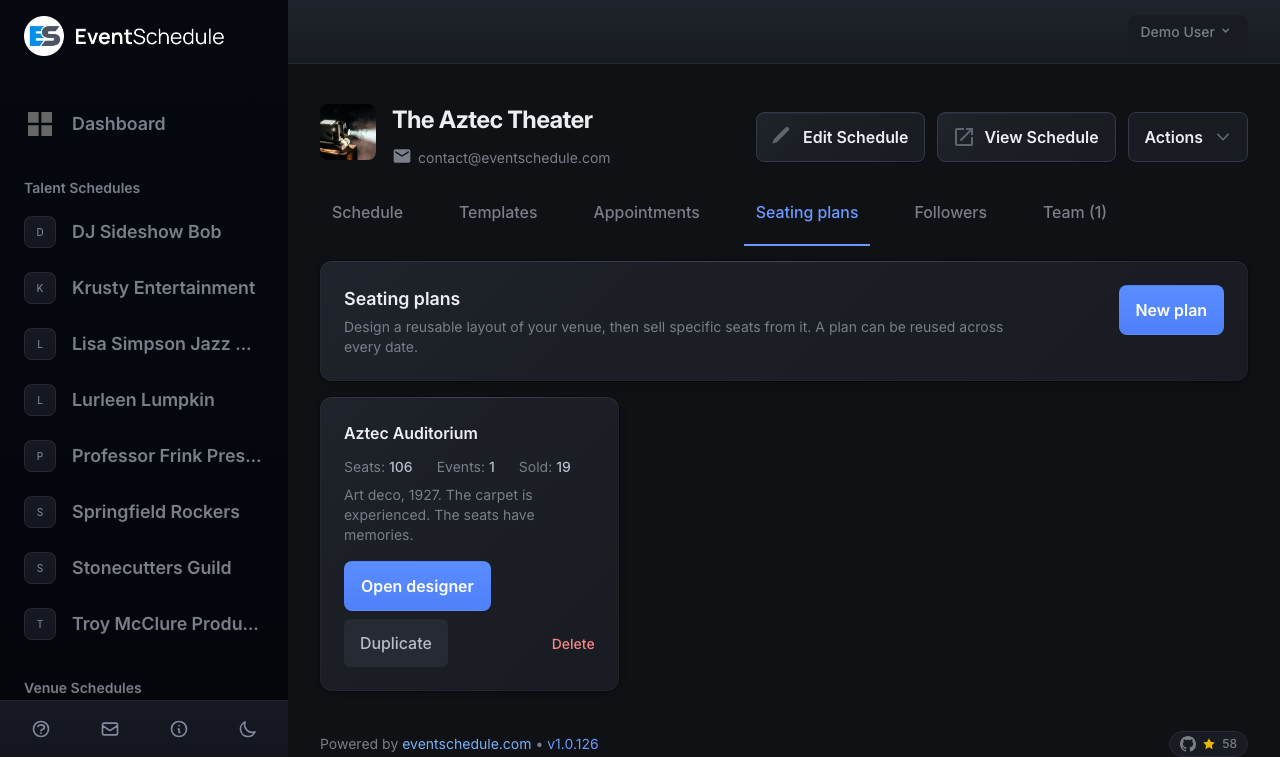
The Seating plans tab
Each plan is a card. Under its name is a small drawing of the room, one dot per seat on the plan's first level, and then the figures that tell two plans apart: Seats, Standing capacity if the plan has any, and the date it was Last updated. Once a plan is in use the card also counts the Events attached to it and the seats Sold across them. A plan that is still empty has no drawing yet.
Open designer
Opens the plan for editing. The designer warns you at the top when the plan is in use and how many seats are already sold, because a sold seat cannot be removed.
Duplicate
Makes a full copy named "Copy of" followed by the plan's name and opens it in the designer. Use it for a second layout of the same room, such as the cabaret set-up of a hall you usually seat in rows.
Delete
Asks first, naming the plan and how many events use it. Events still using a deleted plan fall back to selling by quantity. Seats already sold keep their places.
The designer
New plan takes you straight into the designer. Name the plan in the box at the top left, whenever you like - a new plan starts out called Untitled plan and the name saves along with the layout.
The room is on the left and everything that edits it is on the right. Switch levels and zoom from the strip above the map, pick a section to edit it, and click a seat to change its type - seat controls appear under the map, beside the seats themselves. Undo (Ctrl+Z, or Cmd+Z on a Mac) covers every change you make here, and Ctrl+S saves. Nothing is stored until you save: the toolbar reads Unsaved changes until you do, and Back returns to the Seating plans tab.
Start from one of four layouts and adjust it, or start from a blank canvas:
- Theatre with balcony - curved stalls plus a smaller upper level
- Cabaret tables - round tables of eight on one floor
- Straight rows - a simple grid of numbered rows
- Seated and standing - rows of seats in front of a standing area
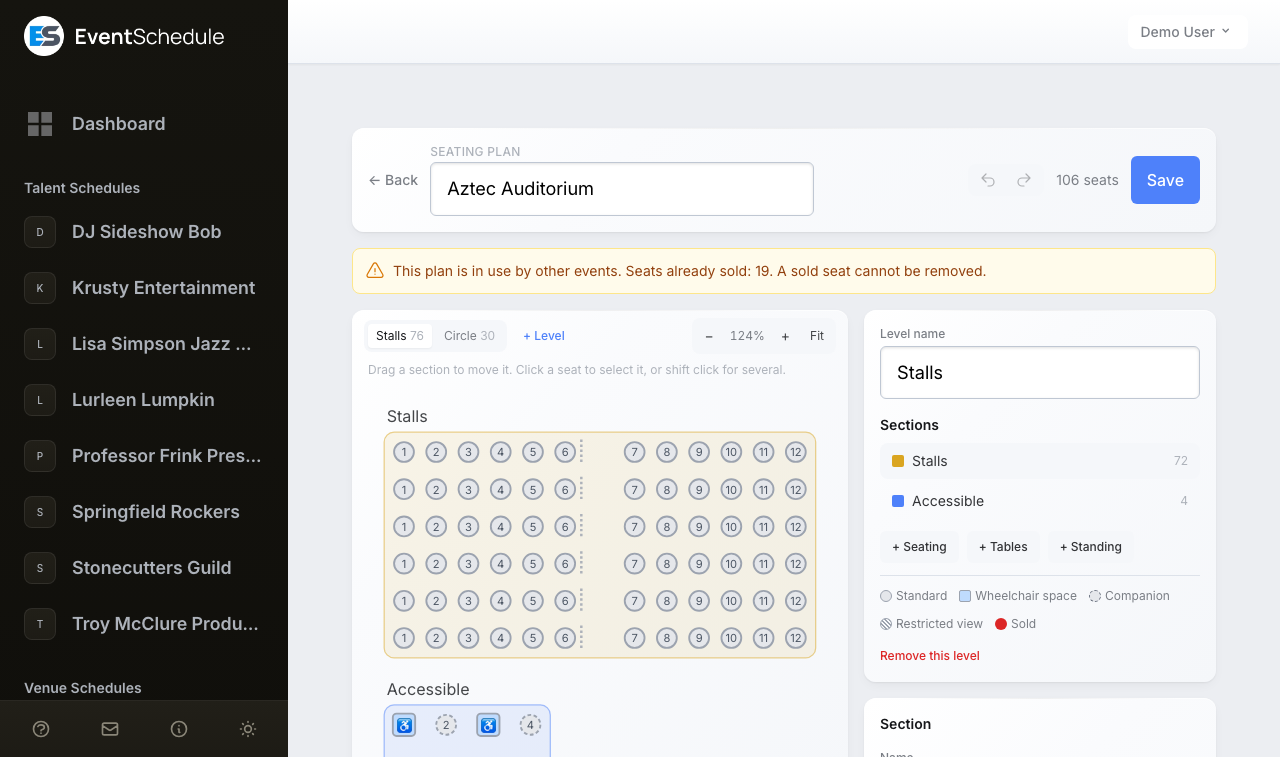
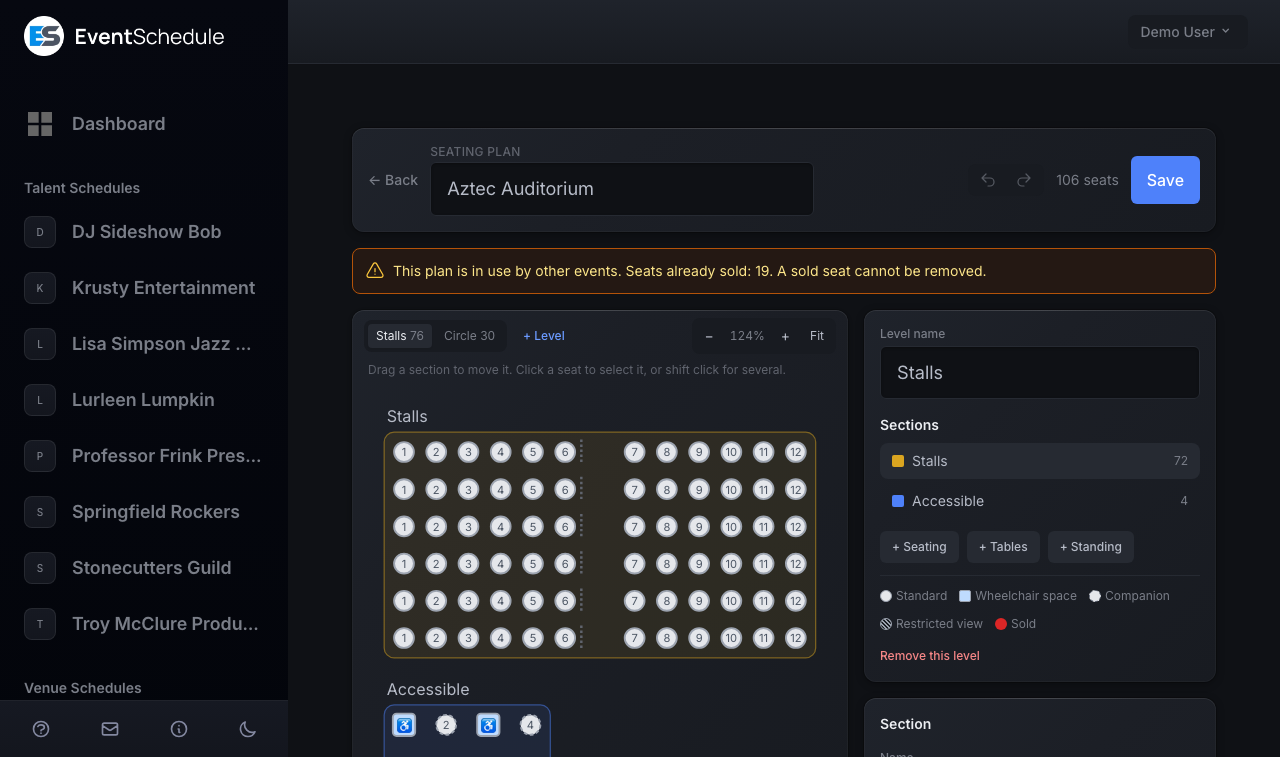
Levels, sections and rows
A plan is built from three things:
- Levels are floors - stalls, circle, balcony. A ground-floor room needs only one.
- Sections are blocks within a level, each with its own colour and price band.
- Rows and tables fill a section. For rows you give the number of rows, the seats in each, and how they are labelled.
Drag a section to move it. Click a seat to select it, or shift-click for several, then set what those seats are and whether a gangway follows them.
Both Generate rows and Generate tables append to what the section already has, so you can build a block at a time - six rows of ten at the front, then four of twelve behind. Press either button twice by accident and you have double the seats - press Undo in the toolbar, or Ctrl+Z (Cmd+Z on a Mac).
How rows and seats are numbered
Select a seated section and open Add rows in the panel on the right. Row labels can be lettered A, B, C or numbered 1, 2, 3. The rest sits under Numbering, which is closed until you open it:
- Seat numbers run left to right (1, 2, 3), right to left (3, 2, 1), or odds one side and evens the other (5, 3, 1 · 2, 4, 6), which is how most older theatres are numbered from the centre aisle out.
- Skip letters leaves letters out of the row lettering. Nothing is skipped until you fill it in; most houses enter I and O, which are misread as 1 and 0 on a printed ticket.
- First seat number, First row and Row prefix let a block continue where the last one stopped.
- Will generate previews the first seats of the first row before anything is created.
Whatever you choose, a seat's label is what the buyer sees on their ticket and what the door staff read off the sheet, so it is worth matching the numbers already painted on the seats. You can rename any row or seat afterwards by selecting it and editing the label.
The stage, and labels on the map
A room full of seats and nothing else does not tell a buyer which way they will be facing. Add a stage marker and put it where the stage actually is - buyers use it to orient the whole map, and it appears on the guest picker, the box office console and the printed sheet.
Add text labels for anything else worth naming: BAR, ENTRANCE, the door a latecomer should use. Both can be dragged, resized and rotated, so a stage along one side of the room reads the right way round. They are decoration only - nothing is sold from them and they never affect a seat.
Wheelchair spaces and companion seats
Mark a seat as a wheelchair space and the seat beside it as a companion seat. A companion seat cannot be bought on its own while the wheelchair space next to it is still free - only together with it, or once it has gone. That is what stops a wheelchair user ending up three rows from the person they came with.
Wheelchair spaces are only sellable from a section with Accessibility only switched on. That is deliberate - it keeps them from being handed out as the next available seat. But it also means a wheelchair space marked inside an ordinary section is bookable by nobody at all. If you mark wheelchair seats, put them in their own section and turn the switch on. The issues panel lists any section that has it wrong.
The issues panel
An amber panel at the foot of the right-hand column lists anything that will stop part of the plan selling: a section with no name, no seats, no price band, a standing section with no capacity, wheelchair spaces outside an Accessibility only section, or the same row and seat number used twice. Click a line and the designer takes you to that section; the count in the toolbar, such as 2 issues, jumps to the first. These are advisory - you can save with them outstanding, and nothing breaks. A section with no band never becomes sellable.
Step 2 - Put it on sale
- Open the event from the venue schedule that owns the plan and go to its Tickets tab.
- Choose Sell tickets. The Seating plan field appears above the ticket types.
- Pick the plan. A small drawing of the room and its seat count appear under the field. No seating plan (sell by quantity) is the ordinary, unseated choice.
- On each ticket type, choose the Price band it sells. Stalls at 40 and Circle at 25 are two ticket types pointing at two bands of the same plan.
- Save the event.
If the schedule has no plan yet, the Tickets tab shows a short note in place of the field, with a New plan link to the Seating plans tab.
Once a ticket names a band, its Quantity field goes read-only and reads "Set by the seating plan". The count comes from the seats in that band - or, for a standing band, from the section's capacity. A ticket type left on Not seat allocated keeps an ordinary quantity.
A ticket type remembers its band by name. Rename a section's band in the plan and the ticket no longer matches anything, so it stops selling seats - and its stored quantity is left as it was rather than dropping to zero, which makes it look like stock still exists. If you rename a band, open each event using that plan and re-pick the band on its ticket types.
A section whose band matches no ticket type is not sellable, and buyers never see those seats. That is the usual reason a freshly attached plan shows fewer seats than expected. The Tickets tab says so while you set the prices: an amber notice under the plan names the bands no ticket prices and how many seats that leaves unsold.
Once the event has been saved with a plan, two buttons appear under the Seating plan field: Box office, which opens the console, and Modify this date only, covered next.
Change a single date
Modify this date only, under the Seating plan field on a saved event's Tickets tab, opens the same designer pointed at one performance. On a recurring event it opens on today's date or the next one in the run. An amber banner names the date you are editing, and on a run its Date picker moves you straight to another night. Changes there affect that date alone; the plan and every other date are untouched. Back returns to the event.
Revert this date throws the date's own layout away and puts it back on the plan. It is refused while any seat is sold or a customer is mid-checkout.
The one-date designer and the plan designer are the same screen. When you are on one date the heading names the event and the night, and an amber banner says so as well; on the template the heading is the plan name and there is no banner. Reverting a date discards any seats your box office had held back for it, not just layout changes - the confirmation says so before you commit.
When a date stops following the plan
A date does not read the plan live. The first time anyone opens it - a buyer looking at the seat map, your box office, or the one-date designer - that date takes its own copy of the plan, and later changes to the plan no longer reach it. The banner in the one-date designer says when the copy was taken.
So editing a plan changes the dates nobody has opened yet, and the events you attach it to afterwards. To change a date that already has its copy, make the change on that date with Modify this date only, or use Revert this date to make it take a fresh copy, which is only possible before a seat is sold.
What the buyer sees
Under Choose your seats, a buyer enters How many seats? and presses Find best seats to get the best available together - the earliest section, then the earliest row, then as close to the centre of the row as it can. Most people never need the map. Those who want to choose click seats on the map instead, or use the List view.
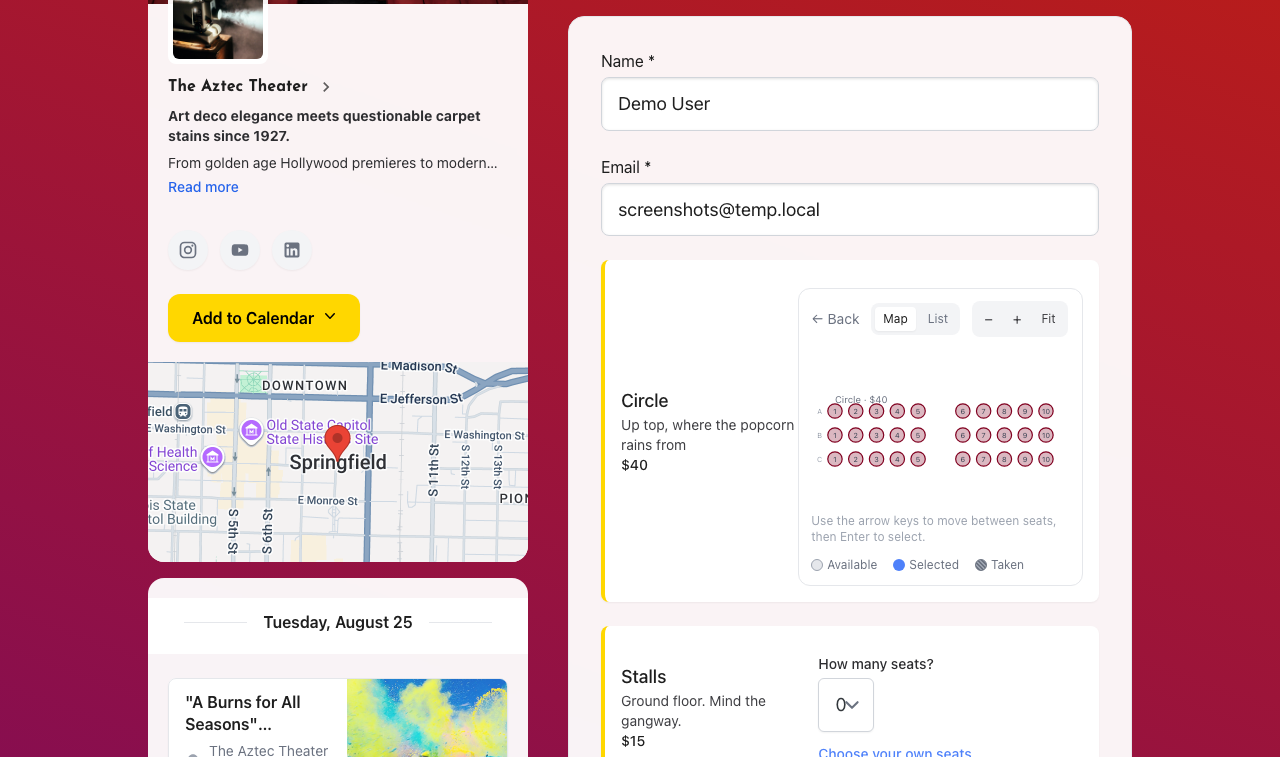
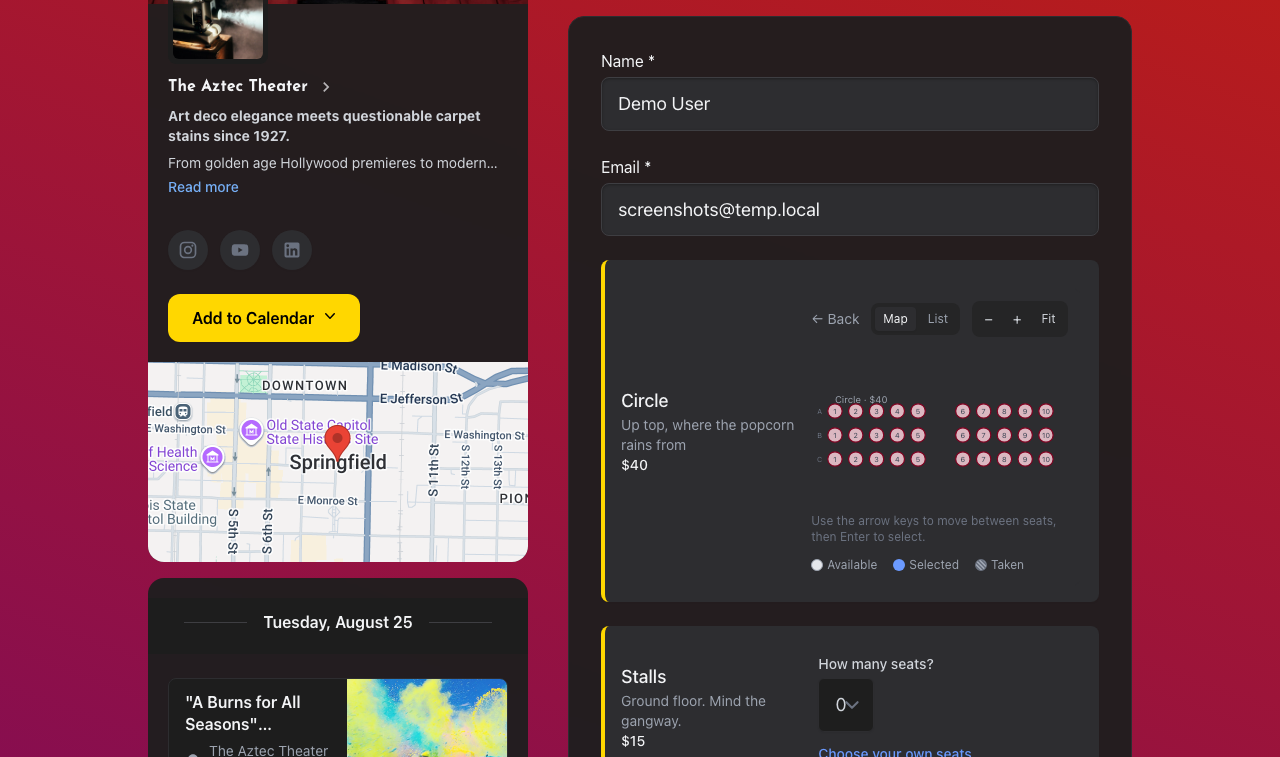
- Seats are held for 12 minutes while they check out, with the time left on screen. An I need more time link appears in the last two minutes.
- The map is live. Seats other people take grey out while a buyer is looking.
- There is a list view as well as the map, and it is a complete alternative - a purchase can be finished without the map at all.
- The map is keyboard operable. Tab into it once, then move with the arrow keys and select with Enter.
Seat numbers follow the booking everywhere afterwards: on the ticket, in the confirmation email, on a wallet pass, on the door scanner, in the check-in feed and in the sales export.
Rules that refuse a selection
Three rules can turn a buyer's selection down. All of them apply to buyers only - your box office is exempt from every one, because staff can see the whole room.
The single-seat rule
A selection is refused if it would strand one seat on its own between two bookings, because a lone seat mid-row rarely sells. A gap that already existed is not blamed on the buyer, and a gangway counts as the end of a run.
The rule lifts automatically once the house is about 90% sold, when one more seat sold matters more than a tidy row. It is on by default, and the Selling rules panel in the designer turns it off (Do not leave a single seat on its own) or tunes it: Smallest run to protect, from 1 to 4 seats, and Stop applying at, the percentage sold at which it lifts. Set it on the plan and every date inherits it when it takes its copy; change it on one date and only that night differs. A room where single seats are normal, a bar or a comedy club, should turn it off.
Accessible seating
A wheelchair space can only be bought from an Accessibility only section. A companion seat cannot be taken alone while the wheelchair space beside it is free. See Wheelchair spaces and companion seats.
Whole tables
A table set to Whole table only is sold as a unit: clicking any chair selects the table, and a partial booking is refused. If part of such a table has already gone, the rest is not offered to anyone - which is what you want for a fundraising dinner, and why Single seats or whole table is the better setting for cabaret nights.
Run the door
The box office console is the same map with the names on. Open it with the Box office button under the Seating plan field on the event's Tickets tab. On a run it opens on today's date or the next one, and the Date picker at the top right moves between nights. The bar across the top shows how much of the house is sold, with counts for Sold, Held back, In a basket and Available, and carries the link to the Seating plan report.
Click a seat to see who has it, turn on Pick several to add more by tapping (a tablet has no shift key), or take a whole section from the sidebar - and Select the whole row takes the row of the seat you have selected.
The lookup box jumps to a seat typed as C14 or row C seat 14, a range typed as C1-C12, or a customer by name or email. It selects every match, so searching a name finds the whole party rather than one seat of it, and the bulk actions then apply to all of them.
A sold seat shows who holds it, what they bought, when they bought it, and whether they have come through the door yet (Arrived) - with their email and phone as links, and a way through to the order in Sales. Releasing takes seats off a booking and can do a whole party at once. It moves no money and the order stays paid: the note below says how to give the money back. Every hold, release, exchange and counter booking is recorded in the schedule's audit log, with who did it.
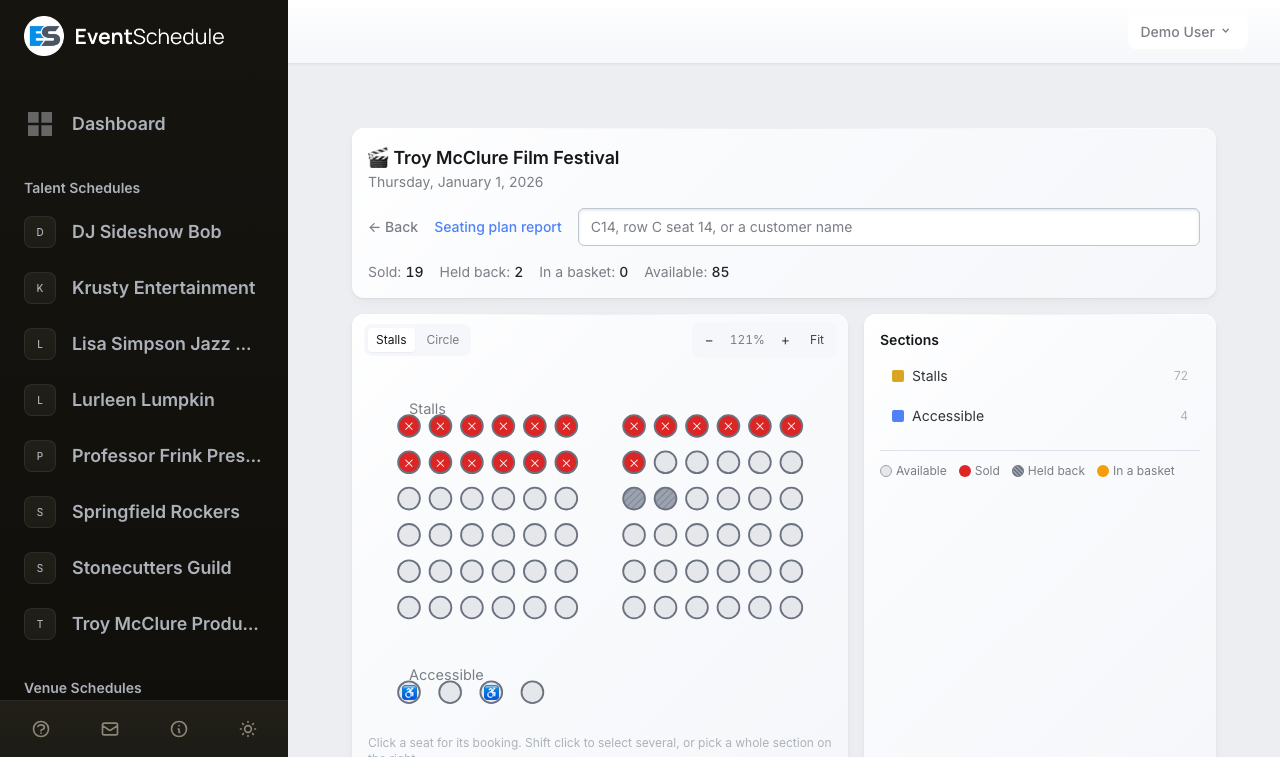
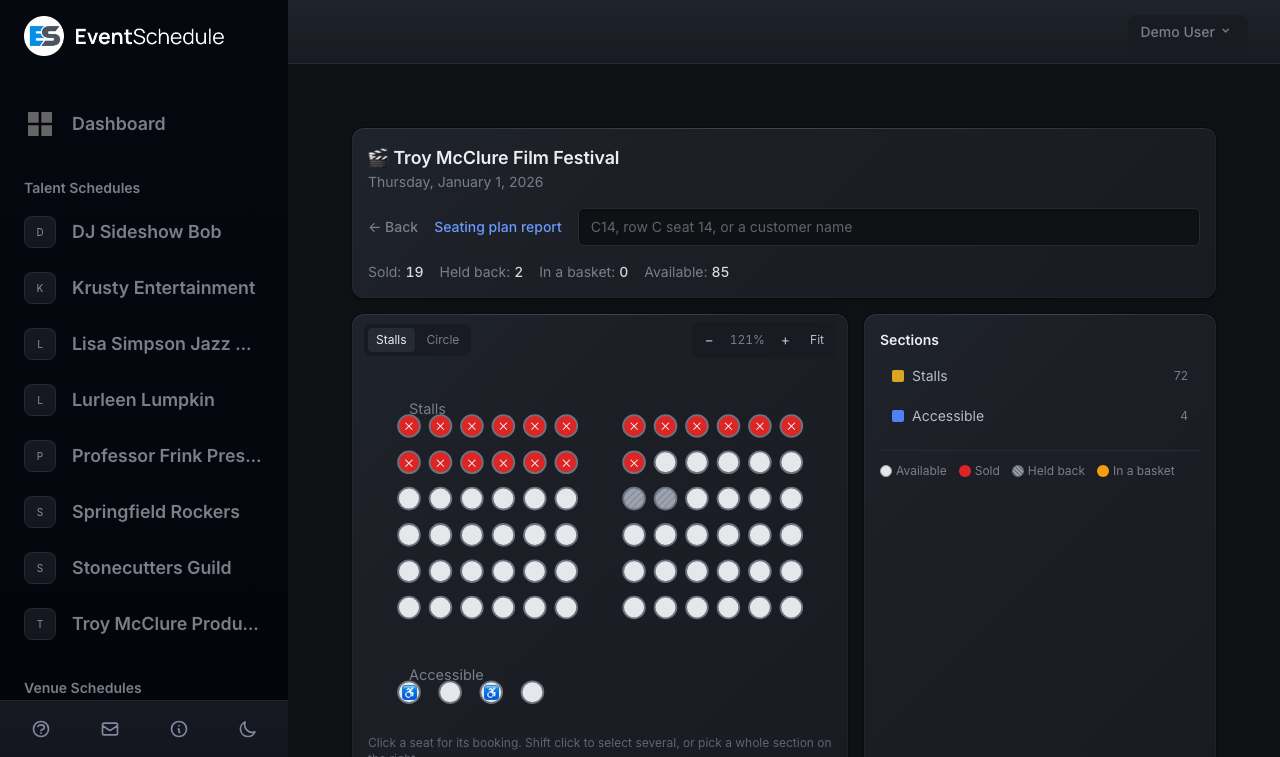
- Hold back takes the selected seats off sale with a reason - house seats, production, accessibility or box office - and an internal note only your team sees. A staff hold never expires on its own; Put back on sale lifts it.
- Book by phone sells the selected seats to a caller, marked paid or awaiting payment. Leave the amount blank for the list price, or enter zero to comp them.
- Move to another seat takes one booking to a different seat without touching the rest of the order.
- Release this seat puts one seat of a booking back on sale. With several seats selected the button reads Release 3 seats (or however many) and frees them in one go.
Release frees the seat and takes it off the booking, and anyone on the waitlist is offered it. The order itself stays paid. To give the money back on a Stripe, PayPal or Razorpay order, open it on the Sales page, choose Refund Ticket and enter the released seats' share as a partial refund. On any other payment method, return the money in your provider's own dashboard and leave the sale alone: Mark as Refunded marks the whole order refunded and puts every one of its seats back on sale.
If the whole party is leaving, you do not need to release anything first. Refunding the whole order from the Sales page puts all of its seats back on sale by itself.
Seating plan report
The report is the sheet front of house carries on the night: every seat, its status and who holds it, section by section, with a summary at the top. Open it from the Seating plan report link at the top of the box office console; Box office on the report takes you back. Status is drawn as a shape as well as a colour, so it survives the black and white printer you actually have, and Print sends the sheet to it without the page's own buttons.
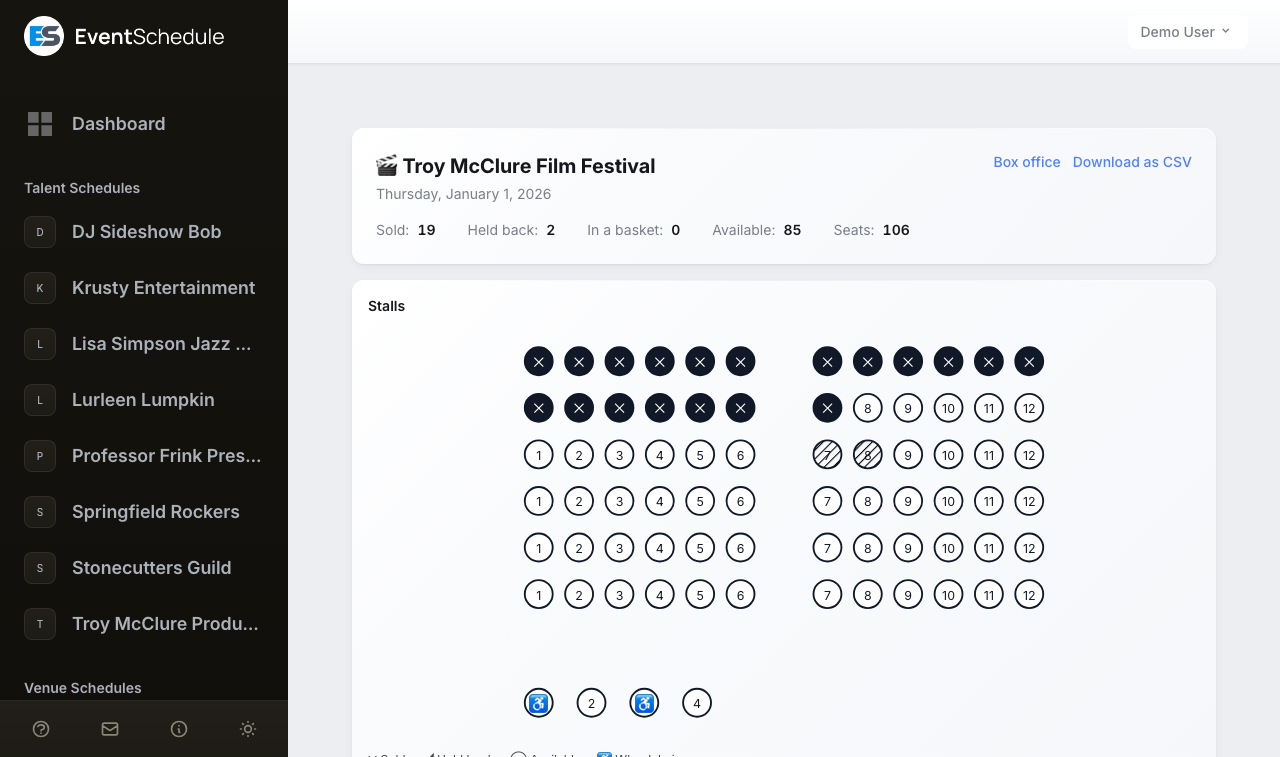
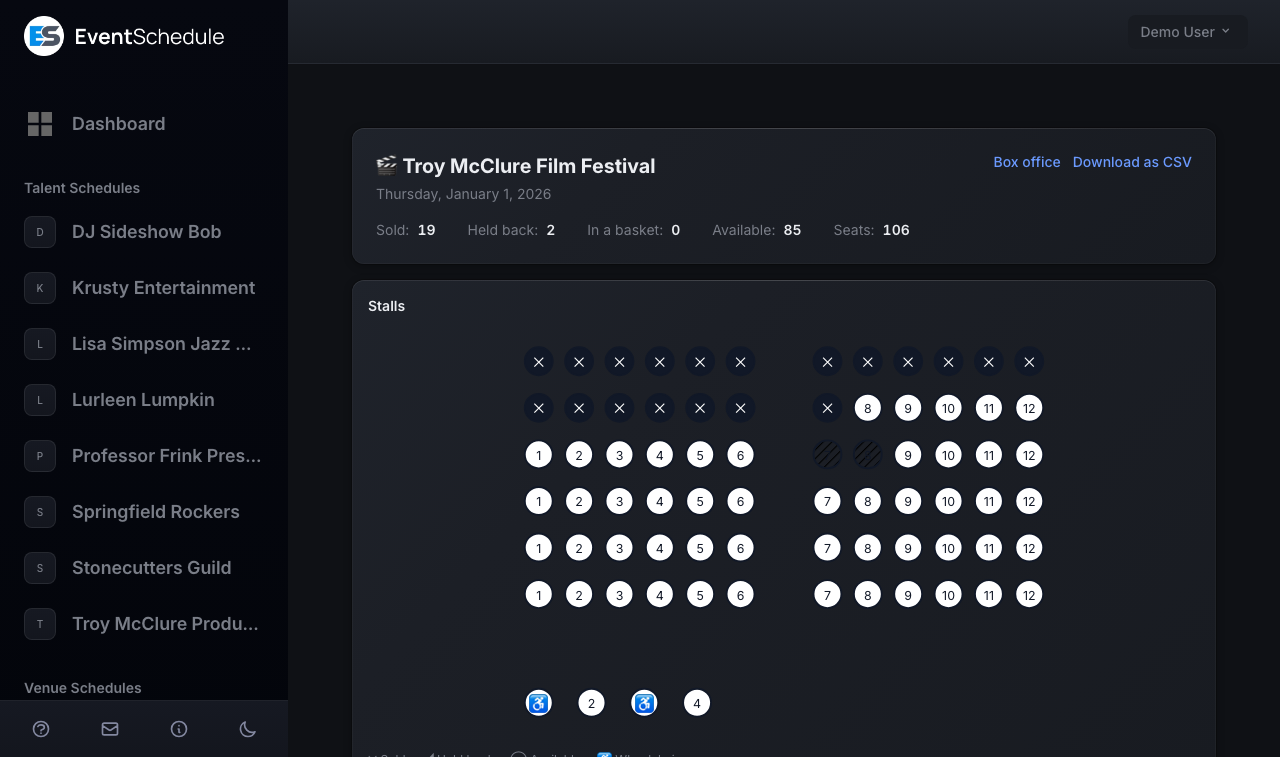
Three views, because a full house and a door list are different sheets. Taken seats lists only what is sold, held back or in a basket - on a half-sold room that is half the paper. By name orders the same rows alphabetically by the booker's name as it was entered, which is how you look up somebody standing in front of you. Every seat is the whole house. The map always draws the whole room whichever you pick.
Each sold seat carries a box you can tick, and it arrives already ticked for anybody the scanner has let in - so the sheet works whether or not you are scanning. The header shows how full the house is, section by section, and on a run a How the run is selling panel lists every night beside it, so you can see which dates are soft without opening them one at a time. Click a night there, or use the Date picker at the top, to switch the sheet to it.
The figures cover one date; the run summary is the exception. Download as CSV gives you the same rows for a spreadsheet, and the CSV additionally carries each booker's email, which the printed sheet leaves out.
Every option and limit
| Setting | Choices, and what they mean |
|---|---|
| Section kind | Seating (individual seats buyers pick), Tables, or Standing (a capacity, sold by the number, never shown on the map). |
| Price band | The name matched to a ticket type. Sections sharing a band are priced together. |
| Accessibility only | Required before a wheelchair space in that section can be sold. |
| Seat kind | Standard, Wheelchair space, Companion, Restricted view. |
| Row labels | A, B, C or 1, 2, 3. Letters continue past Z as AA, AB. Skip letters leaves out the ones you list; none are skipped by default. |
| Seat numbers | Left to right, right to left, or odds and evens from the centre out. |
| Rows and tables per block | One press of Generate rows adds up to 60 rows of up to 80 seats. One press of Generate tables adds up to 60 tables of up to 24 seats. |
| Decorations | Stage marker and free text labels. Draggable, resizable and rotatable; never sold. |
| Curve | 0-120. Lifts the outside of each row, for a room that faces a stage. |
| Aisle after seat | A comma list, e.g. 6, 14. Marks a gangway - seats either side are not neighbours, so best-available will not seat a couple across one. |
| Table shape | Round or Rectangular. |
| Table booking | Single seats only, Whole table only, or Single seats or whole table. |
| Number the seats at each table | Off means a chair at that table rather than a numbered seat. |
| Hold reason | House seats, Production, Accessibility, Box office. Shown only to your team. |
| Plan size | Up to 12 levels, 200 sections, 500 tables, 6,000 seats, and 200 stages and labels. |
| Seat hold | 12 minutes, extendable by the buyer in the last two. |
What it does not do
- Decorations are not seats. A stage marker or text label is never sold, counted or reported on - it only tells the buyer which way the room faces.
- Invoice Ninja payment links cannot be used with allocated seating, because quantities are chosen after checkout there rather than before. The refusal happens at checkout, not when you attach the plan.
- Passes are house-wide. A pass holder booking an allocated date gets a real seat assigned automatically - best available, with no picker - but a pass cannot be restricted to one band.
Allocated seating is an Enterprise feature. An event that is already selling allocated seats keeps doing so if the schedule drops off Enterprise - deliberately, so nobody's sold seats vanish - but the designer and the box office console stop being reachable, and the Seating plans tab shows an upgrade notice in place of your plans. The plans themselves are kept. You would be selling seats you can no longer manage, so re-subscribe before the next performance.
See also
- Selling Tickets - ticket types, payment, check-in and the sales export
- Subscriptions & Passes - how a pass books a seat in advance
- Creating Events - setting up the event a plan attaches to