Selling Tickets
Selling is included on every plan, with zero platform fees. Connect payment processing, create ticket types, and keep 100% of your sales.
General
Sell tickets directly from your event pages with secure payment processing, automatic confirmation emails, and a QR code on every ticket. Selling is included on every plan, including Free, and Event Schedule takes no cut of a ticket sale.

The checkout charge is created on your own connected Stripe account, with no application fee attached, so nothing is skimmed on the way through. This is the same on Free as it is on Pro: you pay only your payment processor's own fees. A selfhosted install charges through its own Stripe keys, which works the same way.
When you edit an event, the Tickets section offers three mutually exclusive modes. Pick the one that fits the event:
| Mode | What it does | Plan |
|---|---|---|
| External | Sends visitors to someone else's ticketing page, or to no ticketing at all. The default. | Free |
| Registration | A name-and-email RSVP with an optional capacity limit per date. Unlimited on every plan. | Free |
| Tickets | Ticket types with prices, quantities and checkout. Free tickets are unlimited; paid tickets have a monthly allowance on the Free plan. | Free, capped |
The Free plan's paid-ticket allowance
A Free schedule can sell paid tickets, up to 25 paid tickets per calendar month. There is also a backstop of 50 paid tickets a month across every schedule one account owns, so the per-schedule allowance cannot be multiplied by spreading events over several schedules. Pro and Enterprise remove both limits, and a selfhosted install is unlimited.
The allowance counts individual paid tickets, not orders, and several things never count against it:
- Free registration and RSVP - unlimited on every plan
- Zero-price ticket types - a $0 tier sells without limit, even on an event that also has paid tiers
- Add-ons - extras, not admissions
- Appointment bookings - they have their own separate allowance
- Bulk attendee imports
Two rules keep the allowance from landing at the worst possible moment:
- Cash and other offline payments are counted but never blocked. Money taken at the door is always recordable, whatever the count says.
- An event starting within 48 hours is exempt. The allowance never stops sales for an event that is about to happen.
The count resets on the first of each month. If a paid plan lapsed part-way through a month, the window starts from the moment it lapsed, so tickets you sold while paying are not charged to the Free allowance. When the allowance is spent, online paid checkout pauses for that schedule until the reset: free registration, free ticket tiers and payment at the door all keep working, and the event page falls back to an Add to Calendar button instead of a dead buy button. The event editor shows the running count and the reset date in the Tickets section.
What ticketing includes
Everything below works on the Free plan except where a Pro badge says otherwise.
- Any number of ticket types per event, each with its own price, quantity and description
- Per-type sales start and end times, and an optional cap on how many one order may hold
- Volume discounts on a ticket type
- Promo codes and gift cards Pro - Requires the Pro plan
- Optional add-ons such as parking or merchandise Pro - Requires the Pro plan
- Passes and subscriptions that one buyer reuses across many events Pro - Requires the Pro plan
- Custom checkout fields, collected once per order or once per ticket Pro - Requires the Pro plan
- A QR code on every ticket and phone scanning at the door, on every plan, plus a live check-in dashboard Pro - Requires the Pro plan
- A waitlist that opens automatically when an event date sells out (free for registration, Pro - Requires the Pro plan for tickets)
- An interest list on public event pages, so visitors can ask to hear when tickets go on sale
- Refunds from the Sales page, sent back through Stripe or PayPal in full or in part
- Sale notification emails, a CSV export and a bulk attendee import Pro - Requires the Pro plan
- Post-event feedback requests with star ratings Pro - Requires the Pro plan
External
The default mode. Use it when tickets are sold somewhere else (Eventbrite, Ticketmaster, a box office of your own) or when the event needs no ticketing at all. Event Schedule handles no money in this mode.
Fields
- Registration URL: the external ticketing page. It becomes a View Event button on your event page, opening in a new tab.
- Price: a display-only price with a currency. Leave it blank if you do not know it; enter
0and the event page reads "Free entry". - Coupon Code: shown under the price so attendees can use it on the external platform. Event Schedule never validates it.
- Discount: what the coupon is worth, as a percentage or an amount in the event's currency. Shown beside the code, so the event page can read
SAVE20 • 15% offrather than sending guests to the external site to find out. Leave it blank if the coupon has no fixed value.
External mode is available on every plan, including Free. The price row only appears on the event page once a Registration URL is set.
Registration
A lightweight RSVP system for free events. Attendees sign up with their name and email - no payment setup required.
- Edit your event and scroll to the Tickets section
- Select the Registration mode
- Optionally set a Registration Limit to cap how many people can sign up
- Optionally add Custom Fields to collect extra details (Pro)
- Save the event
Visitors then see a Register button on your event page. After registering they receive a confirmation email with a QR code for check-in, and the registration appears in your sales list. Add Registration notes (on the Options tab) to put directions, parking, a dress code or anything else into that email and onto their ticket.
Registrants can cancel themselves from the ticket page linked in their email, which frees the spot again.
The Registration Limit is per date. On a recurring event each occurrence keeps its own count, so a limit of 30 means 30 people per date, not 30 across the series.
If you have
webhooks
configured, registrations fire sale.created and cancellations fire sale.cancelled.
Registration is unlimited on every plan, including Free, and never counts toward the paid-ticket allowance. So are the waitlist on a full registration date, per-guest individual registration, and the RSVP embed widget. Registration suits meetups, community events and open gatherings where you want to know who is coming without the formality of tickets. Custom checkout fields are the one part that needs Pro.
Tickets
Full ticketing for paid or multi-type events. Create ticket types, connect a payment method, and sell directly from your event page.
Creating ticket types, taking payment, scanning tickets at the door and keeping 100% of the money all work on the Free plan, within the 25 paid tickets a month allowance. Pro removes that ceiling and unlocks the surrounding toolkit: the live check-in dashboard, promo codes, add-ons, passes, individual tickets, the ticket waitlist, the CSV export, the bulk import, gift cards and post-event feedback. A selfhosted install resolves to Enterprise, so nothing here is held back there.
| Capability | Free | Pro and above |
|---|---|---|
| Paid ticket sales | 25 per month, per schedule | Unlimited |
| Platform fee on a sale | None | None |
| Free tickets, registration and RSVP | Unlimited | Unlimited |
| Ticket types, quantities, sales windows, volume discounts, max per order | Yes | Yes |
| QR codes and scanning at the door | Yes | Yes |
| Refunds from the Sales page, full or partial | Yes | Yes |
| Live check-in dashboard | No | Yes |
| Promo codes, add-ons, gift cards | No | Yes |
| Passes, individual tickets, custom checkout fields | No | Yes |
| Ticket waitlist, CSV export, bulk import, ticket embed | No | Yes |
Setting up ticket sales
- Connect a payment method first, under Admin Panel → Settings → Payment Methods. Without one, the only choice on the Payment tab is Cash. See Payment.
- Edit your event and scroll to the Tickets section
- Select the Tickets mode
- Fill in the first ticket type (the four fields are described below), then use + Add Type for each further one
- Open the Payment tab and choose a payment method and currency
- Save the event
| Field | What to enter |
|---|---|
| Price | Leave it blank (or enter 0) for a free ticket. |
| Quantity | Leave it blank for unlimited. On a recurring event the count is per date. |
| Type | The name shown to buyers, such as General Admission or VIP. It appears, and is required, as soon as there is more than one ticket type. |
| Description | Optional, supports Markdown. |
A Buy Tickets button then appears on your event page, or Get Tickets when every type is free. Both labels can be reworded under Customize → Custom Labels on the schedule's edit page.
The Tickets mode has five sub-tabs:
- General: the ticket types themselves, plus passes and per-type sales dates
- Payment: payment method (Cash, Stripe, PayPal, Invoice Ninja, Payfast or Payment Link) and the currency
- Options: checkout toggles, custom fields, ticket notes and a terms link
- Promo Codes: discount codes Pro - Requires the Pro plan
- Add-ons: optional extras buyers can attach to an order Pro - Requires the Pro plan
The Promo Codes and Add-ons tabs still open on the Free plan: they show what the feature does and an upgrade panel in place of the editor.
At the bottom of the Tickets section, turn on Save as default before saving. The ticket types you just built are then pre-filled on new events for this schedule.
Ticket Types
A ticket type is a name, a price and a quantity. Add as many as the event needs:
| Example | Use case |
|---|---|
| General Admission | Standard entry |
| VIP | A higher price, with the extras spelled out in the description |
| Early Bird | A cheaper type with a small quantity, or a sales end time |
| Student / Senior | A concession price for a specific group |
| Group of 4 | A volume discount that unlocks at four, rather than a separate type |
| Season Pass | A pass reused across the whole run Pro - Requires the Pro plan |
A ticket type sells by the number, not by the seat: the buyer takes three, not seats 12, 13 and 14. To sell the seats themselves, see Allocated Seating. There is also no pay-what-you-wish pricing - every ticket type has one fixed price, and a blank price simply means free.
Ticket Settings
| Setting | What it does |
|---|---|
| Quantity | How many of this type exist. Blank means unlimited. On a recurring event the count is tracked per date, so a quantity of 50 is 50 per occurrence. |
| Ticket sales start | One absolute date and time at which this type goes on sale. Appears once Configure sales start/end dates is on, under Options. |
| Ticket sales end | One absolute date and time at which this type stops selling. |
| Max Per Order | A cap on how many of this type one order may hold. Added with + Add Limit. |
| Volume discount | A percentage or fixed amount off once a buyer takes a minimum quantity. Added with + Add Discount. |
| Custom Fields (Per Ticket) Pro - Requires the Pro plan | Questions asked once for every ticket bought, rather than once per order. Added with + Add Field, up to 10 per ticket type. |
| Pass or subscription Pro - Requires the Pro plan | Turns the type into a multi-use pass. See Subscriptions & Passes. |
Quantity, sales windows, max per order and volume discounts all work on the Free plan. Only the two rows marked Pro are gated.
A sales start or end is a single date and time, not "two hours before the event". On a recurring event that one instant governs the whole series, so it is best used for a one-off pre-sale window rather than a per-occurrence cutoff. To stop selling at each occurrence automatically, leave the dates blank: sales close at the start time by default, or at the event's end if Allow sales after event starts is on.
Individual quantities or one combined pool
When an event has two or more ticket types and they all carry the same quantity, a choice appears under the list:
- Individual Quantities - each ticket type is counted separately, so the capacity is the sum. This is the default.
- Combined Total - all types draw on a single pool of that size. Use it when 100 means 100 people through the door however they split between General and VIP.
The choice is hidden when the quantities differ, when any quantity is blank, or when there is only one seat-selling type. Passes are ignored in that judgement, since a pass does not define seat capacity.
Volume discount
Choose + Add Discount on a ticket type to reward buying in bulk. Set the minimum quantity that unlocks it (two or more), then a percentage or fixed amount off. A group of four booking together gets the discount; a single buyer does not.
The discount comes off the line for that ticket type, not the whole order, and never off add-ons. Four discounted tickets plus a parking add-on means the four tickets are discounted and the parking is not. A promo code stacks on top: the volume discount is taken off first, and the code is then worked out on what is left, so the two never double-count the same money.
Max per order
Choose + Add Limit to cap how many of one ticket type a single buyer can take in one order. This is what keeps a two-for-one early bird from being bought out by the first person through the door, and it is separate from the ticket type's total Quantity: the quantity is how many exist, the limit is how many one order may hold. Add-ons take the same limit.
Passes & subscriptions Pro - Requires the Pro plan
Turn on This is a pass or subscription (multi-use) to make a ticket type one purchase a guest reuses across many events. Four types are offered: a visit pass with a fixed number of visits, an unlimited membership, a festival pass good once per event, and - on a recurring event only - a season pass.
Advance booking is off by default, which makes a pass scan-at-the-door only. Turn on Let holders book seats in advance first, and the per-date seat cap and the cancellation-deadline settings appear with it. Passes also keep one shared inventory bucket rather than a count per date. See Subscriptions & Passes for the full guide.
Buying Several Events at Once
A visitor browsing your schedule can collect tickets to more than one event and pay for the lot in a single checkout. On any event with tickets they choose their quantities and select Add to cart instead of Checkout, then carry on browsing. A cart button appears in the corner with a running count; opening it lists everything gathered so far, and one Checkout pays for all of it.
Afterwards the buyer lands on a page listing every event they bought, each linking to its own ticket. There is no combined ticket: every event is scanned with its own code, because each door only knows about its own event. The confirmation emails arrive one per event for the same reason, and where wallet passes are enabled each live event on that page gets its own Add to Google Wallet button.
A single payment cannot be split across payment accounts, currencies or payment rails, so a cart only holds events that agree on all three: the same owner, the same ticket currency, and the same payment method. The cart says so when an event cannot join. Stripe, PayPal and cash are supported; Invoice Ninja, Payfast and a payment link are not, since each sends the buyer to a page built for one event.
Events using individual tickets keep their own checkout. The cart collects one name and email for the whole purchase and has nowhere to put a guest list, so carting one would lose exactly the attendee details that setting exists to collect.
The cart panel shows a running total as events are added, and a gift card can be applied to the whole order at checkout. Prices shown in the panel are for orientation: every ticket is re-read and re-priced from your event when the buyer checks out.
Two dates of the same recurring event count as two entries, so a visitor can take Friday and Saturday in one order. Nothing about the cart is trusted at checkout: every ticket is re-read and re-priced from your event, and if any part of the order can no longer be filled the whole thing is refused rather than charging for a partial order.
Free Tickets
If you need multiple ticket types (e.g. General and VIP) or promo codes for a free event, use the Tickets mode and set the price to zero:
- Select the Tickets mode in the Tickets section
- Create a ticket type
- Set the price to $0 (or leave it blank)
- Set a quantity limit if you have capacity constraints
- Save the event
Visitors can "purchase" free tickets to RSVP. They'll receive a confirmation email with a QR code, and you'll have a list of who's coming. Add Ticket Notes (under Options) to include directions or other instructions in that email. A holder of a free ticket can cancel it themselves from their ticket page, which releases the spot; paid orders are cancelled by you from the Sales page.
A ticket type priced at zero never counts toward the Free plan's paid-ticket allowance, and it keeps selling even when that allowance is spent. On an event that mixes a $0 tier with paid ones, the free tier stays on sale and only the paid rows pause.
For simple free events where you only need a headcount, use the Registration mode instead - it's simpler, and its per-date limit and waitlist are free on every plan.
Registration and ticketing are mutually exclusive on a single event. If you need both free and paid options, use the ticketing system with a $0 ticket type alongside your paid tickets.
Payment
Before you can take money online you need to connect a payment method. Payment methods belong to your account, not to a single event, so you connect one once and pick it per event. Event Schedule supports six options:
Stripe
Accept card payments directly. Money goes straight to your own Stripe account, with no platform fee added on any plan. Set up Stripe in Account Settings.
Invoice Ninja
Connect your Invoice Ninja account for invoicing and payment tracking. Choose between two checkout modes.
Payment Link
Send buyers to a link you already use, such as a Venmo, Cash App or bank transfer page. Event Schedule never hears from that provider, so any refund happens there too.
PayPal
Buyers pay with their PayPal balance or a card, and the ticket is issued as soon as they return. Settles a fixed list of currencies. See Connecting PayPal.
Payfast
Take card, Instant EFT, Capitec Pay and the other South African methods. Settles in rand (ZAR) only. See Connecting Payfast.
Cash
Accept payment at the door. Add optional payment instructions for attendees. Always available, even with nothing connected.
Connecting Stripe
- Go to Admin Panel → Settings → Payment Methods
- Click Connect Stripe
- Complete the Stripe onboarding process
- Once connected, Stripe appears as a payment option on the event's Payment tab
Stripe verifies a new account asynchronously, so there is a short window after onboarding where the account is linked but not yet ready to charge. The event editor shows a "verifying" notice during that time. If you finish onboarding in another tab, reload the event page to pick up the change.
The Payment tab shows a Connect Stripe to get paid panel and the only selectable method is Cash. An event will still save and publish in that state, so connect a method before you announce a paid event.
We recommend using Stripe with Invoice Ninja for the best experience. Invoice Ninja provides additional features like invoicing, payment reminders, and financial reporting.
Connecting PayPal
PayPal is worth connecting where Stripe is not available, or where your buyers would rather pay from a PayPal balance than type a card into a page they have not seen before. Like Stripe, it confirms the payment and issues the ticket with no manual step.
- Sign in at developer.paypal.com and open Apps & Credentials
- Stay on the Live tab (the Sandbox tab issues a different pair, for testing), and create an app if you have not already
- Copy its Client ID and Secret
- Go to Admin Panel → Settings → Payment Methods and open the PayPal tab
- Paste both and save. We check them with PayPal before storing them, so a typo is caught here rather than by a buyer
- PayPal now appears on the Payment tab of any event priced in a currency it settles
PayPal settles a fixed list of currencies, and an event priced in anything else simply will not offer it. Three currencies PayPal does support - the Hungarian forint, the Japanese yen and the New Taiwan dollar - are deliberately left out. PayPal will not accept an amount with decimals in any of them, and a percentage discount here can produce one, so an event priced that way would have money taken and the ticket withheld. Rather than let that happen, PayPal is not offered for those three at all.
Payments that PayPal holds for review are the one case where a ticket is not issued at once. The sale stays unpaid, its seats stay held rather than expiring, and the buyer is told the payment is being reviewed rather than being asked to pay again - on every event of the order, so nobody can accidentally pay twice for the same basket. We also ask PayPal not to accept funding that takes days to settle, such as an eCheck, so this should be a short wait rather than an open-ended one.
Finishing a reviewed payment - issuing the ticket if PayPal clears it, or letting the buyer try again if PayPal declines it - depends on PayPal notifying us, which needs a webhook. We register one for you when you connect your own PayPal account, so there is nothing to do. If your site provides one PayPal account for everyone, that registration does not happen and the administrator has to add a listener themselves; without it a reviewed payment on such a site stays unresolved. Selfhost administrators: see the Payments guide.
On a selfhosted site, the administrator can configure one PayPal account for everyone, exactly as with Payfast. If the PayPal tab says Provided by this installation, skip the steps above. Entering your own details still takes precedence, so you are paid into your own account instead; unlink them to go back. Selfhost administrators: see the Payments guide.
Turn on Test mode to use PayPal's sandbox instead of taking real money. Unlike a single on/off flag, the sandbox is a separate environment with its own credentials: open Apps & Credentials at developer.paypal.com, switch to the Sandbox tab, and paste that app's Client ID and Secret. Your live pair will not work in test mode and the sandbox pair will not work outside it, so the tab you copied from has to match the toggle.
You also need somebody to play the buyer. PayPal's sandbox creates a personal test account alongside your business one - sign in with that at the checkout. While test mode is on, the payment method reads (Test mode) on the event form and the Payment tab shows a warning, because a test ticket otherwise looks exactly like a real one. Turn it off before you sell.
One thing PayPal makes easier than Payfast: the whole purchase works on a laptop. A PayPal payment is confirmed by a call we make out to PayPal rather than by a notification PayPal has to reach us with, so a sandbox purchase completes end to end on localhost with no tunnel and no public hostname.
When a PayPal checkout is refused
Some orders never reach PayPal, because it would reject them on its own page after the seats were already held. An event priced in a currency PayPal does not settle - or in one of the three left out above - and an order PayPal declines to create. In both cases the buyer is returned to the ticket page with a message and the seats go straight back on sale, so nothing is lost.
If you see that on your own event, check the event's Currency on the Payment tab: an event can keep PayPal selected after its currency is changed, and it then shows in the dropdown marked no longer available until you pick something else. The same happens if you unlink PayPal while an event still names it - there the buyer is simply returned to the ticket page, so an event left that way is worth catching before a real buyer finds it.
Two more outcomes are worth recognising. A buyer who approves the payment, closes the tab and comes back much later may find the reservation has already expired - nothing is charged in that case. And if PayPal reports a total that does not match the order, the sale is held as an amount mismatch for you to look at rather than being completed: the money is with PayPal and the ticket is not issued, so it needs a person.
Refunds
PayPal is one of only two methods - Stripe is the other - where Refund Ticket on the Sales page sends the money back for you. You can return the whole amount or part of it, and the sale's PayPal reference is shown there as a link into your PayPal activity. Refund from the Sales page rather than from PayPal itself: a refund made in your PayPal account is not reported back, so the sale stays paid and its ticket keeps scanning. See Refunds for partial refunds and for what happens when a refund cannot be confirmed.
What PayPal does not do
PayPal cannot offer monthly installments, which need a card the gateway can charge again later, and gift cards cannot be sold through it. It is also not offered on events priced in Hungarian forints, Japanese yen or New Taiwan dollars, or on appointment bookings. Everything else works normally - promo codes, add-ons, volume discounts, per-attendee tickets - and unlike Payfast a PayPal event can be combined with others in the multi-event cart, because the whole basket is taken as one payment.
Connecting Payfast
Payfast is a South African gateway, useful where Stripe is not available. It settles in rand (ZAR) only, so Payfast appears as an option only on events priced in ZAR - and if an event is later switched to another currency, or its method is set through the API, checkout refuses rather than charging the wrong currency. See When a Payfast checkout is refused.
- In Payfast, open Settings and note your Merchant ID and Merchant Key
- Set a passphrase in the same Payfast screen if you have not already
- Go to Admin Panel → Settings → Payment Methods and open the Payfast tab
- Enter all three values and save
- Payfast now appears on the Payment tab of any event priced in ZAR
The passphrase is required rather than optional. It is what lets us verify that a payment notification genuinely came from Payfast, so without one there is no way to tell a real payment from a forged one. Setting it on your Payfast account also makes Payfast reject unsigned checkout requests, which protects your merchant account beyond this integration.
On a selfhosted site, the administrator can configure one Payfast account for everyone. If the Payfast tab says Provided by this installation, skip the steps above - Payfast is already available on your ZAR events and payments settle into the site's account. Entering your own details there still works and takes precedence, so you are paid into your own account instead; unlink them to go back. Selfhost administrators: see the Payments guide.
By default Payfast shows buyers every method your account supports. To send them straight to one instead, tick exactly one entry under Payment methods. Ticking several, or none, leaves the choice to Payfast.
Turn on Test mode to send payments to Payfast's sandbox instead of taking real money. Payfast's public sandbox credentials are merchant ID 10000100 and merchant key 46f0cd694581a. You still need a passphrase: set one in your
Payfast sandbox account
and enter it here alongside them, because all three are required whether or not test mode is on. Note that Payfast cannot reach a notification URL on localhost, so a sandbox purchase only completes end to end on a publicly reachable install. While test mode is on, the payment page shows buyers a clear test-mode notice, and the payment method appears with a test-mode label on the event form. Turn test mode off before you sell real tickets. Selfhosted installs need no extra configuration for the notification to be accepted - it is authenticated by its signature and by asking Payfast to confirm it, not by the address it arrives from, so running behind Cloudflare, a reverse proxy or Docker changes nothing.
Two orders never reach Payfast, because it would reject them on its own page after the seats were already held. An order under R5.00 - Payfast's minimum - and any event whose currency is not ZAR. In both cases the buyer is returned to the ticket page with a message, and the seats go straight back on sale. If you see that on your own event, check the event's Currency on the Payment tab: an event can keep Payfast selected after its currency is changed, and it then shows in the dropdown marked no longer available until you pick something else.
Refunds are issued from your own Payfast dashboard. On a Payfast sale the Sales page offers Mark as Refunded, which records the refund without moving money. Stripe and PayPal are the exceptions: those sales are refunded from the Sales page and the money goes back automatically.
A Payfast event cannot be combined with others in the multi-event cart - a Payfast payment covers one event - and it cannot offer monthly installments, which need a card the gateway can charge again later. Gift cards cannot be sold through Payfast either. Everything else - promo codes, add-ons, volume discounts, per-attendee tickets - works normally.
Invoice Ninja Modes
When using Invoice Ninja, choose between two checkout modes in your payment settings.
Invoice Mode
Ticket selection and promo codes are handled in Event Schedule. An invoice is created in Invoice Ninja for each purchase. Supports multiple promo codes and per-ticket promo targeting. Buyers can optionally create an Event Schedule account during checkout.
Payment Link Mode
Buyers select tickets and enter promo codes on the Invoice Ninja purchase page. Invoices are grouped in Invoice Ninja, making bulk management easier. Supports one promo code per event (applied to all tickets). Buyers can optionally create an Event Schedule account during checkout. See the Invoice Ninja payment link docs for more details.
| Invoice | Payment Link | |
|---|---|---|
| Ticket selection | Event Schedule | Invoice Ninja |
| Promo code entry | Event Schedule | Invoice Ninja |
| Multiple promo codes | Yes | One per event |
| Per-ticket promo targeting | Yes | No |
| Invoices grouped in IN | No | Yes |
| Account creation | Yes | Yes |
Start with invoice mode for maximum flexibility. Switch to payment link mode if you want invoices grouped together in Invoice Ninja.
Options
Configure additional checkout settings for your event's tickets.
Custom Checkout Fields Pro - Requires the Pro plan
Collect additional information from attendees during checkout. You can add up to 10 custom fields per event. Each field has a name, a type (single line, paragraph, switch, date, dropdown or multi-select) and a required flag, and fields can be dragged into the order you want them asked.
- Edit your event
- Go to the Tickets → Options tab
- Add field labels (e.g., "Dietary Requirements", "T-Shirt Size")
- Mark fields as required or optional
- Save the event
Common Use Cases
- Dietary restrictions for catered events
- T-shirt sizes for swag
- Company name for business events
- Emergency contact information
- How did you hear about us?
Responses are stored with each sale, shown when you expand the sale on the Sales page, and included in the CSV export as one column per field.
Fields added here are asked once per order. To ask something once per ticket instead, add the field on the ticket type itself: on the General tab, choose + Add Field under a ticket type. Per-ticket fields are useful when each attendee needs to answer individually (meal choice, name for a badge), and each ticket type takes up to 10 of them.
Additional Settings
| Setting | What it does | Plan |
|---|---|---|
| Ask for phone number | Adds a phone field to the checkout form. Two sub-options appear once it is on: Required and a Country code selector. The number is stored on the sale, shown in the Sales list and included in the CSV export. | Free |
| Individual tickets | Each attendee gets their own confirmation email and QR code instead of one per order. A sub-toggle, Collect ticket fields per guest, then asks the per-ticket custom fields once per attendee. | Pro for ticketed events; free on Registration |
| Allow sales after event starts | Keeps selling until the event ends (start time plus duration) instead of stopping at the start time. | Free |
| Configure sales start/end dates | Reveals the per-ticket-type sales start and end fields described under Ticket Types. | Free |
| Show unavailable tickets | Displays sold out and expired ticket types to visitors in a disabled state, so they can see what was offered. | Free |
| Expire unpaid tickets | Releases unpaid reservations after a set number of hours, returning them to stock. Only appears when at least one ticket type has both a price and a limited quantity, since there is nothing to release otherwise. | Free |
| Ticket Notes | Text included in the confirmation email and printed on the attendee's ticket (directions, parking, dress code, what to bring). Supports template variables such as {event_name} and {venue}. On a Registration event the same field is labelled Registration Notes. |
Free |
| Terms URL | Links to your terms and conditions. Buyers must agree before purchasing. Leave it blank to use the default terms. | Free |
Installment Payments Pro - Requires the Pro plan
Let buyers spread the cost of an expensive ticket over monthly payments. Useful for courses, retreats and multi-day events announced well in advance: a buyer pays the first installment at checkout and gets their ticket straight away, and the rest is charged automatically to the same card each month.
Setting it up
Open your event, go to Tickets then the Payment tab, and turn on Let buyers pay in monthly installments. The option appears only when the event is paid through Stripe, because Stripe is the only payment method that can charge a saved card automatically.
| Setting | What it does |
|---|---|
| Number of payments | How many monthly payments the order total is split into. The first is taken at checkout. Amounts that do not divide evenly put the odd cent on the first payment, so 1,000 over three is 333.34 then 333.33 twice. |
| Last payment due before the event | How much runway you want to chase a failed payment before the doors open. We recommend at least 14 days. The editor shows you live whether the schedule you have chosen actually finishes in time, and warns you if it would not. |
| Only offer installments on orders over | Optional. Keeps the option off small orders, so you can offer it on a full course but not a single tasting. Leave it blank to offer it on every order. |
Every individual payment has to clear Stripe's minimum charge of roughly $0.50, so splitting a small order too many ways withdraws the option. A promo code or gift card applied at checkout can take an order under that line, or under your own minimum, and the buyer will simply not be offered monthly payments. Installments are also not offered for a basket spanning several events, or for one containing a pass.
What the buyer sees
At checkout the buyer chooses between paying in full and paying monthly. Paying in full is selected by default. If they choose monthly they see every payment date and amount before committing, confirm that they authorise the future charges, and are charged only the first payment. There is no interest and no fee: the total is the same either way.
Their ticket is valid from the first payment. Two days before each following payment we email them a reminder naming the card and the amount. Every one of those emails links to their own payment plan page, where they can pay early, clear the whole balance or change their card. That page is the only place their saved card is shown: the ticket page is what the QR code opens, and door staff scan it.
Tracking payments
The Installments tab on your Sales page lists everyone paying monthly, how far through they are, what has been collected, what is outstanding, and what to expect month by month. Overdue plans sort to the top.
You get one daily summary of the payments due in the next couple of days, rather than an email per buyer, and an immediate email whenever a payment fails.
Sales totals count the full ticket price at the moment of purchase, because the ticket is issued then. So your Sales and Analytics figures include money you have not collected yet while plans are still running. The Installments tab is the one that shows what has genuinely been taken.
When a payment fails
If a card is declined we retry it three more times over the following nine days, emailing the buyer each time and telling them plainly that their ticket is still valid. If their bank asks them to confirm the payment (common in Europe) we send a different email asking them to approve it, and do not count it as a decline.
If the balance is still unpaid after that, the ticket goes on hold: it stops scanning at the door until they pay, and paying makes it valid again immediately. A week before the event everyone with an outstanding balance gets a final notice, and you get a list of them, so nobody is surprised at the door.
Running out of retries is the common route to a hold, but not the only one. A plan also goes on hold if a bank authentication request goes unanswered for a week, or if your own Stripe connection is disconnected so nothing can be collected at all. That second one is worth knowing: the buyer has done nothing wrong and cannot fix it, so you are the one we email, and reconnecting Stripe is what restarts collection. For the ordinary routes, the buyer replacing or re-confirming their card lifts the hold and puts the remaining payments back on schedule.
One state deliberately waits for a person: if a charge is interrupted and we cannot tell whether the money moved, we stop rather than retry, because retrying a payment that may already have succeeded is how a buyer gets charged twice. The same applies to a payment that arrives but does not match anything we can apply it to. Both show on the Installments tab as needing your attention, with the Stripe reference to check against your dashboard, and neither is resolved by the buyer changing their card.
Scanning a ticket that is on hold shows your door staff an amber Overdue balance screen with the attendee's name, the amount outstanding and how much of the total has been paid, rather than a red rejection. The scan does not check them in, so taking payment or letting the guest in is your call.
Cancelling or refunding an order, cancelling the event, or deleting the schedule all stop the remaining payments immediately. A payment plan can only be refunded in full: Refund Ticket returns each payment that was already collected, one at a time, and the Installments tab still lists every payment reference so you can check them against your own Stripe dashboard.
Installments are available on every schedule, and payments settle through your own Stripe keys rather than a connected account. They do depend on the scheduler: the first payment is taken at checkout either way, but nothing charges the second and later payments unless schedule:run is running on a cron. See selfhosting for setting that up.
Promo Codes Pro - Requires the Pro plan
Offer discounts to attendees with promo codes. Buyers enter a code during checkout to receive a discount on their purchase.
Adding a Promo Code
- Edit your event
- Go to the Tickets → Promo Codes tab
- Click + Add Promo Code
- Enter the code (e.g., "EARLYBIRD", "VIP50")
- Choose the discount type and value
- Save the event
Discount Types
- Percentage: A percentage off the ticket price (e.g., 20% off)
- Fixed amount: A flat amount off the ticket price (e.g., $10 off)
Promo Code Settings
- Max Uses: Limit how many times the code can be used (leave blank for unlimited). The number of times it has been used is shown beside the code.
- Expires At: A date and time when the code stops working
- Active: A toggle that switches the code off without deleting it
- Applies To: All Tickets, or Specific Tickets to tick the types it covers
Each promo code has a copy-link button that produces a shareable URL pre-filling the code at checkout, making it easy to distribute to your audience.
A promo code never discounts add-ons, and it is worked out after any volume discount on the same line, so the two never double-count the same money. A percentage code is capped at 100% and a fixed code can never discount more than the eligible subtotal.
When using Invoice Ninja in payment link mode, only one promo code per event is supported and it applies to all ticket types. Use invoice mode for multiple promo codes with per-ticket targeting.
Checkout also accepts a gift card code, which spends a prepaid balance instead of applying a discount. A buyer can use a promo code and a gift card on the same order. See Gift Cards.
Add-ons Pro - Requires the Pro plan
Add-ons are optional purchasable items that customers can include with their ticket order, such as parking passes, merchandise, or meal packages.
Creating an Add-on
- Edit your event
- Go to the Tickets → Add-ons tab
- Click + Add add-on
- Fill in the add-on details and save the event
Add-on Fields
- Name (required): The name displayed to customers (e.g., "Parking Pass", "Event T-Shirt")
- Price: The price per unit (leave blank or set to 0 for free add-ons)
- Quantity: The total number available (leave blank for unlimited)
- Description: An optional description with additional details
- URL: An optional link, for a size chart or a product page
- Image: An optional picture of the item
- + Add Limit: Caps how many of this add-on one order may hold, the same as Max Per Order on a ticket type
How Add-ons Work
- Add-ons appear in the checkout form only after the customer selects at least one ticket
- Customers choose a quantity for each add-on (or leave it at 0 to skip)
- Add-on totals are added to the ticket total at checkout
- Promo codes and volume discounts do not apply to add-ons
- Add-ons are tracked separately in sales records, the CSV export and confirmation emails
- Add-ons never count toward the Free plan's paid-ticket allowance
Allocated Seating Enterprise - Requires the Enterprise plan
Everything above sells by the number. If your venue has rows, you can sell the seats themselves instead: draw the room once as a seating plan, attach it to an event, and buyers pick where they sit. Your box office gets the same map to hold seats back, take a booking over the phone, move somebody or release a single seat.
It has a guide of its own: Allocated Seating.
Managing Sales
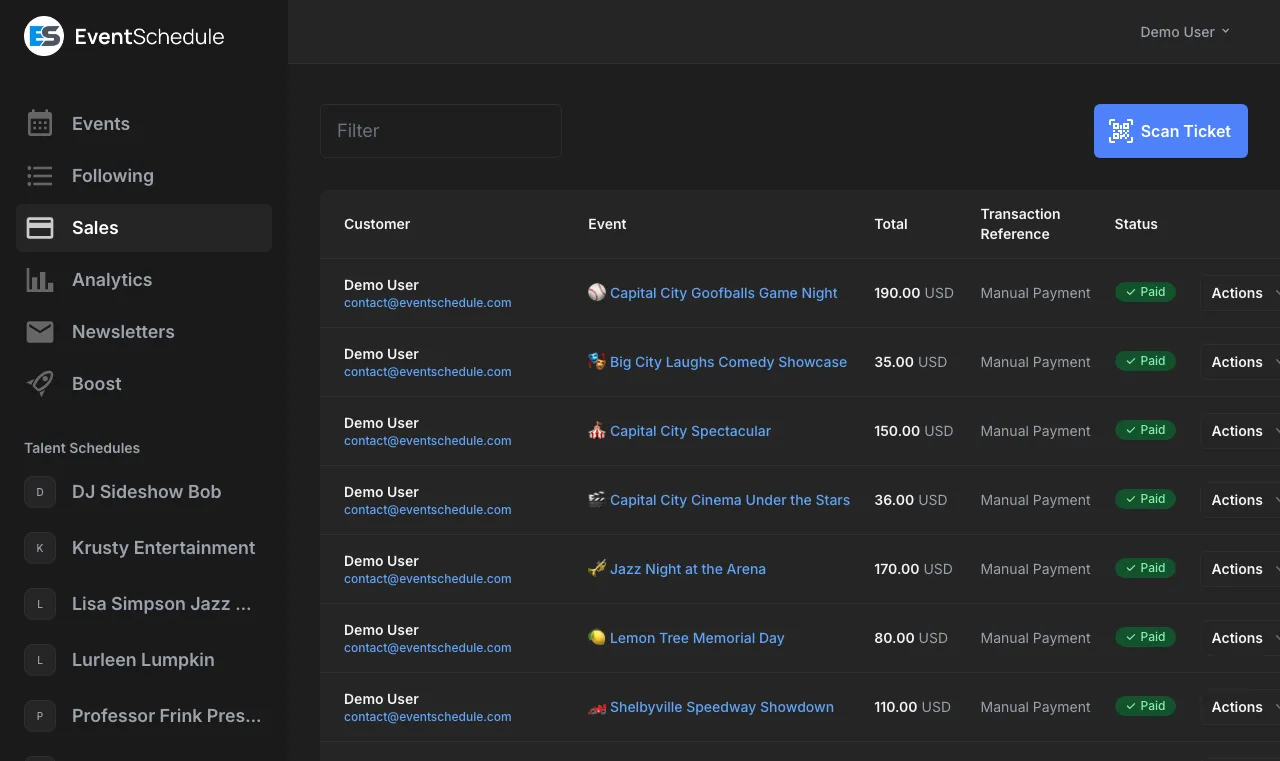
Track and manage your ticket sales from Admin Panel → Sales. The page spans every schedule you own or administer, and carries tabs for Sales, Waitlist, Feedback, Subscriptions, Installments and Gift Cards.
What You Can See
- Every purchase with the buyer's name, email and phone
- The event and the occurrence date the sale is for
- Payment status: paid, unpaid, cancelled or refunded, plus Refunded so far once any money has gone back
- The amount, any discount or gift card applied, and the transaction reference
- Check-in status, and the star rating if the buyer left feedback
Expand a row to see the individual tickets in the order, the add-ons, and any custom field answers. Columns can be sorted by clicking their headers.
Filtering Sales
Use the filter input at the top of the sales list to search by buyer name, email, phone, event name, status or transaction reference. The filter updates results in real time. When exporting sales data, only the currently filtered results are included in the export.
Past events are hidden by default. Turn on Include past events to bring older sales back into the list, and into the export.
Actions
Open the Actions menu on a sale row:
- View Ticket: Open the attendee's ticket page, with its QR code
- Send Email: Send the confirmation email again
- Mark Paid: For cash or other payments taken outside the app
- Refund Ticket: Send money back on a Stripe or PayPal sale, all of it or part. See Refunds
- Mark as Refunded: Shown instead of Refund Ticket on every other payment method. It records a refund you make yourself, and moves no money
- Cancel Ticket: Cancel a paid or unpaid sale without recording a refund
- Delete: Remove a sale from the list. A live sale is cancelled first, so its tickets go back on sale
A full refund, a cancellation or a deletion returns the sale's tickets and any allocated seats to stock, gives back any promo code use, credits any gift card balance the buyer spent, stops any remaining installment payments, and notifies the next person on the waitlist. A partial refund does none of that: the sale stays paid and every ticket on it stays valid.
Refunds
Refunds work on every plan, and what the action does depends on how the sale was paid:
- Stripe and PayPal: Refund Ticket sends the money back through the provider, and the status here changes only once it has gone. A dialog shows Available to refund and asks for a Refund Amount, so you can return all of it or part.
- Every other method - Invoice Ninja, Payfast, a payment link, cash, or any sale you marked paid by hand - shows Mark as Refunded instead. It records the refund and adjusts your revenue figures, and you return the money in your provider's own dashboard.
A partial refund leaves the sale paid and its tickets valid, and the row shows Refunded so far. Refund the rest later and the sale becomes refunded, with its tickets and seats back on sale. Until then your Analytics revenue still counts the sale in full.
A payment plan on installments can only be refunded in full: Refund Ticket returns each payment already collected, one at a time, and stops the rest.
A refund you make in Stripe or PayPal directly is not reported back to Event Schedule. The sale stays paid, its revenue stays counted and its ticket keeps scanning at the door. Refund Stripe and PayPal sales from this page instead.
If a refund cannot be confirmed, nothing is retried automatically and the sale is left for you to check against your provider's dashboard, because retrying a refund that may already have gone through is how one refund becomes two. A refund the provider actively rejects is different: nothing moved, so the amount is released and you can try again.
Refund only appears while a sale is still paid, so refund first and cancel after. Cancel Ticket and Delete never move money, and once a sale is cancelled the money has to go back in your provider's own dashboard.
Event Schedule does not email the buyer about a refund, so tell them yourself if you want them to know.
An event's currency locks once it has taken money, meaning a sale that is paid, refunded or awaiting payment review. A sale records no currency of its own, so changing the event's currency afterwards would relabel its past sales and work a later refund out in the new currency. The event editor greys out the Currency selector with a note saying why, and the API refuses the change too. Unpaid, cancelled and expired sales took no money, so they leave the currency open.
These actions fire the matching
webhook
: sale.paid, sale.refunded or sale.cancelled. A partial refund does not fire one, because the sale is still paid.
Sale Notification Emails Pro - Requires the Pro plan
Opt in to receive an email notification every time a ticket sells. Each notification includes:
- Buyer name and email
- Ticket type and quantity
- Total amount
- Payment status
- Discount or promo code applied
How to Enable
Open the schedule's edit page in the admin panel, go to Settings → Notifications and turn on New ticket sale. Every editor of the schedule can opt in separately. If push notifications are enabled, the same alert is mirrored to the browser.
Ongoing sale notifications are a Pro feature, but the first paid sale on each event emails you on every plan, including Free. You never have to poll the Sales page to find out that your first ticket sold.
On eventschedule.com, sale notification emails go out only once the schedule has its own email settings, and they are sent from that address. Until then the New ticket sale toggle stays greyed out, unless the schedule is on Pro and push notifications are set up: the push goes out without email settings, so the toggle stays usable for it. A selfhosted install only needs a working mailer. All notification emails include an unsubscribe link for compliance.
Exporting Sales Data Pro - Requires the Pro plan
Export your sales data for accounting, tax purposes, or to import into other systems. The export covers every schedule you own or administer.
- Go to Admin Panel → Sales
- Narrow the list with the filter box, and turn on Include past events if you need older sales. The export contains exactly what the list is showing.
- Click Export
- Download your sales data as a CSV file
Export Includes
- Buyer name, email and phone
- Event, event date and purchase date
- Ticket types and quantities, and add-ons, as separate columns
- Amount and currency
- Promo code and discount amount, gift card code and gift card amount
- Transaction reference, payment method and status
- Check-in status and check-in time
- Pass type, visits used and expiry, for pass sales
- Seats, for allocated seating sales
- Custom checkout field responses (event-level and ticket-level), one column per field
The CSV includes a byte order mark (BOM) for Excel compatibility. Export your sales data regularly for your records - this is especially useful for tax reporting and financial reconciliation.
Importing Attendees Pro - Requires the Pro plan
Bulk-add attendees who paid out-of-band (cash, sponsored, or through a third-party system) instead of checking them out through the public ticket page. Up to 5,000 attendees per import.
- Go to Admin Panel → Sales and click Import
- Pick a schedule (if you own more than one), an event, and the Event Date the attendees are coming on
- Either type rows on the Form Entry tab or switch to Upload CSV
- When uploading, map each CSV column to a field (name, email, phone, ticket type, etc.), then click Next to review
- Optionally toggle Send Email to send a confirmation email to each attendee
- Click Save Attendees
Supported CSV columns
- Name, Email (required), Phone
- Ticket Type (matched by name to existing ticket types)
- Quantity, Amount, Status (paid / unpaid)
- Any event-level or ticket-level custom fields you've defined
Email is the only required column - everything else auto-detects from the header name, and rows with no ticket type fall back to the type you picked. Comma, semicolon, and tab delimiters are all supported, as are UTF-8 CSVs exported from Excel. Duplicate emails within the same import are skipped automatically, as is any row that would push a ticket type past its remaining quantity; the result screen lists which rows were skipped and why.
Imported attendees are recorded with their own payment method, so they never count toward the Free plan's paid-ticket allowance. With Send Email on, each imported attendee gets the same confirmation email a checkout sends. On eventschedule.com it comes from our address until the schedule has its own email settings, then from yours. A selfhosted install needs a working mailer, and without one the save button stays disabled while Send Email is on.
Check-in at the Door
Use your phone to scan tickets at the door. No special hardware needed.
- Go to Admin Panel → Sales on your phone
- Click Scan Ticket
- Point your camera at the QR code on the ticket
- The app shows the ticket details and marks it as checked in
Confirmation emails and ticket pages show a QR code on every plan, including Free, and scanning it in the app is free too, for every ticket and registration you sell. The live check-in dashboard is the part that needs Pro or above. A selfhosted install has both.
Any team member with access to your schedule can scan tickets, including viewers. Just have them log in on their phone.
Ticket Security
Each ticket has a unique QR code that can only be scanned once. If someone tries to use a ticket that's already been checked in, you'll see a warning. An unpaid or cancelled order shows its QR code struck through, marked Unpaid or Void.
Check-in Dashboard Pro - Requires the Pro plan
Monitor attendance in real time from Admin Panel → Sales → Check-in. The dashboard provides a live overview of check-in progress for your event.
- Overall progress bar with percentage of attendees checked in
- Per-ticket-type breakdown showing check-in counts for each ticket type
- Guest headcount - when a pass admits guests, a headcount including guests is shown next to the check-in count
- Reserved pass seats for the occurrence, so door staff know how many pass holders are still expected
- Recent activity feed showing the last 10 check-ins with attendee names and times, and their seat on an allocated event
- Filter by event and event date to view specific event dates
Counts are keyed to the venue's own calendar date, so an evening event west of UTC reports correctly rather than rolling over at the wrong midnight. Only redemptions count as checked in: a pass holder who booked a seat in advance appears in the reserved count until they actually arrive.
The dashboard refreshes every 10 seconds while the tab is in the foreground, so you always see the latest check-in data without draining a phone in your pocket. It works on any device, including phones and tablets.
Wallet Passes
Ticket buyers can save their ticket into Google Wallet from the ticket page, from the order page of a multi-event purchase, or from the confirmation email. The pass carries the same QR code the ticket page shows, so it scans at the door exactly like any other ticket, and it works offline once saved.
- Event details on the pass - name, venue, date and time, attendee name, ticket type and seat
- Arrival reminder - when the venue has map coordinates, Google can notify the attendee as they arrive nearby
- One pass per event - a multi-event order gets a separate pass for each event, since each is scanned with its own code. A single order for several people is one pass showing the number it admits, unless the event issues individual tickets
- Passes and registrations too - a pass or subscription of any type saves as one undated pass rather than one per date, and shows how many people it admits at each event when that is more than one. If the pass has an expiry, Google Wallet archives it once that date passes. Free registrations get a wallet pass on the same terms as a paid ticket
- Not for every order - there is no wallet button for an appointment booking, on an event you have cancelled, or while an installment plan is behind on its payments
At the door a wallet pass is scanned exactly like any other ticket: the attendee opens it and you scan it from Scan Ticket as usual. On an allocated event the seat is printed on the pass.
The pass is a snapshot taken when the attendee saves it. Cancelling or fully refunding an order does not remove a pass already on someone's phone, but the code stops working: the door scanner checks the order's live status, and a cancelled or refunded ticket is refused there just as it is on the ticket page. A partial refund leaves the order paid, so its pass keeps working.
Wallet passes need a Google Wallet issuer account, so the button appears only once the person running the installation has connected one. On a selfhosted install that is a one-time setup step; with nothing configured, no button is shown and nothing is sent to Google. It is free on every plan. There is no per-schedule setting: if you are unsure whether it is on, open a paid ticket and look for the badge.
Waitlist
When an event date fills up, fans can join a waitlist to be notified when spots become available.
How It Works
- When all tickets sell out for an event date, a Join Waitlist button appears on the event page
- Guests enter their name and email
- When a spot opens up - a sale is cancelled, fully refunded or expires unpaid, a pass holder cancels a booked date, or your box office releases a seat - the next person in line is notified by email. A partial refund frees no spot
- They receive a link that is valid for 24 hours
- If they don't purchase in time, the next person in line is notified
The waitlist on a full Registration date works on every plan, including Free. The waitlist on a sold-out ticketed event needs Pro or above.
Managing the Waitlist
View and manage the waitlist on the Waitlist tab of Admin Panel → Sales. The tab appears once there is at least one entry, and the table shows each entry's name, email, event, date, and status.
Only one person is notified at a time to prevent overselling. The next person is notified only after the current person's 24-hour window expires or they complete their purchase.
Interest List
Most people who look at an event page are not ready to buy that minute. The interest list lets them leave an email address and hear from you when it matters, with no account and no sign-up.
How It Works
- On a public event page, a visitor opens the Add to Calendar menu and chooses Tell me when tickets go on sale, or Tell me if anything changes once tickets are on sale. An event that is already selling tickets or taking registrations also shows a Not buying today? Tell me if anything changes link beside the buy button
- They type an email address and press Notify me. No name, no account and no confirmation email to click
- Three emails go out automatically: one when that date's tickets go on sale, a reminder about 48 hours before it starts, and a cancellation notice if you cancel the event. Someone who asks once tickets are already on sale skips the first one
- A change reaches them only if you send it. When you save a new date or time on a one-off event, or a new venue or online link on any event, the editor asks Notify attendees of this change?, and the list is emailed only if you choose Notify attendees
- Every message carries a one-click unsubscribe, and unsubscribing deletes the address rather than keeping it on a suppression list
Each date of a recurring event keeps its own list, so someone who asks about one Friday hears about that Friday's tickets and that Friday's reminder. Nothing else is sent: the list never receives your newsletters or news of your other events.
The interest list is not a paid feature and is not counted against your newsletter allowance. It exists to help you find out whether anyone wants tickets before you go to the trouble of selling them.
On eventschedule.com, once more than 50 people are waiting, these emails go out only if the schedule has its own email settings or its owner has verified a phone number. A selfhosted install needs a working mailer.
Seeing Who Is Waiting
The Tickets panel in the event editor says how many people asked, for example "12 people asked to be told when tickets go on sale", counting each address once across every date. While a schedule has upcoming events and no ticket type, the dashboard suggestion reads "12 people are waiting to buy - add a ticket type". You see how many, not who, and neither number is shown publicly.
Asking about one event is not subscribing to your schedule. Those people hear about that event and nothing else. Someone who wants everything you publish can sign up to your schedule or subscribe to its calendar feed. The interest list is also not the waitlist: it is for a date that is not on sale yet, or a visitor who is not ready to buy, while the waitlist is for a date that has sold out.
Post-Event Feedback Pro - Requires the Pro plan
Automatically collect ratings and comments from attendees after your events end. Feedback emails are sent to ticket buyers and RSVP attendees, linking to a simple form where they can rate their experience.
Enabling Feedback
- Go to your schedule's edit page in the admin panel
- Open Engagement → Feedback
- Turn on Post-event feedback
- Choose a delay (how long after the event ends before emails are sent). The default is 24 hours.
- Save your changes
On eventschedule.com the toggle stays disabled until the schedule has its own email settings configured, since feedback requests are sent from your address rather than ours. A selfhosted install only needs a working mailer.
You can override the schedule-level setting for individual events. In the event edit page, open Engagement → Feedback and choose "Enabled" or "Disabled" to override, or "Use schedule default" to follow the schedule setting.
How It Works
- After an event ends and the configured delay passes, feedback request emails are automatically sent to attendees
- Each email contains a link to a feedback form branded with your schedule's logo and colors
- Attendees rate their experience from 1 to 5 stars and can leave an optional comment
- Each attendee can only submit feedback once
Viewing Feedback
View all feedback from Admin Panel → Sales → Feedback tab. The page shows:
- Summary card with average rating, total responses, and response rate
- Feedback table listing each response with attendee name, event, date, star rating, comment, and submission time
The tab also shows a Sent - Awaiting Response list of attendees who were emailed but have not replied yet. If a request was missed or landed in spam, click Resend next to an attendee to send the feedback request again.
Exporting Feedback
Click Export Feedback on the Feedback tab to download a CSV file with all feedback data.
Feedback Notifications
To receive an email when new feedback is submitted, enable New feedback in Settings → Notifications. Each notification includes the event name, attendee name, star rating, and comment.
Financial Information
Important information about payments, refunds, and taxes.
Refunds
Refunding a Stripe or PayPal sale on the Sales page sends the money back through the provider, in full or in part, and then updates the sale here. Every other method - Invoice Ninja, Payfast, a payment link or cash - is recorded here with Mark as Refunded, and you process the money in that provider's own dashboard. A Payfast reference is shown as plain text rather than a link, so you will need to search for it in your Payfast dashboard. Stripe refunds appear on customer statements within 5-10 business days. See Refunds.
Taxes
Event Schedule does not automatically calculate or collect sales tax. Set your ticket prices inclusive of any applicable taxes. For tax reporting, export your sales data from the Sales page. Consult a tax professional for your specific obligations.
Payment Processing Fees
Stripe charges their standard processing fees (typically 2.9% + $0.30 per transaction in the US). These fees are deducted from your payouts. Event Schedule adds no platform fee on any plan, Free included.
Cancelled or Deleted Events
An event with any sales cannot be deleted: the app asks you to cancel it instead, so buyers keep their records. Cancel event keeps every sale and refund record, stops any remaining installment payments, and emails the people there are to tell: ticket holders and registrants (on eventschedule.com, only when the schedule has its own email settings) and anyone on the interest list. It does not refund anyone, and the sales stay paid, so refund them from the Sales page. A cancelled event can be restored later.
Payout Schedule
Stripe pays out on a rolling basis (typically 2 business days in the US, varies by country). View your payout schedule and history in your Stripe Dashboard. Invoice Ninja follows your configured payment terms.
Export your sales data regularly from Admin Panel → Sales for your records. This includes buyer information, ticket types, and payment status.
Embed Widget
Embed a ticket purchase or RSVP form directly on your own website using an iframe. Visitors can buy tickets or register without leaving your site.
The rsvp=true widget works on every plan, including Free, and always has. The tickets=true widget needs Pro or above.
Getting the Embed Code
- Open your event in the admin panel and go to the Tickets section
- Enable Tickets or Registration mode and save the event
- Click the Embed Tickets (or Embed Registration) link next to the section heading
- Copy the iframe code and paste it into your website's HTML
The link that opens the snippet only appears for Pro schedules. On the Free plan you can still embed the RSVP form by building the URL yourself from the parameters below.
URL Parameters
You can customize the embed URL with these parameters:
| Parameter | Description |
|---|---|
tickets=true |
Show the ticket purchase form Pro - Requires the Pro plan |
rsvp=true |
Show the RSVP registration form Free - Available on the Free plan |
embed=true |
Enable embed mode (compact layout, no navigation) |
dark=true |
Force dark mode |
promo=CODE |
Pre-fill a promo code |
lang=xx |
Set the widget language (e.g., lang=es for Spanish) |
The embed widget is not available for private events, since they require authentication to access. A password-protected event only embeds for someone who has already entered the password.
Every payment method except cash sends the buyer out of the iframe to pay: Stripe, PayPal, Payfast, Invoice Ninja and a payment link all open in the full browser window, since payment pages generally refuse to load inside another site's frame. Stripe, PayPal and Payfast bring the buyer back to their ticket page afterwards. Cash and free ticket checkouts complete inside the embed.
See Also
- Creating Events - Add events to sell tickets for
- Gift Cards - Sell prepaid gift cards redeemable at checkout
- Subscriptions & Passes - Sell one pass reused across many events
- Appointments - Take bookings for a time slot, with their own allowance
- Sharing Your Schedule - Promote your events
- Event Graphics - Create promotional images
- Analytics - Track conversion rates and revenue per view
- Account Settings - Set up your payment method
- Newsletters - Send newsletters to promote ticket sales
- Embed Tickets - Embed a ticket form on your website