Referral Program
Earn free months of Event Schedule by sharing your referral link with other event organizers.
Overview
The referral program lets you earn credit towards Event Schedule by inviting other event organizers to the platform. When someone signs up through your referral link and then pays for a Pro or Enterprise plan, you earn a credit worth one month of the plan they are on. You choose which of your schedules the credit lands on.
Open it from Referrals in the admin panel sidebar; the page that opens is titled Referral Program. The Plan tab of any schedule also carries a View Referral Dashboard link to the same page.
From top to bottom the page holds any credits ready to apply, your referral link with what each referral earns, the four steps of a referral with how many of yours are at each one, and your referral history.
Every account on eventschedule.com can refer, including accounts on the Free plan, and there is no cap on how many people you refer. The program runs on eventschedule.com only: a selfhosted install has no subscriptions to refer anyone to, so the Referrals item does not appear in its sidebar.
How It Works
Until your first referral signs up, the Referrals page sums this up in a How It Works card of four steps: They sign up, They subscribe, You earn a month and You apply it. The same card then becomes Your Referrals. In full, a referral moves through five stages:
- You share your link. Copy it from the top of the Referrals page and send it to another organizer.
- They create an account. The referral is recorded the moment they sign up, with the status Signed up. Signing up with an email address and signing up with Google both count.
- They subscribe. When they start a paid Pro or Enterprise subscription on one of their schedules, the referral moves to Subscribed and the 30-day clock starts.
- They stay 30 days. Thirty days after they subscribed, if the subscription is still active or in its cancellation grace period, the referral becomes Earned and the credit is yours. You get an email, and a push notification if you have those switched on.
- You apply the credit. Pick a schedule to spend it on and the referral is marked Applied.
What counts as a referral
- The visitor has to reach Event Schedule through your link and sign up in the same browsing session. The code is held only for that session, not in a long-lived cookie, so a visit today and a signup next week will not be linked.
- The code travels from the page they land on to the sign-up form in a browser cookie, and that cookie is written only once the visitor has allowed marketing cookies in the cookie notice. If they decline, or never answer it, the code normally does not reach sign-up and no referral is recorded.
- The first referral link counts. If they followed another organizer's link earlier in the same session, that organizer gets the referral, not you.
- Each person can be referred once. If someone already has an Event Schedule account, or was already referred by another organizer, a new referral is not created for them.
- You cannot refer yourself. A signup that matches your own account is ignored.
- The 30-day clock starts when the subscription starts, and the 7-day free trial counts towards it.
- Statuses are recalculated once a day, so a referral that hits its 30th day shows as Earned on the next daily run rather than to the minute.
A referral produces at most one credit, no matter how many schedules the person you referred goes on to run or how long they stay. It also has to still be at Signed up when they subscribe: if it has already expired (see Referral Statuses), a later subscription will not revive it.
Your Referral Link
The referral link card opens with what each referral earns you, one month of the plan they choose, with both amounts. Under it is your link. Click Copy Link and the button confirms with Copied!, then paste the link into an email, a post or a message. If your browser will not let the page copy for you, the link is selected instead, ready to copy by hand.
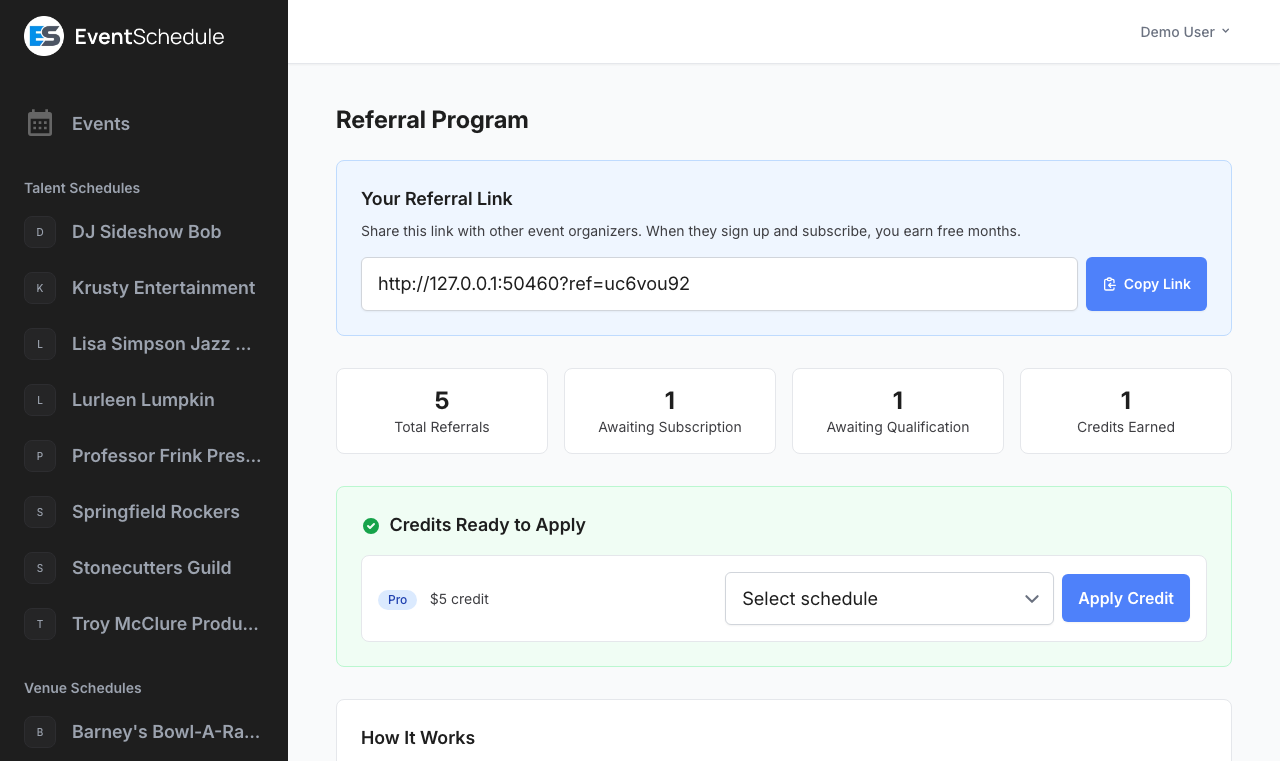
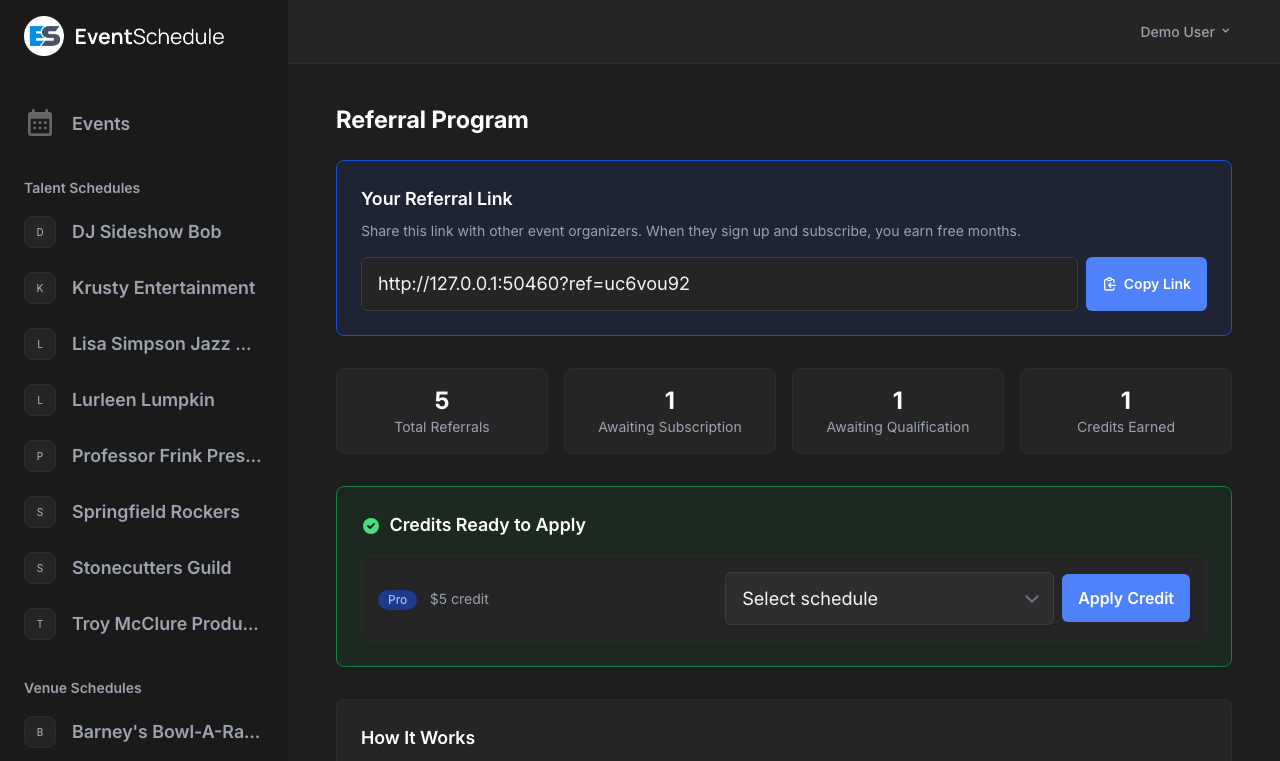
The link is the Event Schedule home page with an eight-character code on the end, in the form /?ref=a1b2c3d4. The code is created the first time you open the Referrals page and never changes after that.
You are not limited to the home page. Adding ?ref=yourcode to any Event Schedule page works the same way, so you can point people straight at Pricing or at a feature page and still get the credit.
Share your referral link on social media, in event communities, or directly with organizers you know. Because attribution only lasts for the visit, links that lead somewhere worth reading straight away, such as the pricing page, convert better than a link someone bookmarks for later.
Your Referrals
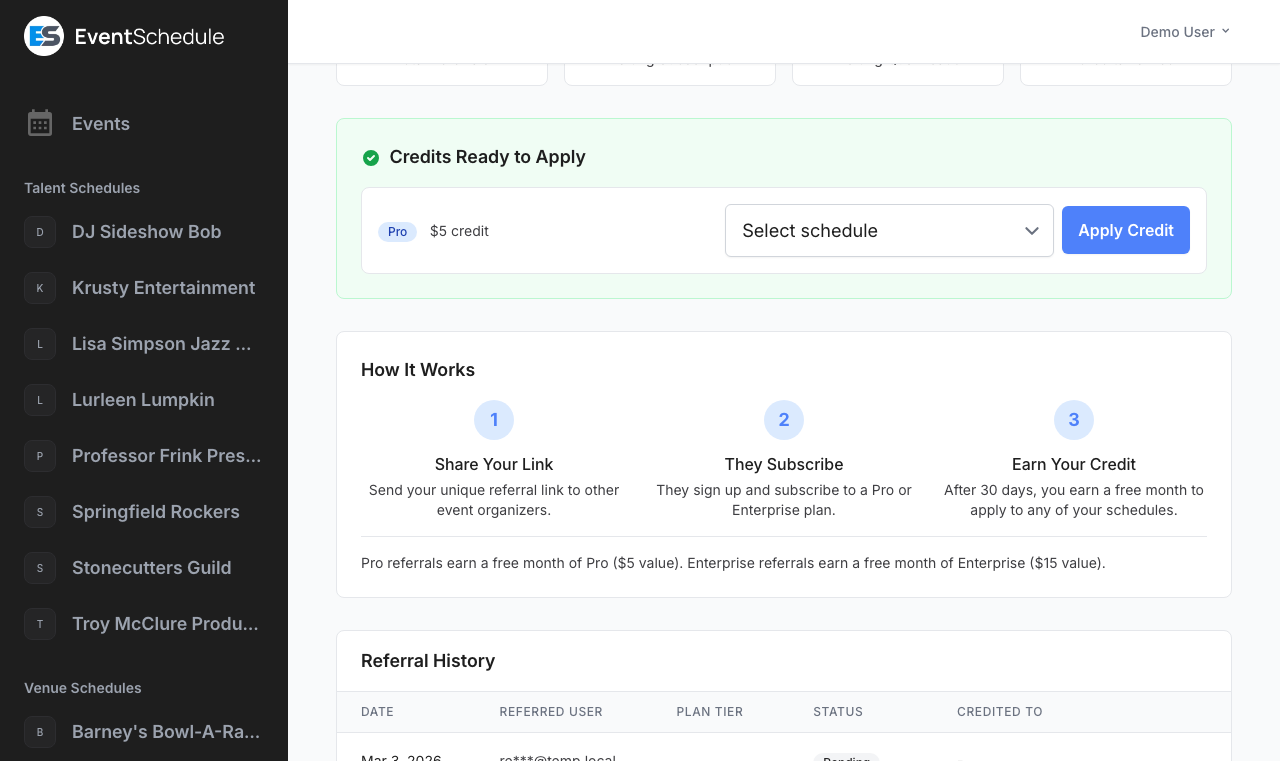
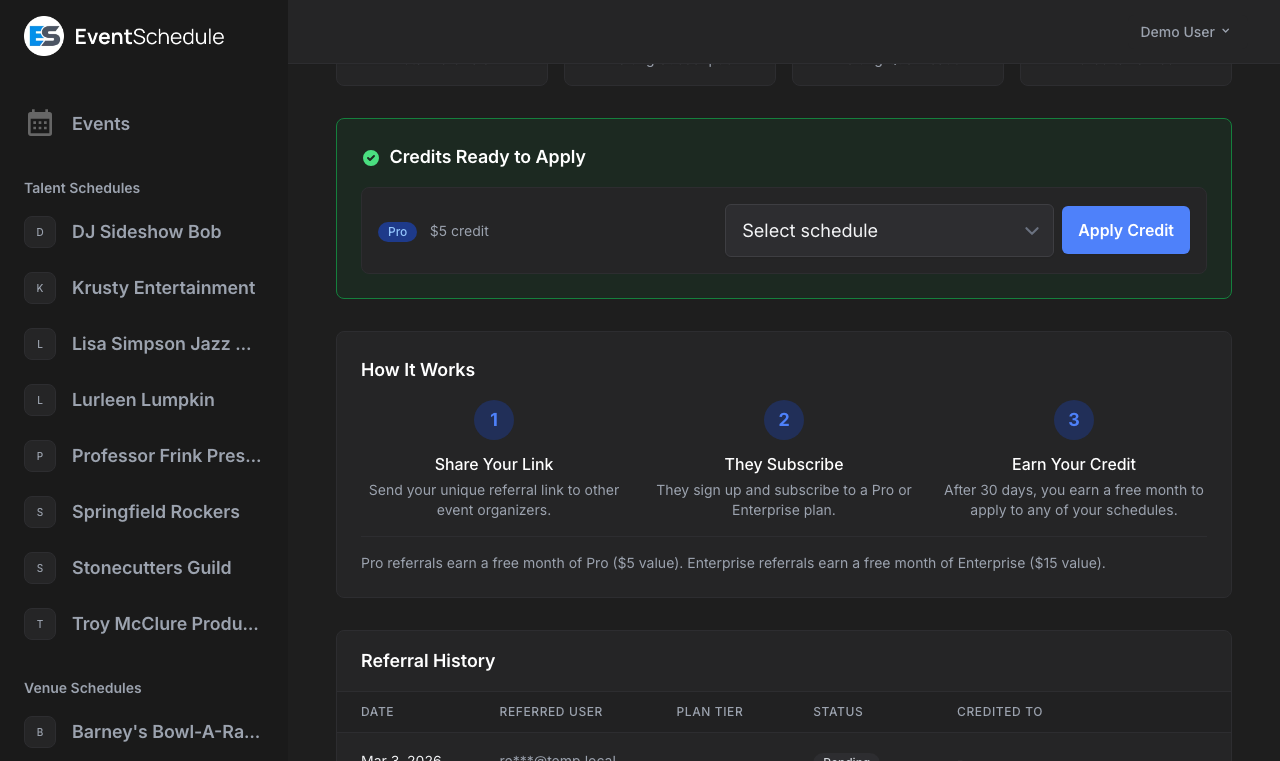
Once someone has signed up through your link, the How It Works card becomes Your Referrals. Its four steps stay, and each one now shows how many of your referrals are at that step right now. Every referral is counted at exactly one step, so the four numbers add up to everyone who has not expired. A step with a referral on it has its number lit in blue.
| Step | What it counts |
|---|---|
| They sign up | Referrals waiting to subscribe: the account exists but has not paid for a plan yet |
| They subscribe | Referrals in their first 30 days on a paid plan. Under the number, Next credit due gives the day the first of them reaches 30 days |
| You earn a month | Credits you have earned and not spent yet. Each one is waiting at the top of the page, in Credits Ready to Apply |
| You apply it | Credits you have already applied to a schedule |
The line under the card's title gives the total, Signed up through your link, and how many of those have expired. The card ends with a short note on when a referral expires.
Rewards
A credit is worth one month of the plan the person you referred is on, at the standard monthly price:
| Their plan when the referral qualifies | Credit you earn |
|---|---|
| Pro | $5, one month of Pro |
| Enterprise | $15, one month of Enterprise |
The credit follows whichever plan their subscription is on at the moment it qualifies. Someone who starts on Pro and moves up to Enterprise inside the first 30 days earns you the $15 Enterprise credit, and the history table updates to match. The amounts are fixed at $5 and $15 whether they pay monthly or yearly.
Applying Credits
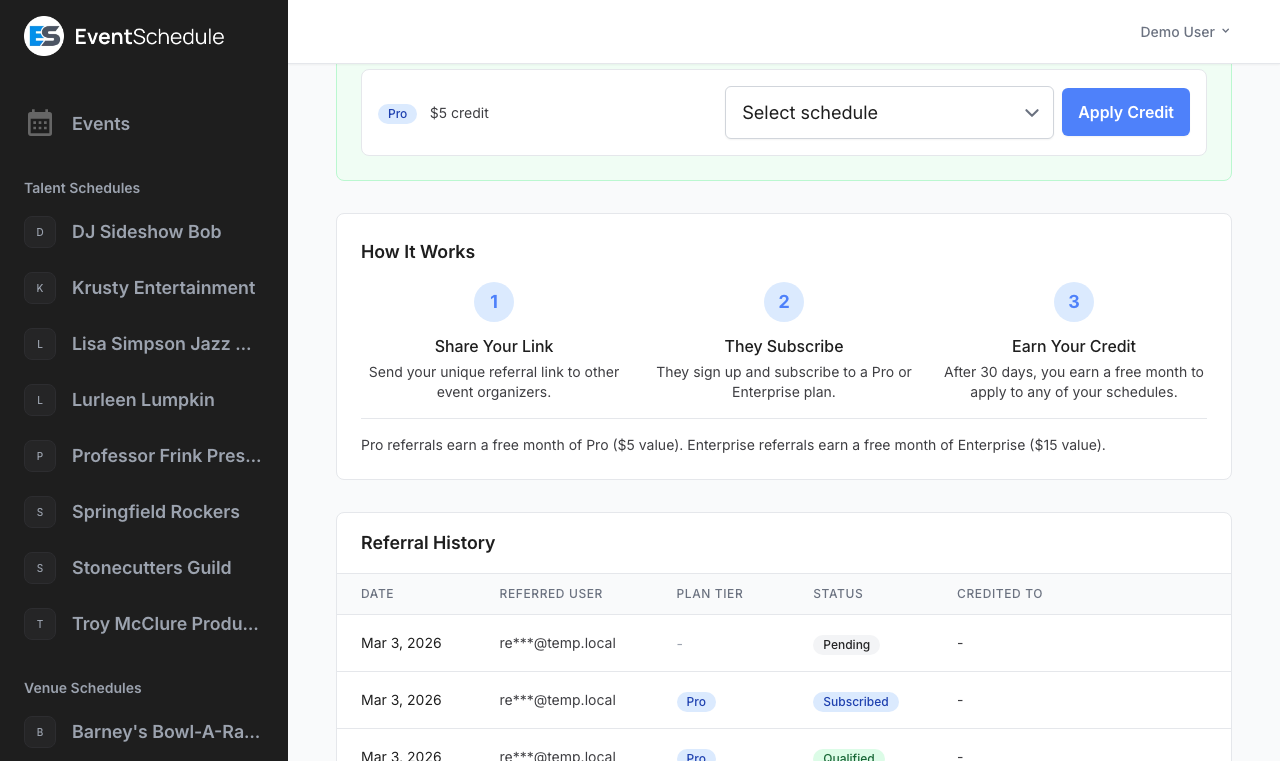
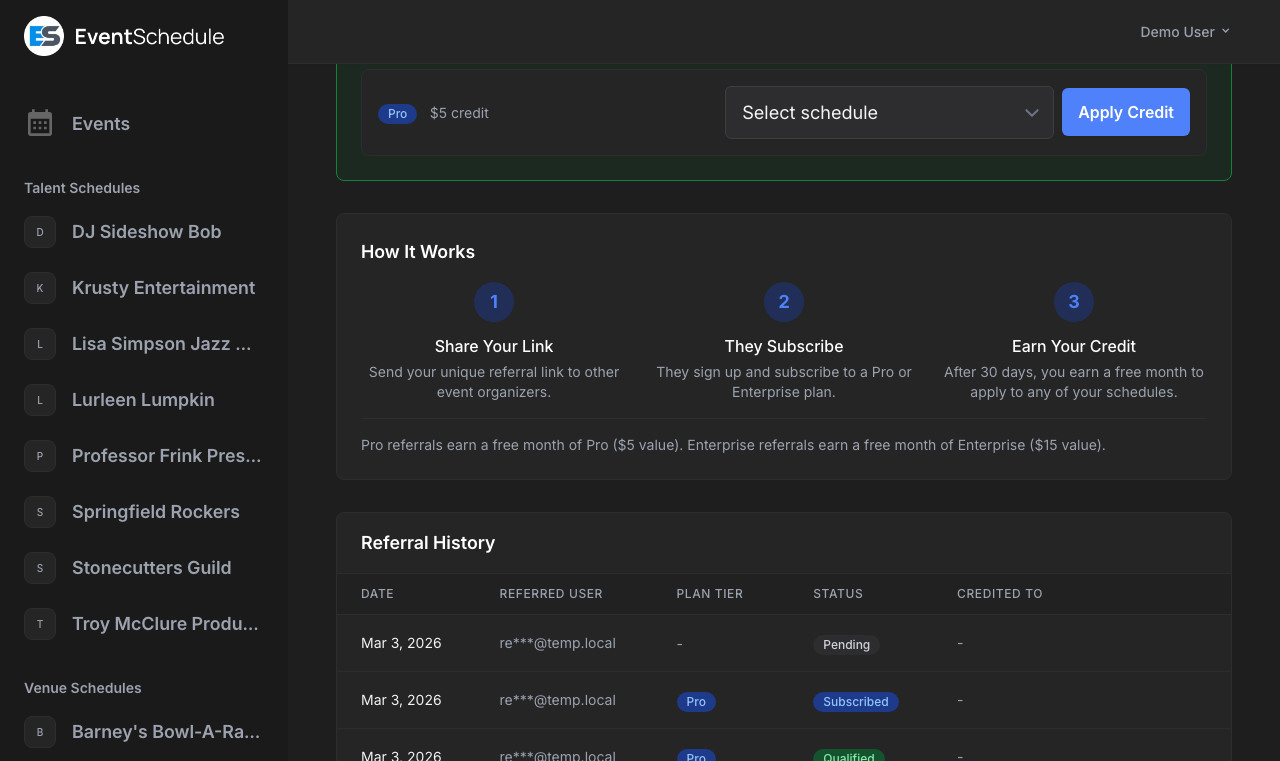
Once a referral is earned, it appears in the Credits Ready to Apply card at the top of the Referrals page, the page the credit email and notification take you to. The card is only there while you have at least one unspent credit, and it lists one row per credit.
- Open Referrals in the admin panel sidebar
- Find the credit in Credits Ready to Apply. Each row shows the value and what it is, such as $5 credit, One month of Pro
- Choose a schedule from the Select schedule dropdown on that row. Only schedules you own are listed, not ones where you were added as a team member. If you own just one, it is already chosen
- Read the line under the dropdown. It says what the credit will do on the schedule you picked, for example that it comes off that schedule's next invoice, or that the schedule moves to Pro until a given date
- Click Apply Credit. The page comes back with Referral credit applied successfully. and the same sentence at the top, and the referral moves to Applied in the history
The credit is spent on the schedule you chose as soon as you click Apply Credit. It cannot be split across schedules or moved afterwards, so read the line under the dropdown first.
If you do not own a schedule yet, the row has no dropdown. It says you need one of your own, with links to create a talent, venue or curator schedule; the credit waits for you until you do.
What applying a credit does
What happens next depends on whether the schedule you picked is already paying:
| Schedule you apply it to | What the credit does |
|---|---|
| Has an active subscription | The $5 or $15 goes on the schedule's billing balance and comes off its next invoice automatically. Your plan and renewal date are untouched, and a credit larger than the invoice carries over to the one after |
| Has no active subscription | The schedule gets 30 days of a plan. If it already had time left on a plan, the 30 days are added to the end of it rather than replacing it. The plan is the credit's tier, or the schedule's own if that is higher: a Pro credit spent on a schedule with Enterprise time left keeps it on Enterprise and adds the 30 days there |
To try a paid tier on a schedule that is not paying yet, spend the credit there: that is the case where it buys 30 days of the plan outright rather than $5 or $15 off a bill.
A month of Pro or Enterprise you earned through a referral counts as a plan you earned, not one handed to you. It takes the Event Schedule credit chip off your public pages like a plan you pay for, rather than keeping it the way an admin-granted plan does.
Referral Statuses
Every referral carries one of five statuses, named after the steps on the page and shown in the Status column of the history table as a coloured dot beside the word: grey for Signed up, blue for Subscribed, amber for Earned, green for Applied and red for Expired.
| Status | Meaning |
|---|---|
| Signed up | They have created an account through your link but have not paid for a plan yet. It counts if they subscribe within 90 days of signing up, and the history gives that date |
| Subscribed | They have started a paid Pro or Enterprise subscription and the 30 days are running. The history gives the day the credit is due |
| Earned | They were still subscribed 30 days later, so the credit is yours and is waiting in Credits Ready to Apply |
| Applied | You have spent the credit. The history names the schedule it went to and the day |
| Expired | The referral can no longer earn anything. This happens two ways: their subscription ended before the 30 days were up, or they never subscribed at all and 90 days have passed since they signed up. The history says which of the two it was. Cancelling alone does not expire it: a cancelled subscription still counts until its paid time runs out |
A daily job moves referrals to Earned and expires the ones that have run out of time, so a status can be up to a day behind what happened on the account. A credit that has already reached Earned stays yours to spend even if the person you referred cancels later.
Referral History
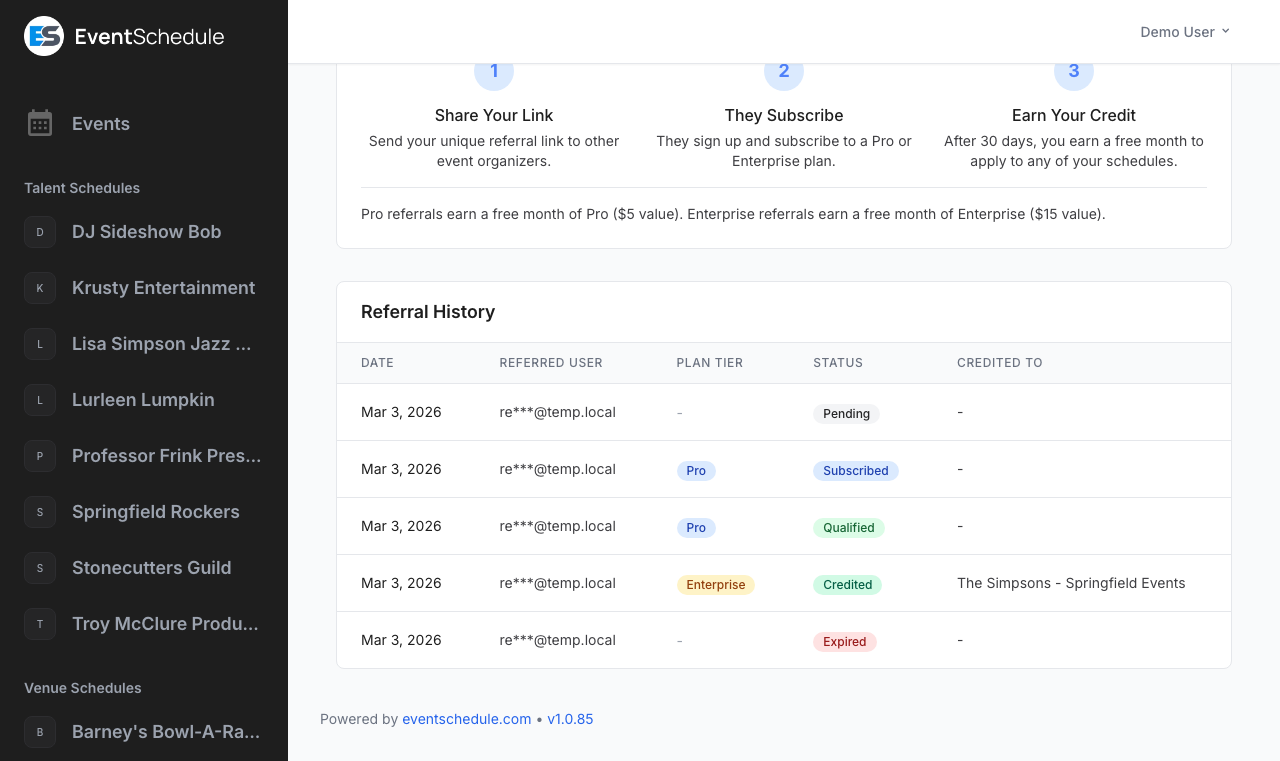
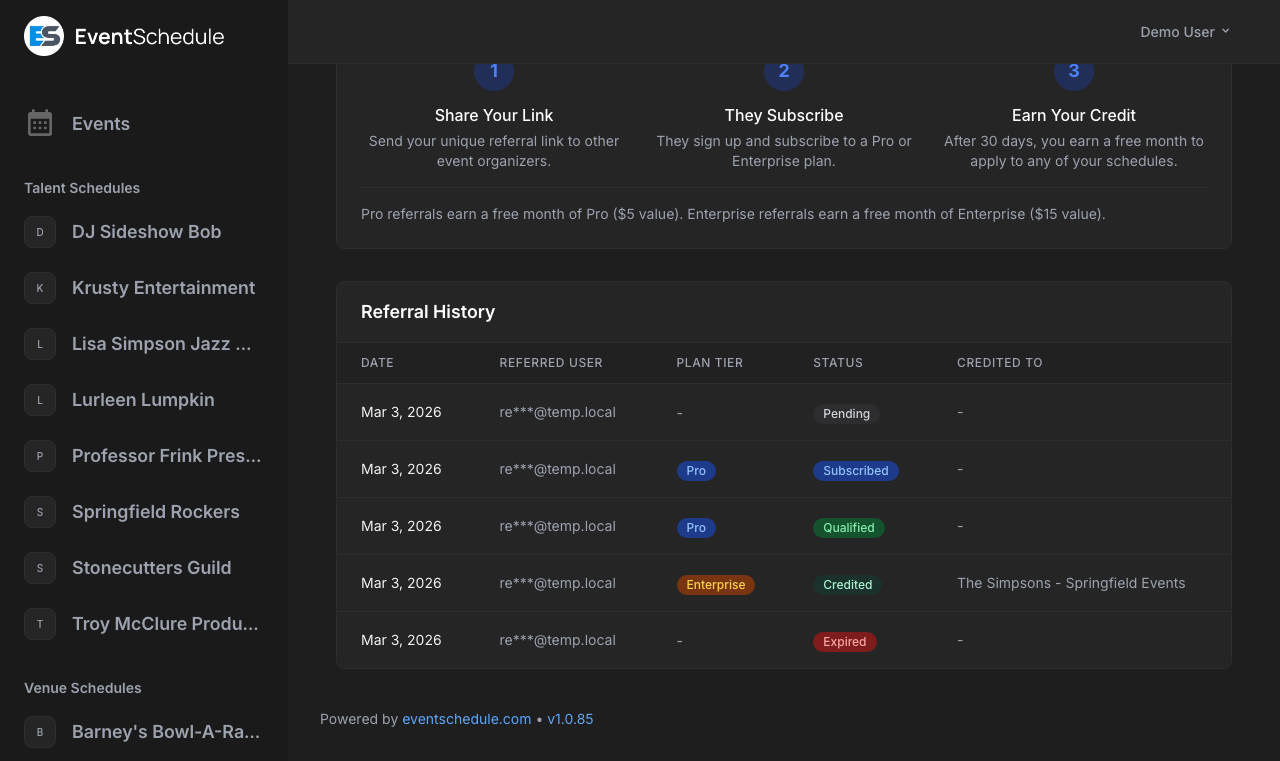
The Referral History card at the bottom of the page lists every referral you have made, one row each. It appears once you have at least one. On a phone each referral is a stacked block with the same details and no column headings, so sorting needs a wider screen.
| Column | Description |
|---|---|
| Referred User | Their email address, partly masked, in the form li***@example.com. You never see a referred organizer's full address or name |
| Date | When they signed up through your link. Click the heading to sort; the list starts newest first |
| Status | The current status (see Referral Statuses above), with a Pro or Enterprise chip beside it once they subscribe. This heading is sortable too |
| Details | What comes next, or what happened: the date a referral that has signed up must subscribe by, the day a credit is due, a link to a credit ready to apply, the schedule a credit went to and when, or why a referral expired |
The list shows 20 referrals per page, with paging links underneath once you pass that.