Creating Schedules
Set up and configure your schedule - from basic details and contact info to short links, sub-schedules, notifications, event requests and calendar sync.
Schedule Types
Event Schedule supports three types of schedules, each designed for different use cases:
| Type | Best For | Key Features |
|---|---|---|
| Talent | Musicians, DJs, performers, speakers | Events display venues, focused on "where you'll be" |
| Venue | Bars, clubs, theaters, event spaces | Full address support, map integration |
| Curator | Promoters, bloggers, community organizers | Aggregate events from multiple sources |
The type is chosen when you create the schedule and it changes which sections the edit page offers. Only Venue schedules get the Address section and the Merge Venue tool; only Curator schedules get the per-schedule banner for the bulk Merge Duplicate Venues page, which is otherwise reached from Following; and Talent schedules see a shorter Requests tab, because a booking request to a performer is always reviewed by hand.
Details
Everything on this page lives on one form. To reach it, open Admin Panel → Schedule and click Edit Schedule. The form is divided into sections listed down the left, and a single Save button at the bottom of that list saves the whole form, whichever section you are in. Not every section is offered to every schedule:
| Section | Covers | Shown |
|---|---|---|
| Details | Name, description, language, timezone, contact details | Always |
| Address | Street address and map coordinates | Venue schedules |
| Style | Colors, fonts, images, layout | Always |
| Videos & Links | YouTube videos and social profiles | After the first save |
| Customize | Sub-schedules, custom fields, categories, labels | Always |
| Settings | URL, notifications, and advanced behavior | Always |
| Engagement | Requests, fan content, feedback, carpool, sponsors, accommodation | Always |
| Gift Cards | Selling gift cards for your events | After the first save |
| Event Sources | Talent and venue schedules whose events appear on yours automatically | Curator schedules, after the first save |
| Auto Import | Pulling events in from other websites | Selfhosted installs |
| Integrations | Email, calendar sync, templates, feeds | Always |
Merge Venue is a twelfth section, shown on an unclaimed Venue schedule when you manage at least one other venue it could be folded into.
The Details section holds your schedule's core identity, on three tabs: General, Localization, and Contact Info.
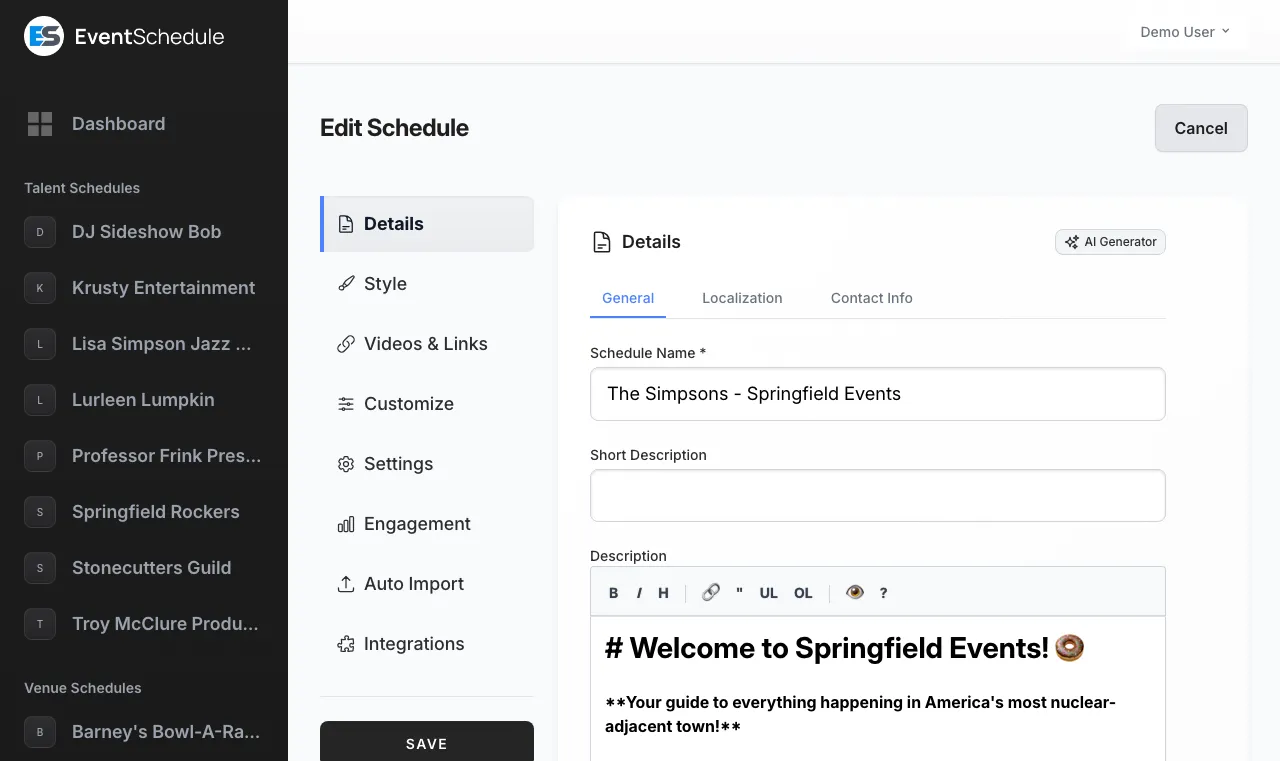

General
Schedule Name
Required. Your schedule's display name, shown at the top of your schedule page and in search results. Use your band name, venue name, or organization name.
Short Description
A brief subtitle for your schedule, up to 200 characters. This appears below your schedule name on the schedule page.
Description
A bio or description of your schedule. Supports Markdown formatting for links, bold text, lists, and more. Tell visitors what you're about and what kind of events they can expect.
Translated name and description
Once a second language is switched on and a translation exists, extra fields appear next to the name, short description and banner so you can correct the wording by hand. Each is labelled with the target language, for example Name (English), so it follows whichever language you chose to translate into rather than always being English.
Show banner Pro - Requires the Pro plan
Turn on Show banner to display a message in a banner at the top of your schedule's guest page, such as a venue change or a "tickets on sale" notice. The Banner message box takes up to 500 characters and accepts Markdown, including links. Show on event pages too extends the banner from the schedule page to individual event pages.
Localization
Language
The language you write your schedule and events in, which also sets the interface language on your schedule page. Twelve languages are supported: Arabic, Dutch, English, Estonian, French, German, Hebrew, Italian, Portuguese, Romanian, Russian, and Spanish.
Offer a second language to visitors
Turn this on to have your schedule and events translated automatically, then pick the target under Translate into (English by default; the language you write in is not offered). Visitors get a button to switch between the two. Available on all plans. Translations are generated in the background, so allow up to an hour for them to appear; changing the target re-translates everything, and editing an event refreshes its own translation. Turning the setting back off discards every stored translation for the schedule, including wording you corrected by hand, so you are asked to confirm first.
Timezone
Set your schedule's timezone. Event times are entered and displayed in this timezone, so set it before you add events. It matters most when your audience is spread across regions.
Use 24-hour time format
Off shows times as 2:00 PM, on shows them as 14:00. The choice carries through to event pages, calendar descriptions and the {time} template variable.
AI Details Generator Enterprise - Requires the Enterprise plan
Let AI write your schedule's short description and description from its name and type. Those two fields are all it generates.
- On the Details section, click AI Generator in the section header.
- Tick the fields you want. A field that already has content is left unticked and marked with a blue dot; tick it anyway and a warning tells you its content will be replaced.
- Optionally add Additional instructions (up to 500 characters) to steer the tone, and tick Save as default to reuse them next time.
- Optionally open View and edit prompt to see the prompt that will be sent and adjust it for this run.
- Click Generate, review the preview, and apply it. Nothing is written into the form until you accept, and nothing is saved until you save the schedule.
The button only appears when the site has an AI key configured. Selfhosted installations need a Gemini API key in the environment settings, because this feature is generated by Gemini. On the hosted platform there is a daily cap on AI text generation per schedule; you are told if you reach it.
Address
The Address section appears on Venue schedules only. Filling it in puts a map on your schedule page, lets event pages show directions, and is what the nearby accommodation map centres on. Talent and Curator schedules give their location on the Contact Info tab instead.


Street Address
Required. Your venue's street address, for example "123 Main Street".
City, State / Province, Postal Code
Three separate fields. All are optional, but the more you give the more precisely the address can be placed on a map.
Country
Select your country from the dropdown. It is used for address formatting and map display.
View Map and Validate Address
View Map opens what you have typed on a map so you can check it landed in the right place. Validate Address looks the address up and offers a tidied version of each field; click Accept to take it. Validate Address only appears when the site has a Google Maps key configured.
Saving a new or changed address looks up its coordinates in the background, and those coordinates are what the map on your schedule page uses. Clearing the address clears them again. This step needs a Google Maps key on the site, so a selfhosted install without one keeps the address as text and shows no map.
Contact Info
Add contact details in the Details → Contact Info tab so visitors can reach you. These appear on your public schedule page.


Required. This is the schedule's own address, and it has to be verified before the schedule's guest page can be opened. Turn on Show email address to publish it to visitors as well; leave it off and the address stays private to you. It is not where your notifications go: those are sent to the email address on your own account.
Phone number
A contact number, entered with a country picker. Once a number is saved a Show phone number toggle appears next to it. On the hosted platform the number must be verified by SMS code before it is shown publicly.
Website
Link to your main website. It opens in a new tab when visitors click it.
City and Country
A way to say roughly where you are without a street address. Curator schedules get both City and Country; Talent schedules get Country only. Venue schedules use the Address section instead, so neither field appears here for them.
Merging duplicates
Importing events tends to create the same venue twice, once as "The Anchor" and again as "Anchor Bar". Rather than leave your calendar pointing at two half-empty pages, merge them. Every event moves to the schedule you keep and the duplicate goes away.
Merge Venue
A Merge Venue section appears on the edit page when a schedule looks mergeable. The Merge into dropdown lists the other venues you manage; pick one and confirm. All of this schedule's events move to the target and this one is removed. If Event Schedule spots a likely match by name, city and country, it names it for you above the dropdown, so usually you only have to confirm.
Merging is offered for schedules nobody has claimed yet, which is exactly the kind an import creates - the pages described under Pages Created for Others. Once someone claims a schedule it has a real operator behind it, so it can no longer be absorbed into another. Both schedules must also be the same type, so a venue merges into a venue and never into a talent.
If some events already exist on the target, you are told how many before you commit. Those are not duplicated: where the same event sits on both schedules, the two entries are combined and any detail the target is missing is filled in from the schedule you are merging away.
Merge Duplicate Venues
There is also a bulk version that groups look-alike venues together and merges a whole group at once. Each group shows how many events sit on each venue, with the most-used one preselected as the one to keep.
- Merge - fold the rest of the group into the selected target.
- Not duplicates - for venues that only look alike. The group is dismissed for good and stops being suggested.
Work through the groups in any order, and skip any you are unsure about. Nothing is merged until you press the button on that group.
You can reach it two ways:
- From Following - covers every venue you are connected to, however you got there. This is the one that finds venues an import or a calendar sync invented and never attached to anything, including ones already deleted.
- From a Curator schedule - a banner on the Schedule tab, scoped to the venues in that schedule's upcoming events.
Duplicates are also collapsed in the venue picker when you add an event, so you only see one option per place. That is only done where it is safe: two venues that share a name but each carry their own contact details or address both stay on the list.
Style
Customize your schedule's visual appearance including colors, fonts, backgrounds, and layout. See the full Schedule Styling guide for all customization options.
Videos & Links
Two tabs, both shown on your public schedule page. The section appears once the schedule has been saved for the first time.
YouTube Videos
Paste a YouTube link and it is added with its thumbnail and title. Videos appear in a panel on your schedule page, which the Hide Videos setting can turn off for Venue and Curator schedules.
Social Links
Add profile URLs (Instagram, Facebook, X, TikTok, Bandcamp, Spotify and so on), or the address of any other site, so visitors can find you elsewhere. A platform Event Schedule recognises is detected from the URL and its icon is used automatically.
Short links
Every link on the Social Links tab gets a short forwarding address under your own schedule URL automatically, with a copy button next to it. A recognised platform is named after the platform, for example yourname.eventschedule.com/instagram, and any other site after its brand name, as long as that name is still free on your schedule: a ticketing partner at promee.co.il/?r=33221 answers to yourname.eventschedule.com/promee. Short links are handy in printed material and bios. Each one shows how many times it has been clicked, and the same clicks are counted in Analytics; clicks by you and your team are left out.
Click Edit under a link to choose a different address. For a recognised platform the platform address keeps working alongside yours, so a /instagram already printed on a poster never breaks. For any other site your choice replaces the brand-name address. If a link has already been clicked, the editor shows how often and warns you before you change its address. Clear the box to go back to the automatic address. A short link cannot reuse the name of another platform, of a sub-schedule, or of a page the app already uses, and where the automatic name is already taken the link simply has none until you pick one.
Customize
The Customize section has four tabs: Sub-schedules, Custom Fields, Categories, and Custom Labels.
Sub-schedules
Sub-schedules are named strands within one schedule, such as "Live Music", "DJ Nights", "Comedy" or "Workshops". Each one gets an address of its own and a color, so visitors can filter your calendar down to the strand they care about.


Creating a sub-schedule
- Open the Customize section and stay on the Sub-schedules tab.
- Click + Add sub-schedule and give it a Name. If your schedule is not written in English, an English Name field appears beneath it; leave it blank and the translation fills it in.
- Pick a Color from the 14-color palette, or use Clear to leave it uncolored. The color is what distinguishes sub-schedules in calendar views and on the filter buttons.
- Save. The sub-schedule now has an address such as
yourname.eventschedule.com/live-music, shown with a copy button. Edit changes that last part.
A sub-schedule carries a name, a color and an address, and nothing else. There is no visibility switch on one, so filing an event under a sub-schedule never hides it. To keep an event off your public page, set the event's own visibility instead - see event visibility.
Assigning events to sub-schedules
When you create or edit an event, pick a sub-schedule from the dropdown. An event sits in one sub-schedule per schedule, so an event you also share to a Curator schedule can be filed under one of your strands and one of theirs.
Custom Fields Pro - Requires the Pro plan
Define Event Custom Fields to add extra data to your events. You can add up to 10 custom fields per schedule. Custom field values can also be used as URL pattern variables.
Each custom field has the following properties:
Field Name & English Name
The display name for the field. For non-English schedules, an English name field also appears for translation.
Field Type
Choose from six types: String (single-line text), Multiline String (multi-line text), Switch (on/off toggle), Date (date picker), Dropdown (single select from predefined options), or Multiselect (multiple selections from predefined options).
Options
For Dropdown and Multiselect fields, type the choices separated by commas. The field only appears for those two types.
AI Prompt
An optional instruction, up to 500 characters, telling the AI how to extract this field's value when a visitor submits an event through AI Import.
Required
Mark a field as required so that events cannot be saved without providing a value.
Private
Hide the field's value from the guest portal. The value still appears in the admin portal and can be referenced in graphic templates and slug patterns via {custom_N}. Public dropdown and multiselect fields become guest-portal filters; mark them private to remove the filter chip.
On Request Form
Ask the field as a question on your public event request form, so visitors answer it when they submit an event. On by default. Uncheck it to keep a field for your own use in the admin portal. Combine a Multiselect field with this to offer a checklist, for example which of your equipment the visitor needs.
Validation Pattern
For String and Multiline String fields you can require entries to match a pattern, such as a reference code or a phone number. Pick one of the ready-made patterns (email address, phone number, web address, numbers only, letters and numbers) or write your own regular expression, and use the built-in tester to try a sample value before saving. The optional Hint is shown under the field so visitors know what format you expect. Patterns are enforced both in the browser and on the server.
Reordering
Drag and drop fields to change the order they appear on event forms.
| Variable | Description | Example |
|---|---|---|
{custom_1} |
Value of the 1st custom field | john-smith |
{custom_2} |
Value of the 2nd custom field | room-101 |
{custom_3} |
Value of the 3rd custom field | workshop |
| ...up to {custom_10} | ||
All variable values are automatically converted to URL-safe slugs: lowercase letters, numbers, and dashes only. For example, "Summer Concert" becomes "summer-concert" and "New York" becomes "new-york".
Custom Categories
Tailor the event categories shown on your event form and your schedule's filter. The 12 system defaults (Art & Culture, Business Networking, Community, Concerts, Education, Food & Drink, Health & Fitness, Parties & Festivals, Personal Growth, Sports, Spirituality, Tech) are pre-loaded as editable rows. Rename or remove any of them, and add categories that match how you organise events, up to 32 rows in total. A category name can be up to 80 characters.
Renaming a default
Edit the name field on any default row to change how it appears on your schedule. The old name is shown underneath for reference. Existing events tagged with that category automatically display the new name once you save.
Removing a default
Click the X on any default to remove it from your event form and guest portal filter. Events already tagged with that category keep their badge - the original name still resolves via the system defaults. If the category is in use, you'll see a confirmation showing how many events are affected. Use "Reset to default categories" to restore the original 12.
Adding a custom category
Click "+ Add category" and enter a name. Custom categories appear immediately in your event form and on the schedule filter.
Color
Each category can be assigned a color from the 14-color palette. The category's color appears as a small dot beside every event tagged with that category on your schedule, making event types easy to scan at a glance. Categories without a color fall back to the sub-schedule color if one is set.
Ordering
Categories are always shown alphabetically - there's no manual reordering. The list re-sorts itself when you rename, add, or remove a row.
Translation
If your schedule offers a second language, custom category names and renamed defaults are translated into it in the background by the same pipeline that translates the rest of your content. Visitors reading in that language see the translated name; everyone else sees the source name you typed.
Reset to defaults
Removes all customisations and restores the original 12 categories. Existing events keep the category they were assigned.
When a curator schedule shares an event from a talent schedule, the event's category badge shows the original name chosen by the talent. The curator's filter dropdown dynamically includes any categories present in visible events, so foreign categories remain filterable.
Custom Labels Pro - Requires the Pro plan
Override the wording Event Schedule uses on your public schedule page. For example, change "Events" to "Shows", "Follow" to "Subscribe", or "Free entry" to "No cover charge".
Adding a custom label
Pick a label from the searchable dropdown and click Add, then type your replacement, up to 200 characters. A label already overridden drops out of the dropdown, and Remove puts it back and restores the original wording.
Available labels
36 labels in all, covering the buttons (Request to Book, Submit Event, Follow, Buy Tickets, Book a Time, Register, Share), the navigation (Events, Filter Events, Past Events, Load More, Show All, View Full Schedule), and the wording on events themselves (Free entry, Online, Schedule, Category, Venue, Agenda, About, Photo Gallery, Our Sponsors).
Translations
If your schedule is not written in English, a second box appears under each label for the translated wording. Leave it blank and the translation fills it in for you.
Settings
The Settings section controls how your schedule behaves, on three tabs: General, Notifications, and Advanced.


General
Schedule URL
Your schedule's address, shown with a copy button. Click Edit to change it. On the hosted platform it is a subdomain, yourname.eventschedule.com; on a selfhosted install it is a path, yoursite.com/yourname. Between 4 and 50 characters, lowercase letters, numbers and dashes only. Choose something memorable and easy to type, because changing it later breaks any link people have already saved.
Custom Domain Enterprise - Requires the Enterprise plan
Use your own domain, for example events.yourbrand.com, instead of a subdomain. A custom domain gives your shared schedule URL a more professional look.
Click Edit under Schedule URL and the three choices appear: Subdomain (the default, no custom domain), Direct, and Redirect. The last two need Enterprise, and they are offered on the hosted platform only. See the setup instructions below.
Event URL Pattern
Decides the address given to each new event. Leave it empty and the event name is used. Otherwise build a pattern from the variables below, for example {event_name}-{date_dmy}, which produces addresses like my-event-27-1.
Changing the pattern only affects events created from then on, so a button appears offering to apply it to your existing events as well.
URL Pattern Variables
Use these in the Event URL Pattern above. Every value is converted to something safe for a URL: lowercase, with spaces and punctuation turned into dashes. These are close cousins of the calendar description variables but not identical, because a URL cannot carry a slash or a colon: dates here use dashes and never gain a year, and there is no variable for the description or the event's own link.
Date & Time
| Variable | Description | Example |
|---|---|---|
{day_name} |
Full day name (translated) | wednesday |
{day_short} |
Short day name (translated) | wed |
{date_dmy} |
Day-month format | 15-3 |
{date_mdy} |
Month-day format | 3-15 |
{date_full_dmy} |
Full date (day-month-year) | 15-03-2025 |
{date_full_mdy} |
Full date (month-day-year) | 03-15-2025 |
{month} |
Month number | 3 |
{month_pad} |
Month number (zero-padded) | 03 |
{month_name} |
Full month name (translated) | march |
{month_short} |
Short month name (translated) | mar |
{day} |
Day of month | 15 |
{day_pad} |
Day of month (zero-padded) | 05 |
{year} |
Year | 2025 |
{time} |
Start time | 20-00 or 8-00-pm |
{end_time} |
End time | 22-00 or 10-00-pm |
{duration} |
Duration in hours | 2 |
Event Information
| Variable | Description | Example |
|---|---|---|
{event_name} |
Event Name | summer-concert |
Venue Information
| Variable | Description | Example |
|---|---|---|
{venue} |
Venue name (translated) | central-park |
{city} |
City | new-york |
{address} |
Street address | 123-main-st |
{state} |
State/Province | ny |
{country} |
Country | us |
Ticket Information
| Variable | Description | Example |
|---|---|---|
{currency} |
Currency code | usd |
{price} |
Lowest ticket price (or price range) | 10 or 10-25 |
{coupon_code} |
Coupon code | SAVE20 |
Custom Domain Setup Enterprise - Requires the Enterprise plan
There are two ways to connect a custom domain to your schedule. Choose the mode that best fits your needs.
Direct Mode (CNAME)
Your schedule is served directly on your custom domain with automatic SSL. This is the recommended option for most users.
- In your schedule settings, enter your domain (e.g.,
events.yourbrand.com) and select Direct. - Go to your domain registrar (e.g., GoDaddy, Namecheap, Cloudflare) and create a CNAME record pointing your domain to
shark-app-gz929.ondigitalocean.app. - Wait for DNS propagation (usually a few minutes, but can take up to 48 hours).
- SSL is provisioned automatically. Once DNS has propagated, your schedule will be accessible at your custom domain over HTTPS.
Redirect Mode (Cloudflare)
Your custom domain redirects visitors to your eventschedule.com URL. Use this if your domain's DNS is managed by Cloudflare. Cloudflare's free plan is sufficient.
- In your schedule settings, enter your domain and select Redirect.
- Add your domain to Cloudflare (if not already). After adding the domain, Cloudflare will provide two nameservers. Go to your domain registrar and update your domain's nameservers to the ones Cloudflare provides. Wait for Cloudflare to confirm the domain is active.
-
Set up DNS records. In your Cloudflare dashboard, go to DNS > Records:
- Delete any existing A or AAAA records for the domain.
- Add an A record with the name
@(root domain) pointing to192.0.2.1. - Add another A record with the name
*(wildcard) pointing to192.0.2.1. - The IP address doesn't matter since traffic will be redirected. Make sure both records are set to Proxied (orange cloud icon) so Cloudflare can intercept and redirect the requests.
-
Create a Page Rule. In your Cloudflare dashboard, go to Rules > Page Rules and create a new page rule:
- URL pattern:
*yourdomain.com/* - Setting: Forwarding URL
- Status code: 301 - Permanent Redirect
- Destination URL:
https://yourname.eventschedule.com/$2
The
$2wildcard preserves the URL path, soyourdomain.com/some-eventcorrectly redirects toyourname.eventschedule.com/some-event. - URL pattern:
- Changes may take a few minutes to several hours to propagate. Once active, visitors who go to your custom domain will be seamlessly redirected to your schedule.
Notifications
Choose which emails you get about this schedule. These choices are personal: each owner and admin sets their own on this tab, and the emails go to the address on that person's account, not to the schedule's contact email. New event requests and Installment payments start switched on and stay that way until you turn them off; the rest are off until you turn them on.
One setting here points the other way, and it belongs to the whole schedule rather than to you. Email subscribers about new events decides whether your email subscribers get an automatic digest when you publish, at most one every few days. It covers the events this schedule created itself, so an event another schedule lists on yours, including everything a curator pulls in through its event sources, never appears in it. It is on by default, because the people receiving it asked for it when they signed up.
New event requests
Receive an email when new event requests are pending approval.
New fan content
Receive an email when fans submit new videos, comments or photos for your events.
New ticket sale
Receive an email when a ticket is purchased for one of your events. On the free plan this covers the first paid sale on each event; Pro emails you about every sale.
New feedback
Receive an email when attendees submit post-event feedback for your events.
New poll option suggestions
Receive an email when a visitor suggests a new option on one of your event polls (requires Allow User Options to be enabled).
Installment payments
A daily summary of installment payments due in the next two days, and an immediate email whenever one fails. It only matters if you let buyers pay in installments, which is a Pro feature.
On the hosted platform, New ticket sale, New feedback and New poll option suggestions only email you once you configure Email Settings, and a note on the tab links you straight there. Until then their toggles are greyed out, except that New ticket sale and New feedback stay usable where push notifications are available (below): on Pro those two also arrive as a push, which needs no email settings. A greyed-out toggle keeps whatever it was set to. New event requests, new fan content and Installment payments work either way. Selfhosted installs send everything through the server's own mail configuration, so nothing is gated.
Push notifications Pro - Requires the Pro plan
The same notifications can also reach you as browser and mobile push, on top of email rather than instead of it. Choose Enable push on this device, allow notifications when your browser asks, then use Send test push to confirm it works. Push is per device, so repeat it on your phone and your laptop. Enabling it sends notification data to OneSignal, a third-party service.
The panel only appears once the operator of your Event Schedule site has configured push, which is off by default. On iPhone and iPad, web push only works for sites added to the home screen (iOS 16.4 and later); Android and desktop browsers need no such step.
Advanced
The Advanced tab collects the settings that change how your schedule behaves rather than how it looks. They appear in this order.
Default new-event visibility
The visibility every new event starts with: Public or Draft, plus Internal and Unlisted on Enterprise. Public unless you change it, and you can still set the visibility on any individual event. See event visibility.
Hide Past Events
Keep past events off your public schedule so visitors only ever see what is still to come. Your own admin views are unaffected, so nothing is lost - the events are still there when you need them.
Do not show other schedules' promotions
Some Event Schedule sites run a promotions network, where schedules pay to have an event featured on other schedules' public pages. Turn this on and your pages carry nothing of the sort: no other schedule's promotions, and no ads either. It is free on every plan, and it does not stop you buying promotions of your own. See on-network promotions and ads on free schedules. The toggle only appears on sites that have this switched on.
List this schedule on the network
Share this schedule's public events with the listings on eventschedule.com, where each listing links back to the event on your own site. Three choices: leave it undecided, list the schedule, or keep it hidden. The setting only appears once an administrator has enabled federation for the whole installation, so you will not see it on eventschedule.com itself. See Federation.
Hide Videos
Hide the videos panel from your public schedule. Offered on Venue and Curator schedules only, because a Talent schedule's videos are part of the point.
Show Accessibility Widget
Add an accessibility panel to your public schedule so visitors can adjust font size, contrast, and motion for themselves. Useful if you are publishing on behalf of an organization with an accessibility commitment to meet.
First Day of Week
Which day your calendar week starts on. All seven days are available; Sunday unless you change it.
Default Category
Preselect one of your categories on every new event so you do not have to pick one each time. Once saved, a button appears to apply the default to all existing events in one click. If you later remove the category, the setting is flagged so you can pick another.
Default Curator Schedules
If you also run Curator schedules, tick the ones new events should be shared to automatically, instead of choosing them on every event. Shown on Talent and Venue schedules that have at least one Curator schedule to offer.
Import Form Fields
Decides which optional fields appear on the AI import request form: short description, description, price, coupon code, registration URL, category, and sub-schedule if you have any. The coupon code field brings its discount along with it. Turn a field on and a Required checkbox appears next to it, so you can insist on an answer. Shown on the hosted platform only.
Engagement
Everything to do with what visitors can send you, on six tabs: Requests, Fan Content, Feedback, Carpool, Sponsors, and Accommodation. The last one only appears on sites whose operator has enabled it.


Requests
Let other people put events on your schedule. A Talent schedule gets a shorter version of this tab, with only Accept requests, Request Terms and your own questions, because a request to book a performer is always read by hand. The same goes for events other schedules add you to: once your talent schedule has an owner, a venue or curator that lists you sends a request you accept under Admin Panel → Requests, unless it had already listed you before you claimed your page.
Accept requests
Turn on the public request form. What lands there is reviewed in the pending queue. Typical uses:
- Talent: let promoters ask to book you
- Venue: take booking requests from bands and performers
- Curator: let the community submit local events
Require Account
Make submitters sign in first, so every request has a name behind it. On by default for Curator schedules, off for Venue schedules. With the AI Import form, a first-time submitter completes everything on one page - their account, their own schedule, and the event - with their email confirmed by a code. Not offered on Talent schedules.
Event Request Form
Which form visitors see: AI Import, where they paste the event text or upload a flyer and the details are read out of it, or Booking Form, a plain form with set fields. AI Import unless you change it. Offered on Venue and Curator schedules.
Require Approval
On by default. Submitted events wait in the pending queue until you accept them; turn it off and they go straight onto your public schedule. Review them under Admin Panel → Requests. Not offered on Talent schedules.
Approved Schedules
Name schedules you already trust and their submissions skip the queue, while everyone else still waits for approval. Start typing to search and pick a schedule. Not offered on Talent schedules.
Request Terms
Terms or guidelines a submitter has to agree to before sending a request. Use it for booking policy, technical requirements, or what you will and will not take.
Your own questions Pro - Requires the Pro plan
Add questions of your own to whichever form you use, with Custom Fields marked On request form. Ask whatever you need before accepting an event: which of your equipment the visitor wants (a multiselect checklist), a reference number in a set format (a validation pattern), an expected head count. Answers appear on the request in Admin Panel → Requests and on the event once you accept it. A link at the bottom of this tab jumps straight to the Custom Fields tab.
Fan Content
Let people who were there add to the event afterwards. Each kind has its own switch, all three are off until you turn them on, and nothing a visitor sends appears in public until you approve it.
Fan Comments
Written comments on your events.
Fan Photos
Uploaded photos. A Free schedule holds up to 25 photos in total; Pro removes the cap and adds a bulk download of every photo on an event.
Fan Videos
Links to YouTube or Vimeo videos.
Require an Account
Off by default: attendees submit with just a name and email, so they never have to create an account. Turn it on to make them sign in first. Either way nothing appears publicly until you approve it, and the submitter's email is only ever visible to you.
Feedback Pro - Requires the Pro plan
Ask attendees what they thought once the event is over. Free schedules see the tab with the settings greyed out.
Enable Feedback
Once the event has ended, email everyone holding a ticket or registration for it, asking for a star rating and a comment. The rest of the tab appears once this is on.
Feedback Delay
How long to wait after the event ends: 1, 2, 6, 12, 24 or 48 hours. 24 hours unless you change it.
Show Feedback Publicly
Publish the ratings and comments you collect on the event page, so people deciding whether to come can see what previous attendees said. Off by default: with it off, feedback is yours alone to read.
Send test feedback
A button that sends you the request email as an attendee would receive it, so you can check the wording and the delivery before an event ends.
On the hosted platform, feedback emails need Email Settings configured; the settings here stay greyed out until they are.
Carpool Pro - Requires the Pro plan
Enable Carpool
Let attendees arrange lifts to and from your events. A carpool link appears on the event page where they can offer a ride or ask for a seat.
How it works
A driver posts an offer with their city, the direction (to the event, from it, or both), how many seats are free, and optionally a departure time and meeting point. Attendees browse the offers and ask for a seat, the driver accepts or declines, and accepted passengers are given the driver's contact details.
Sponsors Pro - Requires the Pro plan
Show the people backing you in a band across your public schedule page.
Adding sponsors
A logo is required; the name, a link and a tier of Gold, Silver or Bronze are optional. Up to 50 sponsors per schedule.
Reordering
Drag the handle on a sponsor to change the order they appear in on the public page.
Background
Choose how the sponsors band blends into your page: the default panel, transparent so your own background shows through, or a color of your choosing. Text colors adjust automatically for readability.
You can also override sponsors for individual events. See Per-Event Sponsors.
Accommodation
Show a map of hotels and rentals near the venue on your public event pages, so attendees travelling in can find somewhere to stay without leaving your schedule. Bookings made through the map earn an affiliate commission.
Show nearby accommodation
Off by default. Turn it on and an accommodation section appears on event pages whose venue has a validated address. Check-in and check-out dates are filled in from the event: a single evening becomes one night, and a multi-day event covers its full run.
Stay22 affiliate ID
Add your own Stay22 affiliate ID to earn the commission from bookings on your pages. A Stay22 account is free. If you leave this blank, the commission goes to whoever runs this Event Schedule instance instead.
Venue address required
The map centers on the venue's coordinates, so nothing appears for events whose venue has no validated address. It is also hidden for past events, embedded calendars, and shareable event graphics.
Visitor privacy
The map is not loaded when the page opens. Visitors see a short explanation and a button, and nothing is requested from Stay22 until they either accept cookies or click to show the map. Visitors sending a Global Privacy Control signal are never shown it.
This section only appears if the operator of your Event Schedule instance has enabled the integration. It is available on all plans, including Free.
Event Sources Curator
List the talent and venue schedules you want to follow and everything they publish shows up on your calendar on its own. It covers what they have already run as well as what is coming, and each new event appears within a few minutes of going live. This is the fastest way to stand up a city guide or a festival hub: pick your rooms and your acts once, and stop copying listings by hand.


Schedules
Search by name or address and pick the talent or venue schedule you want. Only talent and venue schedules can be a source, so one curator never chains onto another.
Anything the schedule has chosen not to publish stays private: drafts, internal events, unlisted events and anything it has not accepted are all left out.
Each saved source shows how many of its events are on your calendar right now, past and upcoming, so you can tell at a glance whether it is feeding your schedule. An event you removed by hand is left out of that number, and an event two sources share counts under both, so the numbers need not add up to your total.
Sub-schedule
Optional. File everything from one source under a sub-schedule so visitors can filter by it. Changing it moves that source's existing events too.
Suggested
Schedules you already share events with, offered as one-click shortcuts.
Setting up event sources
- Open Admin Panel → Schedule → Edit Schedule on a curator schedule and choose Event Sources.
- Click + Add Schedule and search for the talent or venue you want to follow.
- Optionally choose a sub-schedule to file that source's events under.
- Save. Their events, past and upcoming, appear on your calendar right away.
Sourced events count as yours almost everywhere: they show on your calendar and public page, in your event graphics, and in your iCal and RSS feeds. The exception is the automatic digest to your email subscribers, which only covers events this schedule created itself. To drop a single one, open it and choose Remove from schedule; it stays gone even though the source is still connected. Removing the source itself takes its events with it and leaves anything you added by hand untouched.
Auto Import Selfhost
Point Event Schedule at a page that lists events and it reads them once a day, so a venue calendar or a tour page keeps your schedule current without you retyping anything. This section only exists on selfhosted installs, and it needs an AI key configured on the server.


Import URLs
The addresses to read. Add as many as you like: venue event pages, artist tour pages, ticketing organizer pages, and most other sites that list events with a date. The page is fetched and the events on it are read out by AI.
A site's robots.txt is checked first, and a page it asks robots to leave alone is skipped.
Import Cities
A filter, not a search. Name one or more cities and only events in those cities are taken from the URLs above; leave it empty to take everything. Cities on their own import nothing, because there is always a URL doing the actual reading.
Setting up auto import
- Open Admin Panel → Schedule → Edit Schedule and choose Auto Import.
- Under Import URLs, click + Add and paste an address. Repeat for each source.
- Optionally add cities under Import Cities to narrow what is taken.
- Click Test Import to see what a source produces before you commit to it.
- Save. From then on the sources are re-read once a day.
Auto-imported events go to your pending queue if you have Require Approval enabled, so you can review them before they appear publicly.
Integrations
Connect your schedule to the outside world: send its email through your own server, keep it in step with a calendar you already use, and hand out feed URLs other apps can subscribe to. The tabs are Email Settings (hosted platform only), Google Calendar, Outlook Calendar, CalDAV Calendar, and Advanced.


All three calendar integrations are free on every plan and work the same way: choose a calendar, choose a direction, save.
Sync direction
Four choices per integration: push your events out to the calendar, pull that calendar's events in, keep both in step, or No sync, which is where every integration starts.
When an event is deleted in the connected calendar
Shown on the Google and Outlook tabs once that integration is pulling events in; CalDAV has no such setting, so an event deleted there stays here. Choose what happens here when you delete an event there: Keep it here (the default), Mark as cancelled (hidden but reversible), or Delete it here. Deleting is permanent, so an event with any ticket sale on record (refunded ones included) or an ad boost that has spent money is hidden rather than deleted. An event that another schedule owns and shares with yours is only taken off your schedule, never deleted for everyone.
Event Schedule does not send a repeat rule to a connected calendar, so a weekly event arrives there as a single entry on its start date. If you want every date to show up in someone's calendar app, give them the iCal feed instead, which lists each occurrence.
Email Settings
Send this schedule's mail - ticket confirmations, notifications, feedback requests and newsletters - through your own SMTP server and from your own address.


Per-schedule email settings are a hosted-platform feature, available on every plan. Selfhosted installs configure mail once at the server level instead, so the tab is not shown - see the selfhost email docs.
Setting up custom email
- Open Admin Panel → Schedule → Edit Schedule, choose Integrations, and stay on the Email Settings tab.
- Fill in SMTP Host, SMTP Port and Encryption (None, TLS or SSL) from your email provider.
- Enter the SMTP Username and SMTP Password. For Gmail or Google Workspace this must be an App Password, not your account password.
- Set the From Address and From Name your recipients will see, for example
[email protected]. - Save, then click Send Test Email. If it fails, the exact error from your provider is shown.
Troubleshooting
If a message fails to send, click Send Test Email to see the exact error returned by your email provider. A "permission denied" error almost always comes from the provider rejecting your credentials or sender address, not from Event Schedule. Most problems fall into one of these categories:
"Permission denied" or authentication errors
- Double-check your SMTP username and password.
- For Gmail or Google Workspace, create an App Password and use that instead of your normal account password.
- Make sure your account has SMTP access enabled with your provider.
Sender address rejected or not authorized
- The most common cause of a "permission denied" style rejection: your From address must be a verified sender (or on a verified domain) with your provider.
- Providers such as Amazon SES, SendGrid, Mailgun, and Postmark reject mail sent from an unverified address.
- Amazon SES accounts in sandbox mode can only send to verified recipients until you request production access.
Connection refused or timeout
- Use port
587with TLS, or port465with SSL, and make sure the port and encryption match. - Confirm the SMTP host is spelled correctly and that your provider allows outbound SMTP.
Emails going to spam
- Set up SPF, DKIM, and DMARC DNS records for your sending domain.
- Use a From address on a domain you own rather than a free email provider.
If your SMTP credentials start failing, an amber dot appears beside the Email Settings tab and a warning banner inside it, with a Show error details link carrying the provider's own message. Delivery is paused while settings are failing; Event Schedule retries after 24 hours, or immediately once a test email succeeds. Fix the underlying problem, then send a test email to resume delivery right away.
Google Calendar
Keep your schedule and a Google Calendar in step. Google tells Event Schedule about changes as they happen, so an edit made on either side shows up on the other without waiting for a poll.
Connect your Google account first, in Account Settings. Then:
- Open Admin Panel → Schedule → Edit Schedule and choose Integrations → Google Calendar.
- Pick the calendar to sync with from the dropdown.
- Choose a sync direction: to Google Calendar, from Google Calendar, bidirectional, or no sync.
- If you are pulling events in, set what happens when an event is deleted there.
- Save. The schedule's owner also gets a Sync events button for forcing a full re-sync if the two ever drift apart.
Under Sync to my calendar, each team member can point the schedule's events at a calendar of their own. That choice is theirs alone and is separate from the schedule-wide sync above, so everyone can follow the schedule in their own Google account.
Google Calendar sync needs Google API credentials on the server. See the selfhost Google Calendar docs for setup instructions.
Outlook Calendar
The same two-way sync against an Outlook or Microsoft 365 calendar, over the Microsoft Graph API. Changes arrive near-instantly, with regular polling as a safety net.
Connect your Outlook account first, in Account Settings. Then:
- Open Admin Panel → Schedule → Edit Schedule and choose Integrations → Outlook Calendar.
- Pick the calendar to sync with.
- Choose a sync direction: to Outlook, from Outlook, bidirectional, or no sync.
- If you are pulling events in, set what happens when an event is deleted there.
- Optionally turn on Teams meetings so an online event with no venue is created as a Microsoft Teams meeting and its join link is saved back onto the event.
Outlook Calendar sync needs an Azure app registration. See the selfhost Outlook Calendar docs for setup instructions.
CalDAV Calendar
CalDAV is the open standard behind Apple Calendar, Fastmail, Nextcloud and many others, so this tab covers everything the two above do not. There is no webhook in the standard, so changes are picked up on a regular sweep rather than the moment they happen.
- Open Admin Panel → Schedule → Edit Schedule and choose Integrations → CalDAV Calendar.
- Enter the server URL, username and password. Providers that use two-factor authentication usually want an app-specific password here rather than your account password.
- Pick the calendar to sync with.
- Choose a sync direction: to CalDAV, from CalDAV, or bidirectional.
- Click Connect.
Once connected, the tab shows which server you are attached to, and you can disconnect at any time to stop syncing.
Advanced
The Advanced tab holds two things: the wording used for your events inside a connected calendar, and the read-only feed URLs for your schedule.
Calendar Description Template
An event pushed out to Google Calendar, Outlook or CalDAV normally arrives carrying its own description and nothing else. Set a Calendar Description Template and every outbound event uses your wording instead, built from the same variables as event graphics. Leave it empty and the event description is used as-is.
A line whose variables all come out empty is dropped rather than left as a stray separator, so one template can serve events with a venue and events without.
A template like:
{event_name}
{date_full_dmy} {time}
{venue} | {city}

{description}

{url}
Would produce a calendar description like:
Summer Concert
15/03/2025 20:00
Central Park | New York

Join us for a night of music...

example.eventschedule.com/summer-concert
Available Variables
The full list, shared by the calendar description template and by event graphics. A variable with nothing behind it, such as {venue} on an online event, simply comes out empty.
Date & Time
| Variable | Description | Example |
|---|---|---|
{day_name} |
Full day name (translated) | Wednesday |
{day_short} |
Short day name (translated) | Wed |
{date_dmy} |
Day/month format (year added for other years) | 15/3 |
{date_mdy} |
Month/day format (year added for other years) | 3/15 |
{date_full_dmy} |
Full date (day/month/year) | 15/03/2025 |
{date_full_mdy} |
Full date (month/day/year) | 03/15/2025 |
{month} |
Month number | 3 |
{month_pad} |
Month number (zero-padded) | 03 |
{month_name} |
Full month name (translated) | March |
{month_short} |
Short month name (translated) | Mar |
{day} |
Day of month | 15 |
{day_pad} |
Day of month (zero-padded) | 05 |
{year} |
Year | 2025 |
{time} |
Start time (uses schedule's 24h setting) | 20:00 or 8:00 PM |
{end_time} |
End time (uses schedule's 24h setting) | 22:00 or 10:00 PM |
{duration} |
Duration in hours | 2 |
Event Information
| Variable | Description | Example |
|---|---|---|
{event_name} |
Event Name | Summer Concert |
{short_description} |
Short Description | Live jazz with local artists |
{description} |
Description | Join us for a night of music... |
{url} |
Event URL | https://... |
{number} |
Position in the list, on event graphics only (empty in a calendar description) | 3 |
Venue Information
| Variable | Description | Example |
|---|---|---|
{venue} |
Venue name (translated) | Central Park |
{city} |
City | New York |
{address} |
Street address | 123 Main St |
{state} |
State/Province | NY |
{country} |
Country | US |
Ticket Information
| Variable | Description | Example |
|---|---|---|
{currency} |
Currency code | USD |
{price} |
Lowest ticket price. Empty when the event is free | 10 |
{coupon_code} |
Event coupon code | SAVE20 |
{coupon_discount} |
What the coupon is worth, as a percentage or an amount in the event's currency. Empty when no discount is set | 15% |
{discounted_price} |
The price with the coupon taken off, as a bare figure with no currency symbol. Empty when the event has no discount or no price, and on any event that sells tickets or takes RSVPs through the platform | 119 |
{original_price} |
The price before the discount. The same price as {price}, written to the currency's own decimal places and with a thousands separator, but empty unless a discount applies, so a before-and-after pair appears together or not at all |
149 |
Custom Fields Pro - Requires the Pro plan
If you have defined Event Custom Fields in your schedule settings, you can include their values using numbered variables.
| Variable | Description | Example |
|---|---|---|
{custom_1} |
Value of the 1st custom field | John Smith |
{custom_2} |
Value of the 2nd custom field | Room 101 |
{custom_3} |
Value of the 3rd custom field | Workshop |
| ...up to {custom_10} | ||
Every variable above belongs to one event. The schedule-wide header and footer text on event graphics have no event behind them, so they take a smaller, context-free set instead: {schedule_name}, today's date parts such as {month_name} and {year}, and the range covered by the graphic, {first_event_date} and {last_event_date}. The event graphics guide lists them all.
Feeds
The bottom of the Advanced tab gives you two read-only addresses, each with a copy button, that let anyone follow your schedule from an app of their own. They list your public, upcoming events, need no login, and pick up your changes the next time the app checks them.
- iCal Feed - subscribe from any calendar app (Google Calendar, Apple Calendar, Outlook). Unlike a connected calendar, this feed lists a recurring event on every date it falls in the next 90 days, not just the first.
- RSS Feed - follow your schedule from any RSS reader.
Visitors can find the calendar feed without you: Subscribe to all events from your schedule's name appears in the Add to Calendar menu on an event page and in the sign-up panel. See calendar feeds.
Feed URLs only exist once the schedule has been saved. Create and save your schedule first, then come back to the Advanced tab to find them.
See Also
- Schedule Styling - Colors, fonts, backgrounds, and visual customization
- Creating Events - Add events to your schedule
- Sharing Your Schedule - Embed and share your schedule
- Selling Tickets - Set up ticketing for your events
- Managing Schedules - View events, manage team, set availability, and more