Account Settings
Everything on the Settings page: your profile, how the admin portal looks, the payment method your tickets are sold through, API and webhook access, connected calendars, backups and account security.
Profile Information
Open Settings from the sidebar. These settings belong to you, not to a schedule: anything that differs per schedule, such as calendar sync or a schedule's own sending address, lives in the schedule's settings instead. That includes the notification emails you get about a schedule, such as a new ticket sale or a new event request, which are chosen under its Notifications settings.
Six entries are listed down the left side of the page (an accordion on a phone or tablet), and this guide follows them in order. Under each entry's name is a line saying what is set there, so most questions (is two-factor on? which payment methods are connected?) are answered without opening anything.
| Entry | What it holds |
|---|---|
| Profile Information | Your details and preferences, then rows for Localization and Appearance |
| Payment Methods | One row per method: Stripe, Invoice Ninja, Payment Link, Payfast, PayPal and Razorpay |
| Security | Update Password, then Two-Factor Authentication |
| Integrations | Google Settings, Outlook Calendar and, where Facebook login is enabled, Facebook Settings |
| Developers | API Settings, then Webhooks |
| Data | Backup & Restore, Your data, then Delete Account |
| App Update | A seventh entry, only on a selfhosted site that can update itself |
An entry that holds several sections stacks them one under the other, each under its full name as a title, which is the name this guide uses. Each section has its own Save, at the end of the section, and saving one does not save another: a dot beside an entry's name marks one with changes you have not saved.
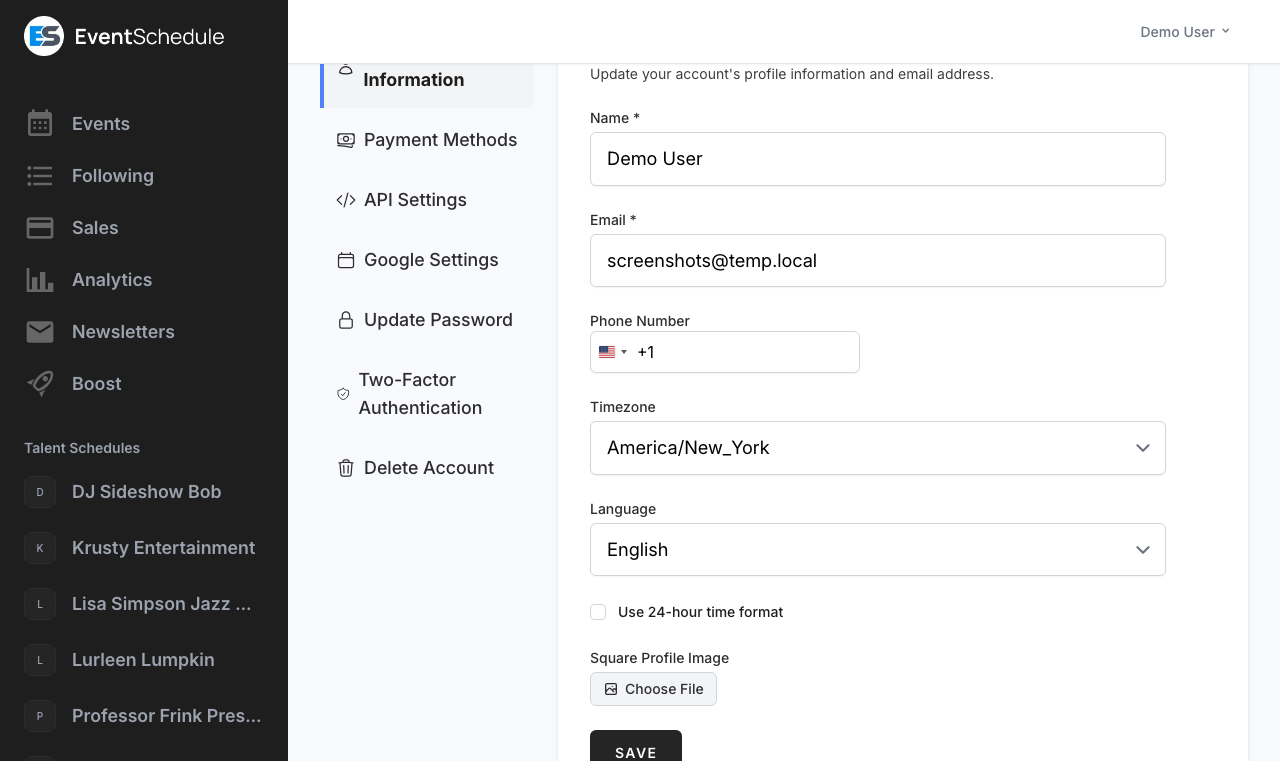
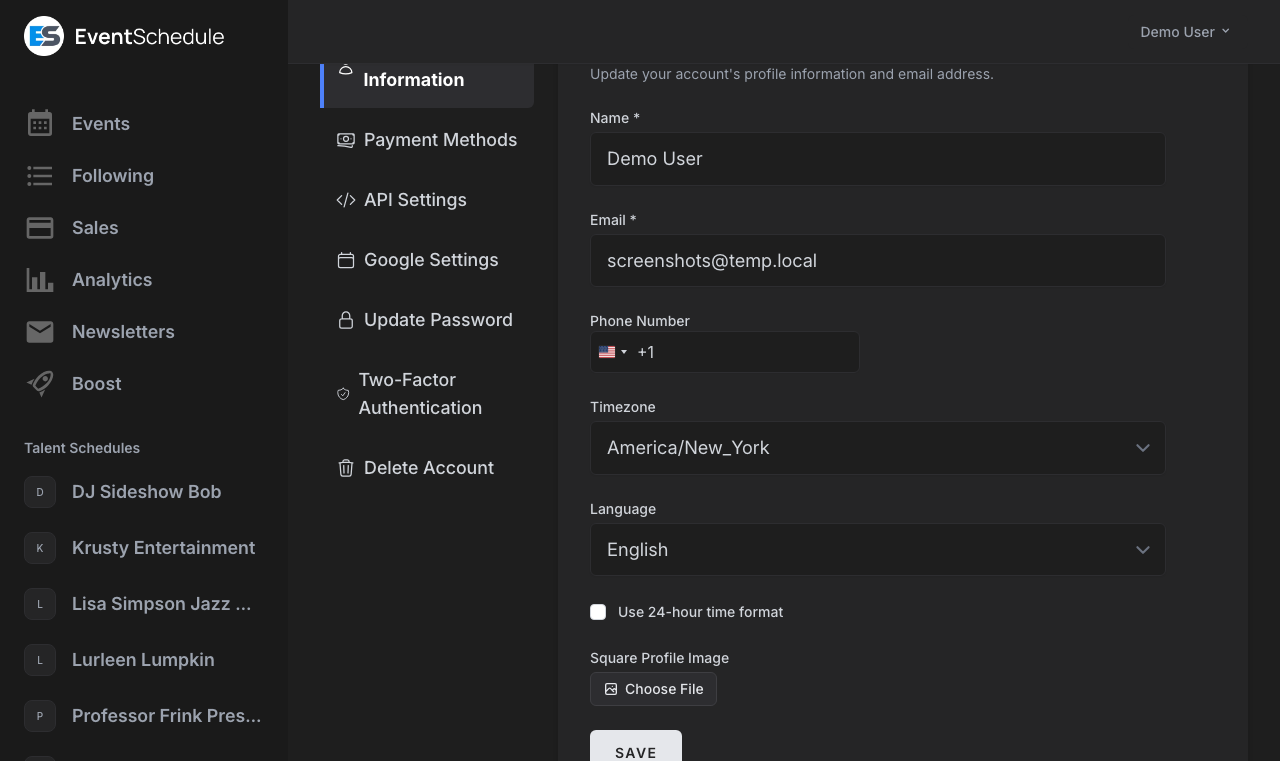
Profile Information opens on your general details and your preferences, described first below. Under them are rows that open in place, each showing what it holds beside its name: Localization and Appearance. A third row, Accessibility, appears only after you have hidden the accessibility widget, and its single button brings the widget back. One Save button at the bottom saves the general details, the preferences and the Localization row together.
General
| Setting | Description |
|---|---|
| Name | Required. Your display name, shown to the other members of any schedule you belong to. |
| Required. The address you sign in with and where account email is sent. Changing it un-verifies the account: saving takes you to the email verification page, and the admin portal opens again once you click the link in the verification email. The page has a button to send that email again. | |
| Phone Number | Optional, in international format. On the hosted platform you can verify it by SMS. A verified number is required before you can buy ad campaigns and on-network promotions, and it lets a schedule without its own email settings send newsletters and automatic new-event emails to more than 50 people at once. If one of your schedules uses the same number, that schedule's number counts as verified too. |
| Default schedule | Only shown when you can edit more than one schedule. It decides which schedule a new event belongs to when you start from the general Add Event entry point rather than from a schedule. It starts on None. |
| Square Profile Image | Your avatar, as a PNG or JPEG. A square image works best: the form warns you if the picture is not square or is larger than 2.5MB. Use the small red cross on the thumbnail to remove the current image, after a confirmation. |
Preferences
Three switches under your details, always on the page, about what the app sends you and asks you.
| Setting | Description |
|---|---|
| Email updates | On by default. Covers newsletters, tips, the reminders about setting up your schedule, the weekly summary and updates on events you asked other schedules to list. Turning it off (or using the Unsubscribe link at the bottom of one of those emails) stops them all. Receipts, password resets and the notifications you turned on for your own schedules are always sent. |
| Suggestions | Shown only if you edit a schedule. On by default: the setup guide and the next steps on your dashboard. It changes what the app shows and stops no email; the reminder emails about the same steps follow Email updates. Requests waiting on you are always shown, whatever this is set to. |
| Ask me before I follow a new schedule | On by default. Shows a short consent notice, explaining that the schedule will see your name and email, the first time you follow a schedule. Turn it off to follow in one click. |
Localization
| Setting | Description |
|---|---|
| Timezone | Your own clock. It decides what counts as today on your dashboard, the times shown for newsletters you schedule and send, and the hour the weekly summary and reminder emails reach you (your morning). A schedule you create starts on it. Event times are not converted to it: an event is always shown in its schedule's timezone. |
| Language | Sets the interface language. Twelve languages are available: Arabic, Dutch, English, Estonian, French, German, Hebrew, Italian, Portuguese, Romanian, Russian and Spanish. |
| Use 24-hour time format | On, times are shown on a 24-hour clock wherever you are signed in. Off, each schedule's own choice of 12-hour (AM/PM) or 24-hour applies. |
Appearance
The Appearance row controls how the admin portal looks, and says beside its name what is chosen. You can also change it on any page from the Theme button in the row of icons pinned to the bottom of the sidebar, which opens the same Theme and Palette controls in a popup. Nothing here waits for Save: a choice applies as you make it.
Theme chooses Light, Dark, or System. System follows your device's own light/dark setting and updates the moment your device switches.
Palette then picks the exact colours. There are three light palettes and three dark ones, and you set each side independently: the palette row shows the three options for whichever mode you are currently viewing, so switch Theme to Dark to choose your dark palette.
| Palette | Description |
|---|---|
| Sand | Light. Warm beige page with white panels. |
| Mist | Light. Cool blue-grey page with white panels. The default. |
| Paper | Light. Crisp white page with softly recessed panels. |
| Espresso | Dark. Warm deep brown. |
| Midnight | Dark. Cool charcoal-navy. The default. |
| Carbon | Dark. True black, easiest on OLED screens. |
Your choice is stored in your browser rather than on your account, so it applies to the device you set it on. Set it again on your phone or another computer to match. Public schedule pages are unaffected: they keep the colours the schedule owner configured.
Accessibility
This row is only there after you have hidden the accessibility widget on this device. Its one button, Show accessibility widget, brings the widget back on every page. Nothing here is saved to your profile: the choice is remembered by the browser you made it in.
Payment Methods
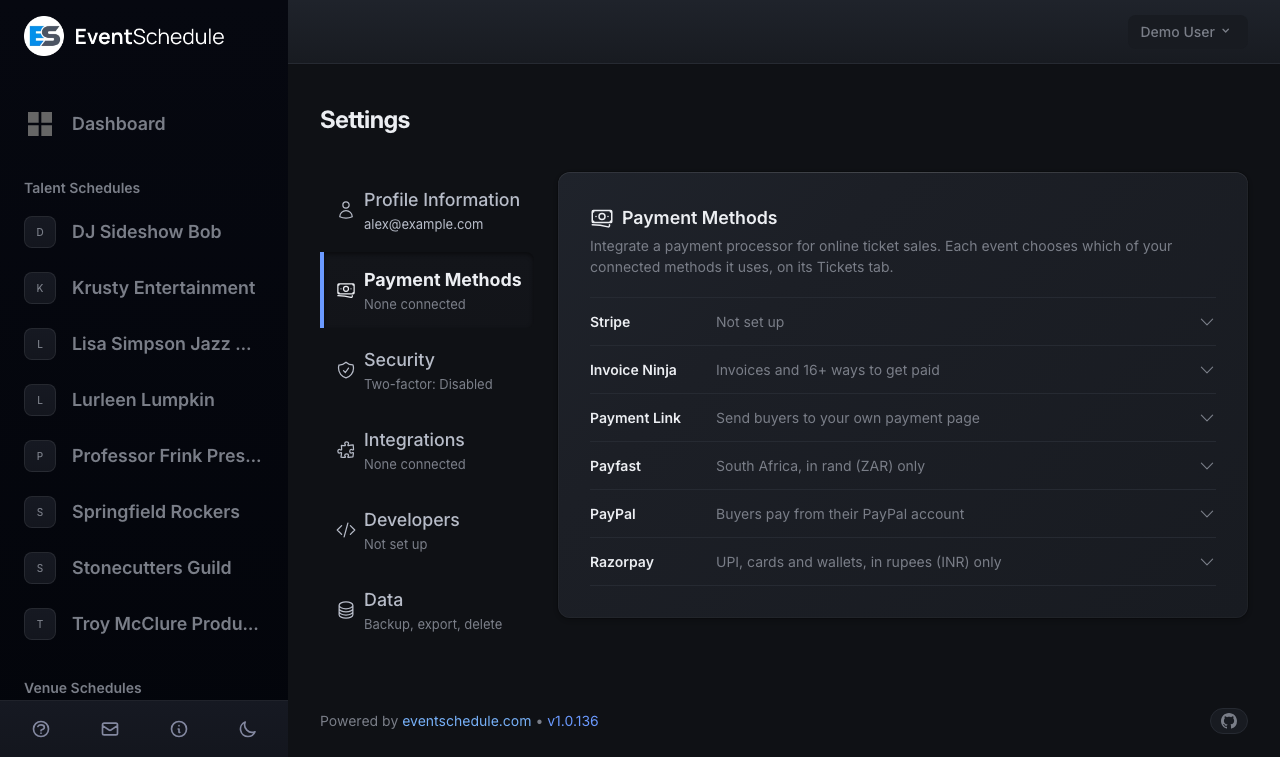
Cash needs nothing set up. To take payment any other way, connect a method here. There are six, each a row that opens in place and says beside its name whether it is connected, or what the method is while it is not: Stripe, Invoice Ninja, Payment Link, Payfast, PayPal and Razorpay. The line under Payment Methods in the list of entries names the ones that are. While nothing is connected the first row opens by itself, and a row's button reads Connect until there is something to save over.
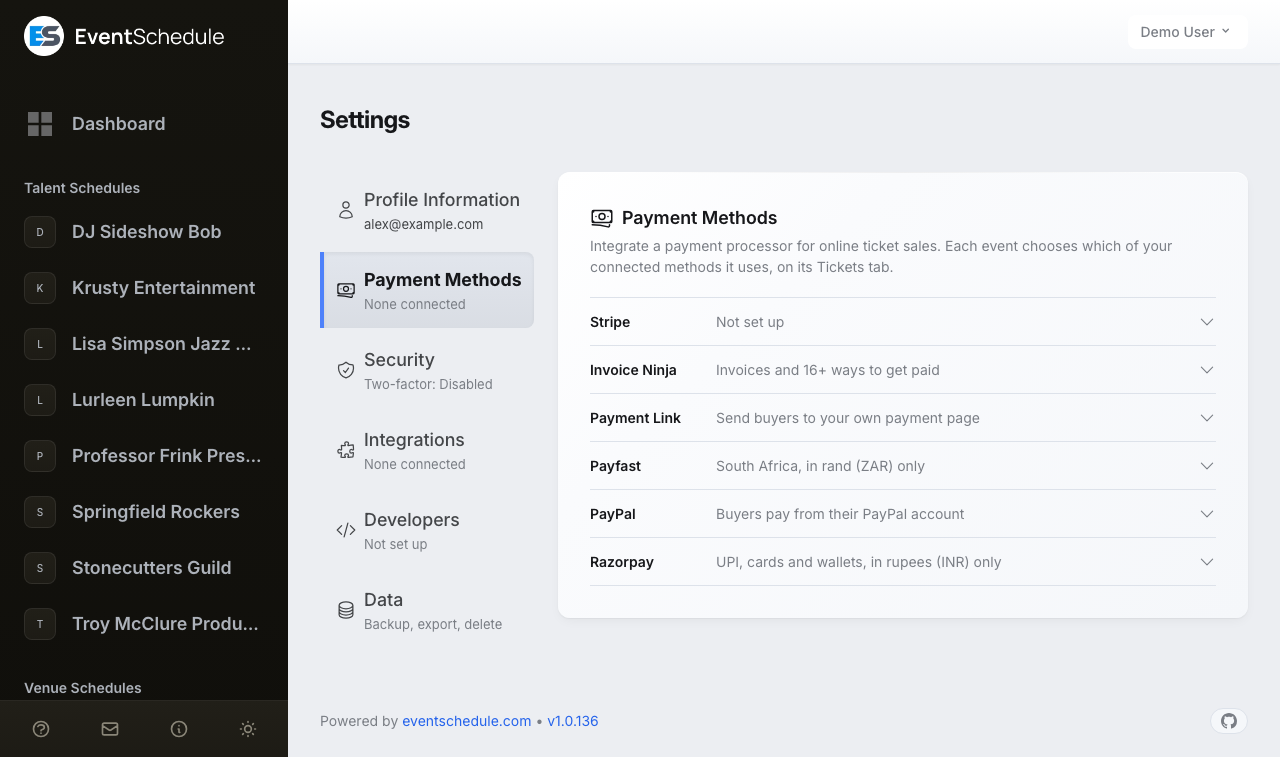
Which one an event uses is decided per event, in the Payment row of the event's Tickets tab, so connecting more than one lets you route different events differently. With nothing connected, an event can only take cash, unless the site you are on provides an account for everyone, as described below.
Taking money for a ticket is the Pro plan, and it comes with all six methods. A free schedule sells nothing priced, so until it is on Pro (which starts with a free trial) it needs none of them.
Stripe
Stripe gives the most integrated experience: the buyer pays on Stripe's secure checkout page and comes straight back, the sale is marked paid automatically and the ticket with its QR code is emailed straight away. It is also the only method that can take installment payments Pro - Requires the Pro plan .
Hosted platform
Click Connect Stripe to start Stripe Connect onboarding, then complete the details on Stripe. Until Stripe finishes reviewing them the row shows your account ID and reads Setup not finished, and the line under Payment Methods says it first and in amber (Stripe: Setup not finished), even when another method is connected, and Connect Stripe stays there to pick the setup up again. Buyers are charged on your own Stripe account, so payouts and Stripe's own processing fees are between you and Stripe. Event Schedule adds no platform fee of its own.
Selfhosted
Stripe is configured once at the server level with the STRIPE_PLATFORM_KEY and STRIPE_PLATFORM_SECRET variables in your .env file, not per account. The row simply reports whether the server has Stripe configured. See the
selfhosted Stripe setup guide
.
Disconnecting
Click Disconnect beside the account name in the Stripe row and confirm. This only removes the connection to Event Schedule; your Stripe account and its history are untouched.
Invoice Ninja
Connect your Invoice Ninja account to take payment through any gateway Invoice Ninja supports, and to have each sale land in your books as an invoice. This is often the easiest route for a selfhosted deployment.
Connecting
Enter your API Token (required) and, if you selfhost Invoice Ninja, the API URL. The token is in Invoice Ninja under Settings → Account Management. Enter the base address of your installation, without /api/v1, or leave the API URL blank to use the hosted invoicing.co service. Saving verifies the credentials against your installation, which can take up to 30 seconds. Before you connect, the row also links to a special offer: first-time Invoice Ninja users may be eligible for a free 1-year upgrade to Invoice Ninja Pro.
Changing credentials
Once connected, click Edit next to the company name to correct the API URL or rotate the token. Leave the token blank to keep the existing one. Your current connection is only replaced once the new credentials work.
Checkout modes
After connecting, the row offers two choices under Checkout mode, with a Save of their own: Invoice (buyers pick tickets in Event Schedule) and Payment link (buyers pick tickets on Invoice Ninja's purchase page, with grouped invoices). See Invoice Ninja Modes for a full comparison. If a payment link cannot be created for a sale, that checkout falls back to invoice mode automatically.
Troubleshooting
If the connection fails, a red panel at the top of the Invoice Ninja row names the reason and shows the raw error, and the full detail is written to your application log. Common causes for selfhosted installations are a firewall, Cloudflare or other bot protection blocking API requests from your Event Schedule server, an http URL that redirects to https, and a self-signed TLS certificate the server does not trust.
Disconnecting
Click Disconnect next to the company name in the Invoice Ninja row and confirm.
Payment Link
The row is labelled Payment Link. It points buyers at any external payment page you already have: a bank transfer page, a donation page, your own shop's checkout, anything with a URL. To take PayPal payments that confirm themselves, connect PayPal in its own row instead.
How it works
Enter the URL where buyers should pay and click Connect. When somebody buys a ticket for an event using this method, the sale is recorded and the buyer is redirected to your URL. Because the money moves outside Event Schedule, the sale stays unpaid until the payment is confirmed.
Removing it
Click Disconnect beside the saved URL and confirm. The field is then empty and ready for a new URL.
Payfast
Payfast is a South African gateway, useful where Stripe is not available. Like Stripe it confirms the payment and releases the ticket on its own, with no manual step. It settles in South African rand only, so it appears as an option on events priced in ZAR and nowhere else.
What to enter
Your Merchant ID, Merchant key and Passphrase, all three from Settings in your Payfast dashboard. Set a passphrase there first if you have not already - it is required here, because it is what proves a payment notification genuinely came from Payfast.
Test mode
Sends payments to Payfast's sandbox so nothing is really charged. While it is on, the payment method reads (Test mode) on the event form and buyers see a notice on the payment page. Turn it off before you sell real tickets.
Payment methods
By default Payfast shows buyers everything your account supports - card, Instant EFT, Capitec Pay and the rest. Tick exactly one to send buyers straight to it; tick none, or several, and the choice stays with Payfast.
Removing it
Click Disconnect and confirm. Any event still set to Payfast keeps the setting but shows it as no longer available, so you can see it and pick something else. The exception is a site that provides its own Payfast account (below): there, disconnecting hands your events back to the site's account rather than stopping them selling, and the money goes there instead.
"Provided by this installation"
On a selfhosted site, the administrator can set up one Payfast account for everyone. If you see this, you can start selling immediately and there is nothing to fill in - payments settle into the site's account. Enter your own details to be paid into your own account instead, and disconnect them again to go back.
For the full walkthrough, including the sandbox credentials and what happens to an event priced in another currency, see Connecting Payfast.
PayPal
PayPal confirms the payment and releases the ticket on its own, with no manual step. It is worth choosing where Stripe is not available, or where your buyers would rather pay from a PayPal balance than type a card into a page they have not seen before. It settles a fixed list of currencies - if your event is priced in something else, PayPal simply does not appear as an option.
What to enter
Your Client ID and Secret. Both come from an app you create at developer.paypal.com under Apps & Credentials. Make sure you are on the Live tab unless you are testing - the Sandbox tab issues a different pair.
They are checked when you save
We ask PayPal whether the details work before storing them, so a mistyped secret is caught here rather than by a buyer. If PayPal itself cannot be reached, the details are saved anyway and you are told they could not be checked - take a test payment before you sell.
Test mode
Uses your PayPal sandbox credentials so nothing is really charged. While it is on, the payment method reads (Test mode) on the event form and the Tickets tab's Payment row shows a warning. Turn it off before you sell real tickets - test tickets look exactly like real ones.
Removing it
Click Disconnect and confirm. The listener we registered with PayPal is removed at the same time. Any event still set to PayPal keeps the setting but shows it as no longer available, so you can see it and pick something else. The exception is a site that provides its own PayPal account (below): there, disconnecting hands your events back to the site's account rather than stopping them selling, and the money goes there instead.
"Provided by this installation"
On a selfhosted site, the administrator can set up one PayPal account for everyone, exactly as with Payfast. If you see this, you can start selling immediately and there is nothing to fill in - payments settle into the site's account. Enter your own details to be paid into your own account instead, and disconnect them again to go back.
PayPal settles Australian, Canadian, Hong Kong, New Zealand, Singapore and US dollars, the euro, sterling, the Swiss franc, the Czech koruna, the Danish, Norwegian and Swedish krone, the Brazilian real, the Chinese yuan, the Israeli shekel, the Malaysian ringgit, the Mexican peso, the Philippine peso, the Polish zloty, the Russian rouble and the Thai baht. For the full walkthrough see Connecting PayPal.
Razorpay
Razorpay takes payment in Indian rupees by UPI, card, netbanking and wallets, and releases the ticket on its own once the buyer has paid. Buyers pay on a Razorpay payment page and come straight back, and we check every payment with Razorpay itself before marking a sale paid. It settles in INR only - if your event is priced in anything else, Razorpay does not appear as an option.
What to enter
Your Key ID and Key Secret, from the Razorpay Dashboard under Account & Settings > API Keys. The Key ID starts with rzp_live_, or rzp_test_ for test mode.
They are checked when you save
We ask Razorpay whether the keys work before storing them, so a mistyped secret is caught here rather than by a buyer. If Razorpay itself cannot be reached, the keys are saved anyway and you are told they could not be checked - take a test payment before you sell.
Webhook Secret (recommended)
The Razorpay row shows a webhook URL with a Copy button. In the Razorpay Dashboard, open Account & Settings > Webhooks, add that URL, tick payment_link.paid and payment_link.expired, choose a secret and enter the same secret here. With it, a buyer who pays but never comes back from Razorpay (common when paying in a UPI app) still gets their ticket, and a checkout nobody finishes gives its seats back when its payment page expires. Test Mode and Live Mode each need their own webhook. While no secret is saved, the row reads No webhook.
Test mode
Use your Test Mode keys and nothing is really charged. While they are in use, the payment method reads Razorpay (Test mode) wherever you pick it, the row reads Test mode and the Tickets tab's Payment row shows a warning. Enter your live keys before you sell real tickets. Changing the Key ID from test to live, or back, clears a saved webhook secret, because the webhook belongs to the other mode.
"Provided by this installation"
On a selfhosted site, the administrator can set up one Razorpay account for everyone, exactly as with Payfast and PayPal. If you see this, you can start selling immediately and there is nothing to fill in - payments settle into the site's account. Enter your own keys to be paid into your own account instead, and disconnect them again to go back.
For the full walkthrough, including what to do without a webhook and when a checkout is refused, see Connecting Razorpay.
One payment method is enough. Stripe, PayPal, Payfast and Razorpay all confirm payment and deliver the ticket without any manual step, so pick whichever of them works where you are. Invoice Ninja marks the sale paid once the invoice is paid, through the webhook it registers when you connect. With a payment link, you mark each sale paid yourself.
Refunds differ too. A Stripe, PayPal or Razorpay sale can be refunded in full or in part from the Sales page, and the money goes back through the provider. For every other method, Mark as Refunded records a refund you have made yourself. See Managing Sales.
When you are paid
Event Schedule never holds ticket money. A buyer pays your own account with the provider, and the provider pays it out to your bank on its own schedule, so that is where to look when you need to know when money will arrive, for example to pay the people working an event. Under its row in Payment Methods, each account you connect says where its money goes, with a link to the provider's payouts where it has a page for them.
Stripe
Stripe pays out to your bank on a rolling basis, usually within a few business days of a sale, depending on your country. A new account's first payout often takes 7 to 14 days while Stripe checks it. Your payout dates and history are under Balance > Payouts in your Stripe dashboard.
PayPal
A payment lands in your PayPal balance as soon as the buyer pays. Moving it to your bank is a transfer you make from PayPal.
Razorpay and Payfast
Each settles to your bank on its own settlement schedule, which its dashboard shows.
Invoice Ninja, a payment link and cash
The money reaches you however that method pays you: the payment terms set in Invoice Ninja, the service behind your payment link, or in hand at the door.
Update Password
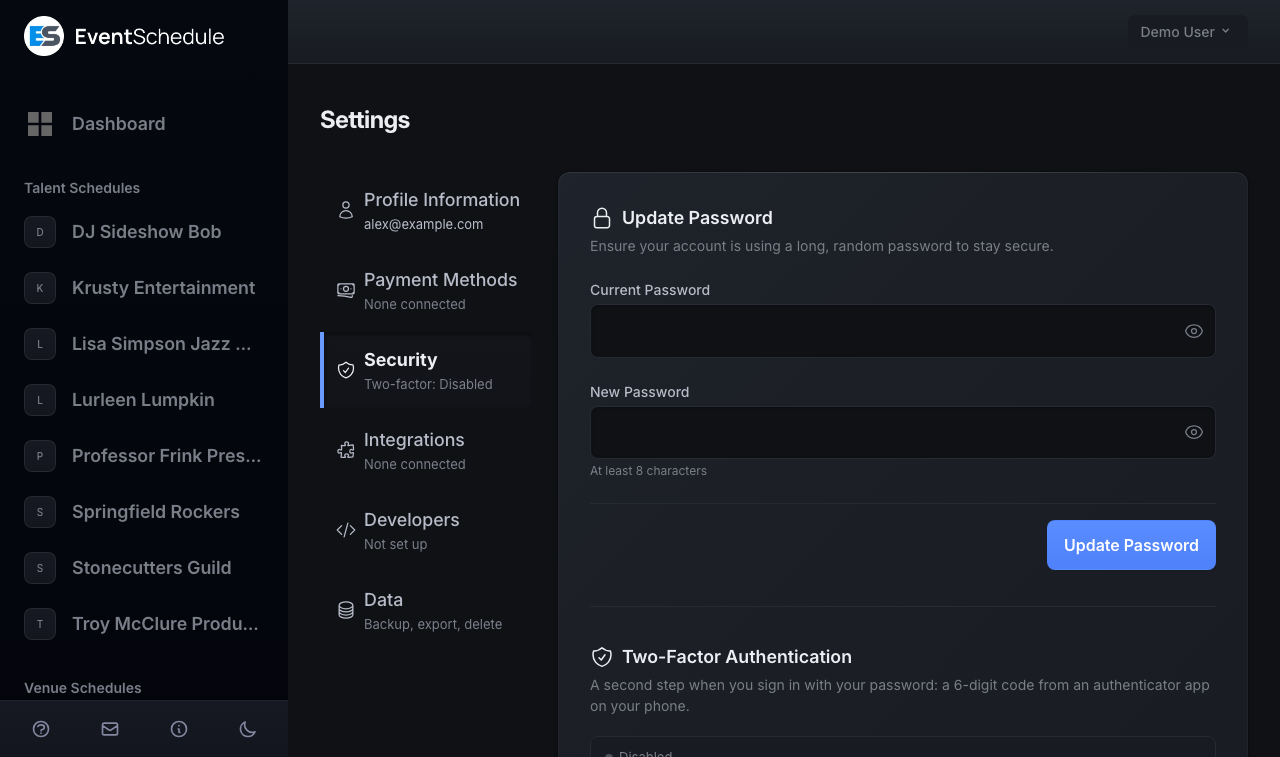
The first section of the Security entry, whose line in the list says whether two-factor is on. Enter your current password, choose a new one and click Update Password. The eye in each field shows what you typed. A password must be at least 8 characters long.
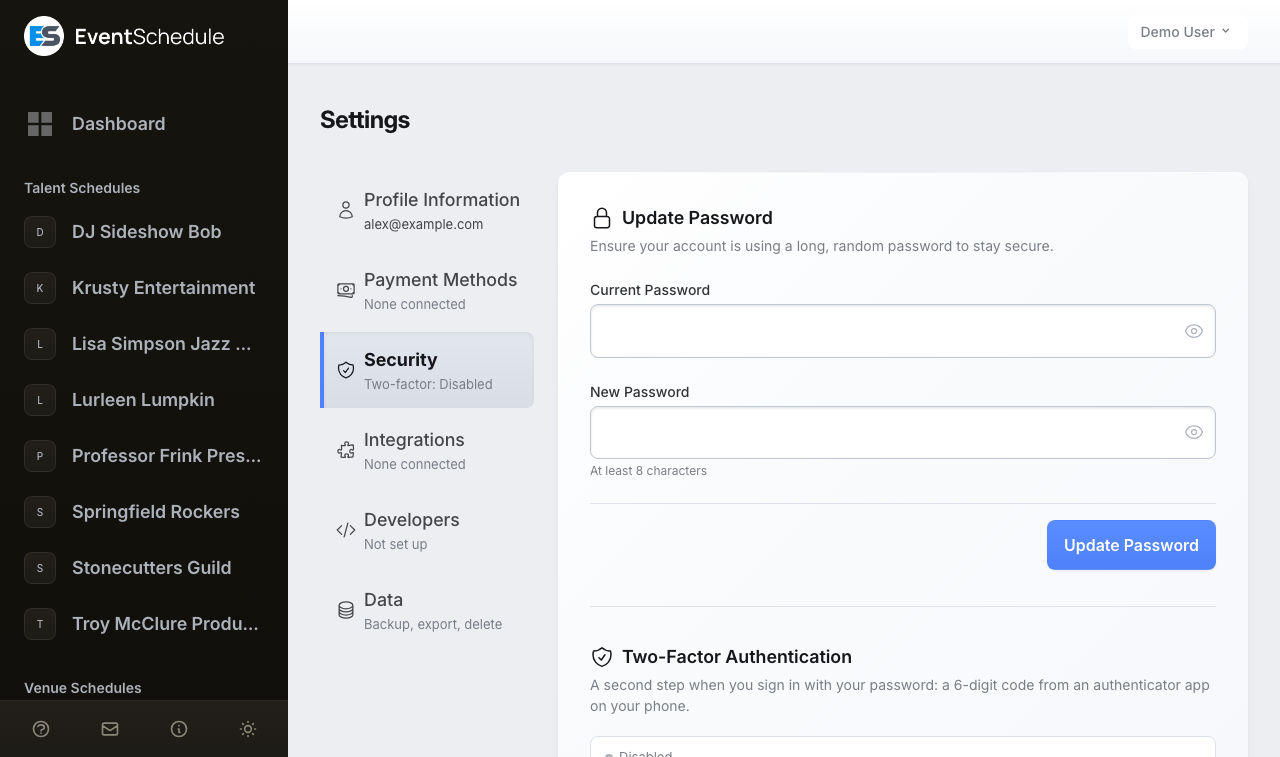
If your account was created by signing in with Google or Facebook it has no password yet, and the section is titled Set Password instead. It first asks you to confirm who you are with that account, through Verify with Google or Verify with Facebook; after that you have five minutes to choose a password, and only the new password field is shown.
Setting a password is also what makes it possible to disconnect Google later, and it gives you a way in if you ever lose access to your Google account.
Two-Factor Authentication
The second section of the Security entry. Two-factor authentication (2FA) adds a second step when you sign in with your password: a 6-digit code from an authenticator app such as Google Authenticator, Authy or 1Password.
The code belongs to the password sign-in only. Signing in with Google or Facebook does not ask for it, and the section says so wherever that is a way into your account. The section shows Disabled while two-factor is off, and the line under Security in the list says the same.
Turning it on
- While two-factor is off, the section says so and lists what switching it on involves. Enter your current password and click Enable Two-Factor Authentication. Accounts with no password, created by signing in with Google or Facebook, are not asked for one.
- Scan the QR code with your authenticator app. If you cannot scan, type the key printed under the code into the app by hand.
- Save the recovery codes shown on the same screen, somewhere other than the device holding the authenticator app.
- Type the 6-digit code from the app and click Confirm. Two-factor authentication is not active until this step succeeds.
Afterwards
Recovery codes
Each code works once and lets you sign in without the authenticator app. Regenerate recovery codes asks you to confirm, then issues a fresh set and displays it once; every earlier code stops working at that moment.
Turning it off
Click Disable and type your password into the field that opens under it. An account with no password is asked to confirm instead. While a setup is waiting for its code, Cancel backs out of it the same way. Disabling removes the authenticator secret and every remaining recovery code, so switching 2FA back on later starts from a new QR code.
Store your recovery codes securely. If you lose the authenticator app and no longer have the codes, you will not be able to sign in with your password. A connected Google or Facebook account still gets you in, because that sign-in does not ask for the code.
Google Settings
The first section of the Integrations entry, whose line in the list names what is connected. Two separate Google connections live here. Connecting one does not connect the other, and each can be disconnected on its own. Disconnect asks you to confirm and says what stops: signing in with Google for the first, calendar sync for the second. Your events are kept either way.
Google Account
Links your Google identity so you can sign in with Google. Disconnect is only available while you have another way to log in (a password, or a connected Facebook account), otherwise you would lock yourself out; set a password first under Update Password.
Google Calendar
Authorises sync between Event Schedule and your Google Calendar. Connecting here does nothing on its own: sync is switched on per schedule, under Integrations in the schedule's settings. The schedule-wide, two-way sync is the owner's to set, because it runs on the owner's Google account. Every other member connects their own Google account here to send the schedule's events to a calendar of their own, so one shared schedule can reach several personal calendars.
A synced calendar gets one entry per event date that Event Schedule pushes, not a repeating series: a recurring event arrives as a single entry on the date the series starts. Subscribe to the schedule's calendar feed instead if you want each date of a recurring event in your calendar: it lists every date for the next 90 days and updates itself when dates change.
Outlook Calendar
The second section of the Integrations entry, titled Outlook Calendar; the line under Integrations calls it Outlook once it is connected. It connects your Outlook or Microsoft 365 account through the Microsoft Graph API. Once connected, Disconnect asks you to confirm first: your events are kept, and sync stops.
Connecting
Click Connect Outlook Calendar and approve the permissions on Microsoft. Changes then flow both ways: Microsoft notifies Event Schedule as they happen, and a catch-up sync runs every 15 minutes in case a notification is missed. Once connected, switch sync on for each schedule under Integrations.
Selfhosted installations
The integration needs Microsoft app credentials on the server. Without them the section reads "Outlook Calendar is not configured on this server" and there is no connect button. See the selfhosted Outlook setup guide .
Turn on Create Teams meetings for online events in a schedule's Outlook Calendar settings to have a Microsoft Teams meeting created, and its join link saved to the event, when an online event syncs to Outlook.
Facebook Settings
The last section of the Integrations entry. It links your Facebook account so you can log in with Continue with Facebook. The section only appears when Facebook login is enabled on the installation. It is only for logging in: your events are not imported from or published to Facebook.
Connecting
Click Connect Facebook Account and approve on Facebook. If you use Continue with Facebook on the login page and an account with your email already exists, you are asked to log in once the usual way; your Facebook account is linked as soon as you do.
Disconnecting
Disconnect is only available while you still have another way to log in: a password, or a connected Google account. Set a password first under Update Password if Facebook is your only one.
Setting it up
Facebook login needs a Facebook app configured by whoever runs the installation. Without it there is no Facebook button or settings section. See Facebook login setup .
Boosts
Shown only to an account set up as a boost partner: a network whose schedules boost under its own Facebook Page and Meta ad account. It is separate from the Facebook sign-in under Integrations. How the boosts themselves work is in Boosting under your own Page .
Page and ad account
Follow the numbered steps to share your ad account and Page with our Meta Business, enter the two IDs (a number, act_ followed by the number, or the address copied from Facebook), and press Save and check. Each check is listed with its result, with the fix when one fails, and Check again runs them again once you have fixed something on Facebook. The status reads Waiting for confirmation until we confirm the IDs once, and you are emailed when that is done; requests approved and paid in the meantime start then. Where it is offered, you can sign in with Facebook instead and pick the Page and ad account from your own. Disconnect stops your running boosts first, then removes the connection. The same block holds How businesses pay you: a link or a contact shown to a business once you approve its boost.
Fee card
The card our monthly fee is charged to: 20% of the previous month's actual ad spend. When a charge is declined we try the card again automatically for 7 days. A payment your bank asks you to confirm is not tried again on its own: open the statement and press Pay now to confirm it. After you update the card, a declined statement is tried on the new card at the next daily charge.
API Settings
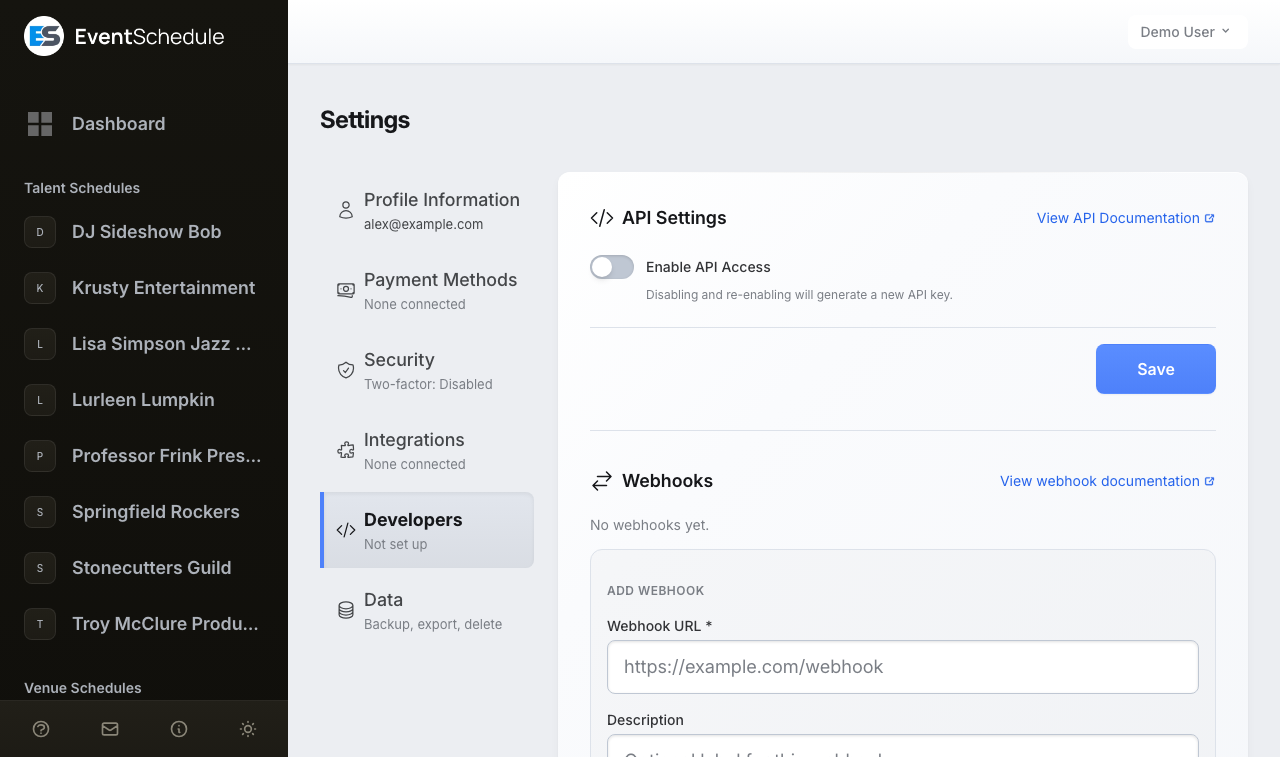
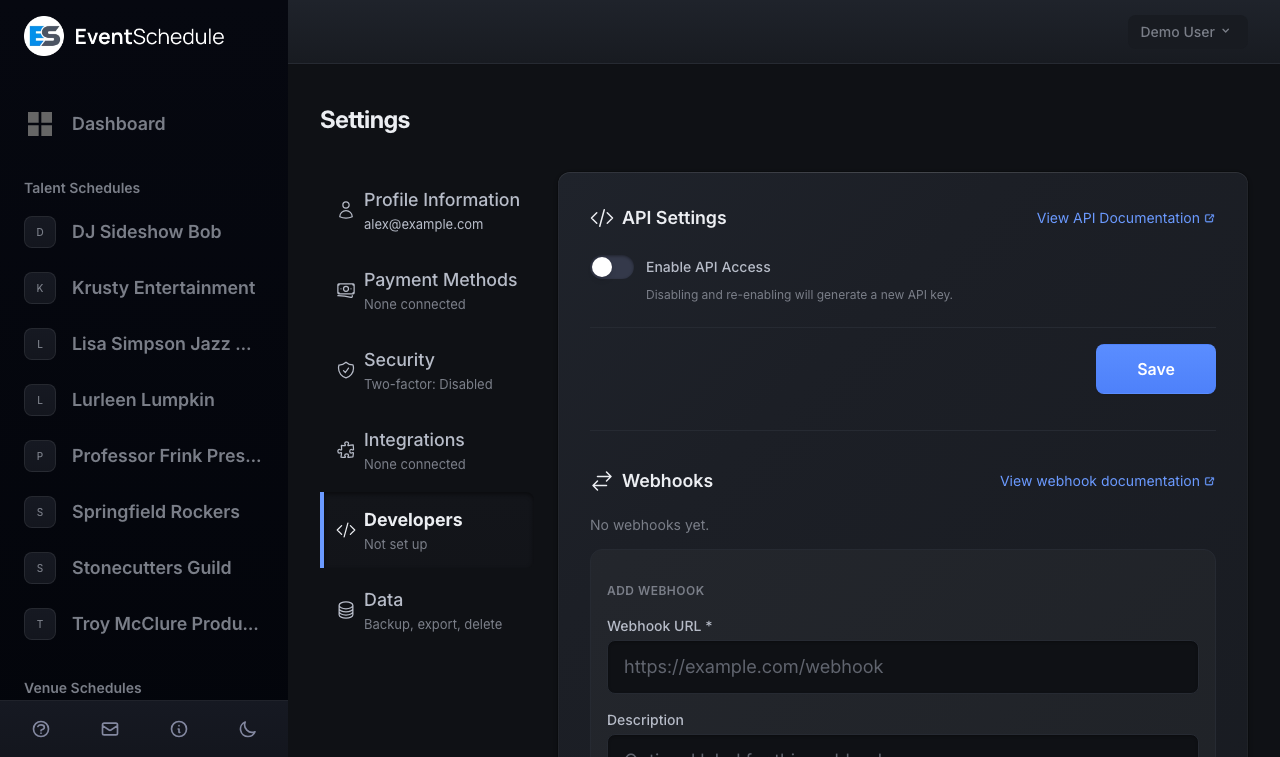
The first section of the Developers entry. It issues the key that authenticates REST API requests for your account, and View API Documentation beside its title opens the reference. The endpoints themselves are a Pro feature: the key can be generated on any plan, but every call is checked against the schedule it touches and a schedule below Pro is refused. See the API Reference for the full endpoint list.
Enable API Access
A single toggle. Saving it on generates a key straight away. Saving it off deletes the key, so anything using it stops working immediately; the save asks you to confirm first.
API Key
The full key is displayed exactly once, right after it is generated, next to a copy button. From then on the field shows dots and there is no way to reveal the key again, so store it somewhere safe the moment you create it. Send it as the X-API-Key request header.
Expiry
A key is valid for one year from the day it is issued, and the date it runs out is shown under the key. Once it has passed, the section says so and the line under Developers in the list reads "API: Expired". After that requests are rejected as expired, and you get a fresh key by turning the toggle off and on again.
The key grants the same access to your account that you have. If you suspect it has leaked, turn the API off and on again: that deletes the old key and issues a new one, and the old key stops working at once.
Webhooks
The second section of the Developers entry. A webhook POSTs a JSON payload to a URL of yours whenever something happens in your schedules, such as a sale, a refund, an event change or a check-in. Webhooks are a Pro feature: if none of your schedules are on Pro the section shows an upgrade notice, and activity on a schedule below Pro is never delivered. See the Webhook documentation for payload formats and signature verification.
Adding a webhook
- Enter the Webhook URL that should receive the requests.
- Add an optional Description so you can tell endpoints apart in the list.
- Under Event types, leave All events switched on to receive everything, or switch it off and untick the types you do not want. Saving with none ticked also sends everything.
- Click Add Webhook. The signing secret appears once at the top of the section with a copy button, and is never shown again.
Managing webhooks
Each saved webhook is one line with its description, URL and subscribed event types, and its actions beside it. With at least one webhook saved, the form for another is behind + Add Webhook.
- Disable or Enable the endpoint. A webhook is marked Enabled or Disabled beside its name, and a disabled one receives nothing.
- Test sends a test ping to check the endpoint answers.
- Edit opens a panel to change the URL, description and event types, and holds the Regenerate secret and View recent deliveries links.
- Delete, at the end of the Edit panel, removes the endpoint after a confirmation.
View recent deliveries, in a webhook's Edit panel, expands a log of the latest attempts, with the event type, the response status (or timeout), how long the request took and when it ran. The row also shows when the endpoint last fired.
Backup & Restore
Export your schedules as a portable .zip file, or restore one you exported earlier. A backup carries the schedule itself and its sub-schedules, and every event with its ticket types, promo codes, sales (installment plans and refunds included), agenda, polls, fan content, feedback, waitlist and interest list. It also carries the schedule's gift cards, appointment types, seating plans and newsletters, and optionally the images. Curator event sources are not included: add them again on the restored schedule. The section is the first of the Data entry and has two rows that open in place, Export and Import. A row reads "In progress" while a job is running in it.
Exporting
- Open the Export row and review the schedule list. Every schedule you can edit is listed and all are selected, so clear the ones you do not want.
- Turn on Include images to bundle profile images, flyers and photos. It is off by default and makes the file considerably larger.
- Click Export. Progress is reported in place, item by item, and you can cancel while it runs.
- When it finishes, a Download link appears. The link expires after 7 days. On installations that run a queue worker you also get an email when the export is ready.
Importing
- Open the Import row, choose a
.zipexport and click Upload. - A preview lists each schedule in the file with its type, its event, ticket and sale counts and its date range. All are selected, so clear any you do not want.
- Click Start Import. Imported schedules are always created as new schedules, so nothing you already have is overwritten.
- When it finishes you get a report per schedule, counting what was imported for each kind of record and listing any warnings, with a link to the new schedule. On installations that run a queue worker the detailed report is also emailed to you.
On the hosted platform, exports leave out your email subscribers, newsletter recipient addresses, segment contacts and unsubscribe lists, and the Export row says so before you start.
Every export contains personal data, such as your ticket buyers' names and email addresses and the addresses on each event's waitlist and interest list, so store the files securely. On a selfhosted installation it also carries your email subscribers and newsletter contacts. To move a whole installation to another server, mysqldump is a better tool than export and import.
Your Data
The second section of the Data entry, titled Your data. Download my data prepares a copy of the personal data held about your account and its email address in the background, and emails you a link to it, valid for seven days. It covers your profile, the schedules you belong to, tickets and bookings you made (including ones bought before you had an account), schedules you follow or get emails from, newsletters you received with whether you opened them, comments, photos and videos you posted, support chats, and the security log of your account. It is one JSON file, which a text editor can open and other services can import. Your schedules' own content and images are not in it: those are in each schedule's backup. The link is sent by email only, so the button is not offered on an install that cannot send email.
It is not a backup of your schedules: for their events, settings and audience, use Backup & Restore.
Delete Account
The last section of the Data entry. It permanently deletes your account and everything attached to it, and says so above the button. That means:
- Your user account, profile and profile image
- Every schedule you own, with its events, tickets and sales
- Comments, photos and videos you posted while signed in (on ones you posted without signing in, your email address is removed), your follows and email sign-ups, and any waitlist entry or request for event updates under your address
- Connections to linked services such as Stripe and Google, including any calendar sync they were running; Event Schedule also asks Google to revoke its access
- Any paid plan on those schedules, which is cancelled immediately rather than at the end of the billing period. The rest of the period is not refunded, and both the section and the confirmation dialog warn you when you have a paid plan
Some records stay, because they belong to other people or are needed to honor your choices. Tickets, bookings and gift cards you bought stay in the organizer's records, under the name and email you used. Events and newsletters you created on a schedule someone else owns stay on that schedule, handed to its owner. A schedule keeps its record of the newsletters it sent you, with whether you opened them, and any mailing list an organizer imported your address into. An unsubscribe is kept, so that schedule cannot email you again. The security log keeps its entries for up to 90 days, no longer linked to the account.
Clicking Delete Account opens a confirmation dialog with an optional Why are you leaving? box. On eventschedule.com, anything you write there is emailed to the Event Schedule team as feedback and helps us improve the platform. Before that, download anything you want to keep, for example with Download my data and Backup & Restore.
Deletion is permanent. If your account has a password you are asked to type it in the dialog to confirm; accounts that only sign in with Google or Facebook confirm without one.
On a selfhosted installation, every user except an administrator can delete their own account here: the section is not shown to an administrator. The installation always keeps at least one administrator, so the last one cannot be deleted.
App Update
App Update is the last entry in the list, and only on a selfhosted installation. Its line says the installed version, or "Update available" with the version that is waiting. The section shows the Installed Version next to the Latest Version published on GitHub. If they match it simply says you are up to date. If they differ, an Update button downloads and applies the new release, after a confirmation. If GitHub cannot be reached, the section says so and offers no button.
A large update can outrun PHP's execution limit. If it times out, run php artisan app:update from the command line, raise max_execution_time in php.ini, or download the release zip linked under the button and extract it to /tmp/eventschedule/ before trying again. If it says the web server cannot write to every file of the app, run sudo php artisan app:update on the server, then set the file permissions again (see Keeping the Install Up to Date).
This section never appears on eventschedule.com, where everyone is always on the latest version automatically. On a single-tenant selfhost any signed-in user sees it; on a selfhosted platform running in hosted mode it is limited to the instance administrator, so a customer cannot update the whole installation.
Instance admins have the same panel at Admin → System → App Update (the System tab, then App Update in the row under it), which adds a last-checked time, a Check for Updates button and a badge on the System tab when a release is waiting. Either way, php artisan app:update does the same job from the command line and works even when neither screen is available.
See Also
- Getting Started - Set up your first schedule
- Selling Tickets - Choose a payment method per event once one is connected
- Advanced Schedule Settings - Per-schedule calendar sync, sending address and other integrations
- API Reference - Full API documentation for developers
- Webhooks - Payload formats and signature verification