Appointments
Let guests book time with you on a public page, Calendly-style. You set the hours you are open, they pick an open slot, and everyone gets a confirmation.
Feature overview: Appointment booking
How booking works
Appointment booking lets guests reserve a time with you on a public page. You define appointment types (for example a 30 minute intro call), and guests pick an open slot and book it.
It lives on the Appointments tab of your schedule in the admin panel, on every schedule type. The tab has two views, switched at its top left: Appointment types, where you set up what can be booked, and Bookings, where you see what has been. A number on the tab, and again on Bookings, counts the requests still waiting for your answer.
- You create one or more appointment types and set the hours you take bookings.
- A guest opens your booking page, picks a day and time, and enters their details.
- Both of you are emailed. The guest gets a calendar invite, a link to manage the booking, and a reminder before it starts.
Every booking is created as an unlisted event, so it never shows up on your public schedule, your iCal feed, your RSS feed, or your event graphics. It does block the time against further bookings, it syncs to your own connected calendars, and it appears on your Sales page.
Appointment booking is available on every plan. The free plan carries one appointment type with weekly hours, a public booking page and every guest email. Pro adds more types, lets a type carry a price, and unlocks the scheduling rules: date overrides, buffers, minimum notice, the booking window and the approval step.
| Plan | Appointment types |
|---|---|
| Free | 1 active at a time. A type you have switched off does not count |
| Pro | Unlimited |
| Enterprise | Unlimited |
| Selfhosted | Unlimited |
If a Pro plan lapses, nothing is deleted. Every type you built is kept, the oldest bookable one stays bookable, and the rest light up again when you upgrade. The Appointments tab names the type that is currently live so a booking link is never mysteriously missing.
Appointment types
- Open your schedule in the admin panel and go to the Appointments tab.
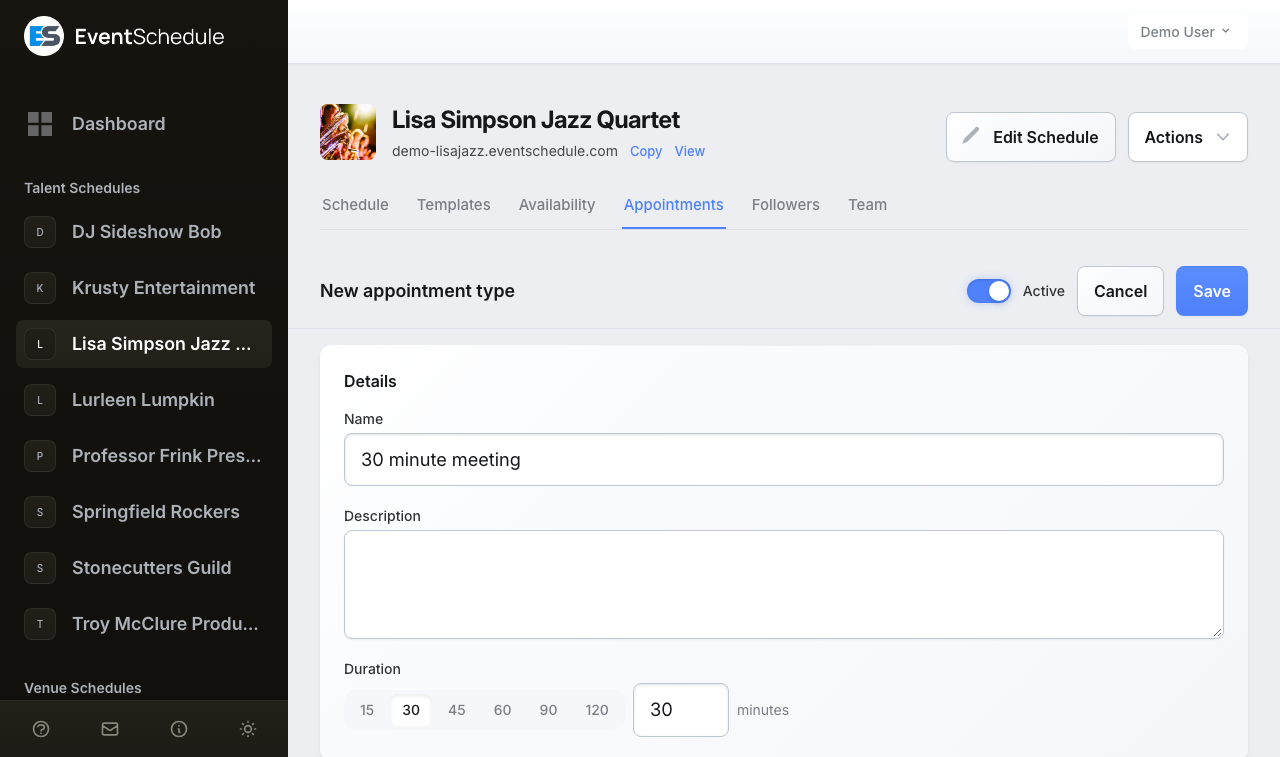
- Choose New appointment type. The editor takes over the tab until you save or cancel.
- Fill in the Details card, then work through the other six: Weekly hours, Date overrides, Scheduling rules, Location, Price and Booking form. On a wide screen they sit in two columns.
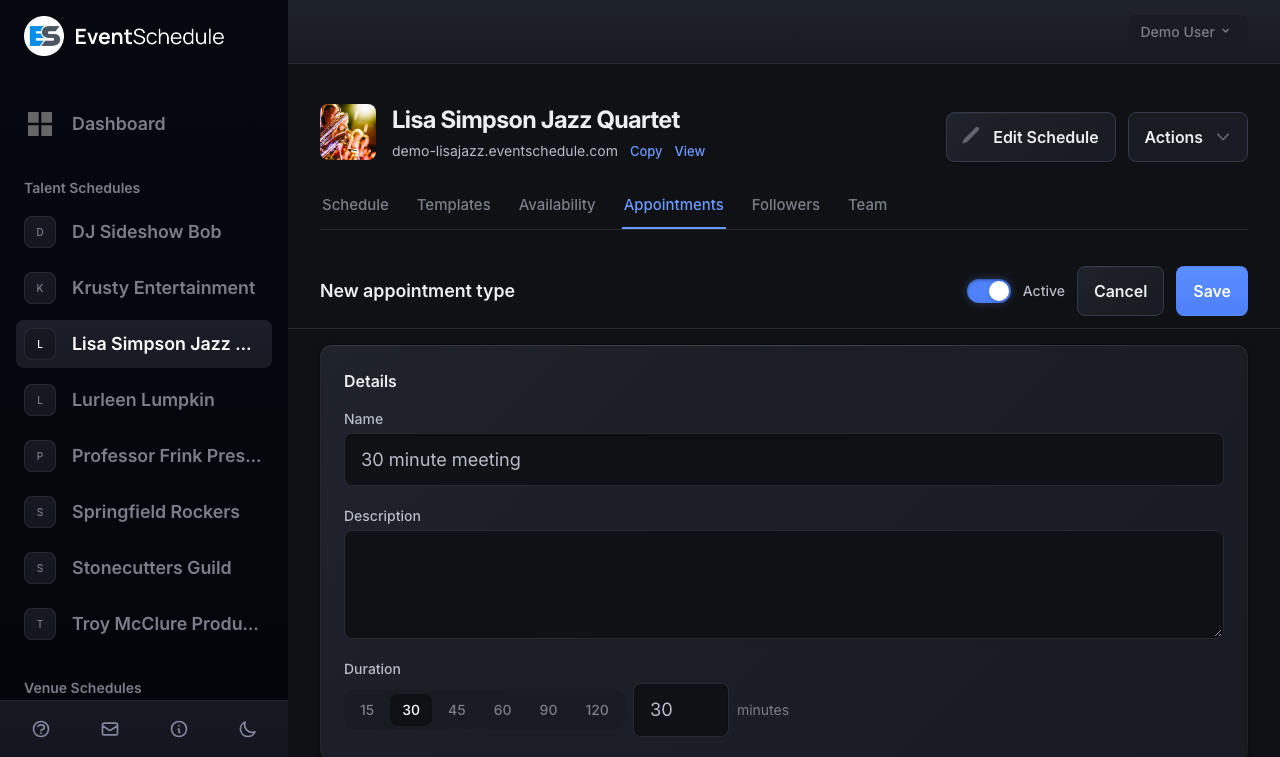
- Leave Active switched on in the bar at the top and choose Save beside it. The bar stays in view as you scroll, and Cancel in it goes back to the list without saving. When you edit a type guests can already book, the bar also has Preview, which opens its booking page in a new tab.
On the Free plan a small meter beside the button reads 1 of 1 used once your type is active, and the button carries a Pro lock: pressing it explains the allowance rather than opening the editor.
The rest of this page follows the editor's cards in order. The Details card itself holds three fields:
- Name - what guests see in the list, for example "30 minute intro call". A new type starts out named "30 minute meeting".
- Description - optional detail shown under the name on the booking page.
- Duration - how long the appointment runs. Tap one of the presets (15, 30, 45, 60, 90 or 120 minutes) or type any value from 5 minutes to 24 hours in the box beside them.
The types list
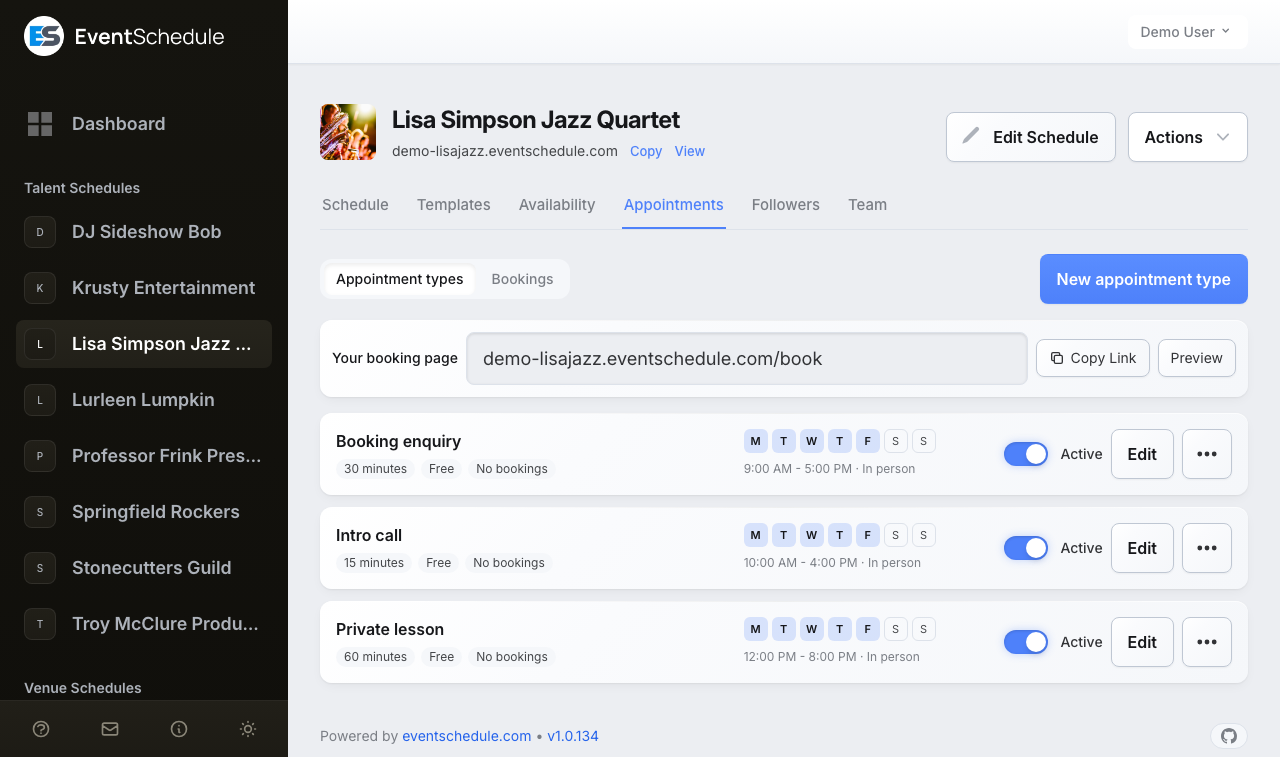
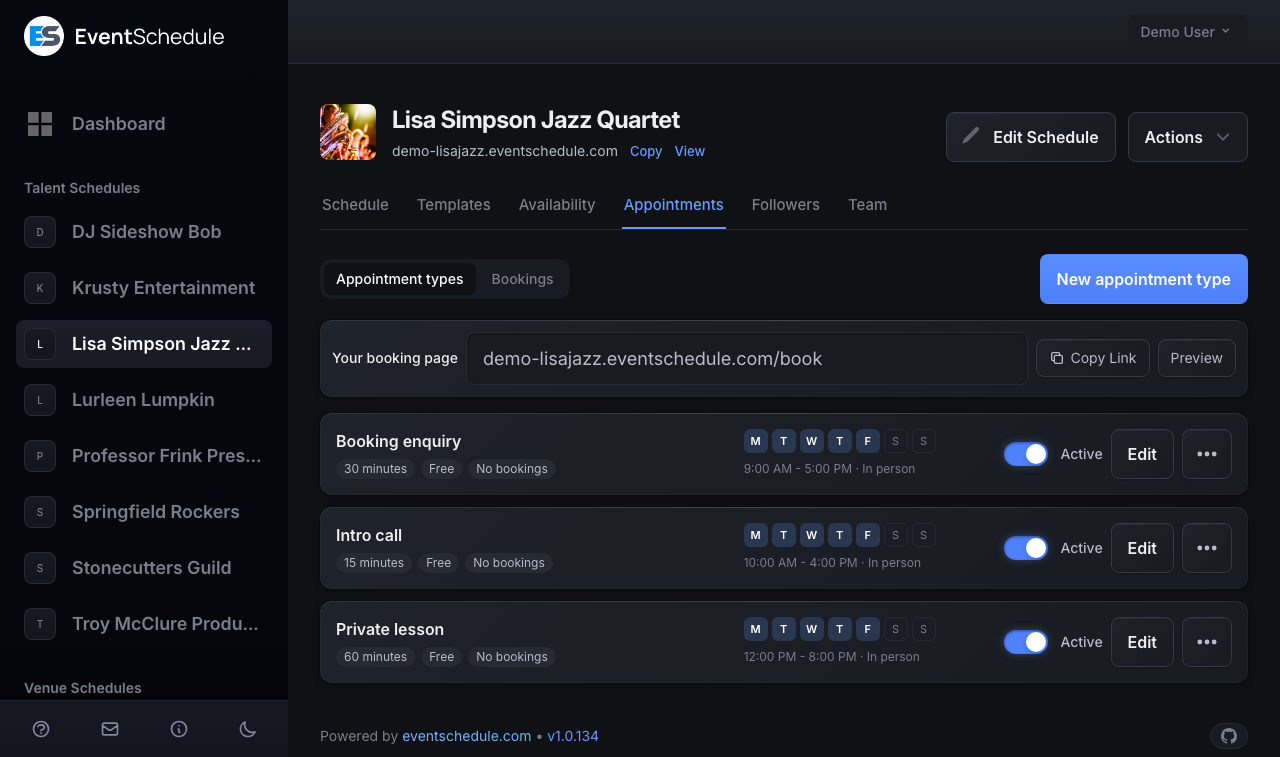
Back on the Appointments tab, each type is a card with three parts. The first names the type and shows its duration, its price or Free, Requires confirmation if it does, and how many bookings it has taken; a type that is switched off is marked Inactive. The second shows the week at a glance, with the days it is open filled in, its earliest and latest hours, and where it happens (it is left out on a phone). The third holds the actions:
| Action | Where | What it does |
|---|---|---|
| Active | On the card | A switch that turns the type on or off for guests, saved the moment you flip it. Turning it off stops new bookings and hides the type from your booking page. Bookings already made are unaffected. |
| Edit | On the card | Reopens the type in the editor. |
| Preview | Actions menu (the three dots) | Opens that type's booking page in a new tab, as a guest sees it. Only shown while the type is bookable. |
| Copy Link | Actions menu | Copies that type's own booking address, so you can link straight to it. Only shown while the type is bookable. |
| Clone | Actions menu | Makes a copy named "... (Copy)" and opens it in the editor, switched off, so you rename it before anyone can book it. On the Free plan it is refused while your one type is active, and the copy starts with the scheduling rules at their defaults (no date overrides, buffers or minimum notice, a 60-day booking window, no approval step). |
| Delete | Actions menu | Asks first, then stops guests booking the type and takes it off the list. Bookings already made are kept, and so is their history on the Sales page. |
A card also says, in an amber note, when its type cannot be booked as it stands: no weekly hours, no payment method a paid type can use, or a price on a plan that cannot charge.
Create as many types as your plan allows. A free intro call and a paid consultation can sit side by side with different hours, prices, and rules.
Hosts
On the Enterprise plan an appointment type can be booked with one person on your team. The Host field sits in the editor's Details card, under the duration, and lists the schedule's owner and its admins. A viewer cannot host, because the Appointments tab is closed to viewers and they could never see the bookings made with them.
Choosing a host changes whose time the type is:
- The weekly hours become the host's hours, and the card's heading says so ("Sam's hours").
- The host's other bookings block these times, on this schedule and on any other schedule where they host a type. Their days away block whole days: each team member marks those on the schedule's Availability tab.
- This schedule's own events, and events synced in from a calendar, do not block a host's times. They still block the types that have no host. A booking on a schedule the host has since left no longer counts as their time.
- The bookings of a schedule's types with no host are its owner's time. When the owner hosts a type, on that schedule or on someone else's, those bookings block it, and the bookings made with the owner block the schedule's types with no host.
- A type with no host is unchanged, except that bookings made with a host no longer block it, so two people on the same schedule can be booked at the same time.
- The host gets the booking emails, as well as everyone whose notification settings ask for them.
- Guests see the name: "with Sam" on the booking page, the confirmation, the emails and the calendar invite. Never the host's email address.
With two or more hosts, the public booking page groups the types under each host's name. Changing a type's host applies to new bookings only: a booking keeps the person it was made with, and moving it later checks that person's time.
When a host leaves the team
If a host is removed, leaves, is made a viewer, deletes their account, or was the owner and is not kept on after a transfer, every type they hosted on the schedule is switched off and the owner is emailed. The types list marks each one Off: host left the team, with Choose a host to pick someone else (or nobody) and a link to the bookings still made with them. Those bookings are kept, and you can move or cancel each one from Bookings, filtered by that host, even though the type is off.
If the schedule moves off Enterprise, its hosted types keep taking bookings with the same host. Only the Host field is hidden, so no new host can be chosen; a type that has one can still be cleared.
Weekly hours
Weekly hours is the editor's second card, under Details. Tick the days you take bookings and set the hours for each one. A new type starts on Monday to Friday, 09:00 to 17:00.
- A day can hold up to four ranges, so mornings and late afternoons can be open while the middle of the day is not. The plus at the end of a day's row (Add hours) adds one, and the cross beside a range removes it.
- Ranges cannot overlap, and each one has to end after it starts. Start and end times are offered in 15 minute steps, labelled in your schedule's 12 or 24 hour format.
- The copy icon beside the plus (Copy to all selected days) pushes one day's ranges onto every other ticked day, which is much faster than setting a week a dropdown at a time.
Below the hours, Start times every controls how often a slot is offered inside those hours: 5, 10, 15, 20, 30 or 60 minutes. Leave it on Same as the duration and slots line up back to back, so a 30 minute call is offered at 9:00, 9:30, 10:00. Set it to 15 instead and the same call can also start at 9:15 or 9:45, which fills a day more densely at the cost of leaving odd gaps behind.
Hours are in your schedule's timezone. Guests always see open times converted to their own timezone, with your timezone shown alongside so nobody has to do the maths.
If your schedule has no timezone set, slots are worked out in the application's default timezone and the Appointments tab warns you, with an Edit link to the schedule form. Set it under Edit Schedule → Details → Language and time before you share your booking page.
What else blocks a slot
Open times also respect what is already on your schedule. Anything that overlaps a slot removes it:
- Ordinary events on your schedule, including recurring ones, and events synced in from Google Calendar, Outlook or CalDAV.
- Bookings for your other appointment types, plus their buffers.
- Requests still waiting on your approval. A pending request holds its time until you accept or decline it.
A type booked with a host follows the host's time instead: their bookings on any schedule and their days away, not your schedule's events.
An event with no duration set blocks two hours, which errs on the side of not double-booking you. An all-day event with no start time does not block any slot, so use a timed event when you want a slot closed.
If a type has no weekly hours at all, the Appointments tab flags it: guests would reach the booking page and find no times to pick.
Date overrides Pro - Requires the Pro plan
Weekly hours repeat every week, so use a date override when one particular day is different. Date overrides is the editor's third card, under Weekly hours.
- Choose + Add Date and pick the date.
- Leave it marked Unavailable to close the date completely, or untick that and set the hours you are open just for that date.
- Save the type. Removing the row later puts that date back on its normal weekly hours.
An override replaces the weekly hours for that date rather than adding to them, and the same four-range, no-overlap rule applies. Public holidays, a day off, a morning-only Friday before a long weekend, and a one-off late evening are all overrides.
Each type keeps its own overrides, so closing a date for one type does not close it for the others. If you take a whole week off, add the override to every type you have active, or turn the types off instead.
Past overrides stay listed so you can tidy them up, and they have no effect on open times.
On the Free plan this card and the Scheduling rules card open with the notice Advanced scheduling is a Pro feature. The fields are not locked, because a schedule that used to be on Pro has to be able to see what it set. What a Free schedule saves is limited instead: it can remove an override or change the hours on one it already has, and lower or clear a buffer or the minimum notice, but it cannot add a date, raise those numbers, or move the booking window further from its 60-day default. Whatever was set on Pro keeps working until you change it.
Scheduling rules Pro - Requires the Pro plan
The editor's Scheduling rules card decides how close to an appointment, and how far ahead, a guest may book. Changing them needs Pro; see what a Free schedule can save.
| Setting | What it does | Default |
|---|---|---|
| Buffer before (minutes) | Keeps the time immediately before each appointment free, so bookings never touch back to back. | 0 |
| Buffer after (minutes) | The same padding after each appointment. Both buffers block the neighbouring slots on every type, not just this one. | 0 |
| Minimum notice (hours) | How far ahead a guest has to book. Set 12, for example, and nobody can grab a slot this evening. The booking page tells guests the rule up front. | 0 |
| Booking window (days) | How many days into the future guests can book, up to a maximum of 730. | 60 |
Minimum notice and the booking window are limits on guests. When you move a booking yourself, your own picker ignores both. See Rescheduling.
Where you meet
The Location card says how the appointment happens. Pick one of three and only the matching field is shown:
- In person - enter the address guests should come to.
- Online - enter the meeting link. It is attached to the booking as the event link, so the guest gets it with their confirmation. The booking page tells them the joining link arrives after they book.
- Phone - enter the number to call. Leave it blank and the booking shows the guest's own number instead, which is the right way round when you are the one calling them.
Whichever you choose travels with the booking: it shows on the guest's booking page, in the confirmation email, and in the calendar invite.
Payments
The editor's Price card opens on Free. Choose Paid and three fields appear: Amount, Currency and Payment Method, which is Cash, Stripe or Payment Link, plus PayPal, Payfast and Razorpay once you have connected them. Invoice Ninja is the one payment method appointments do not offer, because it would set up a product and a subscription in your Invoice Ninja account for every booking. A currency is required once there is a price, and the payment method has to take it: Payfast takes South African rand only, Razorpay takes Indian rupees (INR) only and PayPal does not take every currency, so saving a type in a currency its method cannot take says so and asks for another. Switching back to Free sets the amount to zero. If you own the schedule, Manage payment methods, under the row, opens the settings where they are connected.
Taking payment for a booking needs Pro Pro - Requires the Pro plan . On the Free plan, choosing Paid shows the notice Charging for a booking is a Pro feature: the price is saved, but the type stays off your booking page until you upgrade. The exception is a type that already carried a price before charging for bookings became part of Pro: it keeps taking paid bookings.
| Method | What the guest does | How long the slot is held |
|---|---|---|
| Free | Books and is confirmed straight away. | Until the appointment, or until it is cancelled |
| Cash | Books and is confirmed straight away, with the balance due when you meet. You mark the sale paid on the Sales page. | Until the appointment, or until it is cancelled |
| Stripe | Goes to Stripe Checkout. The booking confirms when the payment clears. | 1 hour, then the slot is released |
| PayPal | Goes to PayPal to approve the payment. The booking confirms as they come back, when PayPal takes the payment. If PayPal holds the payment for review, the booking waits for it, and the guest is not asked to pay again. | 1 hour, then the slot is released |
| Payfast | Goes to Payfast to pay, in South African rand. The booking confirms when Payfast reports the payment, usually seconds after they come back; an Instant EFT can take longer. | 24 hours, then the slot is released |
| Razorpay | Goes to Razorpay to pay, in Indian rupees, by UPI, card, netbanking or wallet. The booking confirms as they come back. A guest who comes back to pay in roughly the last 17 minutes of the hour finds the time released and is asked to book again, because Razorpay's payment page has to stay open longer than that. | 1 hour, then the slot is released |
| Payment link | Leaves for your own payment page, and gets an email with a "complete your payment" note and their manage link. You mark the sale paid on the Sales page, which sends the confirmation. | 24 hours, then the slot is released and the guest is told |
Payments go straight to your own connected Stripe, PayPal, Payfast or Razorpay account with no platform fee, exactly as ticket sales do.
A guest who backs out on the payment page keeps their time: their booking page says the payment was cancelled and nothing was charged, says how long the time is held, and offers Complete payment and Cancel appointment. A guest who comes back from paying sees Confirming your payment while the payment is on its way, and is not asked to pay again in that browser; a payment PayPal is reviewing is never asked for again, wherever the booking is opened. Razorpay's payment page has no cancel button of its own, so a guest who leaves it comes back with the browser's Back button; the time is still held and the booking page still offers Complete payment. Without a Razorpay webhook, a guest who pays in a UPI app and never comes back to the booking page is not confirmed, and the time is released when the hold ends.
A paid type stays hidden from guests until a payment method it can use is connected, and the Appointments tab marks the type that is being held back. Connect the method the type uses under Settings → Payment Methods, or switch the type to one you have connected, to make it bookable. Invoice Ninja does not count here, so a type can stay held back even though your Payment Methods tab shows a connected account.
Refunds
Cancelling a paid booking does not move any money on its own. Money goes back from the Sales page: find the booking's sale, open the three-dot menu at the end of its row and choose Refund. What happens next depends on how the guest paid:
- Stripe, PayPal or Razorpay - the money goes back through the provider first, and only then does the sale change. Refund the whole amount and the booking is cancelled: its time is freed and the guest is emailed that the appointment was cancelled. Enter less in Refund Amount (the dialog shows what is Available to refund) and it is a partial refund: the booking stays confirmed, nobody is emailed, and the sale shows Refunded so far.
- Payfast, a payment link, or cash you have marked paid - the menu says Mark as Refunded instead. It cancels the booking the same way, freeing the time and emailing the guest, but it moves no money, so return it through whatever took the payment.
Refund is only offered while the sale is paid. Cancel a paid booking first and the money has to go back in your payment provider's own dashboard; the email you get about the cancellation shows the amount and payment reference so you can find it. A refund made in Stripe's, PayPal's or Razorpay's own dashboard is not reported back, though: the booking stays confirmed and its time stays blocked. Refund from the Sales page whenever you can.
What you ask guests
Every booking collects a name and email address, which is where the confirmation goes. The editor's Booking form card, the last one, adds two switches on top of that (its third switch, Require approval before confirming, is covered under Approval):
- Ask for a phone number - adds an optional phone field.
- Require a phone number - makes that field mandatory. It only appears once you are asking for a number at all, and only counts while you are.
Guests can also leave notes with anything that helps you prepare. Notes are saved on the booking and shown on its row in the Bookings list, so they are there when you need them. If you want structured questions on your ticket checkout instead, see Custom Fields.
Approval Pro - Requires the Pro plan
Turn on Require approval before confirming, the first switch on the Booking form card, and bookings for that type arrive as requests. The type is labelled "Requires confirmation" on the booking page, and the guest is told nothing is booked until you confirm. Switching it on needs Pro; a type that already has it on keeps it, and it can always be switched off.
Requests appear in two places, and the Appointments tab carries a count of the bookings still waiting on you:
- The Requests tab, alongside events submitted to your schedule. The tab is there while anything is waiting. Each request is a card: the appointment type, the guest's name, the time, their email address and phone number, the amount with Paid or Unpaid, and their notes, with Decline and Accept at the bottom. A booking that came back for approval after the guest moved it carries a Moved chip. Once two or more requests are waiting, Accept All appears at the top with their number. It asks you to confirm and then accepts the whole list, bookings included, so read the list before using it.
- The Pending filter of your Bookings list, which adds a third answer: Change time, to propose a different slot instead of saying yes or no. See Rescheduling.
Accepting sends the guest their confirmation and calendar invite and syncs the booking to your connected calendars. Declining tells them they are welcome to book another time and releases the slot.
The slot stays blocked while a request is open, so you cannot double-book yourself while you decide. A request whose time has already passed can no longer be approved.
On a paid type that takes payment online (any method but cash), the request is on your Requests tab from the moment the guest books, marked Paid or Unpaid, and its email reaches you once they have paid. Accepting does not confirm on its own: the guest is confirmed once the payment goes through.
Managing bookings
Switch the Appointments tab from Appointment types to Bookings to see what has been booked, filtered by Upcoming, Pending, Past, or Cancelled. Anything waiting on your approval lives under Pending only, so it never gets buried among the settled bookings in Upcoming. There is also a search box for a guest's name or email address.
Each row already carries the whole booking: the date and time, the appointment type, the guest's name, email and phone number (both are links, to write or call), their notes, the amount, and a status. On a phone each row stacks into a block with the same details and the same actions. Once a type has a host, a Host column and a host filter appear, and a booking made through the API (by a voice agent, for example) is marked Booked through the API, so you can check a name or address that may have been misheard.
| Status | What it means |
|---|---|
| Confirmed | Paid (or free) and locked in. The guest has their calendar invite. |
| Request sent | Waiting on your approval. The slot is held in the meantime. |
| Complete your payment | Booked but not yet paid: a cash booking with the balance due, or an online payment still waiting to clear. |
| This appointment was cancelled | Cancelled, fully refunded, or an unpaid hold that expired. The slot has been released. A partial refund leaves a booking Confirmed. |
| Moved | An extra tag on any booking that has been rescheduled at least once. |
A row still waiting on you leads with Decline and Accept, so it asks one clear question, with Change time beside them. Once a booking has been decided on, the row offers instead:
- Preview opens the guest's own booking page in a new tab, exactly as they see it.
- Reschedule moves a booking to another time without cancelling it. See Rescheduling.
- Cancel appointment asks you to confirm, then emails the guest and releases the slot. It is not offered on a booking that has already happened, and it moves no money, so refund a paid booking first.
Bookings carry guests' names and contact details, so the Appointments tab is for the schedule's owner and admins. A team member with view-only access does not see it.
Where else a booking shows up
- In your inbox. New bookings email you, whether they are confirmed or waiting for your approval. The notice goes to every team member whose notification settings ask for it, and to the booking's host while they are still on the team.
- On the Sales page. Paid bookings appear there, where you mark them paid, refund them, and see the revenue with the rest of your sales. They count on the Revenue tab of Analytics too.
Rescheduling
A booking can be moved to another time instead of being cancelled and booked again. The booking keeps its payment, its private link, and its place on your Sales page, so nothing has to be refunded and re-charged to change a time.
Either side can start it:
- The guest uses Reschedule on their private link, picks from the same times anyone else would see, and can do it right up until the appointment starts.
- You use Reschedule on the Bookings row. Your picker ignores the type's minimum notice and booking window, so you can move something to later today or up to a year out (further, if the type's booking window is longer than a year). Times that have already passed are not offered, and weekly hours, date overrides, buffers and times you are already booked all still apply, so you cannot double-book yourself.
Whoever did not start the move is emailed about it. The guest's email carries an updated calendar invite that moves the entry already in their calendar rather than adding a second one, and your own connected calendars are updated too. When you move a booking you can add a note for the guest, or choose not to email them at all.
Any move tags the Bookings row Moved, so it is still obvious later. If a guest moves a booking less than a day before its original time, the email to you says so as well.
A guest moving their own booking sends it back to your Requests tab, because you approved one time and not any time. Their old slot is released the moment they pick a new one, and the guest is told that before they commit. A move you make yourself does not need your own approval and stays confirmed.
A booking cannot be moved when:
- It has already started, or has been cancelled, fully refunded or expired. A partial refund does not stop a move.
- It is a booking paid online (Stripe, PayPal, Payfast, Razorpay or a payment link) still waiting on payment. Those holds expire on their own clock, so the guest pays first and can then move it freely.
- Its appointment type has been turned off or deleted, since a move commits a brand new slot.
- It was moved within the last three minutes. That pause is the only limit: a booking can be moved as soon as it is made, and there is no cap on how many times.
The booking page
Once a type is bookable, the Appointments tab shows Your booking page above the list of types: the page's address, a Copy Link button and Preview, which opens it in a new tab. It lives at /book on your schedule, and each type has its own address underneath it, so you can link straight to one type. When only one type is bookable, /book takes guests straight to it instead of showing a list of one.
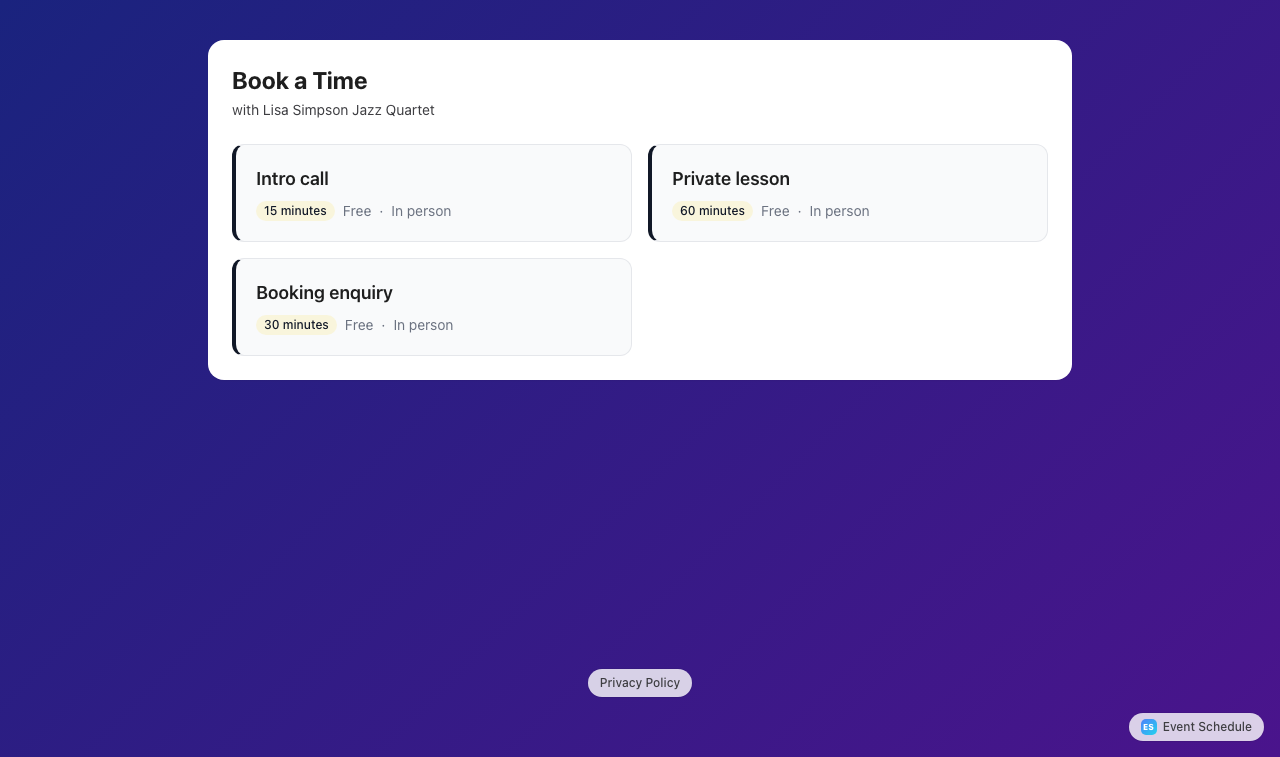
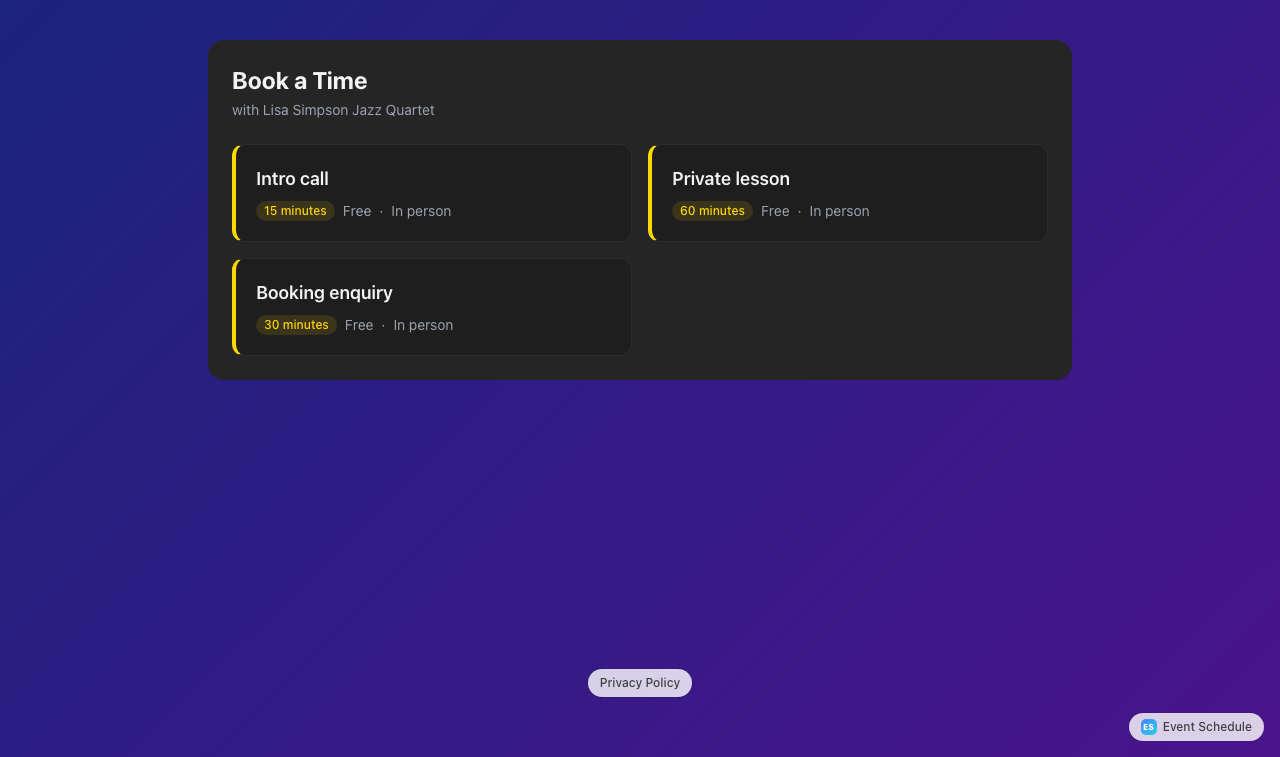
A Book a Time button also appears on your public schedule page. Its wording is editable under Customize, Custom Labels Pro - Requires the Pro plan , like your other labels.
Guests see each type with its duration and price, then move through two steps: pick a date and a time, then enter their details. Times are grouped into morning, afternoon, and evening, with a shortcut to the next available slot. Everything is shown in the guest's own timezone, detected from their browser and changeable from a picker, with your schedule's timezone alongside it. After they confirm they get:
- A confirmation email with an
.icscalendar invite attached. - A private link to manage the booking. It offers an Add to Calendar menu for Google Calendar, Outlook and a calendar file, and lets them move the booking to another time or cancel it while the appointment is still in the future.
- A reminder email about 24 hours before it starts, with the invite attached again.
If nothing on your schedule is bookable, the booking page is not there, and the Book a Time button does not appear. When you have active types but none can take bookings right now (a price your plan cannot charge, or no payment method a paid type can use), the Appointments tab says so under Your booking page is empty in place of the link.
Good to know
Email has to work
On the hosted platform, guests get no confirmations or reminders, and you get no booking notices, until the schedule's email settings are configured. The Appointments tab warns you about it, with an Edit link that opens Integrations → Email Settings on the schedule form.
Reminders only go to confirmed bookings
A request still waiting on you, or a booking still waiting on an online payment, does not get one.
The same guest cannot double-book
One email address cannot hold two bookings that start at the same time on your schedule.
Paid bookings follow the same rule as paid tickets
Taking payment for an appointment needs Pro, as selling a priced ticket does. See Payments.
A booking is not a ticket
It carries no QR code and offers no Add to Google Wallet button. The confirmation email, its calendar invite and the private link are what the guest keeps.
You can email past guests
Everyone who books counts as a ticket buyer on your schedule, so a newsletter sent to the Ticket Buyers segment reaches them.
Turn a type off rather than delete it
Switching it off hides it from guests and keeps everything already booked, and you can switch it back on later.
Not the same as Availability
Availability Enterprise - Requires the Enterprise plan is a tab on talent schedules that marks whole days your team members are unavailable to be booked for events. Appointments offer specific time slots on any schedule type, on any plan.
Not the same as a request to put an event on your schedule
The Requests row of the schedule form lets a promoter ask to book a performer, or a band ask a venue for a date. Those arrive on the same Requests tab as bookings waiting for approval, but each one is an event of its own, not a slot from your weekly hours.
Plan
Nothing is deleted when a plan lapses: every type and every rule is kept as configured, and they come back on upgrade. What each plan includes is in the table at the top.
See Also
- Managing Schedules - the Appointments tab and the Requests tab in context
- Creating Schedules - set your timezone, email settings, and calendar sync
- Availability - mark whole days your team members are unavailable
- Selling Tickets - the Sales page, where paid bookings are marked paid and refunded
- Account Settings - connect Stripe, PayPal, Payfast or Razorpay so paid types can take payment