Admin Panel
Monitor your install's users, revenue and analytics, manage any schedule on it, and change the settings that apply to every page.
Overview
The admin panel gives the operator of an installation platform-wide visibility and a small set of platform-wide controls. It lives at /admin, opens from the Admin entry of the sidebar, and is only there for accounts marked as admin: it has nothing to do with plans. It is separate from a schedule owner's own admin portal, and nothing here is scoped to one schedule.
The navigation is five tabs. Dashboard and Realtime are each a page; Insights, Manage and System each hold several, and which of those appear depends on how the install is configured. This guide follows the same order.
| Tab | Pages, in the order the panel lists them | Not on every install |
|---|---|---|
| Dashboard | The page itself: the headline numbers, what is new, and the Needs attention list | Every install |
| Realtime | The page itself: who is on the site right now, and the last 24 hours of sign-ups and orders | Every install has the tab. Recording starts switched off, except on eventschedule.com |
| Insights | Users, Revenue, Analytics, Usage, Growth | Growth: only when IS_HOSTED=true |
| Manage | Boost, Schedules, Domains, Referrals, Newsletters, Blog | Domains and Referrals: only when IS_HOSTED=true. Blog: eventschedule.com only |
| System | Audit Log, Queue, Logs, App Update, Settings, Translations, Legal Pages, Federation, Support | App Update: every install except eventschedule.com. Federation (the moderation queue for other installs): eventschedule.com only. Support: only when IS_HOSTED=true |
The tabs run across the top of every admin page. A tab that holds several pages opens its first one, and a second row under the tabs lists them all, with the page you are on marked. On a phone the whole section is one dropdown, grouped the same way. A number beside a tab or a page counts what is waiting on you there; see Needs attention.
A Refresh button sits at the end of the navigation row and reloads the page. Realtime has none, because it updates itself, and Support checks for new messages on its own; every other page shows its numbers as of the last page load.
Date range
Six pages carry a date-range selector, at the end of the line that says what the page shows: Users, Revenue, Analytics, Usage, Growth and Boost. The choices are fixed: Last 7 Days, Last 30 Days (the default), Last 90 Days and All Time. There is no custom start and end date. Where a page shows a change percentage, it compares against the immediately preceding window of the same length. All Time has no preceding window, so read its change figures as noise: with nothing to compare against, every one of them reports +100%.
The Dashboard has no selector: its windows are fixed at the last 24 hours, the last 30 days and the last 12 weeks. The Audit Log has its own From and To date filter instead, and the remaining pages are not date filtered at all.
The counts across the Dashboard and Insights deliberately exclude demo data, users who never confirmed their email address, and schedules that verified neither an email address nor a phone number. A brand new install that has not verified anything therefore reports zero users and zero schedules even though rows exist in the database.
Accessing /admin
The admin panel lives at /admin, which redirects to /admin/dashboard. It is restricted to users whose is_admin column is set to true. There is no screen for granting that, on purpose, so it is done from the command line or in the database.
- Grant the flag by running
php artisan app:make-admin [email protected]on the server, or by updating theuserstable directly (see the query below). Run the command with no email to list who is an admin already. - Make sure the account has a password. An account created through Google or Facebook sign-in has none, and the panel will send you to the Security tab of your settings to set one first.
- On an install with
IS_HOSTED=true, turn on two-factor authentication for the account. The panel refuses an admin without it and sends them to the same Security tab. A plain selfhost does not ask for it unless you setADMIN_REQUIRE_2FA=true. - Sign in and open
/admin, or use the Admin entry that now appears in the main sidebar, just above Settings. - Re-enter your password when prompted. This confirmation is required once per session, on top of being signed in.
php artisan app:make-admin [email protected]Or, if you would rather do it in the database:
UPDATE users SET is_admin = 1 WHERE email = '[email protected]';Session protections
- Password confirmation - stored per session, so a rejoined session asks again. Failed and successful confirmations are both recorded in the audit log.
- Re-authentication window - a confirmation lasts 24 hours of inactivity, and loading any admin page restarts that clock, so an admin at work is not interrupted. Separately, a confirmation is never good for more than 30 days no matter how continuously the panel is used - only entering the password again resets that ceiling. Set
ADMIN_REAUTH_TIMEOUTandADMIN_REAUTH_MAX_LIFETIME(both in seconds) to change them. Neither can outlastSESSION_LIFETIME(minutes), because both are stored in the session. - Browser binding - the confirmed session is tied to the browser that confirmed it. If the user agent changes, the confirmation is dropped, an
admin.session_changedentry is written, and you are asked to confirm again. - Rate limits - admin pages allow 30 requests per minute per user, and the password confirmation form allows 5 attempts per minute.
Only grant admin access to trusted people. Admins can see all platform data including user email addresses, revenue, and system logs, and can change settings that affect every public page. Admin actions are written to the audit log.
Dashboard
The dashboard is the landing page of the admin panel and is read-only. Its windows are fixed: the last 24 hours, the last 30 days and the last 12 weeks. An install with no schedule, no event and no account but yours shows the headline numbers and a single card until there is something to report. From top to bottom it shows:
Needs attention
Everything waiting on an admin, as a row of links, when there is anything (see below). While Realtime is on, a line in the same place gives the number of page views in the last 5 minutes, with a View realtime link. It is a count as of the page load, not a live figure.
Four headline numbers
New organizers in the last 24 hours and the last 30 days, active users in the last 7 days, monthly recurring revenue, and upcoming events. A selfhost has no billing, so its third number is the events added in 30 days. Each number jumps to the card that explains it, once those cards are on the page.
Recent schedules and Recent events
The twenty newest of each, eight shown until you choose Show more, with the schedule's photo or the event's flyer. Unlisted events and appointment bookings are left out. A draft, a guest submission and an imported event carry a flag, and a burst of events from one schedule is a single row. Rows added since your last visit in this browser are marked. A name with an arrow beside it opens the public page in a new tab; a draft, or an event no schedule shows yet, opens its edit page instead.
Sign-ups
One bar a day for 30 days, against the 30 days before. The headline counts organizers: accounts created to run a schedule. Accounts created by following a schedule, buying a ticket or submitting an event are counted beside them.
Active users
The people who used the app while signed in during the seven days up to each date, for 12 weeks. The days before this record began are an estimate from sign-ins and event edits. They are drawn dashed and run low.
Where sign-ups came from
The organizers' channel (search, AI assistants, social, the referral program, email, paid, a campaign, another website, direct) with its most common sources, and the first page they saw. Not recorded means no referrer or campaign was stored: a first visit to a marketing page is stored only with cookie consent.
Latest sign-ups
The eight newest organizers of the last 30 days, where each came from, and how far each has got: a schedule, an event, a ticket type. The schedule's name opens it in the admin panel, and the arrow beside it opens its public page.
Revenue
Hosted installs only. What Stripe is billing, as MRR and ARR, by plan, with the subscriptions still in their trial counted beside it and what they would add. At risk is the part of MRR that is past due or cancelling. Outside Stripe counts paid plans nobody is billed for: a plan granted by an admin or a referral, a Pro trial started without a card, and a selling trial. Boost markup revenue for the last 30 days closes the card. A plain selfhost has no subscriptions and charges no markup, so this card is left out there.
Upcoming events
Published events with a date still ahead, a recurring series counted once, split by how people attend (in person, online, hybrid, or no location), with the top five countries of the ones held at a venue (hybrid events included) and how many one-off events start in the next 24 hours, the next 7 days and the next 30. An event whose schedules have all been deleted is not counted.
Federation
On eventschedule.com, the selfhost installs that share their events, their live listings and the clicks sent on to them. On any other install, the state of its own sharing, once that is switched on.
Queue and accounts
One line at the foot of the page: jobs waiting and failed, and the number of accounts, with custom domains beside them on a hosted install. Use the Queue page to act on a failed job.


To count active users, the app records the dates on which each signed-in person used it, with nothing about what they did, and keeps them for 120 days. Your own privacy policy has to say so: add it at Legal Pages. The policy built into the app is eventschedule.com's and does not speak for your install, which is why the admin panel asks you to write one.
Needs attention
Above the metrics sits Needs attention: every queue in the admin panel that is waiting on a person, as a row of links, each going straight to the page where you deal with it. The first four are shown and the rest open from the last link. It is only rendered when there is something in it, so a dashboard without it means nothing needs you.
Rows are listed in the order below: breakage and held-up money first, then review queues, then rows that are informational. A row with a count of zero is omitted, and a row whose page does not exist on this install can never appear.
| Row | What it means | Appears on |
|---|---|---|
| Scheduled tasks are not running | No scheduler run has been recorded within SCHEDULER_STALE_MINUTES (20 by default), so reminders, queued mail and every other timed job have stopped. Links to Queue. |
Every install |
| Queued jobs are not draining | A job has been due for more than an hour and is still waiting, which normally means nothing is running the queue. It is held back while the row above is showing, because a stopped scheduler is the usual cause. Links to Queue. | Every install |
| Failed jobs | Rows in the failed job table. Links to Queue. | Every install |
| Venue map address lookups are failing | The address search behind the venue map has not answered for an hour, so maps that owners switched on are still waiting for their pins. Check that the address in MAP_GEOCODER_URL is reachable from the server. Links to Queue. |
Where MAP_GEOCODER_URL is set |
| Feeds are failing, many at once | At least five of the sites that feeds read, and half of all the sites being read, could not be read in the last day. That many at once points at this server (its network, or an address of yours that other hosts block) and not at each site. While the row shows, no owner is emailed that their feed is broken and no feed is paused for it. Links to Feeds, filtered to the failing ones. | Every install with a feed |
| Realtime page views are not being deleted | A Realtime record more than two hours old is still stored, although they are meant to go about an hour after a visitor's last activity. The scheduled task that deletes them is not running. Links to Queue. | Every install |
| Subscriptions still billing for deleted schedules | A subscription Stripe will keep charging although its schedule has been deleted, so its owner can no longer cancel it in the app. Links to a list on the Revenue page, where you cancel it. | Installs that sell plans through Stripe |
| Subscriptions on an unrecognized price | A live Stripe subscription whose price is none of the four plan prices this install sells, so the customer is charged for a plan the app cannot recognize. Links to a list on the Revenue page. | Installs that sell plans through Stripe |
| Custom domains failed to provision | A domain whose provisioning ended in failure. Links to Domains. | Hosted |
| Campaigns stuck awaiting payment | A boost campaign that has sat unpaid for more than 30 minutes, which usually means the payment callback never arrived. | Every install |
| Failed campaigns | Boost campaigns that failed in the last 30 days. Nothing ever moves a campaign out of this state, so the window keeps the badge from becoming permanent. | Every install |
| Sales with an amount mismatch | A ticket sale where the amount actually paid does not match the amount expected. You approve or refund it on the Revenue page. | Every install |
| Refunds awaiting confirmation | A refund sent to Stripe, PayPal or Razorpay whose outcome the provider still has not confirmed after 15 minutes. The money may already have moved, so nothing retries it: you settle it in the provider's own dashboard. Links to a list on the Revenue page. | Every install |
| Campaigns with an amount mismatch | The same check on a boost campaign's charge. | Every install |
| Promotions awaiting review | A paid on-network promotion waiting for approval before it can serve. Links to the queue on the Boost page. | When the promotions network is enabled |
| Accounts may be spam | An account with one of your watched words, such as paypal or bitcoin, in a schedule it owns or an event it made, or in its own name or email address once it owns a schedule. It clears as you block each one or mark it not spam. Links to Blocked. |
Every install |
| Approved instances changed their address | A federated instance whose site address no longer matches what was approved. | eventschedule.com only |
| Instances awaiting approval | A federated instance that has registered and is waiting to be moderated. | eventschedule.com only |
| Translation suggestions to review | Wording shared by another installation, waiting for a decision. | eventschedule.com only |
| Unread support messages | Support chat messages from customers that no admin has read. | Hosted |
| Campaigns with disapproved ads | An ad that Meta rejected, within the last 30 days. | Every install |
| Custom domains still provisioning | A domain that is pending, usually waiting on DNS or a certificate. | Hosted |
| Translations not shared yet | Your own translation edits that have not been offered back to the community. | Every install except eventschedule.com |
| Publish your own privacy policy | Visitors are still sent to eventschedule.com's privacy policy although this install collects personal data of its own: a consent-gated integration is configured in .env, registration is open, or a sale has been made. It clears when you save a policy. Links to Legal Pages. |
Every install except eventschedule.com |
| Update available | A newer release is published on GitHub. Informational: it clears when you update, not by working through a queue. Links to App Update. | Every install except eventschedule.com |
The same counts drive the badges on the Insights, Manage and System tabs and on the pages in the row under them (on a phone, the number in brackets after a page's name in the dropdown). A tab's badge takes the colour of the most serious row it contains, so a failed job is not softened by sitting next to an informational row such as an available update. Each count reuses the query the destination page runs, so a badge and the page it links to cannot disagree.
Only rows that can apply to your install are counted. With IS_HOSTED=false the domain and support rows always read zero, the two subscription rows stay empty unless you sell plans through Stripe, and the federation and translation-review rows only ever appear on eventschedule.com itself. Schedules that have not verified an email address or phone number are not a row at all, because they are waiting on their owner rather than on you: their count is the Unverified figure on the Schedules page.
Realtime
Realtime shows who is on the site right now: the marketing site, schedule and event pages (custom domains included), the signed-in app, and the sign-up and log-in pages. It is switched on and off at Settings; it starts on for eventschedule.com and off on every other install. While it is off, the tab holds one card that says what would be recorded, with a Turn on in settings button.
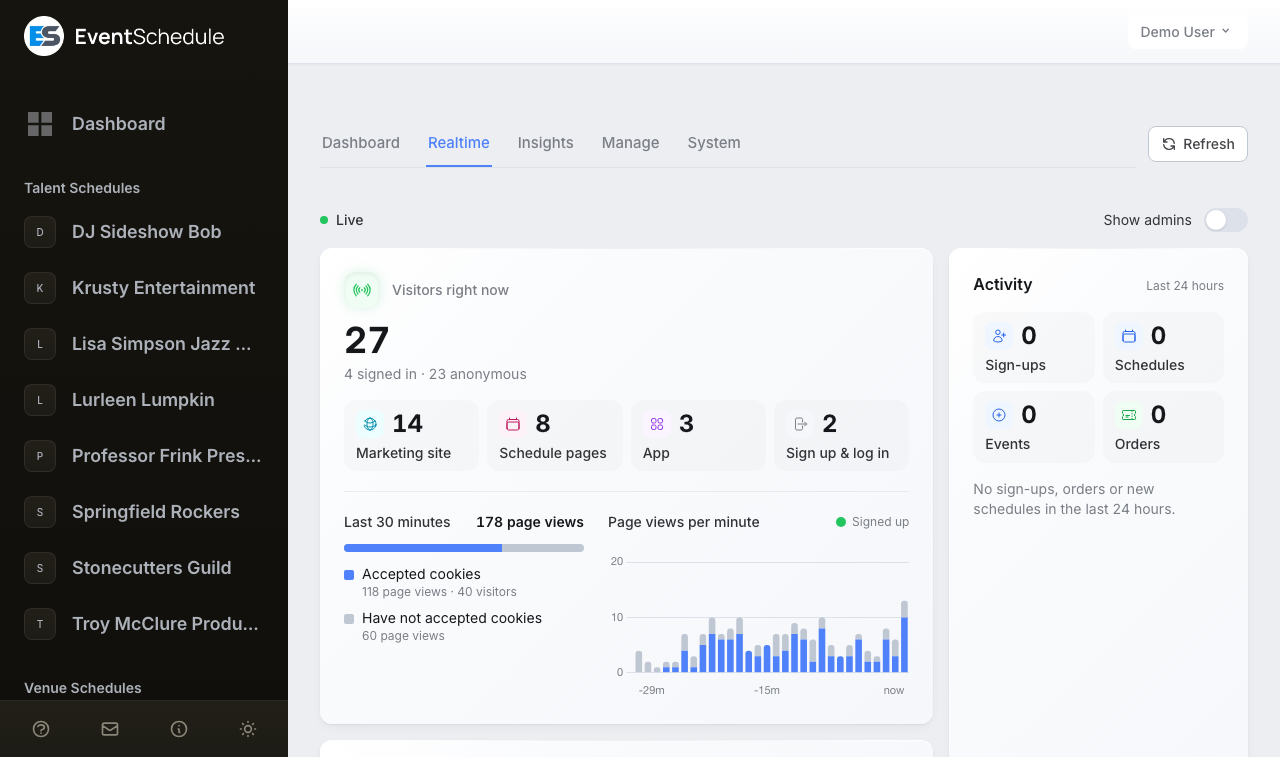
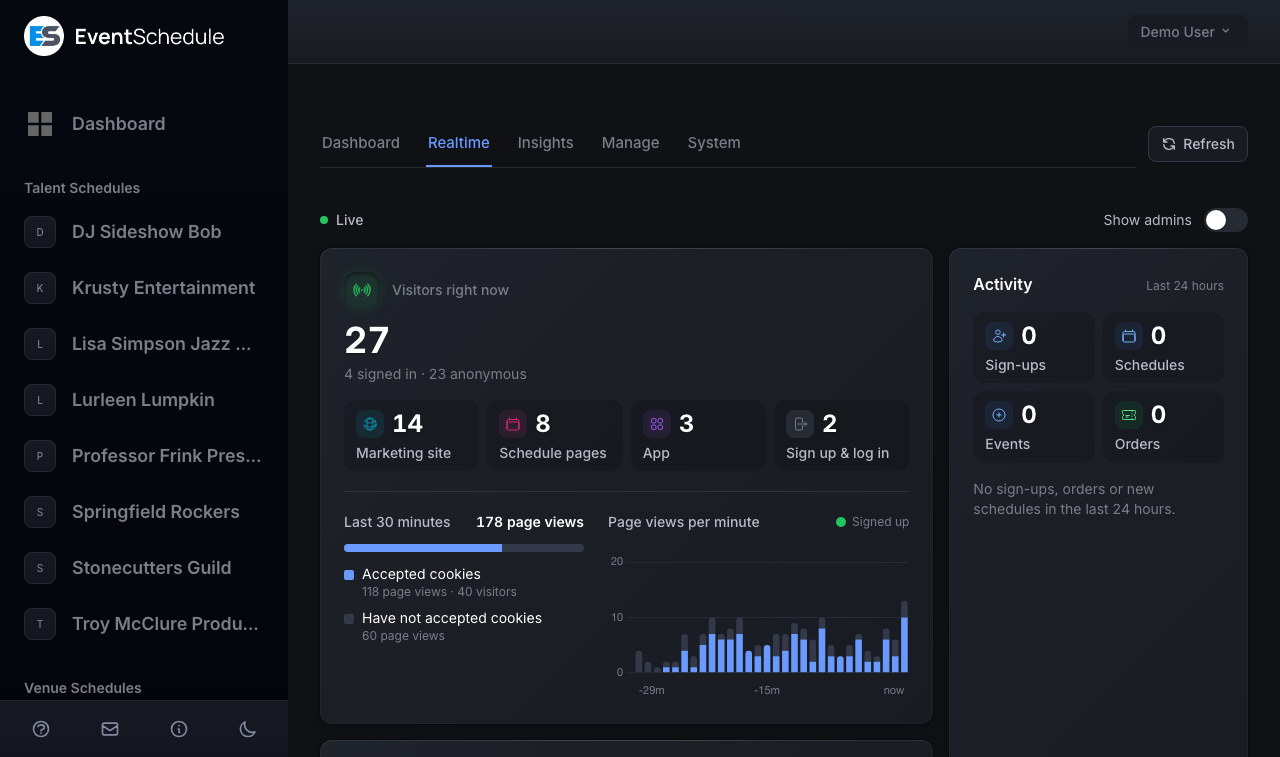
The page updates itself every ten seconds and slows to once a minute while its tab is hidden; a dot at the top says Live or Reconnecting. If your password confirmation lapses while it is open, it stops and asks you to confirm again. From top to bottom:
Visitors right now
People with a page open and visible in the last couple of minutes, split into signed in and not signed in, and where each of them is. Only visitors who accepted cookies can be counted this way, so beside the number a bar and a line say how many page views the last 30 minutes had and what share came from visitors who have not accepted cookies, with page views per minute in the same two colours. A green dot above a minute marks a sign-up; point at that minute to see who.
Under it there is a column for each area: the marketing site, schedule pages and the app, with the sign-up and log-in pages under the app while someone is there. Each area has its own colour and icon wherever a person or a page appears on this page. A column lists the pages people are on, busiest first, with how many are on each and who: a signed-in person's initials, or the flag of an anonymous visitor's country. Click an area's name to filter the page to it (the other areas stay, dimmed), a page's name to filter to that page, a face to open that person's row under Visitors, and the arrow to open the page itself. Views of calendars embedded on other websites are counted in a line at the bottom of the card.
Activity
The last 24 hours of sign-ups, new schedules and events, orders, plan changes, claimed schedules, boosts, deleted schedules and accounts, and support chats, read from the audit log. A deleted account is listed without a name, with the number of schedules that went with it. The counts at the top (sign-ups, schedules, events, orders, and upgrades and deletions on a day that has them) are chips: click one to list only that kind, or All for everything. A blue dot beside the time marks an item from the last half hour. The arrow at the end of an item opens the public page of the event or schedule it is about. On a wide screen the list is as tall as Sign-ups beside it; when it holds more, it says how many and opens on a click.
Sign-ups
Everyone who signed up in the last 24 hours, newest first: where they came from when that was recorded, when they signed up, and how far they have got since (saved a schedule, saved an event, added a ticket type), with a link to their schedule in the admin panel and an arrow that opens its public page. The strip above the list counts how many of the day's sign-ups reached each step, and the small bars show which hours they arrived in. Someone who signed up to follow a schedule or to join a team is labelled that way.
Trends
The last 24 hours by the hour, or the last 7 or 30 days by the day, each figure against the same span just before it, cut at the same time of day, all in the time zone of your own account settings, the one every time on the page uses. Page views and visits are drawn by area. Sign-ups, new schedules, new events and orders are counted as Activity counts them, from the audit log; over 24 hours they are the same live numbers as the Activity chips, for the same rolling day. Click a figure to draw it in the chart. The bar for the hour or day still under way is drawn lighter.
Page views and visits are hourly totals, kept for about two months, that start counting on the day this version is installed. Until a range is covered the card says when counting began, and it shows a comparison only where it has the span before. Visitors are not added up across hours: telling one person seen in two hours from two people would mean keeping who they were. Admins are never counted in Trends, and neither is an embedded calendar.
Top pages, Sources, Countries
The last 30 minutes. Click any row to filter the page to it. The filters in force are listed as chips at the top, and they stay in the address, so a filtered view can be bookmarked. Activity, Sign-ups and Trends cover the whole install whatever the filters, and say Not filtered while one is on. The arrow beside a top page opens that page in a new tab.
Visitors
Everyone who accepted cookies in the last 30 minutes, one row per person, right now first, each with the icon of the area their page is in. Click a row for their last hour: each page in order with its area, how long they stayed, and for a signed-in visitor their schedules, an email link and their support chat. A brand-new user who has spent ten minutes in the app without creating an event is marked, so you can offer help. Admins are left out of the whole page unless you turn on Show admins, the switch at the top.
Consent decides who is identified
Turning Realtime on also turns on the cookie consent banner. A visitor who allows analytics (Allow all, or Analytics ticked under Choose) is shown as a person, with a daily-rotating one-way key and, when signed in, their account, including the pages they viewed in that browser just before signing in (not what the browser shows after they sign out). Anyone who declines, does not answer, or whose browser sends Global Privacy Control is only counted: their page views appear in the chart and the three lists, with no identifier and nothing that links one page view to another (pages behind sign-in are recorded by kind, such as "/{subdomain}/{tab}", rather than by address). Withdrawing consent later, including through the privacy page, strips the identifiers from what that browser still has on its current network, and from the account's records when they are signed in at the time. The line beside Visitors right now says what share of page views comes from visitors who have not accepted, and the Visitors card what share from those who have.
Records are deleted about an hour after a visitor's last activity. Realtime stores no IP address or user-agent string and sets no cookie of its own. Site administrators see all of its records. Schedule owners see none of them unless you also switch on their own view, and then only the part about their own pages and never who anyone is.
Who is never counted
REST API clients, including apps and AI agents using an API key; calendar feeds; email opens; visitors with JavaScript turned off; and embedded calendars on other websites, which appear only as a count at the bottom of Visitors right now. A schedule owner signed in on their own custom domain appears anonymous there, because their session belongs to the main domain. Identical phones with the same language setting on one network can count as one visitor. A blocked account is left out too, with every view of its schedules' and events' pages and what happened on them in the last day. What it browsed while not signed in, before or after, shows as an anonymous visitor and is never joined to anyone else.
What schedule owners see
A second switch at Settings, Show schedule owners live traffic to their own pages, gives everyone who manages a schedule a Realtime tab on their Analytics page, and a Realtime number on their dashboard, described in the Analytics guide. It is on for eventschedule.com and off on every other install until you turn it on, and it works only while Realtime itself is on.
What they see
Page views of their own schedule and event pages for the last 30 minutes, top pages, sources, countries and device types, and each visitor whose consent covers it (below) as a row with no name: a country, a device type, the page that is open and for how long, kept under Earlier for up to half an hour after they leave.
Their own last 24 hours
Beside the traffic the tab lists what people did on their schedules: sales, registrations, appointment bookings, new followers and newsletter subscribers, event requests, waitlist joins, ticket-interest sign-ups and audience comments, photos and videos, with no names (most rows open the list they belong to, such as Sales, Followers or Requests, where the names always were), a mark on the traffic chart on a minute a sale or a registration came in, and how many have arrived at an event that is on. These are the owner's own records and do not depend on anyone's cookie choice. With this switch off, owners have none of it; their dashboard's Recent Activity and Coming up cover the same ground.
What they never see
A name, an email address, an account, a browser or operating system, a visitor's history, or anything about a page that is not theirs. A row's id means nothing outside the session that is looking at it, so it cannot be used to follow a visitor from one day, one device or one owner to another. On a quiet schedule an owner who sees one unnamed visitor on an event's page and then a sale for that event can work out that it was the buyer, whose name is in Sales as it always was; eventschedule.com's privacy policy says so, and yours should if you turn this on.
Who is left out
Site administrators, and the owner and team of the schedule itself while they are signed in on its page, as in Analytics. On the schedule's own custom domain nobody is signed in, so an owner's visit there counts like anyone's.
Whose consent counts
While this switch is on, the cookie banner says on its first line that the organizer of a schedule page sees visits to it, and each choice records whether the banner it was made on said so. Only such a visitor is listed for an owner; anyone who answered an earlier banner, declined or did not answer is counted as a page view and never listed. There is nothing to wait for after you turn the switch on: the first visitor who accepts on the new banner is listed, and a list that looks thin at first fills as choices are made again.
If you turn Realtime on, say so in your own privacy policy at Legal Pages: what is recorded, for how long, and that only visitors who accept cookies are identified. If you also give schedule owners their own view, say that the organizer of a schedule sees visits to its pages, that the view shows no name, email address or account, and that a purchase made during a visit can let the organizer tell which unnamed visit it was.
Users (Insights)
Users is the first page of the Insights tab: an aggregate report on who signed up in the period, how far they got, and where they came from. It is not a user directory: there is no search box, no per-user page to open, and no way to edit an account from here. Only confirmed accounts are counted, and the demo account is excluded. From top to bottom:
Four totals
Total Users, with how many joined in the period and the change against the previous one; Active users (7 days) and Active users (30 days), the people who used the app while signed in, which is the figure the Dashboard charts (marked as an estimate until the exact record covers the whole window); and Newsletter Subscribers, with the number who unsubscribed.
Onboarding funnel
Three numbers first: the Signup to first event rate with its change against the previous period, the Biggest leak (the largest single drop between two stages), and, on eventschedule.com, the Visitor to first event rate. Under them the Funnel card draws every stage as a bar: visited the site, viewed the sign-up page, created an account, reached the schedule step, saved a schedule, reached the event step, saved an event, then the two ticket stages and, on hosted installs, the email-code step and the plan stages. It follows the accounts created to organize events; sign-ups that came to follow a schedule, buy a ticket or the like are counted in a note under the account bar.
Conversion over time
The same conversion rates per day, week or month. The most recent period is marked as still in progress, because its accounts have not had time to finish onboarding.
Signups by Method and Signup Method Breakdown
Email, Google and hybrid (an email sign-up with Google connected): a chart for the selected period, and the all-time split.
UTM Attribution, Top Campaigns, Top Sources, Top Referrers
How many of the period's sign-ups arrived from a campaign and their top UTM sources, then, all time, the ten biggest campaigns, sources and referring domains.
Onboarding progress
The newest organizer accounts, fifteen per page, with the steps each has reached and the furthest one. A row marked Stuck: no event yet saved a schedule and never added an event. The name is an email link, so this is the list to work through when you want to offer help.
Recent Signups
Twenty per page, with the sign-up intent, every UTM field, the referrer and the landing page.


Site visits come from marketing-site traffic, which is only recorded on eventschedule.com. On any other installation the funnel starts at "Viewed sign-up page", which every install counts, and the visitor-to-first-event rate is not shown. The email-code step and the plan stages (the paid-ticket paywall, checkout and subscribing) only appear on hosted installs, since a plain selfhost asks for no sign-up code and has no plans.
To act on a single account or schedule, use Manage > Schedules, which is where the search, filters, plan editing and manual verification live.
Revenue (Insights)
The Revenue page reports on ticket sales across every schedule, plus subscription health where the install sells plans. Amounts are the payment amounts recorded on each paid sale. A partially refunded sale stays paid, so it counts at its full amount, and only fully refunded sales count toward the refund rate. The totals are all time; the date range sets the trend and the figures marked "in period". From top to bottom:
Total Revenue and Total Sales
All time, each with the figure for the selected period underneath. Total Sales also carries the Refund Rate: refunded sales as a share of paid plus refunded, turning red above 5 percent.
Pending Revenue
The value of the sales still marked unpaid, with how many there are.
Boost Markup Revenue
Your all-time margin on boost spend, with the figure for the period underneath. This tile sums charges only; the equivalent figure on the Boost page is net of refunds, so the two do not have to match.
What a payment left to settle
Up to four panels, each rendered only while it has a row, and each the place a Needs attention link lands: amount mismatches, subscriptions still billing for deleted schedules, subscriptions on an unrecognized price, and refunds awaiting confirmation. They are described below.
Revenue Trend
A chart over the selected range.
Subscription Health
Active, trialing, past-due and canceled subscriptions, schedules on a free trial, how many converted, and expired trials with no subscription. This whole card is only rendered when IS_HOSTED=true.
Recent Sales
The fifty most recent, excluding demo schedules.


Amount mismatches
When the amount a payment provider reports does not match the amount the sale expected, the sale is parked as a mismatch rather than being treated as paid. Those sales, and any boost campaign in the same state, are listed in an amber panel, with two actions each:
- Approve - accept it and mark it paid. For a ticket sale, the buyer is then sent their tickets
- Refund - for a ticket sale, send the whole payment back through the provider that took it, Stripe, PayPal or Razorpay, which the confirmation names. The button only appears when that provider can refund, so a mismatch paid through Invoice Ninja or Payfast offers Approve alone. A boost campaign's charge is refunded through Stripe
Both ask you to confirm, both are recorded in the audit log, and the row disappears from Needs attention once the queue is empty. Schedule owners refund their own sales, in full or in part, from their Sales page; see Managing sales.
Subscriptions still billing for deleted schedules
A red Subscriptions Still Billing for Deleted Schedules panel lists every subscription Stripe will keep charging although its schedule is gone, so the owner cannot cancel it from the app. Each row has a Cancel in Stripe action, which asks first, then cancels the subscription in Stripe and writes the cancellation to the audit log. Cancelling refunds nothing: a charge made after the schedule was deleted has to be refunded in the Stripe dashboard.
Subscriptions on an unrecognized price
A red Subscriptions on an Unrecognized Price panel lists live Stripe subscriptions whose price is none of the plan prices this install sells. The app cannot tell which plan such a customer is paying for, so the plan is withdrawn and the subscription counts as zero revenue while Stripe keeps charging. There is no button: either add that price ID to the STRIPE_PRICE_* configuration, or move the subscription onto a current price in Stripe.
Refunds awaiting confirmation
A refund that was sent to Stripe, PayPal or Razorpay and still has no confirmed outcome after 15 minutes is listed in a red Refunds Awaiting Confirmation panel, with its date, event, amount, status, reference and last error. The money may or may not have moved, and nothing in the app retries it, because a retry after the provider's idempotency key has expired is how one refund becomes two. Look the reference up in the provider's own dashboard and settle it there. Until then the refund holds its amount against the sale, so the schedule owner cannot refund that money again.
Analytics (Insights)
The Analytics page rolls up the same daily page-view data that each schedule owner sees on their own Analytics page, across every non-demo schedule, for the selected date range.
- Device breakdown - total page views for the period split into desktop, mobile and tablet. Views whose device could not be determined are counted in the total only.
- Traffic sources - direct, search, social, email, newsletter and other
- Feature adoption - six bars showing how many verified schedules use Google Calendar sync, sell through Stripe, have a custom domain, use custom CSS, have sent a newsletter, or have run a boost campaign, each as a count and a share of every verified non-demo schedule. The Stripe Payments bar counts schedules with an event actually priced in Stripe, not schedules that merely connected an account.
- Stripe funnel - the three stages that bar skips past: connected an account, finished onboarding, and priced an event in Stripe
- Top schedules by events - the ten schedules with the most events


Page views here are counted per day and per device, not per visitor, so there is no unique-visitor figure and no per-visitor location. The nearest thing to a geographic view is the In person, by country list under Upcoming events on the dashboard, which is based on the venue's country rather than the visitor's. For visitors and countries over the last 30 minutes, see Realtime.
Usage (Insights)
The Usage page counts calls to the services your install depends on, so you can see what is consuming your API quotas and mail allowance. Every operation is tallied per day and per schedule as it happens.
Seven categories are summarised in one strip, each with the total for the selected period, today's total against the configured daily limit, and the average per day:
- Emails, AI / Gemini, Google Calendar, Stripe, Invoice Ninja, CalDAV and YouTube
The daily limits come from config/usage.php and its environment variables, not from this page. YouTube has no limit. When today's total for a category passes its limit, its figure turns red and a red Usage Anomalies Detected Today notice appears at the top of the page.
Below the summaries:
Operation Breakdown
Every individual operation, with today, the period total and the daily average.
Top Schedules by Usage
The twenty heaviest schedules, split by category.
Top newsletter senders
The twenty schedules sending the most newsletter email, whether each sends through its own SMTP server rather than yours and, on a hosted install, its plan.
Translation Backlog
Content still waiting for the scheduled translation run, by kind: how much is pending, how much of it has never been attempted, and how long the oldest has waited. A "never attempted" number that does not fall means the scheduler is not keeping up; the Queue page shows the rate it is clearing at.
Stuck Translation Records
Up to twenty each of the schedules, events, event parts and event listings that have been attempted at least three times (the threshold is USAGE_STUCK_THRESHOLD) and still have no translation. Each row has a Retry link that clears the attempt counter so the next scheduled run picks it up again.


This page measures external calls made in a window. How many schedules have turned on a feature is on the Analytics page instead.
Growth (Insights)
Growth picks up where Users stops: where sign-ups turn into active schedules, and where those turn into paying ones. The page only exists when IS_HOSTED=true, because a plain selfhost has no plans or subscriptions to report on. From top to bottom:
Four numbers
Signups, then the share of them that reached the schedule step, saved a schedule and saved an event, each with its count.
Free plan pressure
Free schedules grouped by the most paid tickets they sold in a single month, from before selling paid tickets became a Pro feature. Anything above zero is a schedule that has sold before and now sits on Free.
Revenue
How many schedules are on Free, Pro and Enterprise, then MRR, ARR and the average monthly revenue per paying subscription (ARPU). Subscriptions still in their trial are counted beside those figures and left out of them.
Activation nudges
The emails that prompt owners to take their next step, by kind: how many were sent in all, how many in the last 7 days, and when the last one went. Under them, the weekly owner digests. If the table is still empty a day after a deploy, check the Scheduler card on the Queue page.
Churn and selling trials
Cancelled subscriptions with the reasons people gave, and cancellations taken back. Then the card-free selling trials, which were retired on 2026-10-20 and are kept as history: started, running now, sold during the trial, subscribed, and ended without subscribing.
Acquisition
The first page each sign-up landed on, with how many sign-ups it brought and what share of them saved a schedule, saved an event, added a ticket type and added a paid ticket.
Homepage headline test
eventschedule.com only. The headlines the marketing homepage is trying, with each one's visitors, click rate and sign-ups. Reset stats starts a new round from zero.
The page carries the same date-range selector as the other Insights pages, but every figure on it is all time. The numbers that follow the range are the funnel's, and that is on Users.
Boost (Manage)
The Boost page is the first page of the Manage tab. It is where you oversee every paid promotion bought on the platform, whether it runs as a Meta ad or as a promotion served on your own pages. From top to bottom:
Two strips of figures
Total and active campaigns, markup revenue net of refunds, ad spend that left for Meta, and refunds; then the average click-through rate, cost per click and cost per thousand impressions, and the Rejection Rate: rejected campaigns as a share of those with a settled outcome, turning red above 20 percent.
Promotions awaiting review
Up to fifty paid on-network promotions, oldest first, each showing the creative, the schedule, the buyer, the budget and the pricing model, with Reject, an optional reason to send with it, and Approve. Rejecting refunds the advertiser in full, back to their boost credit if that is how they paid and through Stripe otherwise, and emails and pushes the outcome to them. This card only appears when the promotions network is enabled and something is waiting.
Alerts
Campaigns stuck awaiting payment, campaigns that failed, and ads Meta disapproved, in one red notice that is only there while it has something to say.
Status Distribution and Top Boosters
A chart of campaigns by state, and the ten schedules with the largest total budget, each with its campaigns, spend, clicks and spending limit.
Revenue Trend
Ad spend against markup over the selected range.
Grant Boost Credit and Set Spending Limit
Two small forms, described below.
Campaigns
Twenty per page, newest first, with the campaign's name and event, the schedule and the buyer, its status and creation date, budget, spend, impressions and clicks. The dropdown in the card's heading filters by status: active, paused, completed, cancelled, failed, pending payment or rejected. View leads to the campaign's own page, which opens only for the account that bought it or someone who can edit its event.
Recent Billing Records
The thirty most recent charges and refunds behind those numbers, each with its amount, markup, status and notes.
On a plain selfhost a boost runs on your own Meta account and charges no markup or fee, so the page leaves out markup revenue, refunds, the revenue trend, the two forms and the billing records. Total ad spend stays.
Granting credit and capping budgets
Below the revenue trend, two forms act on a single schedule, identified by its subdomain (the field autocompletes as you type):
- Grant Boost Credit - add up to 1,000 to a schedule's boost balance. A boost is paid from the balance when the balance covers its whole cost; otherwise the card is charged. Schedules holding a balance are listed underneath.
- Set Spending Limit - raise or lower the maximum budget that schedule may put on a single campaign. Schedules with a custom limit are listed underneath; when none has one, the card names the default that applies to everyone else instead.
Both are written to the audit log.
The page is always in the Manage tab, but Meta campaigns can only exist once the Meta app, ad account and access token are configured. See the Boost Setup guide. On-network promotions are configured separately, in the Monetization card on the Settings page.


Schedules (Manage)
This is the Schedules page of the Manage tab, at /admin/schedules, and it is there on every install. On a hosted install the older /admin/plans address redirects to it. It is the one place in the admin panel where you change something about an individual schedule. From top to bottom:
Counts
On a hosted install, how many verified, non-demo schedules resolve to Free, Pro and Enterprise, and in a second strip how many pay through Stripe, how many were granted a plan by hand, how many are on trial, and how many expire in the next 30 days. A plain selfhost shows one Verified figure instead. Beside them, Unverified counts the schedules with an owner that have verified neither an email address nor a phone number; it is a link that narrows the list to them.
Search
By schedule name, subdomain or email address.
Filters
Plan, status (active, expired, trial or deleted), owner, source (Stripe, manual or trial) and verification (verified or unverified). On a plain selfhost only the status filter's deleted option, owner and verification are offered, and the plan columns are left out of the table.
Owner filter
Claimed, the default, shows schedules with an owner. Switch it to Unclaimed to reach the venue and performer schedules the app created automatically when an event named them: they have no owner, and their page is a claim page kept out of search engines, but they do hold a subdomain, so they are the usual reason a good name is unavailable. All owners shows both.
The list
Twenty schedules per page, newest first, each with its address and which of its contacts is verified, and on a hosted install its plan, term, expiry, status and source. Demo schedules are left out, deleted ones appear only under the Deleted status, and unverified ones are listed even though the plan counts exclude them. Each row has Edit and one quick action: Delete, or on a deleted schedule Restore, or Release when it was deleted without giving up its name.
Editing one schedule
Edit opens the schedule on a page of its own, under a Schedules link that leads back to the list. Its name and address head the page, and each card below saves on its own:
| Card | What it does | Appears on |
|---|---|---|
| Current Subscription Status | Read-only: the status, the Stripe customer, the trial end and whether a subscription is active. | Hosted installs |
| Schedule Details | Change the name, subdomain, email address and phone number, then choose Save Changes. Changing the email address clears the verified mark and sends a fresh verification email, which the card says before you do. A subdomain that is reserved or already in use is refused with a message rather than quietly changed to something else, and a renamed subdomain is rewritten in every curator's approved list, so the trust a curator gave that schedule follows it to the new name. | Every install |
| Verification | Says whether the email address and the phone number are verified, and since when. Mark Email as Verified and Mark Phone as Verified vouch for one without the owner clicking a link or entering a code. | Every install |
| Plan | Set Plan Type to Free, Pro or Enterprise, Plan Term to monthly or yearly, and Plan Expires, which has +30 days, +90 days, +1 year and Clear shortcuts. A paid plan granted this way is tagged as an admin grant, which is what keeps the small Event Schedule credit on that schedule's public pages. Setting it back to Free, or editing a schedule that pays through Stripe, clears that tag. | Hosted installs. A plain selfhost already gives every schedule the Enterprise feature set |
| Mark as Deleted | Takes the schedule's public page down and releases its subdomain, so a newer schedule can use the name straight away. The schedule itself is kept, along with its events, ticket sales and statistics, and the action can be undone. For a schedule with no owner, this takes down the claim page that invites the performer or venue to take it over. Releasing a name also removes it from every curator's approved list, so the automatic approval a curator gave the old holder does not pass to whoever takes the name next. The card warns first when the schedule has an active subscription or a custom domain, because neither is removed. | Every install, on a schedule that is not deleted |
| Deleted | Restore Schedule brings a deleted schedule back. It takes its original subdomain back if nothing else has claimed it in the meantime; if something has, the schedule keeps the name it was given when it was deleted, and the card tells you which will happen before you click. A deleted schedule that still holds its original name, which some other ways of deleting a schedule leave behind, also offers Release Subdomain: it frees the name and changes nothing else. | Every install, on a deleted schedule |
Restore is also the undo for a takedown you did not start: the same release runs when someone who holds the contact address on an unclaimed page signs in and chooses This is not me, and when a schedule is deleted through the API. Every change here is recorded in the audit log with the values before and after, including both subdomains, so a release can be traced later.
Only one schedule can hold a subdomain at a time, so a schedule cannot keep its name and let another schedule use it. Marking one deleted therefore moves it to a name like tel-aviv-deleted-42 and remembers what it was called. Two things are left in place: an active subscription keeps billing (cancel it separately), and a connected custom domain stops resolving but stays attached to the schedule until you remove it on the Domains page.
Plans are the only hosted part
This page is on every install, because a schedule can be deleted and its name released on a selfhosted install too, and this is where you undo it. Only plans behave differently: a plain selfhost resolves every schedule to the Enterprise feature set, so the plan counts, the plan filters and columns, and the card that assigns a plan only appear on hosted installs. The features in each tier come from the application itself and what a plan charges from your Stripe prices; neither can be edited here. The figures the site advertises are set in the Plan pricing card on Settings.
Blocked (Manage)
The Blocked page, at /admin/blocked, is where you shut out an account that abuses the service, and where you keep the list of what new accounts are refused for. It is there on every install. Deleting a spam schedule on the Schedules page leaves its owner free to make another one; blocking the account does not.
- Four totals - accounts that may be spam, blocked accounts, entries on the list, and how many sign-ups the list has refused
- May be spam - accounts a watched word turned up for, waiting for you to look at them. See Accounts that may be spam
- Find an account - by name, email address or a schedule it owns. The owner card on a schedule's admin page and the names under Recent sign-ups on the Users page lead to the same place
- Blocked accounts - who is blocked, how many schedules the block took down, when and by whom, and your note
- Refused at sign-up - the list itself, with how often each entry has refused someone
Accounts that may be spam
An account is listed under May be spam when one of your watched words is in the name or subdomain of a live schedule it owns, or in the name of an event it made. Its own name and email address count too once it owns a live schedule, so a ticket buyer or a follower is never listed for theirs. Nothing is done to it: the list is a reason to look, and each row says where the word was found. The same accounts are counted in Needs attention and on the Manage tab, so you see them without opening the page. A new match usually appears within ten minutes; when the admin pages have not been opened for a while, it appears one page load later.
- Review opens the account's own page, where the words found are listed first and you can block it
- Not spam takes it off the list for good, for example an account that runs a bitcoin meetup. Its page then says who marked it and when, with Flag again to undo that. Unblocking an account marks it not spam as well
- A blocked account and an administrator are never listed
Words to watch for, under the list, holds the words, separated by commas. A word is found anywhere in the text, in capitals or not, so a word that sits inside ordinary names will find those too. In a subdomain a space is read as a hyphen, so cash app also finds cash-app-help. Each word needs 3 to 50 characters, and the list holds up to 50. Out of the box it holds common payment, crypto and support-line words: paypal, bitcoin, crypto, coinbase, binance, metamask, cash app, cashapp, venmo, quickbooks, customer service, customer care, helpline and toll free. Leave the field empty to stop watching. Marking an account not spam and changing the words are recorded in the Audit Log.
Blocking an account
A block is decided on the account's own page, which shows what you need first: the schedules it owns, how it signs in, the network address it signed up from, and the other accounts that were made from that same address, each one press away. Press Block account and:
- The account can no longer sign in, by password, Google or Facebook, or use its API key. Anyone signed in to it is signed out on their next page
- Every schedule it owns goes offline and its subdomain is released, exactly as Delete on the Schedules page does. A paid plan on one of them is cancelled, and a newsletter waiting to be sent goes back to a draft
- Its email address goes on the list, so it cannot sign up again
- It leaves the lists and counts on the Dashboard and the Realtime page: its sign-up, its schedules and every event it made or they own, even one it put on somebody else's venue. On Realtime its signed-in visits, anyone's views of its pages and what happened on its schedules go too. A few figures still include it, because they are history or work for you: Active users, revenue, the Federation card (an event of its on another schedule is still shared), custom domains, Needs attention and the Insights pages
Two switches add more to the list, and both are off until you turn them on. Also refuse new accounts from the address adds the network address the account signed up from (for an IPv6 address, the /64 it sits in). Also refuse new accounts at the domain adds its email domain. Beside each is the number of other accounts that share it: a large number means an office, a mobile network or a mail provider that ordinary people use, and it should stay off.
An administrator cannot be blocked, and you cannot block yourself. Schedules the account is only a member of are not touched.
Unblocking
Unblock account, on the same page, undoes what the block did and nothing else. The account can sign in again, the schedules this block took down come back, and the entries it added leave the list. A schedule that was already deleted before the block stays deleted, a cancelled plan stays cancelled, and a subdomain somebody has taken in the meantime stays theirs: the schedule then comes back under its released name. If a watched word turns up for the account, Unblock also marks it not spam, so it does not go straight back on that list.
The list
A new account is refused when it matches an entry, whichever way it is being made: the sign-up form, Google or Facebook, the API, or the account a guest form offers. Accounts that already exist are never affected by the list, so adding a domain does not lock anyone out. An entry is one of:
- Email address - one mailbox. A
+tag, and for Gmail the dots in the name, do not make a new address - Email domain - everything at
example.comand its subdomains - Network address - one IP address, or a range such as
203.0.113.0/24. The widest range allowed is /16 for IPv4 and /32 for IPv6
When you add an entry by hand, the page tells you how many existing accounts already match it. The address an account signed up from is kept for 90 days, or for as long as the account is blocked, so the address switch is not offered for an older account. Every block, unblock and change to the list is in the Audit Log.
Private calendars (Manage)
The Private calendars page, at /admin/private-calendars, lists schedules that look as though a calendar import is publishing somebody's private calendar: events that show a meeting's passcode or dial-in code, a join link carrying the meeting's password, or an email made into an entry. A sweep reads the events calendars bring in every 15 minutes, and the list counts toward the alerts on the admin dashboard. It only finds; nothing on the page happens until you press it.
A schedule's page shows what was found first, then four steps, each audited: Hide what is public now (the flagged events become drafts, except ones people hold tickets to, and venues made out of meeting links are taken down), Pause the sync (stops reading the calendar and keeps pushing to it), Tell the owner (an email in the owner's language, with a preview, at most once a week) and Mark reviewed, which takes the schedule off the list until something new turns up. Hiding and pausing can be put back from the same page.
Feeds (Manage)
The Feeds page, at /admin/feeds, lists every feed on the install: the addresses schedules keep reading for events, which schedule reads what, and whether it is being read. A feed is shown by its site, never by its address, because for a private calendar the address is the key to it.
- Three totals - all feeds, how many are failing, and how many are paused
- Search and filter - by schedule, subdomain, feed name or site, and by state: Failing, Paused or Waiting for somebody (drafts to review, or a decision)
- The list - twenty per page, what is not being read first: the schedule, which opens its admin page, the feed with its site, kind and number of events, its status, its last good read and its next try
- Status - a failing feed shows a reason and a status code (
http_error 503) and how many tries have failed, never what the other server said. A paused one shows why it was paused. A feed on a schedule whose plan does not include feeds shows Not being read
Actions
- Read now - reads the feed on the next run, whatever its wait after a failure says. Runs start every minute
- Resume - starts a paused feed again with a clean slate
Feeds are read by the app:import-feeds task, every minute, so they need the same cron entry as everything else on the Queue page. Each read is one request to the feed's address, and a feed of posts also opens each new post's own page. All of them go through the same guard as every outbound fetch: public addresses only, with every redirect checked again.
Domains (Manage)
The Domains page lists every schedule that has connected a custom domain, in either mode: Direct, where the domain serves the schedule itself, or Redirect, where it forwards to the subdomain.
- Four totals - all custom domains, how many are direct, and how many of those are active or still setting up
- Search and filters - by schedule, subdomain, domain or hostname, and by mode and status (Setting up..., Active or Setup failed)
- Status - for a direct domain, where Event Schedule believes its setup stands (Setting up..., Active or Setup failed, with the reason for a failure), and under it the phase read back from DigitalOcean when the DigitalOcean API is configured. A redirect has no setup to be in, so its status is empty
- Listing - twenty domains per page, newest first
Actions
- Re-provision - registers the hostname with the hosting platform again and returns the domain to Setting up.... Changing the app's domains redeploys it briefly, which the confirmation says. If the hostname was already registered nothing is changed, and the page tells you to check its DNS record, or to remove the domain and add it back. Direct-mode domains only, and only when the DigitalOcean API is configured.
- Remove - clears the domain from the schedule and, for a direct-mode domain, removes the hostname from the hosting platform. The schedule falls back to its subdomain. If the hosting platform refuses the removal, the domain is kept and marked Setup failed, so you can try again.
Certificates themselves are issued by the hosting platform, not by Event Schedule. If a domain stays on Setting up, the usual cause is DNS that does not yet point at your install. Each owner connects their own domain from their schedule; see Custom domains for the operator's side of the setup.
This page only exists when IS_HOSTED=true. A single-tenant selfhosted install is already served from your own domain and has nothing to map.
Referrals (Manage)
The Referrals page lists everyone who signed up through a referral link, and where each referral stands. It is read-only, and it only exists when IS_HOSTED=true, because the program pays its reward in plan credit and a plain selfhost has no plans.
- Figures - total referrals, how many are Pending, Subscribed, Qualified, Credited and Expired, and the conversion rate: the share that got as far as subscribing
- Status filter - one pill per status, which narrows the list to it
- The list - fifty per page, newest first: the referred user and the referrer, each with name and email address, the plan the referred user took, the status, the schedule the credit went to, and the date
What each status means, and when a referral moves from one to the next, is in Referral statuses. A referrer sees their own referrals with the email address masked; this page shows it in full.
Newsletters (Manage)
These are platform newsletters to the people who have registered on your install, which is a different thing from the newsletters a schedule owner sends to their own followers. Only admins can create them, and they never go to a schedule's followers.
The section has three tabs of its own under the admin navigation: Newsletters, Segments and Templates. The builder, a segment and a newsletter's statistics each open on a page of their own, with a link above the title that leads back to the tab they came from.
Composing and sending
- Create - choose Create Newsletter on the Newsletters tab, start from scratch or from a saved template, give it a subject, and build the body from ten block types: heading, text, button, image, video, divider, spacer, social links, quote and offer.
- Style it - pick one of five layouts (Modern, Classic, Minimal, Bold or Compact) and set the background, accent and text colours, the font, the button shape and the footer text.
- Choose the audience - select one or more segments. The recipient count for each is shown as you pick. Leave the selection empty and the newsletter goes to every confirmed account that has not opted out.
- Check it - preview the rendered email, and send a test to yourself.
- Send or schedule - send immediately, or schedule it for a future time in your own timezone. A scheduled newsletter can be cancelled while it is still waiting, which returns it to draft.
A schedule owner's newsletter builder has extra blocks that pull from their schedule: events, profile image, header banner, sponsors and a poll. A platform newsletter has no schedule behind it, so those blocks are not offered. The offer block is the reverse case: it is offered here and not to schedule owners.
The Newsletters tab
The list shows each newsletter's subject, its status with the time it went out or is due to, how many recipients it reached, its open and click rates and when it was created. A draft or a scheduled newsletter opens in the builder with Edit; a sent one opens its full statistics with Stats. Clone copies any newsletter into a new draft, and Delete is offered on everything except a newsletter that is being sent.
Segments
The Segments tab lists the segments with the number of recipients each resolves to, above the form that creates one. Five kinds are available:
- All Platform Users - every confirmed account
- Plan Tier (hosted installs) - the owners and admins of schedules on Free, Pro or Enterprise
- Signup Date - accounts created between two dates
- Admins - every admin account, yours included, useful for testing
- Manual - a list you add people to by hand: open the segment, search for an account and choose Add Subscriber
Only the name of an existing segment can be edited; to change what a segment matches, create a new one. Every send drops anyone who has unsubscribed from platform newsletters or turned email off entirely, whichever segment produced them, so an opt-out is honoured even from a manual list. A segment cannot be deleted while a draft or scheduled newsletter still uses it.
Templates
A template is a saved design to start a newsletter from. The Templates tab lists them, each to use, edit or delete, and Create Template builds one from scratch. Any saved newsletter can also be kept as one with Save as Template in its builder.


With the default QUEUE_CONNECTION=sync the send runs inside the web request, so sending to more than 50 recipients is refused and you are asked to schedule it instead. Scheduled sends are picked up by the cron entry every minute. To send large newsletters immediately, switch to a real queue connection such as QUEUE_CONNECTION=database: the same cron entry then drains the queue every minute, so no separate worker process has to be kept running.
Blog (Manage)
The Blog page manages the posts of the marketing site's blog: a list with each post's status, views and word count, Create Post, and edit, preview and delete on each row. The blog belongs to the marketing site, which only eventschedule.com serves, so this page and its entry in the Manage row are missing on every other install, selfhosted or SaaS.
A post the scheduled writer finished but its check would not publish is kept as a draft marked Held, with the reason under its title: fix it and publish it, publish it as it is, or delete it. The check looks at what a post says about the product, the pages it links to, its length and its wording. On the create and edit forms, Generate Content writes a post from a topic and shows what the check made of it above the form; nothing is saved until you save.
Review goes through the posts already published: what the check finds in each, which posts are on the same subject, and what is proposed (keep, rewrite, merge into another post, or hide from search engines). It changes nothing by itself. Merge on a row makes that post's address redirect to the other one, and keeps its text.
Audit Log (System)
The Audit Log is the first page of the System tab: a record of sign-ins, changes and payments across the installation and who made them, newest first. Each row shows the time, the user, the action, the IP address and a line of details. An action that failed or was refused is marked in red.
- Four figures - total entries, entries today, failed sign-in attempts today, and how many distinct IP addresses were seen today
- Filter by category - admin, api, auth, boost, event, google_calendar, profile, sale, schedule, stripe, subscription and webhook
- Filter by date - a From and To range
- Search - matches the action name, the details and the IP address
- Sort - press a column heading to sort by time, user, action, IP address or details, and again to reverse it
- Listing - fifty entries per page


A daily scheduled task deletes audit entries older than 90 days, so the table cannot grow without bound. A few rare entries are kept for good, because they are the only record of what happened: subscription and plan changes, selling-trial starts, schedule claims, and payment gateway and calendar connections. Those lose their IP address and browser details at the same 90 days. If you need to keep the rest longer, export or replicate them yourself; the retention is set by the pruning command, not by a setting on this page.
Queue (System)
The Queue page reports on the scheduler and on background jobs: calendar syncs, newsletter batches, graphics generation and anything else the application defers. It reads from the top down in the order you would ask: is the runner alive (Scheduler), how much has it left to do (Work Waiting), then the jobs themselves. When the scheduler has stopped, a job has failed or the oldest due job has waited more than an hour, a red Queue Health Issues notice says so above everything else.
Scheduler
The card at the top of the page answers one question: is timed work happening at all? Nothing else on this page can drain while the scheduler is stopped, so read it first.
- Last tick - every scheduler run stamps a heartbeat, even on minutes when nothing was due, so a stale value means the scheduler itself stopped rather than that the queue is quiet. The threshold is
SCHEDULER_STALE_MINUTES(default 20). - Rails - each way of running the schedule ages separately: a crontab or worker running
schedule:run, and the/translate_datacron endpoint. They are listed apart on purpose, so a worker that has died is visible even while another rail keeps the overall heartbeat fresh. Label a dedicated scheduler container withSCHEDULER_RAIL=worker. - Scheduled Tasks - how many of the tasks that do something on this install are reporting, and under Needs attention how many are failed or overdue. Those are listed in the card, with the error for a failure; the Show all line under them opens every task with its cadence and when it last ran. Tasks that are a no-op on this kind of install, such as the subscription reminders on a plain selfhost, are left out. A task is only called overdue relative to its own schedule, so "20 hours ago" is fine for a daily task and a problem for an hourly one, and a task skipped because the previous run was still going is not a failure. While the scheduler is stopped the list is hidden, because none of it would mean anything.
- Runtime - the cache store that holds the heartbeat, whether every container can read it, and the host the last task ran on. A store that lives inside one container (
fileon an install with more than one) hides a healthy scheduler from this page, and the card says so when that is what it is seeing: setCACHE_STOREto a shared driver such asdatabase.
Installs driven only by the /translate_data endpoint see a note instead of the task list: that route reports a single heartbeat rather than per-task results.
Work Waiting
Most timed work never becomes a queued job: the scheduled command does it itself. This card counts the rows those commands still have to get through, which the job counts below cannot show.
- Translation Backlog - what is still waiting to be translated, by kind, with what the last run got through, the rate that makes per hour and an estimate of the time to clear. Rows that have failed repeatedly and are waiting out a retry cooldown are named apart, because the next run will skip them
- Everything else with a countable backlog - one row each, such as Newsletters to send, Events to share, Installments to charge, Unpaid tickets to release and Waitlist holds to expire, beside the task that drains it and how often that runs
- Measure now - the counts are measured at most every five minutes, so the navigation's Refresh does not move them. The foot of the card says how old the measurement is, and this button takes a new one
Jobs
- Four figures - pending jobs (with a per-queue breakdown underneath the number), failed jobs, job batches, and the age of the oldest pending job
- Oldest Pending Job - the last of the four turns red once a job has been due for more than an hour, which normally means the scheduler is not draining the queue
- Pending Jobs by Class - which job type is backing up
- Failed jobs - the hundred most recent, each with its class, queue, failure time and exception; retry or delete them individually
- Pending jobs - the hundred most recent, with attempt count and when each becomes available
- Job batches - the fifty most recent, with progress and failure counts
Three bulk actions sit in the heading of the list each one acts on, each behind a confirmation prompt. They are only rendered when they have something to act on:
- Retry All Failed and Clear All Failed - shown only while there is at least one failed job
- Flush Pending - shown only while there is at least one pending job. It truncates the job table, so the work is discarded permanently; use it only to clear a backlog you know is stale.
Failed jobs are also retried automatically: the cron entry pushes them back onto the queue for you, so a job that failed because of a passing problem (an unreachable mail server, a rate-limited API) usually recovers without anyone touching this page. Each job gets five automatic retries spaced fifteen minutes apart. After that it is left alone rather than retried forever, so a job that can never succeed stops consuming a worker on every cron run - it simply stays in the table with the exception that explains it.
Nothing is set aside permanently. The count resets after a day, so a job left over from a long outage is picked up again tomorrow, and pressing Retry clears it immediately - which is what to do once you have fixed whatever the exception was pointing at. A job whose exception says it refers to a record that no longer exists cannot be retried at all, because the record it needs is gone; delete it.
No separate worker has to be kept running. Every minute the cron entry works through the queue until it is empty, so a queued job starts within about a minute. With the default QUEUE_CONNECTION=sync nothing is queued at all: work happens inside the web request and the job lists stay empty, which is normal for a small install.


Logs (System)
The Logs page reads the application log at storage/logs/laravel.log so you can diagnose problems without shell access. It parses only the last 5 MB of the file, which keeps a very large log from exhausting memory but also means older entries are not shown.
- Four figures - the size of the file, the number of entries read, how many are errors (error level and above) and how many are warnings. When any errors are present, or the file has grown past 100 MB, a red Log Health Issues notice says so first
- Repeated Errors - entries at error level and above, grouped by their message with the variable parts collapsed, showing the number of occurrences and when it was last and first seen. A message only appears once it has been logged at least twice, so this is usually the fastest way to find the one thing going wrong repeatedly. A row opens to its full message and stack trace, and a button copies the error
- Recent Log Entries - up to 200 shown at a time, newest first, each opening to its context and full stack trace. Narrow them to a single level, from emergency down to debug, and search the message text and the stack trace
- Download Log - at the end of the page's opening line, fetches the whole log file
- Clear Log - at the foot of the page, apart from Download on purpose: it asks first, empties the file, and cannot be undone


Stack traces and log messages may include email addresses and request details. Treat a downloaded log file as sensitive, and remember that clearing the file cannot be undone.
App Update (System)
The App Update page shows the version this installation is running next to the latest release published on GitHub, and applies an update in one click. It never appears on eventschedule.com, which deploys from git. The same update is offered on the App Update tab of your own Settings page; the admin one is the operator's copy, and it is the one the System tab badges when a release is waiting.
- Installed Version - what
config/self-update.phpreports, which the release you are running ships. If this stays on an old number after a successful update, you have a cached config: runphp artisan config:clear. - Latest Version - the newest tag on GitHub, refreshed once a day by a scheduled check so no page load has to wait on the network. It reads Unknown if GitHub could not be reached, which is never treated as an update being available.
- Last Checked - how long ago the latest version was last read from GitHub.
- Check for Updates - ask GitHub now instead of waiting for the daily check. Limited to five requests a minute, because an unauthenticated install gets 60 GitHub calls an hour in total.
- Update - only there while a newer release is out, beside an Update available mark. It asks first, then downloads and installs the new release and runs any new database migrations. Take a backup first.
An update never replaces bootstrap/cache/, so it clears the cached config, routes, events, views and package manifest for you once the new release is in place. If you run php artisan optimize as part of your deployment, re-run it afterwards.
Everything here is also available from the command line, which is the way out if the screen itself is unreachable: php artisan app:update does the same download, install and migrate. A large update can outrun PHP's max_execution_time, and the command has no such limit. It is also the way when the page says the web server cannot write to every file of the app, which is the case on an install set up as the file permissions step describes: run it as root (sudo php artisan app:update), then run that step's ownership command again. Your uploads, custom translations and anything else under storage/app/ are excluded from the update by design.
Settings (System)
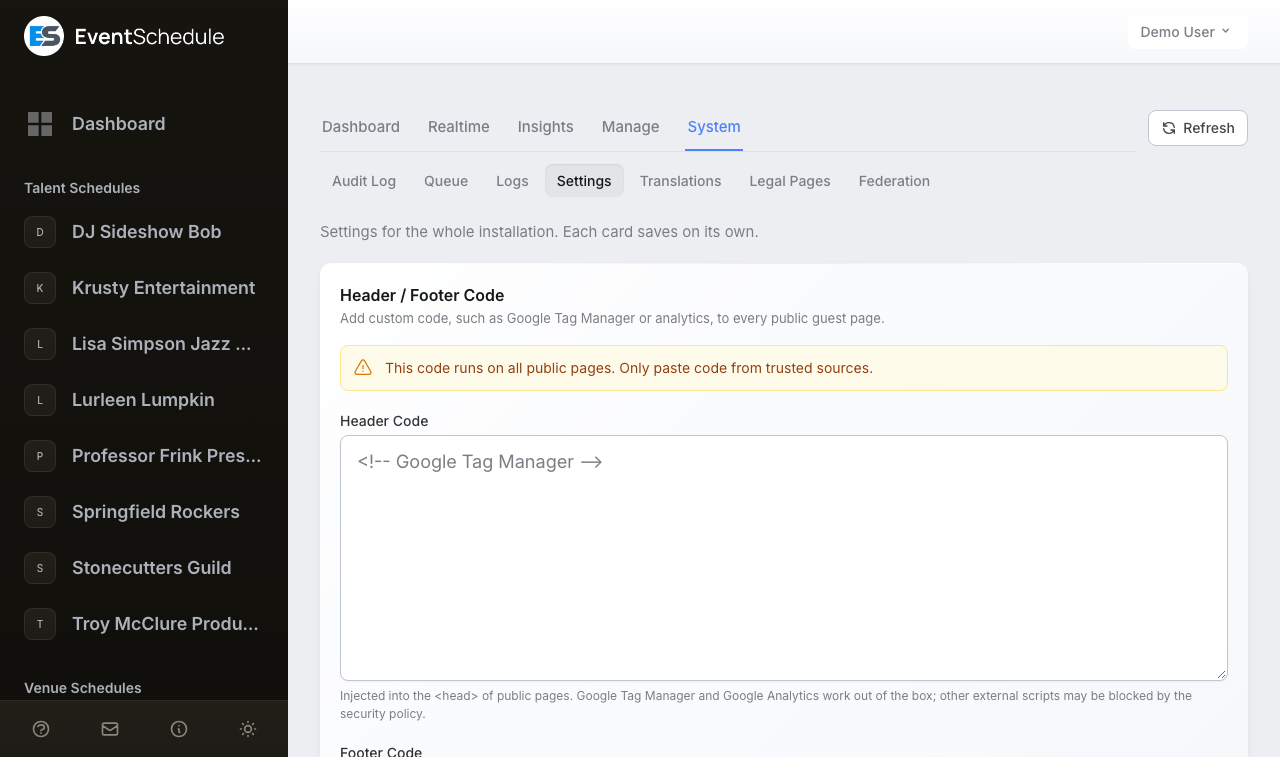
The Settings page holds the handful of settings that apply to the whole installation. It is built from separate cards, each with its own Save button, and a card is only rendered when it can do something on this install. There are seven, and a plain selfhost sees four of them: Header / Footer Code, Event Schedule network, Platform currency and Realtime visitors, plus Accommodation affiliate when it is enabled. None of these settings can be changed while the install is in demo mode.
| Card, in the page's order | What it does | When it appears |
|---|---|---|
| Header / Footer Code | Injects your own code into every public guest page | Always |
| Event Schedule network | Shares your public events with the eventschedule.com listings | Every install except eventschedule.com |
| Monetization | Google AdSense and the on-network promotions marketplace | ADS_ENABLED=true on a multi-tenant hosted install other than eventschedule.com |
| Plan pricing | What you advertise Pro and Enterprise at | A multi-tenant hosted install, or one serving the marketing pages |
| Platform currency | The currency this installation shows its own prices in | Always |
| Realtime visitors | Turns Realtime on or off for the whole install, and the schedule owners' view of it | Always |
| Accommodation affiliate | A fallback affiliate ID for the nearby-lodging map | STAY22_ENABLED=true |
Header and footer code
This is where site-wide tracking such as Google Tag Manager or Google Analytics goes.
- Header Code - injected into the
<head>of public pages. Best for tag managers and analytics loaders. - Footer Code - injected just before the closing
</body>tag. Best for deferred scripts, chat widgets, and the Google Tag Manager<noscript>snippet.
The code is applied to public schedule, event and ticket pages. It is never added to the admin portal or to the marketing site. Script tags you paste are given the request's security nonce automatically, so they are allowed to run.
Header and footer code runs on every public page exactly as entered. Only paste code from sources you trust. Access to this page is restricted to admin users, and every save is written to the audit log.
Google Tag Manager and Google Analytics are permitted by the built-in Content Security Policy and work out of the box. Scripts that load from other external domains may be blocked: add the domain to the script-src directive in app/Http/Middleware/SecurityHeaders.php if needed.
Injected analytics are not gated by the cookie consent banner: header and footer code runs before anyone is asked. Gate it yourself on the visitor's choice, which every page exposes as window.esConsent.has('analytics') and window.esConsent.has('marketing'), with an es:consent-change event on document when it changes, and write your own privacy policy under Legal Pages to say what it does.
Event Schedule network
This card opts your installation into sharing its public events with the eventschedule.com listings. From top to bottom:
- Where the install stands - once it has connected: pending review, approved with the number of events on the network and a link to them, or suspended, and when the last sync ran. A sync that failed is reported here too
- Share events with the network - the toggle itself. Turning it off withdraws the listings again
- Contact email - lets the moderators reach you with their decision and the steps to get listed
- Also list these schedules - the schedules you own that have not been listed yet, each with how many of its events would be shared, so switching sharing on and choosing what to share is one save
- The preview - exactly which schedules and events would be sent, each event marked sent, next sync, needs an image or not accepted, so nothing leaves your install unseen
- Two counts under the preview - why it may be shorter than you expect: schedules that have not verified an email address or phone number, and other owners' schedules that have not been listed yet, whose owners are asked on their dashboards
See Federation for the full picture.
Monetization
This card configures advertising on free schedules: whether to show AdSense, the publisher and ad slot IDs, whether personalized ads are allowed, whether to run your own promotions marketplace, whether promotions take priority over AdSense, and the prices you charge per thousand impressions and per click. It stays hidden unless ADS_ENABLED=true and the install is a multi-tenant hosted platform other than eventschedule.com, because a selfhosted install resolves every schedule to Enterprise and so has no free tier for an ad to appear on. See Monetization for what each setting does.
Plan pricing
Four fields, the monthly and yearly amount for Pro and for Enterprise, decided in one place and used everywhere the platform quotes itself: the pricing page and the rest of the marketing site, the user guide, the referral program, the upgrade prompts and Plan tab inside the admin portal, and the structured data search engines read. Saving moves all of them at once, with no deploy and no php artisan config:cache.
Leave a field empty to fall back to the matching STRIPE_PRICE_*_AMOUNT variable in .env; the value in force is shown as the field's placeholder, so an empty box is never ambiguous. Amounts take two decimal places and are printed in the platform currency set below, which means a currency with no minor unit, such as the yen, rounds them to whole numbers. The card is hidden on a single-tenant selfhosted install, where every schedule resolves to Enterprise and nothing quotes a plan price at all.
Nothing here charges anyone. What a customer pays comes from the Stripe price your STRIPE_PRICE_* IDs point at, and nothing reconciles the two. Changing a price is three steps in order: create the new price in Stripe, point the price ID at it in .env, then set the number here. Do only the last and your site advertises one figure and bills another.
Keep the .env amounts up to date as well. Revenue reporting and renewal emails read those, not this card, on purpose: an amount you change to run a promotion must not restate revenue you have already booked, or quote an existing subscriber a figure their card will never be charged.
Platform currency
The currency this installation quotes its own prices in. It decides the symbol printed beside every plan price and upgrade prompt, and it is the currency a new event falls back to when its schedule has no country set. Pick from the same list the ticket and gift-card pickers offer. It defaults to PLATFORM_CURRENCY from .env, and to US dollars when that is unset.
It does not touch money that already exists. A ticket is always shown in the currency it was priced in, a past sale in the currency it was taken in, and a schedule that has set a country keeps the currency that country implies. Changing this never rewrites a stored amount.
On a platform that sells plans, this decides what the interface prints, not what a customer is charged. The charge comes from the Stripe price your STRIPE_PRICE_* IDs point at, exactly as with the *_AMOUNT variables. Set the currency here, the amounts in .env and the prices in Stripe, and keep all three in step, or your site will advertise one figure and bill another.
Realtime visitors
The first toggle, Record live page views, switches Realtime on or off for the whole install. Turning it on also shows the cookie consent banner, since visitors are identified only after they accept. Turning it off deletes every live activity record straight away.
The second, Show schedule owners live traffic to their own pages, decides whether people who manage a schedule get a Realtime tab of their own on their Analytics page. With it off, Realtime is yours alone.
Venue map
Schedules can show a map of their venues on their public page. It is off until you name its address search in .env, and it has no card on this page.
MAP_GEOCODER_URLis the address search that finds each venue's position. Your server asks it, once per address: at most four addresses a minute from the scheduler, and one a second for a quarter of a minute after an owner switches a map on. An address is kept while a map still uses it and for 90 days after. It has to answer in Nominatim's/searchformat, and a key it wants in its query string can be part of the address. Until it is set there is no map and no row in the schedule form.MAP_TILE_URLis where a visitor's browser fetches the street images, so that service sees the visitor's IP address. Nothing is fetched until the visitor has allowed marketing cookies or pressed Show map beside a sentence naming the service. Left unset, the map is pins on a plain ground and no third party is contacted from the browser.
OpenStreetMap's own services work for both: https://nominatim.openstreetmap.org/search and https://tile.openstreetmap.org/{z}/{x}/{y}.png. Both are free and both have a usage policy you accept by using them, so a busy install should run its own or use a hosted provider. The credit printed on the map comes from MAP_ATTRIBUTION and links to MAP_ATTRIBUTION_URL.
Positions never come from Google: its terms allow its coordinates on a Google map only, so the map keeps its own. Setting these does not raise the cookie banner; without a banner every visitor presses Show map each time they open a page, and Open the map on arrival is not offered to owners. If address lookups fail for an hour, the dashboard's Needs attention list says so. If you replaced the privacy policy on the Legal Pages page, add the two services to yours: the built-in policy lists them by itself.
Accommodation affiliate
Setting STAY22_ENABLED=true lets schedules show a map of lodging near their venues and earn affiliate commission. The card holds a single field, the Fallback Stay22 affiliate ID, used only for schedules that enabled the map without supplying an ID of their own, and never on a schedule's own custom domain. See Accommodation affiliate for the disclosure obligations it places on you.
The Content Security Policy is rebuilt from STAY22_ENABLED on every request, so it can only be set in .env and never from the admin panel. If you cache your configuration, re-run php artisan config:cache after changing it, or the affiliate ID will save while the map stays blocked.
Cookie consent banner
The banner has no card of its own: it follows from the settings above and from .env. It appears only when something on the page actually needs consent: Google Analytics (ANALYTICS_ID), advertising (ADS_ENABLED), the accommodation map (STAY22_ENABLED), the Meta Pixel for Boosted events (META_PIXEL_ID) or Realtime, which identifies visitors only after they accept. A plain install that has none of those shows no banner at all, and sets no cookie that is not needed to make the site work. It never appears inside an embedded calendar, where nothing that needs consent runs.
Visitors choose two categories separately, or both at once with Allow all and Decline. Analytics covers Google Analytics, which is not loaded at all until it is allowed, and the identified Realtime view (yours, and where you have switched it on, the rows with no name a schedule owner sees). Marketing and embedded content covers the attribution cookies, the Meta Pixel, AdSense, and maps, videos and booking widgets from other sites; until it is allowed, a YouTube video or a Google map shows a button that loads just that one item. A visitor whose browser sends Global Privacy Control declines both automatically and never sees the banner. The choice lasts twelve months, and a Cookie preferences link in the footer of the marketing site and of every schedule page reopens it.
Where you have switched on the schedule owners' view, the banner's first line also says that the organizer of a schedule page sees visits to it, so everyone reads it before choosing. The banner names Google Analytics only on an install that has ANALYTICS_ID set; without it the Analytics option describes the Realtime view alone, and where neither is in use that option has nothing behind it. If you do set ANALYTICS_ID, say so in your own privacy policy under Legal Pages: until you publish one, the banner's Learn more link leads to eventschedule.com's policy, which describes eventschedule.com and may not mention Google Analytics at all.
The attribution cookies, utm_params, utm_referrer_url and utm_landing_page, remember for 30 days which campaign or referring site brought a visitor in, so a later signup or ticket sale can be credited to it. They are written only after a visitor allows marketing. Without that they are never written, and attribution lasts for the current session only, which is enough for a visitor who buys on the same visit.
Set COOKIE_CONSENT_BANNER=true in .env to show the banner regardless, which is what you want if you run marketing campaigns and need attribution to survive across visits.
The built-in analytics store daily totals only: views per device type, referrer, country and campaign tag. These totals hold no per-visitor record (Realtime, when on, is the one place that keeps a per-visitor record, for about an hour). IP address and user-agent are hashed with your APP_KEY and a salt that rotates daily, purely to deduplicate and filter bots, and that hash lives in the cache until midnight rather than in the database. Nothing is read from or written to the visitor's device, so no banner is required for it.
Translations (System)
The Translations page lets you review and customize every piece of text the app shows, in any of the supported languages. Fix an awkward translation, adapt wording to your industry (for example rename "ticket" to "registration" or "booking"), or fill in missing translations - all without editing any files.
- Pick a language and file -
messagesholds the app's UI strings;accessibilityandmarketingare smaller companion files. English is editable too, which is handy for renaming built-in terms. - Search and filter - find strings by key or text, and set Status to Customized for only the keys you have changed or to Missing translations for those the selected language lacks.
- Edit and save - type your text beside the original. A bar at the bottom of the page counts the unsaved changes and holds Save. Changes apply immediately, are stored in the database, and survive app updates. A per-row revert restores the shipped translation at any time, and clearing a field is the same as reverting it.
- Copy as PHP - at the end of the page's opening line. It copies your customizations as ready-to-paste language-file lines, useful for moving them into another install or contributing a pull request.
Some strings contain placeholders such as :name or plural forms separated by |. Keep them in your version so dynamic values keep working - the editor warns you if one goes missing, but never blocks the save.
Sharing improvements with the community
Many translation fixes are useful to every Event Schedule install. You can share yours with the community for review, and approved suggestions ship with future releases. Nothing is sent unless you choose it. After a save the bar at the bottom asks whether to share what you just saved (Not now, Always share or Share now), and while anything is unshared a Share button beside Copy as PHP opens the list, where you tick exactly which changes to send. The Community sharing card under the table holds the Automatically share translation improvements toggle, for saved changes to be submitted on their own. Keep it off if your wording is specific to your business. Unshared changes are also counted on the dashboard's Needs attention list, so nothing sits forgotten.
Sharing sends the language, the file, the translation key, your suggested text and the shipped text it replaces, plus your app version and a random anonymous install identifier, to eventschedule.com. No URLs, email addresses, or other personal data are included. On eventschedule.com itself there is nothing to share: the same place holds a Review suggestions button, which opens the queue of what other installs have sent.
Where customizations are kept
Customizations are stored in the database and published as override files under storage/app/lang, or wherever LANG_OVERRIDES_PATH points if you run several servers from a shared volume. Hand-made override files (the pre-existing custom translations approach) are adopted into the editor automatically. After restoring a database backup or cloning to a new server, run php artisan translations:publish to rebuild the files.
Legal Pages (System)
Your installation ships with a privacy policy and terms of service written for eventschedule.com. They are almost certainly not the documents you need: privacy law differs by country, and GDPR, PAIA and POPIA each ask for different disclosures. The Legal Pages screen lets you replace them with your own, and add a cookie policy, which the app has no page for otherwise.
There is a card for each of the three documents, Privacy Policy, Terms of Service and Cookie Policy, and each one offers two ways to supply it:
- External URL - link to a policy you already publish elsewhere, for example on your main company website. Every link in the app goes straight there.
- Document - write the policy here in Markdown. It is served from your own domain at
/privacy,/terms-of-serviceor/cookie-policy, styled to match your install, with a "last updated" date. Headings automatically get anchors, so you can link to individual clauses.
If you fill in both, the external URL wins, and the card warns that your document is not being shown. If you leave both blank, the built-in page is used, exactly as before. The end of each card's title row says which of the three is in force (Built-in page, External URL or Your own document), with a View page link once you have supplied one. Each card saves on its own. Nothing ships pre-filled: the editors start empty, because a template written for one jurisdiction would be wrong for most.
Where your policies appear
Saving a document changes every link to it across the whole app at once - the "I accept the terms and privacy policy" checkbox on signup, ticket checkout, RSVPs, booking requests and event submissions, the issued ticket, the admin portal's About menu, and the cookie banner's "Learn more" link, which prefers your cookie policy when you have one. Until you write one, those links continue to point at eventschedule.com.
What you save here is what your users agree to when they register or buy a ticket. Event Schedule cannot tell you what your policies need to say - have a qualified professional review them for the jurisdictions you operate in.
Federation (System)
The Federation page is the other end of the Event Schedule network card: the moderation queue for the installs that share their events with eventschedule.com. It exists only on eventschedule.com, so it is not in your System row. What you see of it from your own install is the result: the status on the network card (pending review, approved or suspended) and the email the moderators send to your contact address.
- Tabs - Pending, Approved, Suspended and All, plus Flagged while an approved install has changed its address
- Each install - its name, address and contact email, when it was last seen, its public schedules and a sample of the listings it would publish, so an approval is never made on a name alone
- Actions - Approve, after which the install's listings publish automatically, Suspend, which hides them, and Send welcome email. Ticking several installs applies one action to all of them
The Federation guide describes the whole exchange from the selfhost side.
Support (System)
The Support page is the admin's side of the built-in support chat: conversations from people signed in to the app and, on eventschedule.com, from visitors on the website. It only exists when IS_HOSTED=true. Unread messages are counted on the System tab and in Needs attention.
- Support availability - the switch at the top marks you as available for chat, and the words beside it say how you are shown right now
- Conversations - the list, newest message first, with a count on each one that has unread messages and a mark on those that are closed
- The open conversation - who it is (for an account, its email address and schedules), the messages, and the reply box. Close ends the conversation
The page checks for new messages on its own while it is open. How the chat is switched on, who is notified and when, is in Support chat in the SaaS guide.