Creating Events
Add events to your schedule and configure event settings like venue, participants, recurrence, visibility, and tickets.
Creating Events Manually
The simplest way to add an event is to create it manually from your schedule's admin page.

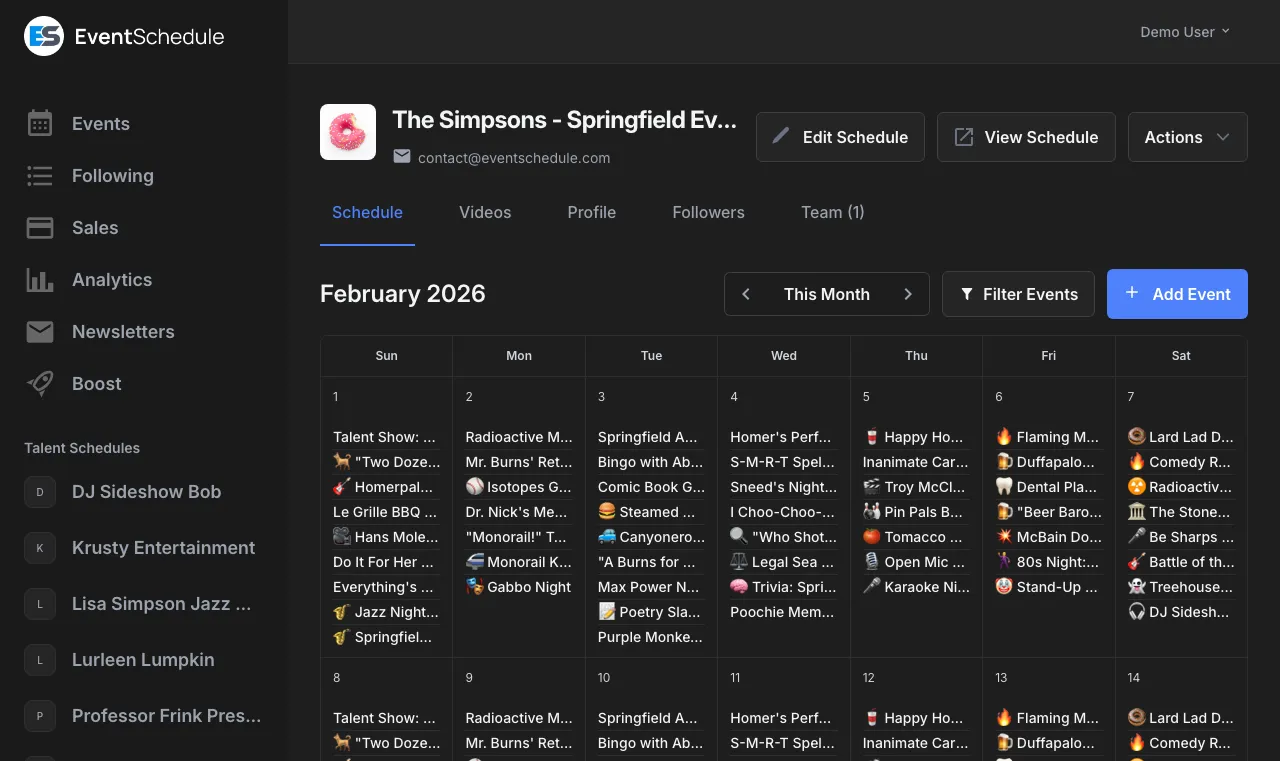
- Go to Admin Panel → Schedule
- Click "Add Event"
- Fill in the Details section:
- Event name (required)
- Visibility (Public or Draft, plus Internal and Unlisted on Enterprise)
- Category, and a sub-schedule if your schedule has any
- Date & time (start and end time, in your schedule's timezone)
- Flyer image, short description, and description
- Open the Venue section and pick or enter where the event takes place, or mark it as online
- Click "Save". If you saved it as a draft, a green Publish button appears next to Save for when you are ready.


Sections of the Event Form
The event form is split into sections, listed in a sidebar on desktop and as collapsible headers on mobile. Some sections only appear once they apply to your schedule:
| Section | What it covers | When it appears |
|---|---|---|
| Details | Name, visibility, category, date and time, images, descriptions | Always, except on a Venue schedule looking at an event it did not create and cannot edit |
| Venue | In-person location or online link | Always |
| Participants | Performers, speakers, and other people on the bill | Always |
| Recurring | One-time or repeating dates | Always |
| Agenda | Event parts such as sets, sessions, or talks | Always |
| Schedules | Adding the event to other schedules | When another schedule is available to you |
| Google Calendar and Outlook Calendar | Syncing this one event to a connected calendar | Saved events on a schedule with that calendar connected |
| Tickets | External ticket link, free registration, or built-in ticketing | For the account that created the event |
| Settings | Per-event sponsor overrides | Pro schedules, for editors |
| Engagement | Fan content, polls, feedback, and carpool | Always (carpool only when enabled on the schedule) |
Actions on a Saved Event
Once an event is saved, an Actions menu appears at the top of the form:
- Clone Event - open a copy of the event as a new, unsaved event.
- Save as Template Pro - Requires the Pro plan - store the event as a reusable template on the Templates tab.
- Cancel event and Restore event - mark the event cancelled without deleting it, then bring it back later. Cancelling can tell everyone who bought a ticket, registered or asked to hear about it; see Notifying Attendees of Changes. A cancelled event shows a red banner at the top of the form with its own Restore button.
- Delete Event - remove the event permanently.
Cancel, Restore, and Delete need permission to delete the event, so a viewer does not see them. On a wide screen Boost Event Pro - Requires the Pro plan sits beside the Actions button rather than inside the menu; on a narrow screen it moves into the menu. See Boost.
Don't want to type everything manually? You can also import events using AI from text or images.
If your schedule accepts event requests with Require Approval enabled, events submitted by other people wait for your review. Approve or reject them on the Requests tab of your schedule's admin page, which only appears while there is something waiting.
Notifying Attendees of Changes
Two groups can hear about a change to a published event: people who bought a ticket or registered, and people who asked to hear about it from the event page, who make up its interest list. On eventschedule.com, buyers and registrants are only emailed when your schedule has its own email settings; a selfhosted install only needs a working mailer. The interest list is emailed either way, although on eventschedule.com a schedule without its own email settings can only reach an interest list of more than 50 people once its owner has verified a phone number.
- When you save a change. Change the date or time of a one-time event, or the venue or online link of any event, and saving first asks Notify attendees of this change?, as long as there is someone to tell. Add a note of up to 280 characters if you like, check it with Preview email, then choose Notify attendees or Don't notify. Either button saves the change. A new date or time on a recurring event is not detected, so it never asks.
- When you cancel. Choosing Cancel event from the Actions menu asks Cancel this event? first. When there is someone to tell, the button reads Cancel and notify and the notice goes to all of them, with your note if you add one; otherwise it reads Cancel event. Keep event backs out.
- Nothing is sent for a draft. A change to a one-time event whose start time has already passed notifies nobody, and on a recurring event only people with a date still to come are told.
Cancelling keeps the event's tickets and refund records, stops any boost campaign and any installment plan still charging for it, and shows guests a notice that it has been cancelled. You can restore the event later. It does not refund anyone: refund each sale from the Sales page, where a Stripe or PayPal payment goes back through the provider and any other method is marked as refunded.
Details
The Details section contains the core information for your event, in the order the fields appear on the form:
| Field | Description |
|---|---|
| Name | The event title (required) |
| Event URL / Slug | For saved events the event URL is shown under the name with a copy button. Click Edit to change the slug. |
| Visibility | Choose who can see the event. Public lists it for everyone. Draft keeps it visible to schedule members only while you finish editing. Internal (Enterprise) keeps it members-only permanently. Unlisted (Enterprise) hides it from your schedule but lets anyone with the direct link view it, optionally behind a password. New events start at your schedule's default visibility, and switching a hidden event to Public warns you first. See Internal & Unlisted Events for exactly what each state hides. |
| Sub-schedule | Groups events by type (for example "Live Music" or "Comedy"). The field is labelled Schedule on the form and only appears when your schedule has sub-schedules. See Sub-schedules |
| Category | Select an event category from the dropdown (for example Concert, Workshop, or Conference). You can edit the list under Custom Categories. |
| Date & Time | The date, start time, and end time. Times are entered in your schedule's timezone, which is shown under the field along with a preview of how the start will read; if the schedule has no timezone set yet, a warning says so. An event has no stored end date: what is saved is the start plus a duration worked out from the two times. Turn on Multi-day event and the field becomes Start Date, with a separate End Date row (and its own end time) below. The toggle is hidden on a recurring event. |
| Flyer Image | A flyer or photo for the event. Click Choose File and pick a JPG or PNG under 2.5MB. Enterprise schedules can instead have one drawn from the event details by selecting Flyer Image in the AI Generator, where you can also describe a style (for example "minimalist, blue and white"). |
| Short Description | A brief summary of the event (up to 200 characters). Appears as a subtitle on the event page and in schedule listings. |
| Description | Details about the event (supports markdown formatting) |
| Custom Fields Pro - Requires the Pro plan | Any custom fields you defined on the schedule appear at the bottom of the Details section. The block is absent until you have defined at least one. |
To choose the visibility that all new events start with, use Default visibility for new events in your schedule's Settings → Advanced.
AI Details Generator Enterprise - Requires the Enterprise plan
Let AI fill in an event's category, flyer image, and descriptions from its name and your schedule's context. Click the AI Generator button in the Details header. The event needs a name before you generate.
- Under Select elements to generate, tick the fields you want: Category, Flyer Image, Short Description, or Description. Fields that already have a value are marked with a dot and left unticked, so nothing is overwritten by accident.
- Optionally add Additional instructions (up to 500 characters), for example a house style for descriptions or a look for the flyer. Tick Save as default for this schedule to reuse them next time.
- Optionally open View/edit AI prompt to see and adjust the exact prompt, with Reset to default to go back.
- Click Generate.
- Review the Preview. Each field has its own Regenerate button, then Accept writes the results into the form or Discard throws them away. Nothing is saved until you save the event.
The button only appears when an AI key is configured, and generation is unavailable on demo schedules. Text generation uses Google Gemini and flyer images use OpenAI , so a selfhosted install needs the matching keys in its environment settings. AI requests are capped per day per schedule, and the generator tells you when a limit is reached.
Venue
The Venue section says where your event takes place. Tick In-person, Online, or both.
In-Person Events
Choose Use Existing to pick a venue that has appeared on your schedule before, or Create New to enter a venue name, contact details, and address. A map of the location is shown on the public event page.
Address Validation
After entering an address, click Validate Address to check the location and generate map coordinates, then Accept the corrected version. View Map previews the location before you save, and Done closes the venue fields.
Online Events
Tick Online and paste an Event URL, for example a Zoom, Meet, or Teams link. It is a single link field, shown on the event page for guests to join, with no platform-specific integration behind it.
Venue Contact and Notifications
You can store the venue's email, phone number, and website on the venue record. On the hosted platform, entering an email for a new venue reveals "Send an email to notify them", which tells the venue about the event and invites them to claim their page. On installs with SMS configured, a phone number offers "Send an SMS to notify them" instead.
Participants
The Participants section tags performers, speakers, or other participants on an event. Every one of them appears on the public event page, and anyone with a schedule of their own is linked to it. Anyone you name who is not already on Event Schedule gets a page of their own at the same time, which they can claim later - see Pages Created for Others.
Adding Participants
Click Add, then either Use Existing to choose someone who has appeared on your schedule before, or Create New and fill in a name (required) plus an optional email, phone number, and YouTube Video URL. The email matters beyond your own records: it is what lets that person claim the page created for them. Click Done to add them to the list, where each entry can be edited or removed.
Notify Participants
On the hosted platform, a participant with an email address who does not already have an account can be sent "Send an email to notify them". That email tells them you added them to the event and invites them to claim their page. Where SMS is configured, a phone number offers an SMS instead.
When to Use
Participants are most useful for Talent and Curator schedules, where events feature specific performers, speakers, or artists. On a Venue schedule the section is marked optional.
Pages Created for Others
Naming a performer or a venue who is not yet on Event Schedule creates a schedule for them there and then. It carries the name you typed, any contact details you added, and every date you list them on. This happens whether or not you send them an invitation, because it is what lets their name appear on your event page at all.
What the page shows
Your event page shows the whole lineup. Every act you named appears there by name, and an act with a page of its own, claimed or not, is linked to it, so the act and anyone else can get from your event to the page made for them.
Until it is claimed, the page opens with This page was created by and the schedule that first listed them - or This page was created automatically, when that cannot be worked out - and says the act has not claimed it yet, so nobody mistakes it for a page they built themselves. Below that it lists up to twenty upcoming public dates other schedules have added them to, each credited to the schedule that added it. Draft, internal, unlisted and cancelled dates are not shown, and a page whose dates have all passed says so. It carries no contact details, no follow button and no tickets, and it stays out of search engines until it is claimed.
Inviting them
On the hosted platform, ticking "Send an email to notify them" on the participant or venue sends a single email telling them you added them to the event, with a link to their page. It sends once each time you tick the box, and replies go to whoever created the event. Nothing is sent for a draft event, or to someone whose address already has an account, because in that case the page is already theirs.
How they claim it
They press Claim this page and sign in with a verified account on the contact the page carries - the email address if it has one, otherwise the phone number. That is the whole check, so the contact you enter decides who can claim it: a booking agent's address means the agent claims the page, not the act. Once claimed, the page is an ordinary schedule and they can edit everything on it.
If it is not them
This is not me is the other answer, and it asks them to sign in first so we know who is reporting. Somebody who holds the contact on the page can take it down immediately; anyone else has their request recorded for review, so the button cannot be aimed at a competitor.
After they claim it
Dates you have already listed them on stay exactly where they are. If they claim by email, or by pressing Claim this page, the schedules that already had dates on their page are carried onto their approved list, so your future dates keep appearing without waiting for approval; a claim made by verifying a phone number does not carry that across. Any other schedule that lists them from then on sends a request, which they accept or decline on their Requests tab. A performer cannot switch that off, because a Talent schedule always requires approval; a claimed venue decides for itself in its request settings.
Where SMS is configured, verifying the phone number on your account also claims any unclaimed schedule carrying that number, as long as it was created in the past year. Claiming by email has no such time limit.
Enter a name they would recognise and a contact address that is really theirs. The page is public from the moment it exists, and the address on it is what decides who can take it over.
Recurring
The Recurring section turns one event into a series that repeats on a pattern, so you do not have to add each date by hand. Choose One-time or Recurring at the top of the section.
A recurring event is still a single event. It keeps one start time and one duration, and the pattern decides which days it lands on. Pick a Frequency:
| Frequency | Description |
|---|---|
| Daily | Repeats every day |
| Weekly | Repeats every week. Tick the Days of the Week the event runs on (Sun, Mon, Tue, and so on). |
| Every N Weeks | Repeats every 2 to 52 weeks, for example fortnightly. Also uses the Days of the Week checkboxes. |
| Monthly (same date) | Repeats on the same date each month, for example the 15th |
| Monthly (same day of week) | Repeats on the same weekday each month, for example the second Tuesday |
| Yearly | Repeats once a year on the same date |
Recurring End
Every pattern has an end condition:
- Never - the series keeps going until you change it.
- On Date - the series stops after the date you pick.
- After Events - the series stops after a set number of occurrences.
Include and Exclude Dates
Use Add Date under either list to fine-tune the generated dates:
- Include Dates - extra one-off dates that do not match the pattern. They are added even after the end condition has been reached, as long as they are on or after the event's own date.
- Exclude Dates - dates to skip, such as a holiday. An excluded date is simply absent from the schedule; guests see nothing there rather than a cancelled entry.
A series never starts before the event's own date, so set the date to the first occurrence. Every occurrence uses the same start time and duration, so a matinee and an evening show on the same day need to be two separate events. Multi-day events and recurrence are mutually exclusive: the Multi-day event toggle is hidden while an event is recurring.
A recurring event is pushed to a connected Google, Outlook, or CalDAV calendar as a single entry on the series start date, not as a repeating appointment. Guests who want every date can subscribe to your schedule's live calendar feed, offered as Subscribe to all events from your schedule on your event and schedule pages, which lists each occurrence in the next 90 days individually.
Agenda
The Agenda section breaks an event into parts, such as performances, sessions, or talks. Each part appears on the public event page so guests can see what to expect.
Adding Parts
Click "+ Add Part" and fill in the details:
- Part Name (required) - the title of the part, for example "Opening Keynote" or "DJ Set"
- Start Time and End Time (optional) - when this part runs within the event
- Description (optional) - extra details about this part
Display Options
Two toggles control what the agenda shows, on the form and on the event page:
- Show times - include each part's start and end time.
- Show description - include each part's description.
Reordering
With both display options off, parts collapse to a compact list you can drag into order by the handle. With times or descriptions shown, each part has up and down buttons instead. The order on the form is the order on the event page.
AI Import Enterprise - Requires the Enterprise plan
Enterprise schedules can build the agenda from something you already have:
- Import from Image - upload a photo of a printed agenda, lineup, or setlist and AI extracts each part.
- Import from Text - paste agenda text and AI parses it into parts.
Either way the results land in a Preview first, where Accept adds them to the agenda and Discard drops them. Three extra controls sit alongside:
- AI Prompt - custom instructions to help AI read your agenda format (up to 500 characters).
- Save agenda image - keep the uploaded image with the event. A saved image can be removed again from the same place.
- Save as default - reuse the AI prompt on future events on this schedule.
The import buttons only appear when an AI key is configured, and the parsing itself requires an Enterprise schedule and a Gemini API key. Requests are capped per day per schedule.
Schedules
The Schedules section, headed Add to Schedules, lists the other schedules this event can appear on. Tick as many as you like and the event shows up on each of them.
Every schedule in the list has a verified email address or phone number, and one of these is true:
- You own or help manage it as an owner, admin, or viewer.
- You follow it and it accepts event requests. If that schedule also has request terms, an info icon next to its name shows them.
Adding the event to a schedule you are a member of publishes it there immediately. Adding it to a schedule you only follow creates a request, which appears on that schedule's Requests tab if its owner requires approval.
When a ticked schedule is a Curator schedule with sub-schedules, a dropdown appears beneath it so you can choose which sub-schedule the event belongs to there.
This section only appears when at least one schedule other than the one you are editing in is available to you. With a single schedule you will not see it.
Google Calendar
The Google Calendar section syncs this one event to your calendar. It shows whether the event is synced, with a Sync to Google Calendar or Remove from Google Calendar button.
The section only appears on a saved event, and only when the schedule already has Google Calendar sync connected and set to push events to Google. See Calendar Integrations for setup instructions.
Schedules connected to Outlook get a matching Outlook Calendar section directly below, with the same sync and remove buttons. See Outlook Calendar.
Draft and Internal events are never pushed to a connected calendar, and un-publishing an event removes it again. An Unlisted event is synced but marked private in the calendar. A recurring event syncs as one entry on the series start date rather than as a repeating appointment.
Creating Events via WhatsApp Enterprise - Requires the Enterprise plan
Send a WhatsApp message to create events straight from your phone. You can send the details as text, or send a photo of a flyer or poster and let AI read it.
How It Works
- Add and verify your phone number in Settings, under Profile Information
- Make sure you have a default schedule set, or exactly one schedule you can edit, so the event has somewhere to go
- Send a WhatsApp message to the Event Schedule number
- Include the event details as text, or attach a photo of a flyer or poster
- AI parses the details and creates the event on that schedule
- You get a reply with the event name, date, and link
What AI Extracts
- Event name
- Date and time
- Duration
- Venue (name, email, website, address, city, state, postal code, country)
- Short description and description
- Flyer image
- Category
- Registration URL
- Performers, matched to existing schedules where it can
- Values for any custom fields that carry an AI prompt
Works great with event flyers: snap a photo, send it, and the event is created in seconds. If the same event already exists on your schedule, the reply links to it instead of creating a duplicate.
WhatsApp event creation runs through Twilio, so the platform or install has to have it configured, along with an AI key for parsing. See the Twilio setup guide for configuration details.
Tickets
The Tickets section offers three modes for an event:
- External - link out to wherever you already sell.
- Registration - free sign-up on your own event page, with an optional capacity limit. Unlimited on every plan.
- Tickets - sell tickets from your own event page, taking payment through the Payment Method you pick for the event: Stripe, PayPal, Payfast, Invoice Ninja, a payment link, or cash. The list offers what you have set up under Manage payment methods that can take the event's Currency. Also available on every plan: a free schedule can sell up to 25 paid tickets a month, and Pro removes the cap and adds the live check-in dashboard. Scanning tickets at the door is free on every plan, and the money goes to your own account with no platform fee. See the full Selling Tickets guide for setup, sales management, refunds and check-in.
Free registrations and zero-price tickets never count toward the monthly allowance. While a schedule is on the free plan the Tickets section carries a one-line note about the allowance; the running total for the month lives on the schedule's Plan page.
If visitors have asked to hear about the event, the Tickets section says how many above your ticket types, as in "3 people asked to be told when tickets go on sale." The number is never shown publicly. See Interest List.
In External mode you get a Registration URL (the link guests are sent to), a Price with a currency selector (used in event graphics text templates), an optional Coupon Code, and a Discount saying what that code is worth. These fields are hidden once registration or ticketing is switched on.
Once an event has taken money, its Currency is locked in both modes and the selector is greyed out, because a sale records no currency of its own. See Refunds.
The section appears only for the account that created the event. Once tickets or registration are on, a Pro schedule can also embed the purchase or sign-up form on another website from the Embed tickets link (it reads Embed registration when the event is registration-only). Unlisted events do not offer the embed.
Event Settings
The Settings section of the event form holds per-event sponsor overrides. It appears for editors on Pro schedules.
The other two per-event settings covered below live in the Details section: custom fields at the bottom of it, and visibility near the top.
Custom Fields Pro - Requires the Pro plan
Custom fields capture information about an event that the standard fields do not cover. You define them once on the schedule, and they then appear on every event form.
Setting Up Custom Fields
- Go to Admin Panel → Profile → Edit
- Open the Customize section and its Custom Fields tab
- Add a field, give it a name, and pick a type
- Save your settings
You can define up to 10 custom fields per schedule, and drag them into the order you want. Their values are then edited under Details on each event. See Custom Fields for the schedule-side reference.
| Field type | What the event form shows |
|---|---|
| Text | A single-line text input |
| Multi-line Text | A text area for longer answers |
| Yes/No | An on/off toggle |
| Date | A date picker |
| Dropdown | One choice from options you list |
| Multi-select | Any number of choices from options you list |
Per-Field Options
Required
The field has to be filled in before an event can be saved.
Private
Hides the value from the guest portal. Private fields show a small lock icon next to their label on the event form. The value stays visible in the admin portal and can still be rendered into graphic templates and slug patterns via {custom_N}.
On request form
On by default: visitors submitting an event request are asked this question too. Turn it off to keep the field for your own use.
Validation Pattern
Text fields can be held to a ready-made pattern (email, phone, URL, digits, letters and numbers) or your own regular expression, with a Hint shown to whoever fills it in. The pattern is checked in the browser and again on the server.
AI prompt
An optional instruction telling AI how to pull this field's value out of imported text or images.
Use Cases
Track age restrictions, dress codes, support acts, door times, or anything else specific to your events. Each field's number is shown next to it as {custom_N} for use in event graphics text templates and slug patterns.
Internal & Unlisted Events Enterprise - Requires the Enterprise plan
Every event has a Visibility setting in its Details section. Public and Draft are available on all plans; Enterprise schedules unlock two more states for events that should stay out of public view.
| Visibility | On your schedule page | By direct link | Calendar feed, digest, graphics, newsletters | Interest sign-up | Connected calendar |
|---|---|---|---|---|---|
| Public | Listed for everyone | Anyone | Included | Offered | Synced |
| Draft | Members only | Members only | Excluded | Not offered | Not synced |
| Internal Enterprise - Requires the Enterprise plan | Members only | Members only | Excluded | Not offered | Not synced |
| Unlisted Enterprise - Requires the Enterprise plan | Hidden | Anyone with the link, and the password if you set one | Excluded | Not offered | Synced, marked private |
The digest is the automatic email your confirmed email subscribers get, and it only ever covers public events your schedule created itself, not ones it lists from other schedules. The interest sign-up is the Tell me when tickets go on sale form on the event page.
Draft and Internal
Both keep an event to schedule members, and both are skipped by the calendar feed, the subscriber digest, event graphics, newsletters, webhooks, and calendar sync, and neither offers the interest sign-up. The difference is intent: a Draft is on its way to being published, so it gets a green Publish button next to Save. An Internal event is never meant to go out, so it has no Publish button. Un-publishing an event that was already live also removes it from any connected calendar.
Unlisted
- When creating or editing an event, set Visibility to Unlisted
- Optionally set an Event password, which only applies to Unlisted events
- Save the event
Unlisted events are hidden from your schedule page and calendar views. Visitors reach them only by direct link, and where you set a password they have to enter it before they see the event. An unlisted event is also left out of the calendar feed and the subscriber digest, and never offers the interest sign-up, with or without a password.
Mix visibility states
Visibility is set per event, not per schedule. You can freely mix Public, Draft, Internal, and Unlisted events on the same schedule. Public events appear normally while the others stay hidden.
Sharing Unlisted Events
Share the event's direct link, and its password if you set one, with your intended audience by email, messaging, or any other channel. Only people with the link (and password) can view the event.
Going public later
Switching a hidden event to Public shows a warning first, since saving makes it visible to everyone. Any password is cleared at the same time, so a published event is never left password-locked.
If a plan lapses
Internal and Unlisted are Enterprise states. If a schedule drops off Enterprise, the next save of a hidden event turns it into a Draft rather than making it public, and clears any event password.
Hiding an event people asked about
Moving a public event to Draft, Internal or Unlisted stops the tickets-on-sale email and the reminder going to the people who asked to hear about it, because visibility is checked again when each one is due.
To choose the visibility all new events start with, see Advanced Settings.
Sponsors Pro - Requires the Pro plan
Override sponsor display for a single event. By default, events show whatever sponsors are configured on the schedule.
Sponsor Mode
In the Settings section of the event form, choose one of three modes:
Use schedule default
The event page displays the same sponsors configured on the schedule. This is the default.
Show no sponsors
Hide sponsors entirely on this event's page.
Customize
Define event-specific sponsors. Each one needs a logo, plus an optional name, URL, and tier of Gold, Silver, or Bronze. Up to 50 sponsors per event.
Logos are uploaded when you save the event, and only 15 new ones can be queued per save. If you are adding a long list, save partway through and then carry on.
To set default sponsors for all events, configure them at the schedule level. See Schedule Sponsors.
Engagement
The Engagement section is split into tabs: Fan Content, Polls, Feedback, and Carpool when carpooling is enabled on the schedule. Tabs with something waiting for you, such as pending fan content or suggested poll options, carry a count badge.
Most of these settings decide whether an event follows the schedule-wide setting or overrides it. For the schedule-wide versions see Engagement settings, and for carpooling see Carpool.
Fan Content
Fan content lets your audience add to your event pages, and nothing they send appears publicly until you approve it. There are three types, each with its own toggle in your schedule's Engagement settings and available on every plan:
- Comments - text comments on events and event parts
- Photos - photo uploads on events, capped at 25 per schedule on the free plan and unlimited on Pro - Requires the Pro plan
- Videos - YouTube or Vimeo links on events and event parts
Attendees do not need an account. By default they submit with just a name and email, which appear in your moderation queue so you know who sent what; the email is never shown publicly. If you would rather have people sign in first, turn on Require an account in your schedule's Engagement settings.
Per-Event Overrides Pro - Requires the Pro plan
On a Pro schedule, the Fan Content tab of an event's Engagement section has a dropdown per type: Use schedule default, Enabled, or Disabled. That lets you open one event up while the rest of the schedule stays closed, or the other way round.
Moderation
The same tab is where you review submissions, so save the event first:
- Pending Approval - each comment, photo, and video is listed with the part it belongs to, the date it was submitted for, and who sent it, with Approve and Reject buttons.
- Approved - everything already public, which you can still Reject to pull it down. Pro schedules also get a Download all photos link that zips the event's photos.
Approved content appears on the public event page straight away. To hear about submissions by email, turn on the fan content notification in your schedule's Notifications settings; the email tells you how many items are waiting and links to the event.
Videos Tab for Curators
Curator schedules get a separate Videos tab on the schedule admin page. It is not a moderation queue: it suggests YouTube videos for talent on upcoming events that have none yet, so you can fill in their profiles. See Videos & Links.


Polls Pro - Requires the Pro plan
Add multiple-choice questions to an event and let your guests vote on the options that matter most.
Creating Polls
- Open the event in your admin panel and go to Engagement → Polls
- Click Add Poll
- Enter your Question (up to 500 characters)
- Add between 2 and 10 Options for voters to choose from (up to 200 characters each)
- Save the event
You can add up to 5 polls per event, each with its own question and options.
How Voting Works
- Sign in required - guests must be signed in to vote, which is what keeps voting to one per person.
- Members only on Draft and Internal events - only members of your schedule can vote on those. On an Unlisted event, anyone signed in who has the link can vote, after entering the event's password if it has one.
- One click to vote - guests click the option they want.
- One vote per poll - votes cannot be changed afterwards. On a recurring event, votes are counted per date, so a regular can vote again for the next occurrence.
- Instant results - the results come back as soon as the vote is cast, so guests immediately see how others voted.
Viewing Results
Once a guest has voted, results are shown as bars with the count and percentage for each option, and the leading option is highlighted.
As the organizer you can always see the results and the total vote count on the event form, whether or not you voted. Once a poll has votes its options are locked, so retitling the choices cannot change what people voted for.
User-Suggested Options
You can let guests add their own options to a poll:
- Allow users to suggest options - turn this on to let guests add options.
- Require approval for suggested options - appears once suggestions are allowed. Suggested options then wait in a pending list on the event form until you approve or reject each one.
Closing and Reopening
Each saved poll carries an Active or Closed badge showing its current state:
- Active polls - guests can vote, and results update as votes arrive.
- Closed polls - results are still visible, but no new votes are accepted.
The badge itself is a label, not a switch. Use the Close Poll button below the poll to stop accepting votes, and Reopen Poll in the same place to start again. A Delete button sits next to it. All three take effect straight away, without saving the event.
Feedback Pro - Requires the Pro plan
Post-event feedback emails attendees after an event ends to collect a star rating and comments. Turn it on for the whole schedule in Settings → Engagement → Feedback, where you also choose how long after the event the request goes out. On the hosted platform this needs your schedule's own email settings.
Per-Event Override
The Feedback tab of an event's Engagement section offers three options:
- Use schedule default - follows whatever you set at the schedule level.
- Enabled - feedback emails go out for this event whatever the schedule setting is.
- Disabled - no feedback emails for this event whatever the schedule setting is.
For more on reading and managing the responses, see Selling Tickets → Post-Event Feedback.
See Also
- AI Import - Import events from text or images using AI
- Selling Tickets - Add tickets or free registration to your events
- Event Graphics - Create promotional images
- Sharing Your Schedule - Share, embed, and subscribe to your events
- Calendar Integrations - Set up Google Calendar, Outlook, and CalDAV sync
- Managing Schedules - Templates, cloning, and day-to-day upkeep