Analytics
See how people find your schedule, what they open and click, what they buy, and who turns up at the door.
Feature overview: Event analytics
Overview
Analytics shows how your schedule pages are performing. Open it by clicking Analytics in the sidebar. It is built in and on every plan, so there is nothing to install and no third-party tracking script to add.
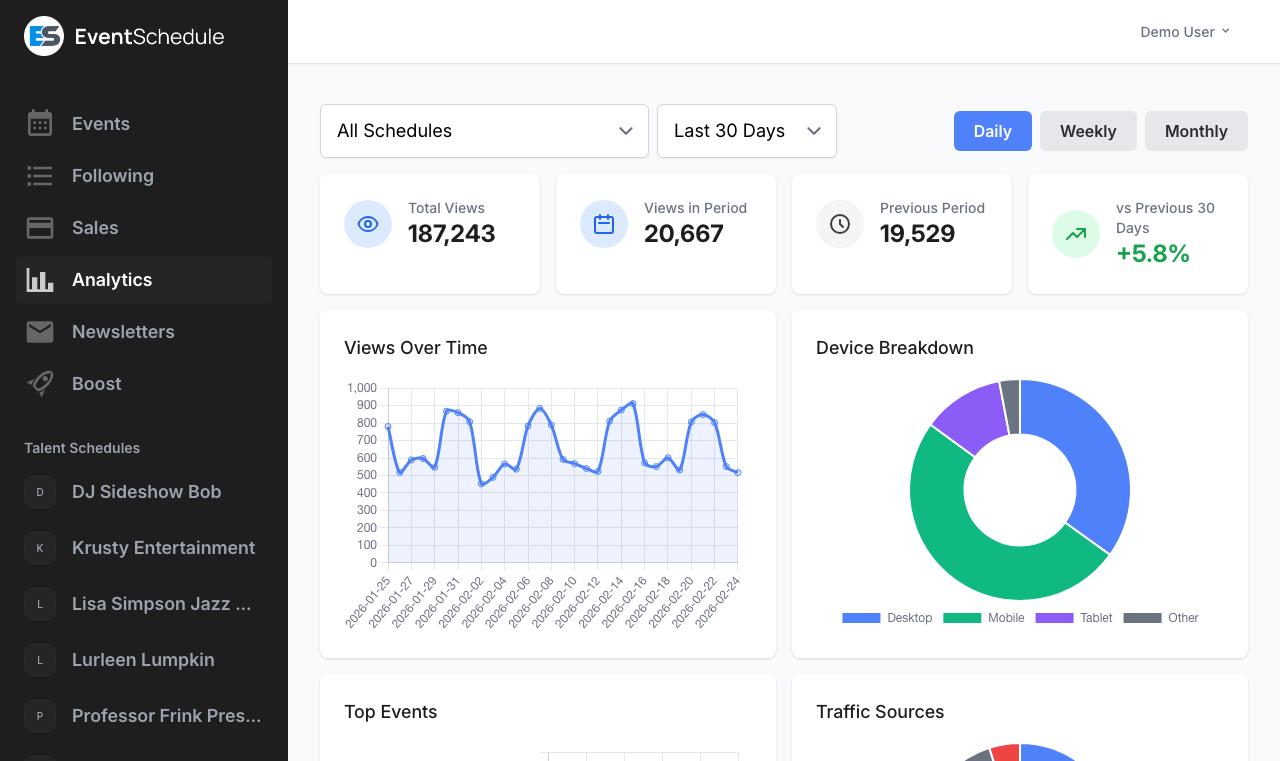
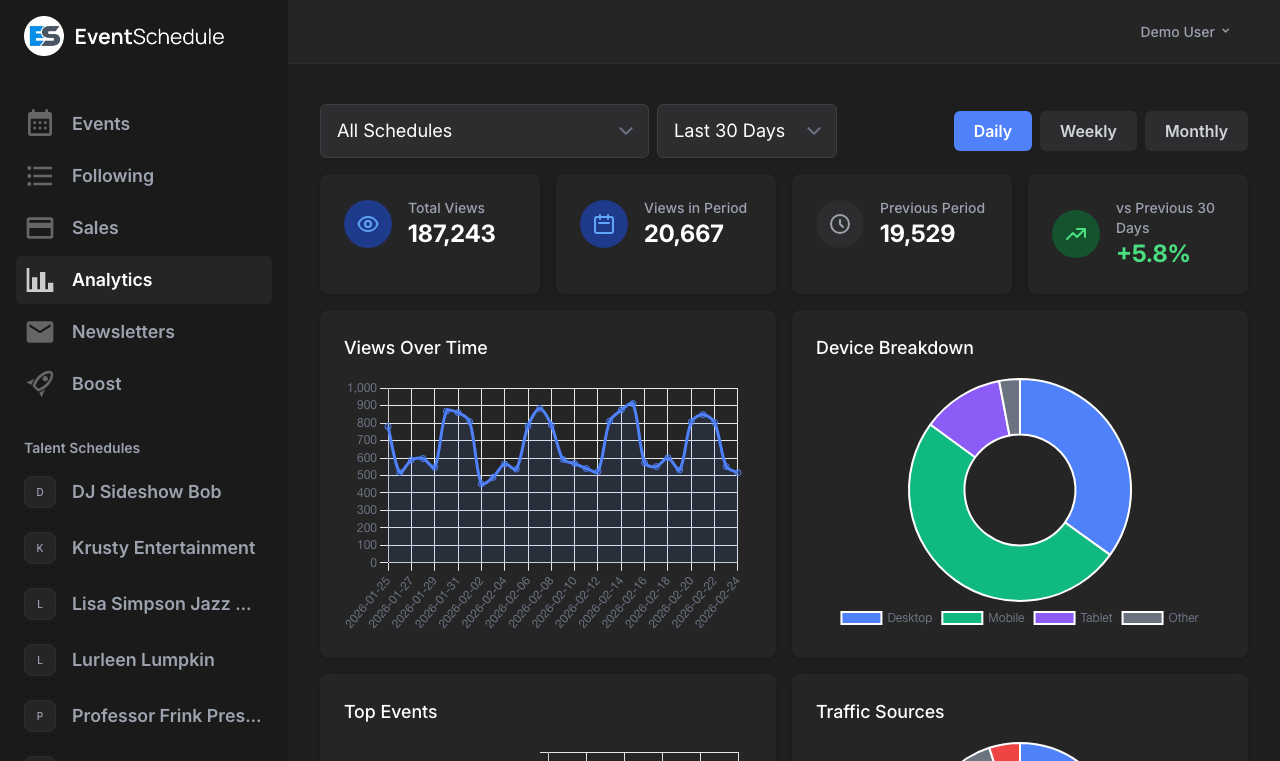
Under the page's title come the tabs, in this order, and under them the filters. Each tab opens on one card that holds its main figures and its chart, with the lists and tables below it:
| Tab | What it shows | Has data |
|---|---|---|
| Web Analytics | Page views over time with your events marked on the chart, top events, where visitors come from (channels, sites and campaigns), countries, devices, social link clicks and broken links. This is the tab the page opens on. | As soon as someone visits a schedule page |
| Realtime | The traffic to your pages as it happens, what people did on your schedules in the last 24 hours, and arrivals at an event that is on | At once. The tab is there when the site offers it: on eventschedule.com, and on a selfhosted site once its administrator switches it on. |
| Revenue | Total revenue and how it came in over time, sales, conversion rate, revenue per view, top events by revenue, promo code performance, and the boost and newsletter funnels | Once the range holds a completed sale, a boost campaign or a newsletter send. Selling a ticket that carries a price is a Pro feature; free registration and ticket types priced at zero are unlimited on every plan, but neither brings in revenue to report. |
| Check-Ins | Tickets sold, attendance rate, no-shows, arrival times, attendance by ticket type, and a per-event breakdown | Once tickets are sold for an event dated in the range. The attendance figures need tickets scanned at the door: scanning is free on every plan, and the live check-in dashboard with its running count is the Pro half. |
A page view is counted the moment it happens and stored in that day's total, so today's figures keep climbing until midnight. For the last half hour, minute by minute, use the Realtime tab.
Filters
The row of controls under the tabs decides which data is shown, on every tab at once. Every filter is stored in the page URL, so you can bookmark a view or share it with a team member who has access to the same schedule. The Realtime tab always covers the last half hour of every page, so there only the schedule selector is shown.
Schedule selector
Choose All Schedules or a single schedule. The dropdown only appears when you manage more than one schedule; if you manage exactly one, it is selected for you automatically. Switching schedules clears the event filter.
Event selector
Appears once a single schedule is selected, and narrows Web Analytics, Revenue and Check-Ins to one event. It is searchable and lists events that start in the last 30 days or later, and recurring events that are still running; drafts are never listed. On a curator schedule, Web Analytics lists the events the curator created or accepted, while Revenue and Check-Ins list only the ones it created, because sales belong to the schedule that created the event. Choose All events to clear it.
Date range
Last 7 Days, Last 30 Days, Last 90 Days, This Month, Last Month, This Year or All Time. The default is Last 30 Days, which is today and the 29 days before it. All Time reaches back ten years, and its chart starts at the first day with data.
Daily / Weekly / Monthly
Sets how the chart at the top of Web Analytics and Revenue groups its points. The switch sits above the chart, beside its key, and stays as you move between tabs. Daily is the default, except on All Time, which starts on Monthly. Daily suits short ranges, weekly gives a balanced overview, and monthly is better for spotting long-term patterns.
On Web Analytics it filters page views by the day of the visit. On Revenue it filters sales by the date the purchase was made. On Check-Ins it filters by the event date the ticket is for, not by the purchase or scan date, so a ticket bought in January for a March event lands in March. There, only Last Month has an end date: every other range also takes in events still to come, so an upcoming show appears as soon as it has sold a ticket.
Web Analytics Free - Available on the Free plan
The Web Analytics tab is the default tab. It shows page view trends, device and traffic breakdowns, and your top-performing content. Views are counted on your public schedule and event pages and stored as daily totals.
What Counts as a View
Analytics is deliberately conservative, so its numbers are usually lower than a raw server log. A visit is not counted when:
- The visitor is a known bot, crawler, preview generator or automated tool.
- You or one of your team members is signed in to that schedule, or a site administrator is signed in.
- The page was loaded inside an embedded calendar.
- The same visitor has already been counted 10 times on that schedule that day. Their later visits stop adding to the schedule's totals, traffic sources, locations and UTM figures until midnight, though each event they open still counts for that event.
- The same visitor has already viewed that event 3 times that day. Each event keeps this count separately.
Figures and Chart
The tab opens on one card: the figures along its top and the chart under them. Which figures appear depends on the date range and the type of schedule you selected.
| Figure | What it shows | When it appears |
|---|---|---|
| Page views | Views inside the selected date range, as the large figure. Beside it, the change against the window before (green with an up arrow, red with a down arrow) and that window's own count. The words follow the range: vs Previous 7 Days, vs Previous 30 Days, and so on. This Month and This Year are compared with the same days of the month or year before (vs the same days last month), so a month three days old is not set against a whole one. When the window before had no views it says so instead of showing a change. | Always; the change on every range except All Time |
| Total Views | All page views ever recorded, ignoring the date range | Every range except All Time, where it would repeat the large figure |
| Busiest day | The day in the range with the most views, and how many. With Weekly or Monthly chosen it is the busiest week or month. | When the chart has more than one point and at least one of them has views |
| Appearance Views | Views your events picked up while appearing on someone else's schedule | Talent and venue schedules with at least one appearance view in range, when no single event is selected |
Views Over Time
The chart plots page views by day, week or month. A grey line lays the window before under it point for point, the busiest point carries its number, and while the last day, week or month is not over its stretch of line is dashed and its tooltip says so far. Each one-off event dated in the range has its flyer under its date, and hovering a date names the events on it; a recurring series is not marked, since it would mark every week. Hover anywhere on the chart to read every line at that date. If you run boost campaigns or send newsletters, more lines plot the views attributed to each of them against the same timeline, so you can see how much of a spike each one accounts for. Those lines are left out when a single event is selected, because they are counted for the whole schedule.
Use the comparison percentage to quickly identify whether your schedule is gaining or losing traction relative to the previous period. Because it compares equal-length windows, it is more useful than the raw view count when a range spans an unusually busy week.
Lists
Under the chart the tab lays out its lists. Each prints every number beside a bar as long as that number against the largest in the list (Broken links has no bars), shows its first six rows and keeps the rest behind Show all. A list is hidden entirely when it has no data for the selected filters, so an empty tab is normal on a new schedule.
With a single event selected, Sources, Countries, Social Link Clicks and the appearance lists still count the whole schedule, because a visit's source and country are recorded for the schedule and not for one event. Those lists are marked Whole schedule.
Top Events
Your ten most-viewed events in the selected period, with their flyers. Click one to see the whole page for that event alone. Hidden when you have filtered down to a single event.
Sources
Where your visitors come from, in three views. Channels sorts every visit into eight categories with their shares: Direct, Search, Social, Email, Newsletter, Boost, Promo Code and Other, and What each source means under the list explains each one. Links carrying utm_source=boost, utm_source=newsletter or a promo parameter are classified by that marker instead of by the referring site. Sites lists the ten domains that send you the most traffic; this is a domain-level list, not a list of individual pages, and visits referred by your own pages, whether from your schedule URL or your custom domain, are treated as Direct and never show up here. Campaigns lists the ten most common values of utm_campaign, utm_source and utm_medium seen on incoming links, one parameter at a time. Tag the links you post yourself to tell your own channels apart. A view is offered only when it has data.
Countries
Your top ten countries by view count, resolved from the visitor's IP address, each with its share of every view whose country is known. Use it to see whether your audience is local, regional or international. There is no city or region breakdown.
Devices
The split between mobile, desktop and tablet visitors as one bar, with each share and count, based on the browser's user agent. Visits whose device could not be identified are grouped as Other. Categories with no views are left out.
Schedule Views
Views per schedule, busiest first, so you can compare them side by side. Click one to see that schedule alone. Shown only when you manage more than one schedule and have not filtered to a single event.
Broken links
Addresses on your schedule that visitors opened and that match no event or page, with how many times each was opened in the period, busiest first, up to ten. Such an address shows a not-found page instead of quietly landing on your schedule, so this is where a mistyped link on a flyer or an old event address in a post turns up. Shown only when a single schedule is selected and no event is. Bots are filtered out, and one visitor can add at most five new addresses a day, so a real broken link outranks one-off noise.
Featured Talents & Venues
Which talents or venues appearing on your schedule drive the most views. Shown when a single schedule is selected and at least one talent or venue is attached to its events.
Top Schedules You Appeared On
The external schedules that generate the most views for your events when you appear as a guest. Shown for talent and venue schedules only.
Realtime Free - Available on the Free plan
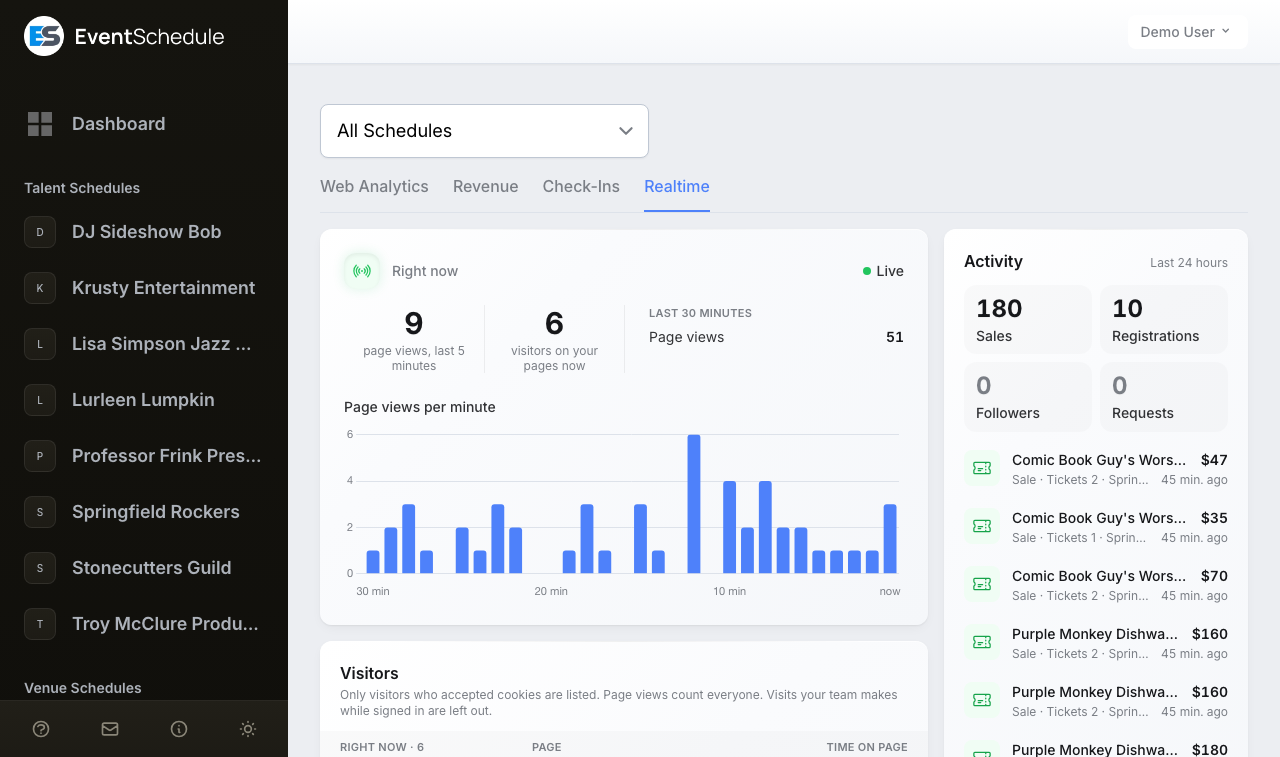
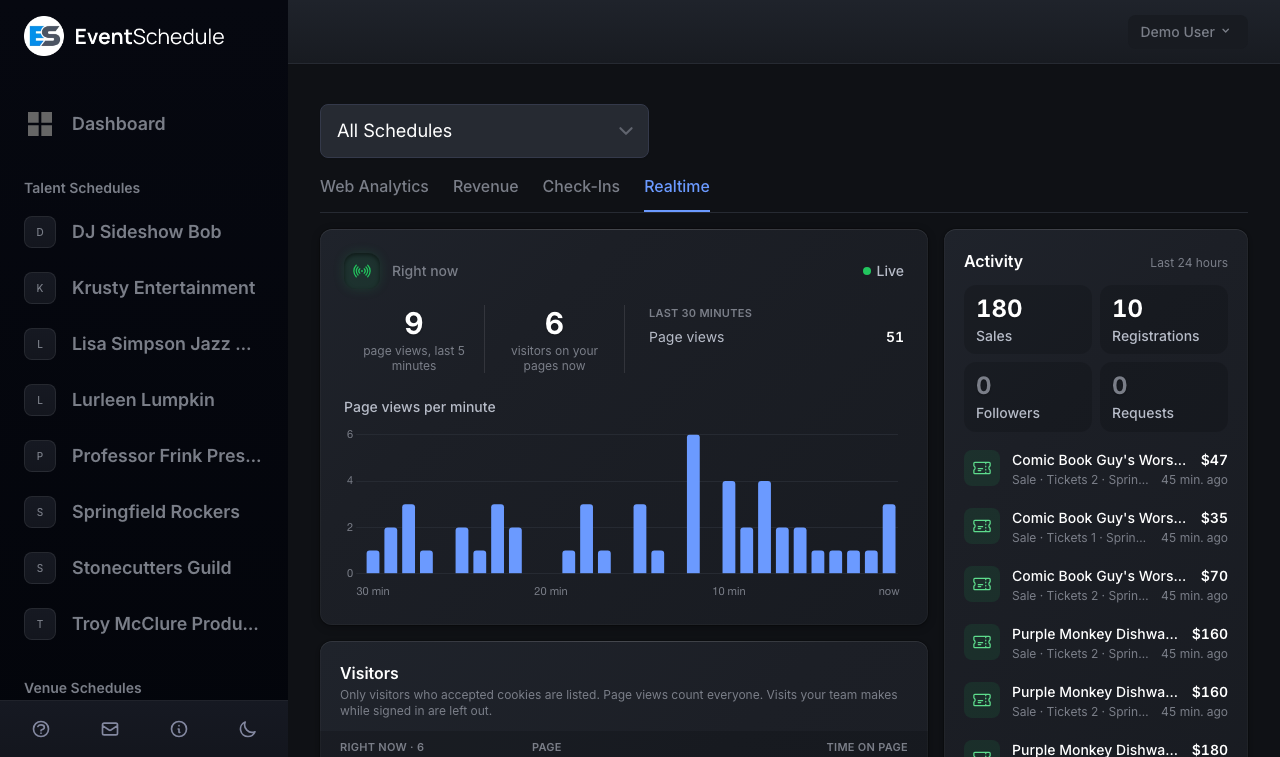
The Realtime tab shows the traffic to your own schedule and event pages as it happens and, beside it, what people did on your schedules in the last 24 hours, so there is something to read on a quiet afternoon too. It is the second tab of Analytics, beside Web Analytics, and the Realtime tile on your dashboard opens it. It is free on every plan.
The tab covers every schedule you own, and each one you run as an admin for somebody else while that schedule is on the Enterprise plan, the plan that includes team members. A notice at the top names any schedule left out for that reason. With several schedules, the schedule selector at the top of the page narrows the tab to one. The event selector and the date range do not apply here and are not shown.
The traffic refreshes every 15 seconds while the browser tab is in view, and once a minute while it is hidden, for up to half an hour. Activity and the door card refresh every minute while the tab is in view, and within about 15 seconds of a sale or a registration made on your pages. Everything catches up at once when you come back to the tab. If an update fails, Reconnecting takes the place of Live and the page keeps trying; if the next one fails too, a line at the top says so as well. If you have been signed out, or the tab is no longer yours to see, it says This page stopped updating. and offers Reload.
Live Traffic
The first card and the lists under it cover the last 30 minutes of visits to your pages.
Right now
Two figures, because they answer two questions. Page views, last 5 minutes counts everybody. Visitors on your pages now counts the people who have a page open and whose cookie choice lets them be listed (see Who is counted): a visitor who declined sends one page view and nothing after it, so whether they are still there cannot be known. When nobody has visited in half an hour the card says Quiet right now instead and, if you have one schedule, shows its address with a Copy Link button.
Last 30 minutes
A short ledger beside the two figures. Page views is always there. Embedded calendar views appears when your calendar was viewed on another website, and is counted apart. Last page view appears once nobody has opened a page for five minutes. While someone is buying there are two more lines: Checkouts started (ticket checkouts begun in the half hour that cost something; a cash order is complete when it is placed, so it is not one) and Checkouts paid (how many of those are paid by now). In a very busy half hour a line says the figures cover the newest 5,000 page views.
Page views per minute
A bar for each of the last 30 minutes. A green dot on a minute means a sale or a registration came in during it; point at the dot to see how many of each. A sale taken at the box office, a cash order you marked as paid and an imported attendee are never a dot, because nobody on a page made them.
Visitors
One row for each visitor who may be listed: a country, a device type, the page they have open and how long they have been on it. Under Earlier in the last 30 minutes come the ones who have left, with how long ago. The card lists up to 50 people who are here now and the 10 who left most recently, and says so when there are more. No name, email address or account is ever shown, and a row does not open into anything.
Top pages, Countries and Devices
Page views of the last 30 minutes. Each card lists its six largest rows and folds the rest into an Other row, along with any view whose country is not known, so every card adds up to the page views above. A green "3 now" beside a page is how many of the visitors who can be listed have it open at this moment.
Sources
Counts visits, not page views: each visit is counted once, by where it began. A row is the site the visit came from with its kind beside it (Search, Social, Email, AI assistants, Paid, Campaign or Other websites), or Direct when it came from nowhere.
At the Door Today
This card appears only while one of your events is on: from the start of its day until it ends. An event with no length set stays for six hours after it starts. A late show stays after midnight, and a festival through its last day. Only events that sell tickets or take registrations are listed, up to four of them, soonest first, with a line saying how many more are on today. On a phone the card is the first thing on the tab.
| Line | What it shows |
|---|---|
| Checked in | Ticket holders scanned so far out of the tickets sold for that date, with a bar |
| Last 30 minutes | How many of them arrived in the last half hour |
| Sold | Tickets sold out of the capacity, when the event has a limit |
Pressing an event opens Check-In on it. A registration has nothing to scan, and the check-in dashboard is a Pro feature, so for an event that takes registrations, or on the Free plan, the card shows a single line, Registered or Sold, and opens Sales.
Activity
Activity lists what people did on your schedules in the last 24 hours, newest first. It is read from your own sales, followers and requests and not from the traffic, so it does not depend on anyone's cookie choice. The counts above the list are buttons that filter it: Sales, Registrations, Bookings (only on a day that has one), Followers and Requests. The list holds the newest 20 rows and says when there are more; below a laptop's width it starts at five, with Show all.
No row shows a name. A row says what happened and to which event or schedule, and opens the page where the person is:
| Row | What it is | Opens |
|---|---|---|
| Sale | A purchase that took money, with the amount and the number of tickets. A box office sale and a cash order you marked as paid are listed too. | Sales |
| Registration | A free registration, or tickets that came to nothing to pay | Sales |
| Booking | An appointment booking, named by its appointment type and never by its guest, with the time that was booked | The schedule's Appointments tab |
| New follower, New newsletter subscriber | Someone followed the schedule, or confirmed a sign-up for its emails | The schedule's Followers tab |
| Event request | An event made in the last 24 hours and sent to your schedule, which still waits for your answer. It leaves the list once you accept or decline it. | The schedule's Requests tab |
| Waitlist | Someone joined an event's waitlist | Waitlist |
| Wants to hear about tickets | Someone confirmed an address on an event's interest list | Nothing |
| Comment, Photo, Video | Sent in by your audience, and marked Waiting for approval while it waits for you. What you post yourself is not listed. | The Engagement tab of the event |
Imported attendees are never listed: an import is not a sale.
Who Is Counted, and Who Is Listed
Page views count every visit except the ones in the first row below. A person is a row under Visitors, and one of the visitors on your pages now, only when their own cookie choice covers it.
| Visit | Who |
|---|---|
| Not counted | You and your team while signed in, site administrators, and known bots. On a custom domain nobody is signed in, so a visit you make to your own page there counts like anyone's. |
| Counted, never listed | A visitor who declined cookies, has not answered, or whose browser sends Global Privacy Control. So is one who accepted on a notice that did not say a schedule's organizer sees visits to its pages, which includes anyone who answered an earlier notice. |
| Listed, without a name | A visitor who accepted analytics cookies on a notice that said so. The row is a country, a device type, a page and a time: never a name, an email address, an account, a browser or a history. Its id means nothing outside your own sign-in session, so it cannot follow a visitor from one day or one device to another. |
A visitor who has left stays under Earlier for up to half an hour, and the record of a visit is deleted about an hour after the visitor's last activity. Activity is your own sales, followers and requests, which stay where they always were. For daily totals over weeks and months, use the Web Analytics tab.
Nothing on the tab names anyone, but it sits beside records that do. On a quiet schedule, one unnamed visitor on an event's page followed by a sale for that event is very likely the buyer, whose name is in Sales as it always was.
The tab appears for schedule owners once the site's administrator has switched on both Record live page views and Show schedule owners live traffic to their own pages. See the admin guide.
Revenue Free - Available on the Free plan
The Revenue tab tracks ticket sales performance: how much you earned, how well views convert to purchases, how your promo codes did, and what your boost and newsletter campaigns returned. It counts paid sales by the date of purchase.
Selling a ticket that carries a price is a Pro feature, and so is taking payment for an appointment, so revenue appears once you are on Pro or Enterprise. Free registration and ticket types priced at zero stay unlimited on the Free plan: they are completed sales, so the card below still appears, with revenue at zero. The Boost Funnel also needs Pro, because boost campaigns are a Pro feature.
Paid appointment bookings are sales, so they count in the revenue figures alongside tickets. They are left out of the conversion rate, because a booking is not made from an event page.
Figures and Chart
The tab opens on one card with four figures and the money over time. It appears once there is at least one completed sale in the selected range, and a free registration is one.
| Figure | What it shows |
|---|---|
| Total Revenue | What the paid sales made during the period took, by purchase date. It is not net of refunds: a partially refunded sale stays paid and counts in full, and only a fully refunded or deleted sale drops out. Beside it, the change against the window before in the same currency, compared the same way as page views on Web Analytics. If your sales span more than one currency, each currency is listed on its own line rather than added together, and there is no change. |
| Sales | Completed purchases in the period. One checkout is one sale, however many tickets or guests it holds. |
| Conversion Rate | Completed sales as a percentage of event page views in the same period. Free registrations and zero-price tickets are completed sales, so they raise this rate without raising revenue. Appointment bookings are left out, because they are not made from an event page; their money still counts in Total Revenue. |
| Revenue per View | Average revenue generated per event page view. Shows a dash when your sales span more than one currency, because averaging across currencies would be meaningless. |
Under the figures, a bar for each day, week or month shows what came in, with a grey line for the window before and the flyers of your one-off events under their dates, so a run of sales can be read against the show it led up to. The bar for a day that is not over is drawn lighter. The chart needs the range's revenue to be in one currency: a bar cannot add euros to dollars, so with more than one it is left out.
Lists and Funnels
Below the card, each panel appears only when it has data for the selected filters. A boost or a newsletter belongs to the whole schedule, so with a single event selected the two funnels still count the whole schedule and are marked Whole schedule.
Promo Codes
Two summary figures - promo sales as a share of all sales, and the total discount given - followed by a per-code table listing each promo code, its discount, how many sales used it, and how much it cost you in discounts.
Boost Funnel Pro - Requires the Pro plan
The full path from ad impressions to clicks, page views and sales, one step to a tile, with the rate from the step before on each (click-through rate, the share that landed, the share that bought), spend, cost per click, cost per view, cost per sale and a return-on-ad-spend figure. A table underneath lists each boost campaign running in the period with a link to its details.
Newsletter Performance
The path from emails sent to opens, clicks, page views and sales, with open and click rates. A reader can open a page more than once, so page views can outnumber clicks; the share that landed is then left out. A table underneath lists each newsletter sent in the period with its subject, send date and per-newsletter open and click counts.
Top Events by Revenue
Your ten highest-earning events in the period, with their flyers, how many sales each made and what it took. Each row has a bar as long as its share in the usual single-currency case; when your sales span more than one currency the bars are left out, since a longer bar would not mean more money. Events that took no money are left out, and the whole panel is hidden when you have filtered down to a single event. Click an event to see the tab for it alone.
Check-Ins Free - Available on the Free plan
The Check-Ins tab turns door scans into attendance analytics: how many ticket holders actually showed up, when they arrived, and which events and ticket types had the best turnout. It reads paid sales only, leaves out deleted ones and appointment bookings, and groups them by the event date the ticket is for.
Attendance comes from scanning tickets with the check-in feature, which is free on every plan. Without a scan a ticket counts as sold but never as attended, so an unscanned event that has happened reads as 100% no-shows rather than as missing data. A ticket for a show that has not begun is counted as sold and is never a no-show: a show begins at its start time in its schedule's own timezone, or as soon as one of its tickets is scanned, whichever comes first. Appointment bookings are left out of this tab, since nobody scans a booking at a door, so a schedule that takes bookings keeps a clean attendance rate.
Figures
| Figure | What it shows |
|---|---|
| Attendance Rate | Tickets scanned at the door as a percentage of the tickets for shows that have begun, with a bar and the two counts under it (120 of 147) |
| Checked In | How many tickets were scanned at the door |
| Tickets Sold | Tickets from paid sales for events dated in the selected range, including free registrations. The ones for shows still to come are counted under it, as For upcoming events. |
| No-Shows | Tickets for shows that have begun that were not scanned, as a count and a percentage |
Arrivals and Events
Arrival Times
A bar chart of check-ins by hour of the day, from the hour before the first arrival to the hour after the last, in the schedule's own timezone. Use it to see when the queue actually forms and to staff the door accordingly. It is not measured relative to each event's start time, so it is most useful when your events start at a consistent hour.
By Ticket Type
Beside the arrivals: the attendance rate of each ticket type, with how many came of how many, so you can see which types turn up. Types are matched by name across your events, so every event's General is one row. Shown only when the period contains more than one ticket type.
Events
A table of per-event check-in data, sorted with the most recent event date first: event name, date, tickets sold for the dates that have begun (with a +N for the event's later dates), checked in, and the attendance rate with a bar. A show still to come reads Upcoming.
No Data State
Each tab shows its own empty state when it has nothing to display: its card drawn quietly, with zeros, and a line saying what will appear: "No analytics data available yet", "No revenue data available yet", "No check-in data" or, on Realtime, "Quiet right now". Common causes:
- The schedule is new and has not been visited yet.
- The selected date range contains no recorded activity. All Time is the quickest way to rule this out.
- You are filtering by a schedule or an event with no traffic.
- You have only been checking the page yourself while signed in. Your own visits, and those of your team members and site administrators, are never counted.
- Your only traffic so far came through an embedded calendar, which is not counted, or from bots, which are filtered out.
- On the Revenue tab, no sale was completed in the range. If you see a conversion rate but no revenue, your sales were free registrations or zero-price tickets.
- On the Check-Ins tab, no paid ticket or registration exists for an event dated in the range. Appointment bookings do not count here, and scans are not needed for the tab to fill in; remember it filters by event date.
- You expected views on an event whose address is wrong. An address that matches no event opens a not-found page, and its visits appear under Broken links rather than on any event.
If the dashboard still looks empty, work through these in order:
- Set the date range to All Time and clear the schedule and event filters.
- Open your public schedule page in a private or logged-out browser window, then reload Analytics. The visit is counted at once: it is in today's total on Web Analytics, and on the Realtime tab within seconds.
- Confirm the events you expect traffic on are published rather than drafts.
- Share your schedule link so real visitors start arriving.
See Also
- Sharing Your Schedule - Increase traffic to your schedule
- Selling Tickets - Set up ticketing to track conversions and revenue
- Check-In - Scan tickets at the door so the Check-Ins tab has data
- Newsletter Analytics - Track open rates, clicks, and engagement for email campaigns
- Boosting Events - Run paid ad campaigns that feed the boost funnel
- Event Graphics - Create shareable images to boost visibility