Boost
Promote your events two ways from one page: Facebook and Instagram ads bought through Meta, and promoted cards shown on other schedules on the same site.
Feature overview: Facebook and Instagram ads
Overview
Boost turns an event you have already published into a paid promotion, without needing ad manager experience. It lives under Boost in the sidebar, an entry that is there only when the site has at least one of the two channels below set up. It sells two different things from the same page, and each one is set up, priced and reported separately.
| Channel | Where the promotion appears | What you pay |
|---|---|---|
| Facebook & Instagram | A real Meta ad campaign, created and managed for you on Facebook and Instagram | Your ad budget, plus a service fee on hosted sites |
| On this site | A promoted card on other schedules' public pages on the same Event Schedule site | Per 1,000 views or per click, with no service fee |
Both are bought the same way: open Boost, press Boost Event at the end of the title row, pick one of your upcoming events in the dialog, then press the channel's button: On this site or Facebook & Instagram. A channel's button appears only if the site has that channel set up, so you may see one or both. If the schedule you have picked is on the Free plan, or all of your schedules are, the page shows a Pro plan notice and no Boost Event button.
With Boost you can:
- Promote any published upcoming or in-progress event on a Pro schedule. Draft events cannot be boosted.
- Set your own budget, from the site minimum up to your current spending limit.
- Run Meta ads on Facebook and Instagram, with the audience built automatically from the event.
- Refine the audience by age and interests, and rewrite the ad copy, in Advanced Mode.
- Track impressions, reach, clicks and conversions, refreshed every 15 minutes.
- Get unspent budget back automatically when the campaign ends.
Pro - Requires the Pro plan The schedule that pays for the campaign must be on a Pro plan or higher. Selfhosted installations count as Enterprise, so the plan gate never blocks anything there.
On hosted sites you also need a verified phone number on your account before you can buy. If yours is missing, Boost sends you to Account Settings to add and verify it.
The Facebook and Instagram channel offers two modes: Quick Mode, which fills everything in for you, and Advanced Mode, which exposes the budget type, schedule, audience and creative. On-network promotions have a single form and no advanced mode.
On-Network Promotions
Alongside Facebook and Instagram, some Event Schedule sites run their own promotions network. Your event appears as a promoted card on other schedules' public pages, in front of people already browsing events on the same site. The channel is called On this site in the Boost Event dialog.
This is a per-site feature: it only appears if the operator of your Event Schedule site has switched it on. If you do not see an On this site button when you press Boost Event, the site is not running a promotions network.
Promoted cards are only ever shown on free-plan schedules' public pages. Pro and Enterprise schedules never carry them, so the pool of pages your promotion can appear on is smaller than the site's total traffic.
What you can promote
- The schedule buying the promotion must be on a Pro plan or higher, and you must be a member of it.
- The event must be publicly visible. Draft (internal) and unlisted events are rejected, because nobody clicking the card could open them.
- If another schedule added your schedule to their event, the invitation has to be accepted before you can promote it.
- You can run up to 2 on-network campaigns at a time by default. This cap is separate from the Facebook and Instagram one, so neither channel uses up the other's slots.
Writing the card
The form is one page, Promote on the Event Schedule network, with a link back to Boost above its title and three cards: Creative, Budget & Duration and Targeting. The Creative card asks for two pieces of copy, and How it will look previews the result using the exact card component visitors will see, so what you approve is what ships:
- Headline - up to 80 characters. Leave it empty and the event name is used.
- Short description - up to 180 characters, shown under the headline.
The image is your event's flyer, and the card is labelled Promoted with your schedule name underneath. There is nothing else to design.
Choosing how you pay
You prepay a fixed budget and, under How you want to pay, pick one of two pricing models. The rates are set by the site operator and are shown next to each option:
- Per 1,000 views (CPM) - you pay for every thousand times your promotion is shown. Best when you want maximum visibility for an event with broad appeal.
- Per click (CPC) - you pay only when someone clicks through to your event. Views are free, so this is the safer choice when you care about visits rather than awareness.
The budget starts at the site minimum, $5 by default, and is capped by your current per-campaign spending limit. The rate you buy at is stored on the campaign, so a later rate change never re-prices something you have already paid for.
Two lines under the budget field tell you different things, and both matter. The first is what your budget buys at the current rate. The second is how much traffic the site's eligible schedules have actually been getting recently, and for CPM it estimates how many days delivering your budget in full would take. A large budget cannot deliver more views than the site has visitors.
Start and end dates are optional. With no end date the campaign runs until the budget is exhausted or the event is over.
Targeting
Targeting is optional, and leaving it empty reaches the widest audience:
- Show on these kinds of schedules - restrict to talent, venue or curator schedules, so a gig promotion can run on venue pages and nowhere else.
- Show to visitors in these countries - your promotion is only shown to visitors in the countries you tick. Useful for a local event on a site with international traffic.
Every filter you add reduces the pages your promotion can appear on. If you target a country the site gets little traffic from, the campaign may spend slowly or not at all. Your budget is not lost: unspent money is refunded when the campaign ends.
Review
Press Submit promotion to pay and send it in. Because your promotion appears on other people's schedules, your first campaigns are checked by the site operator before they go live. You will see Awaiting review on the campaign until then, usually for about one business day, and you get an email either way. A rejected campaign is refunded in full, and the reason the operator gave is shown on the campaign page.
Once you have a track record of approved campaigns that actually delivered, three by default, later ones start immediately. A single rejection puts your schedule back into the review queue for good.
Results
The campaign page opens with four figures: Views, Clicks, CTR and Spend. The Delivery card under them shows a bar of what is spent against what remains, then the budget, the cost per click, the cost per 1,000 views, unique visitors, and the tickets sold through the campaign with their revenue. Daily delivery charts views against clicks once there is more than one day of data.
Two more cards break the results down: Where your viewers are, by country, with views and clicks for each, and Where it ran, by the kind of schedule your promotion appeared on. Individual host schedules are never named: placement is reported by type and by count, not by page.
When a campaign pauses itself
Two housekeeping rules can pause a live promotion. If the event stops being publicly visible, for example it is switched to draft or deleted, the campaign is paused rather than left looking live while it silently cannot serve. And a per-click campaign whose click-through rate stays extremely low after several thousand impressions is paused too, so weak creative does not consume host pages indefinitely without ever billing. In both cases the budget is still yours, and is settled and refunded if the campaign stays paused.
Cancelling
You can cancel at any time, including while a campaign is awaiting review. You keep what has already been delivered and the unspent remainder of your budget is returned, to your card if you paid by card, or to your account balance if you paid from credit. The same applies when a campaign ends on its own, whether it ran out of budget, reached its end date, or its event finished.
Hosting other schedules' promotions
The network works both ways: if promotions can appear on other schedules' pages, they can appear on yours. If you would rather they did not, turn on Do not show other schedules' promotions in the Advanced row of the schedule's Settings tab. It is free on every plan, including Free, and it does not stop you buying promotions of your own.
The one toggle covers everything a site might place on your pages, so it also turns off ads if the site you are on runs those as well. Paid schedules never carry either, so the toggle only changes anything while you are on the Free plan.
Quick Mode
Quick Mode is the fastest way to launch a Facebook and Instagram campaign. It is what you get by default when you choose that channel.
-
Select an event
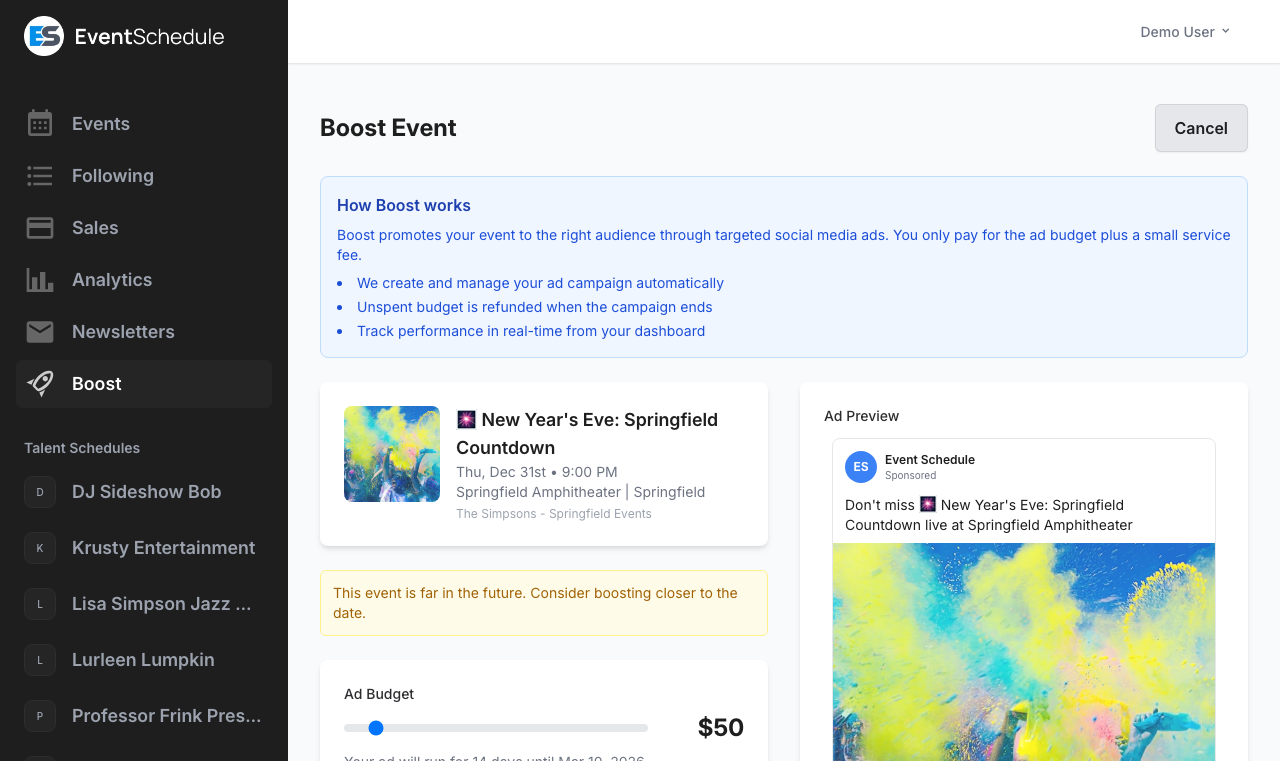
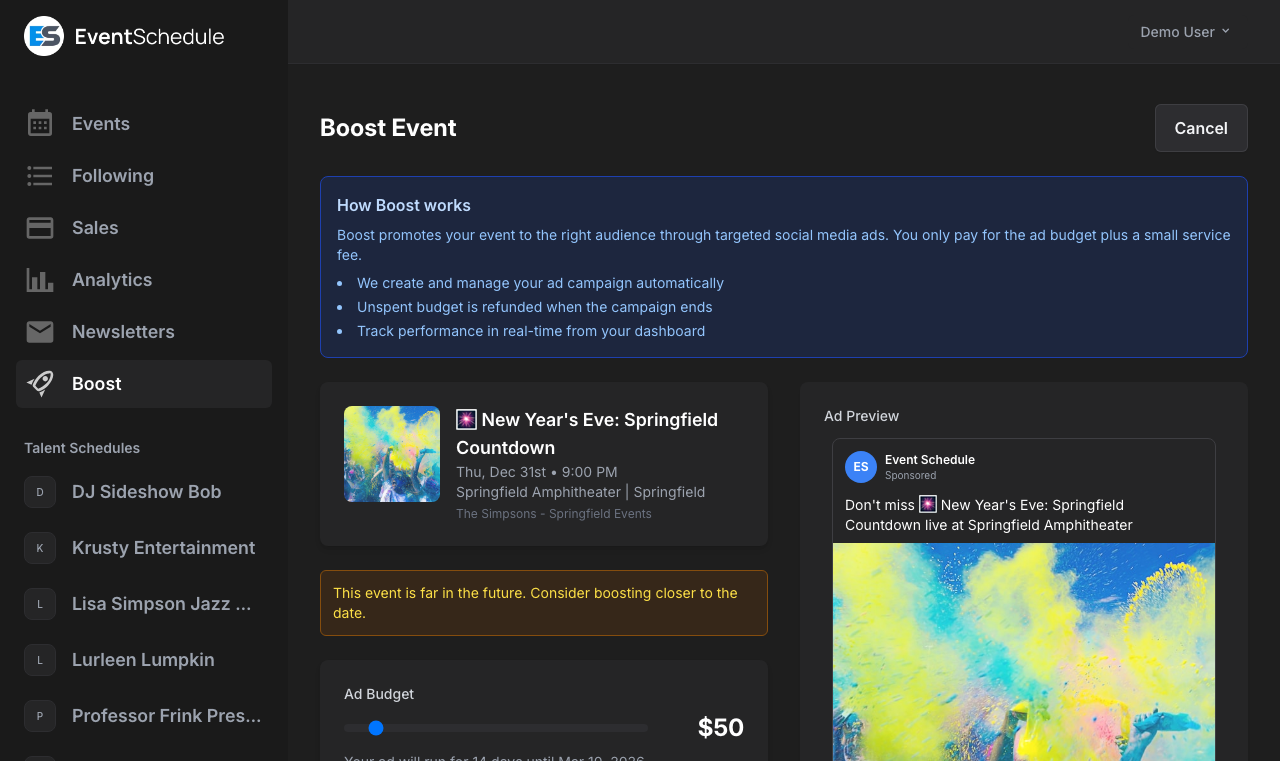
Press Boost Event on the Boost page and pick an upcoming event, or press Boost Event on the event's own edit page. Boost pulls in the name, date, venue and image automatically.
-
Read the warnings
If the event has no image, no description, no location, starts within 24 hours or is more than 90 days away, Boost says so before you spend anything.
-
Set your budget
Drag the slider under Ad Budget. It runs from the site minimum, $10 by default, in steps of 5, up to whichever is lower, your current spending limit or $500, and opens on the budget Boost suggests. The cost breakdown and the amount on the button update as you drag. While your limit is no higher than the minimum, as it is for a new schedule, there is nothing to choose and the budget is shown as a figure with no slider.
-
Check the run dates
A line under the slider tells you how many days the ad will run and the date it ends. Boost picks that window from the event date; use Advanced Mode to change it.
-
Preview the ad
The Ad Preview card, beside the form on a wide screen and under the budget on a phone, shows the headline, text, image and call to action exactly as Meta will render them.
-
Pay and launch
Pay by card, or straight from your boost credit if the balance covers the whole total, and press Boost for with the amount. You land on the campaign's own page while the campaign is created on Meta in the background, and it is listed on your Boost page from then on.
Quick Mode uses smart defaults based on your event's details. For most events this is all you need. If you want to change the audience or the wording, use the Customize targeting & creative link at the bottom of the form to switch to Advanced Mode.
The Boost Event Button on an Event
Once an event has been saved, its edit page carries a Boost Event button: beside Actions at the top on a wide screen, and as the first entry of the Actions menu on a smaller one. A new event has no Boost button until it is saved. The button always opens the Facebook and Instagram form above; on-network promotions are started from the Boost page.
- If the event has no name or start date yet, or has already started, the button says so and goes no further.
- If the schedule is on the Free plan, the button opens the upgrade prompt.
- If the site has no Facebook and Instagram channel, the button says that Boost requires Meta Ads to be configured.
- While the event has an active or paused campaign, the button reads Boosted with the campaign's reach, and opens that campaign.
Advanced Mode
Advanced Mode gives you control over the Facebook and Instagram campaign. Open it with the Customize targeting & creative link at the bottom of the Quick Mode form; Use simple boost, in the same place on the page that opens, takes you back. The page is titled Advanced Boost and runs down four numbered cards: Budget & Duration, Targeting, Creative, then Review & Pay, which ends in Launch Boost.
| Setting | Step | Description |
|---|---|---|
| Ad Budget | 1 | Typed rather than dragged, so the full range up to your spending limit is available |
| Budget Type | 1 | Lifetime budget (total spend over the campaign) or daily budget (spend per day). Lifetime is the default |
| Start Date and End Date | 1 | Replace the dates Boost worked out from the event |
| Objective | 1 | Awareness, Traffic or Engagement. Awareness is the default |
| Min Age and Max Age | 2 | Narrow the audience within Meta's 18 to 65 range |
| Interests | 2 | Search Meta's interest catalogue and add or remove categories. Boost pre-fills one based on the event category |
| Placements | 2 | Facebook Feed and Instagram, either or both. Meta chooses the exact positions within each platform |
| Translate ad copy to English | 3 | Offered when the schedule is not in English. Regenerates the three text fields in English; unticking restores what you had |
| Headline | 3 | Up to 40 characters, replacing the generated headline |
| Primary Text | 3 | Up to 125 characters, the main body of the ad |
| Description | 3 | Up to 30 characters, the link description shown below the headline |
| Call to Action | 3 | Learn More, Get Tickets, Sign Up or Book Now |
The Targeting card opens with the Location Boost derived from the event, but it is read-only. To change where the ad runs, change the event's venue or its online URL and start a new boost.
Smart Defaults
Boost classifies every event before it proposes anything. An event with a venue and no online URL is in person; one with an online URL and no venue is online; one with both is hybrid. The classification decides the targeting and the wording:
In-person events
Targeting is a 25 mile radius around the venue's coordinates. If the venue has no coordinates, its country is used instead. The copy names the event, venue and city.
Online events
Targeting is your schedule's country, or the United States, United Kingdom, Canada and Australia if the schedule is in English and has no country set. The copy leads on watching or streaming from anywhere, and names YouTube or Zoom when the link points there.
Hybrid events
Targeting is the same venue radius as an in-person event, because that is where the room has to be filled. Only the copy changes: it offers both attending in person and watching online.
On top of the location, Boost fills in:
| Setting | How Boost picks it |
|---|---|
| Age range | 18 to 65, the full range Meta allows |
| Interests | One interest matched to the event's category, for example Music, Comedy, Theater or Nightlife |
| Budget | Suggested from the cheapest ticket price where the event is ticketed, then capped by your spending limit |
| Run dates | Starts now and ends with the event, clamped to between 3 and 14 days. Events with no date get 7 days |
| Call to action | Get Tickets for a ticketed event with a venue, Sign Up for a ticketed online-only event, and Learn More when the event has no tickets set up |
| Destination | The event's own page on your schedule, which is where every click on the ad lands |
Anything Boost cannot work out well becomes a warning at the top of the form rather than a silent guess. You will be told when the event has no location, no image or no description, when it starts within 24 hours or is more than 90 days away, and when an online event has no tickets so there is nothing to track as a conversion.
Every default can be overridden in Advanced Mode, except the location and the destination, which come from the event itself.
Managing Campaigns
The Boost page lists the campaigns you started on both channels, active and past, newest first and 20 to a page. A campaign a teammate started is in their list, not yours. If you run more than one schedule, the picker at the end of the title row narrows the list to one.
Each row gives the event, with its schedule, its channel and the day the campaign was bought, then the status, impressions, clicks, spend and budget. While a campaign is active or paused a bar under the spend shows how much of the budget has gone. The event's name opens the campaign's own page, where Pause or Resume and Cancel Campaign sit at the end of the title row and a link above the title leads back to Boost. Cancelling asks first.
Campaign Statuses
| Status | Description |
|---|---|
| Pending Payment | The campaign was created but payment has not been confirmed yet. It resolves itself within about half an hour, either activating or failing |
| Awaiting review | On-network only. Paid for and waiting on the site operator to approve it |
| Active | The campaign is running and being delivered |
| Paused | Delivery is temporarily stopped. Resume at any time. On-network campaigns can also be paused automatically, see above |
| Completed | The campaign has finished: the budget was spent, the end date was reached, or the event is over |
| Cancelled | You cancelled the campaign. Undelivered budget is refunded |
| Rejected | Meta disapproved the ad, or the site operator rejected the on-network promotion. Either way a full refund is issued automatically and the reason is shown on the campaign page |
| Failed | A technical or payment error prevented the campaign from running. Any payment that was taken is released or refunded |
On hosted sites, the number of concurrent Facebook and Instagram campaigns per schedule depends on your history: new schedules start with 1, rising to 2 after 3 completed campaigns and 3 after 10. On-network promotions are capped separately, at 2 by default, so one channel never uses up the other's slots. Selfhosted installations use a single fixed limit instead. While a schedule is at its Facebook and Instagram limit, the Quick Mode form is replaced by a notice saying so.
Spending Limits
To build trust on both sides, hosted sites cap how much you can put into a single campaign. The cap starts low and grows automatically as you complete campaigns:
| Completed Campaigns | Max Budget per Campaign | Max Concurrent |
|---|---|---|
| 0 (new) | $10 | 1 |
| 1 | $25 | 1 |
| 3 | $50 | 2 |
| 5 | $100 | 2 |
| 10 | $250 | 3 |
| 20 | $500 | 3 |
| 50+ | $1,000 | 3 |
The limit is per schedule, and your current one is shown under the budget heading of both Facebook and Instagram forms. Only completed Facebook and Instagram campaigns count towards it, and the increase lands when the campaign is settled, about a day after it finishes. On-network promotions are capped by the same ceiling but never raise it. The ladder only ever raises it, and one completed campaign is enough to move it from $10 to $25, so a small first campaign is the way to build a history.
The top of the ladder is also the most the form accepts: a budget above the site's maximum, $1,000 by default, is refused on both channels however long your history is. A site administrator can also set a schedule's limit by hand, higher or lower, and that too stops at the same maximum.
There is no trust ladder when you run your own instance. The per-campaign maximum and the number of concurrent campaigns are fixed values in your configuration, and every schedule gets them from the start.
Analytics
A Facebook and Instagram campaign's own page reports the following, in this order. Figures come from Meta and are pulled in every 15 minutes; the Campaign Details card says when they were last updated, beside the campaign's dates and, on hosted sites, the total charged.
| Metric | Description |
|---|---|
| Impressions | Total number of times your ad was shown |
| Reach | Number of unique people who saw your ad |
| Clicks | Number of clicks on your ad |
| Conversions | Actions Meta attributed to the ad, which requires a Meta Pixel to be configured for the site |
| Budget Utilization | How much of your budget has been delivered so far, as a bar and as an amount |
| CTR | Click-through rate (clicks divided by impressions) |
| CPC | Cost per click |
| CPM | Cost per 1,000 impressions |
Once the campaign has run for more than a day, a Daily Performance chart plots impressions against clicks, and Ad Creative at the foot of the page shows the ad as it runs, with the state Meta gives it. On-network promotions report a different set of numbers, described under On-Network Promotions.
Every link in a boosted ad or promoted card is tagged, so traffic and ticket sales from a campaign are also visible in your own Analytics, where boost views, attributed sales, cost per view and cost per sale are reported alongside the rest of your traffic.
Billing & Refunds
Facebook and Instagram campaigns are billed as your ad budget plus a service fee, 20% on eventschedule.com. The fee covers running the campaign on your behalf; the rest is real ad spend on Meta. The full total is shown before you commit.
How Pricing Works
| Line on the form | Example |
|---|---|
| Ad Budget (you choose) | $75.00 |
| Service fee (20%) | $15.00 |
| Total | $90.00 |
On-network promotions carry no service fee: there is no outside ad platform to buy from, so your whole budget is the price. Selfhosted installations add no fee to either channel, and their Facebook and Instagram form has no payment step: Meta bills the site's own ad account.
How you pay
- Card - paid through Stripe on the boost form. A card already saved on the schedule is offered so you do not have to re-enter it.
- Boost credit - if the schedule's credit balance covers the entire total, the campaign is paid from it and no card step appears. A partial balance is not used; the whole purchase goes on the card instead.
Refund Policy
Rejected
Whether Meta disapproved the ad or the site operator rejected an on-network promotion, the entire amount is refunded, ad budget and service fee alike.
Cancelled before any spend
Full refund of the entire amount.
Cancelled part way through
You keep what was delivered. The undelivered budget, plus its share of the service fee, is refunded.
Completed with unspent budget
Settled automatically about a day after the campaign ends, so late-arriving delivery is counted first. The remaining budget and the proportional service fee are refunded.
Refunds go back the way you paid: to the card that was charged, or to the schedule's boost credit balance if the campaign was paid from credit.
Email Notifications
You are emailed at each stage of a campaign, and get a matching web push notification if you have those switched on:
- Campaign created - confirmation that the ad is live on Meta
- Promotion reviewed - for on-network promotions, when the operator approves or rejects it
- 75% budget alert - a heads-up that most of your budget has been spent
- Ad rejected - sent with the rejection reason and confirmation of the refund
- Campaign completed - final stats summary with impressions, reach, clicks, and any refund details
Boosting Under Your Own Page
A network that runs many businesses' schedules from one account can run every boost on those schedules under its own Facebook Page and Meta ad account, approving each ad before it goes out. It is switched on per account on eventschedule.com; contact support to have it set up. From then on, a boost on any schedule the account owns runs only under that Page and ad account, never under eventschedule.com's.
Setting up
Open Settings > Boosts with the account that owns the schedules. There are two ways to connect your Page and ad account:
- Share with our Business. In Meta Business Settings, add our Business ID (shown on the page) as a partner on your ad account with "Manage campaigns" and on your Page with "Ads" access (create and manage ads). Both need to be in a Meta Business portfolio: an ad account that is only in a personal Facebook profile cannot be shared. Then enter the two IDs and press Save and check. Each check is shown with its result. We confirm the IDs once, and you are emailed when it is done.
- Sign in with Facebook. Where offered, approve the access on Facebook's own screen and choose the Page and ad account from your own.
On the same tab, write how your businesses pay you (a link or a contact, shown to them once you approve), and add the card our monthly fee is charged to.
Every boost is a request
A business opens an event on its schedule and presses Boost. It builds the ad (headline, text, picture, button, budget, end date and ages) and sends it for approval. Nothing goes to Facebook yet. The network reviews it on Boost > Requests, which shows the exact ad, and either approves it or sends it back with a note. Payment is between the network and the business, at the network's own price: when it is in, press Payment received and enter your payment reference and the amount. The ad is sent to Facebook as soon as it is both approved and paid, in either order. Facebook then reviews it, as it does every ad, and charges your ad account for what it spends.
- Changing an ad. A change to the headline, text, description, button, picture or link pauses a running ad and sends it back for approval. A new budget needs paying again. A new end date or audience is applied at once.
- Stopping. The network or the business can stop a boost at any time. The ad is paused at Facebook and the boost ends; to run again, the business sends a new request. Before it starts, the business can withdraw it instead.
- One request per event. Pressing Boost on an event that already has an open request opens that request.
Campaigns and statements
Boost > Campaigns lists every boost that went out, with its schedule, budget, what was paid and under which reference, what it actually spent, and whether that figure is final (it settles a few days after a boost ends). Export it as a spreadsheet to reconcile with your businesses under your own terms.
Our fee is 20% of the previous month's actual ad spend, as Facebook reports it in your ad account's timezone. Early in each month we charge your card and email an itemized statement: each campaign's spend, the fee, and any correction Facebook made to an earlier month. A boost that stops early simply shows less spend. Statements are on Boost > Statements, where a payment your bank asks you to confirm can be completed with Pay now.
If Facebook stops answering for your Page or ad account (for example, the access was withdrawn), boosts cannot start and you are emailed. If it stays that way for three days, running boosts are stopped here. Ads already running in your own ad account can keep running at Facebook, so check them there too.
Every step is also in the API , with the account's own key, so your checkout can confirm payments automatically.
Tips
- Add an image to the event - the event image becomes the ad image and the promoted card's picture. Without one Boost warns you, and the ad has nothing to show.
- Fill in the venue - the venue's coordinates are what produce a tight local audience. An event with neither a venue nor an online URL falls back to a very broad default.
- Write your own headline for anything unusual - the generated copy is built from the event name, venue and city. If the appeal of your event is not in its name, say so yourself in Advanced Mode.
- Boost 3 or more days before the event - campaigns run for between 3 and 14 days, and one that starts within 24 hours of the doors opening may not have time to deliver.
- Boosting before tickets are on sale - an event with no tickets set up can still be boosted, and its ad carries a Learn More button. Clicks land on the event page. If you have switched on the “Notify me” card, visitors can pick Tell me when tickets go on sale from the Add to Calendar menu and leave an email address. They join the event's interest list and are emailed when tickets go on sale.
- Start with a smaller budget - a new schedule is capped at $10 anyway, and completing that first campaign is what unlocks the next tier.
- Pick the pricing model that matches your goal - for on-network promotions, per-click costs nothing until someone actually visits, while per-1,000-views buys reach whether or not anyone clicks.
See Also
- Analytics - see boost views, attributed sales and cost per sale alongside the rest of your traffic
- Selling Tickets - set up ticketing so a boosted event has something to convert
- Newsletters - reach the audience you already have, for free
- Sharing Your Schedule - more ways to grow your audience
- Schedule Settings - decline other schedules' promotions on your own pages