Event Graphics
Compose your upcoming events into one image and one block of text you can paste anywhere: a social post, a WhatsApp group, or an email.
Overview
Event Graphics builds two things from your upcoming events at once: a single PNG image made from their flyers, and a block of formatted text listing the same events. Nothing is posted for you, so the result works anywhere:
- Social media posts (Instagram, Facebook, Twitter/X)
- WhatsApp and Telegram messages
- Email newsletters
- Anywhere else you can paste an image or some text
Free - Available on the Free plan Generating, downloading and copying event graphics is free on every plan, and so is uploading a flyer to an event. Two parts are Enterprise: the AI text prompt and scheduled graphic emails. A selfhosted install counts as Enterprise, so nothing on this page is held back by plan there.
On eventschedule.com every graphic carries a small eventschedule.com credit in its bottom-right corner, whatever your plan, and upgrading does not remove it. A selfhosted install adds no credit.
To open it, go to your schedule in the admin panel and choose Events Graphic from the Actions menu.

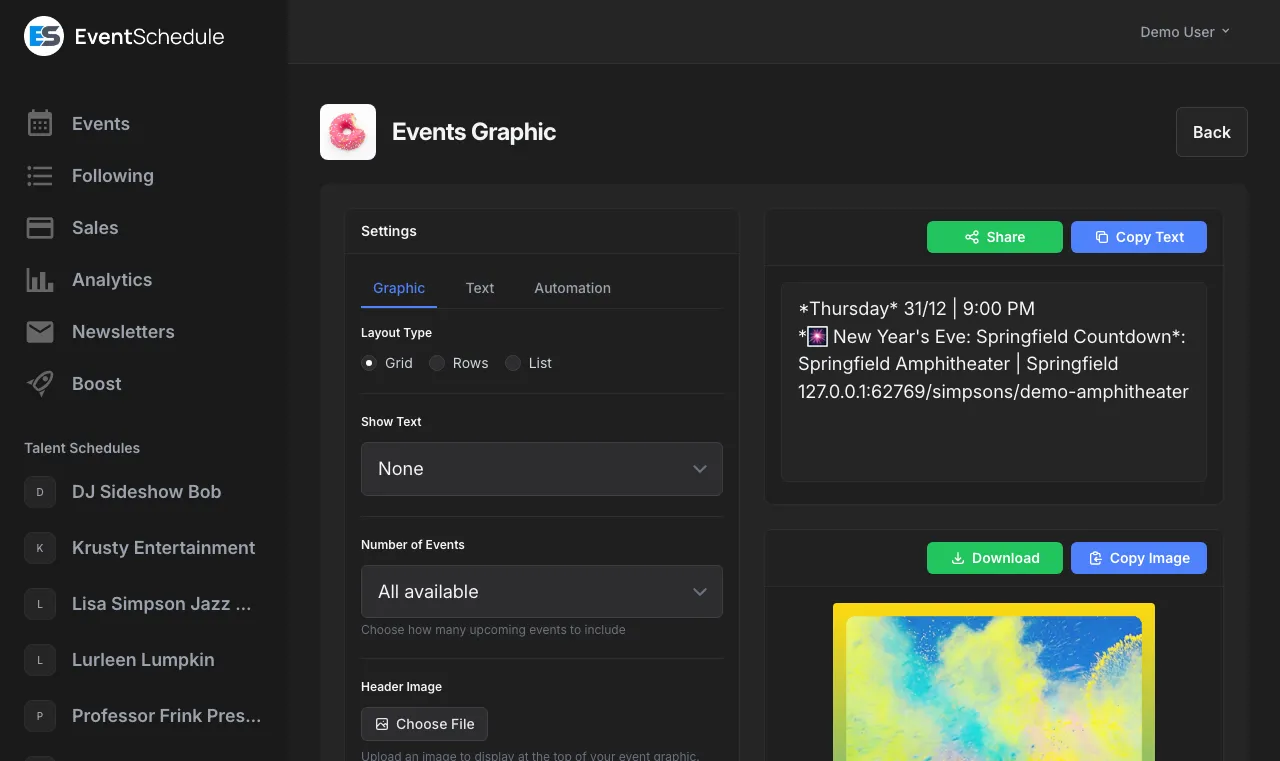
The image panel has Download and Copy Image; the text panel has Copy Text, plus Share on devices whose browser supports it. Save Settings stores your choices for next time and for the scheduled email; Run regenerates the preview.
What goes on the graphic
Every run reads your schedule's upcoming events, earliest first:
- Upcoming or ongoing only. An event that has started but not finished still counts.
- Flyer required for the image. Only events that have their own flyer image are drawn. Events without one still appear in the text, which needs no artwork.
- Hidden events stay hidden. Draft and internal events, unlisted events, password-protected events and cancelled events are never included.
- Up to 20 events. That is the ceiling; Number of Events can lower it.
- Recurring events can be left out with Exclude recurring events on the Automation tab, which affects both the image and the text.
Every flyer also carries a QR code in its lower corner pointing at that event's page, so a printed or projected graphic still leads people to the listing.
Layout Type
The settings panel is split into three tabs: Graphic, Text and Automation. The Graphic tab starts with the layout.
| Layout | How it looks | Best for |
|---|---|---|
| Grid | Flyers drawn at a uniform size and wrapped into rows | Instagram and Facebook posts |
| Rows | One row by default, and every flyer keeps its own proportions | Twitter/X posts and website banners |
| List | A small flyer, then the event name, its short description, the venue and the date and time, with a separator between items | Instagram Stories and email newsletters |
Image Size
Image Size fits the finished graphic to a fixed social-media shape. The graphic is scaled to fit inside the shape and centered, and the padding around it is filled with your schedule's own background, so nothing is ever cropped or stretched.
| Option | Pixels |
|---|---|
| Auto (fit to content) | The natural size, which grows with the number of events |
| Square | 1080 × 1080 |
| Portrait | 1080 × 1350 |
| Story | 1080 × 1920 |
| Landscape | 1200 × 630 |
A fixed shape is a fixed number of pixels, so the more events you include the smaller each flyer is drawn inside it. Twenty events fill a grid roughly twice the width of a Square post, which halves every flyer and its text. If the artwork is coming out too small to read, lower Number of Events or switch back to Auto, which lets the graphic grow instead.
The rest of the Graphic tab
| Setting | What it does |
|---|---|
| Show Text | Draws a date strip across the top of each flyer. None (the default) draws nothing, Overlay puts a translucent dark band over the artwork, and Above puts a solid dark bar just above it. Grid and Rows only. |
| Overlay Text | Appears once Show Text is not None. Replaces the date in that strip with your own short template, for example {date_dmy} | {time}. Leave it blank for the date on its own. |
| Flyers Per Row | How many flyers before wrapping to the next row, from 1 to 10, or Auto. Grid and Rows only. |
| Add Event Numbers | Puts a numbered badge on each flyer. Use {number} in the text template so the list matches the badges. Grid and Rows only, and it also limits the text to the events that have a flyer, so the numbering cannot drift. |
| Number of Events | How many upcoming events to include, from 1 to 20. "All available" uses the maximum of 20. |
| Events Per Schedule | Caps how many events any one talent or venue can contribute, from 1 to 10, so a single act or room cannot fill the graphic. It counts the talent and venue schedules attached to each event, not the schedule the graphic is for, and it fills the freed slots from further down the calendar. Because it counts venues too, the graphic can still come out shorter than Number of Events when your events do not spread across enough different talents and venues: a residency at one room with a cap of 2 gives you 2 events, however many are coming up. Applies to the image and the text alike. "Unlimited" is the default and changes nothing. |
If no upcoming event has a flyer image, the image panel says so instead of rendering. Add a flyer to at least one upcoming event, or use the text output on its own.
Text Template
The Text tab controls the block of text next to the image. The template defines how one event is formatted, and it is repeated once per event, with a blank line between entries.


Default Template
If you leave the template blank, the following default format is used:
*{day_name}* {date_dmy} | {time}
*{event_name}*:
{venue} | {city}
{url}
Example Output
*Wednesday* 15/3 | 20:00
*Summer Concert*:
Central Park | New York
https://example.com/event/summer-concertUse *text* for bold formatting on WhatsApp and Telegram, or _text_ for italics.
Showing a price before and after a coupon
When an event carries a coupon, {discounted_price} is the price with the discount already taken off and {original_price} is what it was before. Both are bare figures with no currency symbol, so you write the currency and the wording yourself. They are written the way prices are, with the currency's decimal places and a thousands separator (1,224.50), which is a little different from plain {price} (1234.5) - worth knowing if you put the two on one line.
*{event_name}*
{discounted_price} ₪ ({original_price} ₪) with {coupon_code}*Summer Concert*
119 ₪ (149 ₪) with SAVE30
The pair is blank together, so an event with no coupon prints neither figure. The wording and symbols you typed around them still print, though, so on such an event that line comes out as ₪ (₪) with and nothing else. Use this shape on a schedule where every event carries a coupon.
Both figures are also blank on any event that sells tickets or takes RSVPs through the platform. The coupon is a pointer at an outside ticket link, and nothing here redeems it, so quoting a discounted price on an event we take the money for would advertise a total the checkout will not charge.
If only some of your events run coupons, give the price and the coupon their own lines. A line is dropped only once nothing but spaces and punctuation is left on it, which is exactly what happens to the coupon line when both of its variables come back empty:
{price} ₪
{coupon_code} {coupon_discount}
One catch: a currency symbol, or any word you type yourself, is not punctuation, so it survives on its own. On a free event, where {price} is blank, that first line still prints a lone ₪. If your schedule mixes free and paid events, put the symbol on a line that always has something else on it. Overlay Text is stricter still: it never drops a line, so anything you type there prints even when every variable on it came back empty.
Blank values clean themselves up
You do not need a separate template for events that have no venue or no price. If a variable comes back empty, a stranded | separator around it is removed, and a line left with nothing but punctuation is dropped from that event's entry.
The rest of the Text tab
| Setting | What it does |
|---|---|
| Include all future events | Lists every upcoming event in the text, not only the ones shown on the image. Ignored while Add Event Numbers is on, so the numbering keeps matching the badges. |
| Generate text in English | Produces the text, and the dates and details on the image, in English instead of the schedule language. Shown only for a non-English schedule whose translation target is English. |
| Include HTTPS | Keeps the https:// prefix on {url}. Off by default, which is shorter and still auto-links in most apps. |
| Include Event ID | Keeps the event id in {url}. Off by default, which produces the clean slug-only link. |
If your schedule accepts event requests, a short "want to see your event here?" line and a link to your request page are appended after the last event. Turn off event requests on the schedule to remove it.
Quick Reference
Most templates only need these essential variables. Copy the ones you need:
Event Basics
{event_name} Event name{short_description} Short description{url} Event link{description} Full descriptionDate & Time
{day_name} Wednesday{date_dmy} 15/3{time} 20:00Location
{venue} Venue name{city} City{address} StreetTickets
{price} 10, or blank if free{currency} USD{coupon_code} SAVE20{coupon_discount} 15%{discounted_price} 119{original_price} 149See All Variables below for the complete list including date formats, end times, and more.
All Template Variables
Use these variables in your template. They are replaced with the actual event data when the text is generated. An unknown variable is left in place, so a typo shows up as itself rather than disappearing.
Date & Time
| Variable | Description | Example |
|---|---|---|
{day_name} |
Full day name (translated) | Wednesday |
{day_short} |
Short day name (translated) | Wed |
{date_dmy} |
Day/month format (a two-digit year is added when the event is not in the current year) | 15/3 |
{date_mdy} |
Month/day format (a two-digit year is added when the event is not in the current year) | 3/15 |
{date_full_dmy} |
Full date (day/month/year) | 15/03/2025 |
{date_full_mdy} |
Full date (month/day/year) | 03/15/2025 |
{month} |
Month number | 3 |
{month_pad} |
Month number (zero-padded) | 03 |
{month_name} |
Full month name (translated) | March |
{month_short} |
Short month name (translated) | Mar |
{day} |
Day of month | 15 |
{day_pad} |
Day of month (zero-padded) | 05 |
{year} |
Year | 2025 |
{time} |
Start time (uses schedule's 24h setting) | 20:00 or 8:00 PM |
{end_time} |
End time (uses schedule's 24h setting). An event with no duration set is treated as two hours long. | 22:00 or 10:00 PM |
{duration} |
Duration in hours | 2 |
Dates and times are rendered in the schedule's timezone, so the image and the text always agree.
Event Information
| Variable | Description | Example |
|---|---|---|
{number} |
1-based position in the list, matching the badge on the flyer when Add Event Numbers is on. Specific to the Event Graphics text panel; it has no value in calendar description templates. | 1 |
{event_name} |
Event name | Summer Concert |
{short_description} |
Short description | Live jazz with local artists |
{description} |
Full description, converted to plain text (no markdown or HTML markup) | Join us for a night of music... |
{url} |
Event URL, formatted by the Include HTTPS and Include Event ID settings | example.com/summer-concert |
Venue Information
All five are blank when the event has no venue.
| Variable | Description | Example |
|---|---|---|
{venue} |
Venue name (translated) | Central Park |
{city} |
City | New York |
{address} |
Street address | 123 Main St |
{state} |
State/Province | NY |
{country} |
Country | US |
Ticket Information
| Variable | Description | Example |
|---|---|---|
{currency} |
Currency code | USD |
{price} |
Lowest ticket price. Blank when every ticket is free, when the event has no price, and when the event has no tickets at all, so a free event simply drops the line rather than printing a zero. | 10 |
{coupon_code} |
Event coupon code | SAVE20 |
{coupon_discount} |
What the coupon is worth. A percentage renders as 15%; a fixed discount renders as an amount in the event's currency. Blank when no discount is set, so the line drops rather than printing a zero. |
15% |
{discounted_price} |
The price with the coupon already taken off, as a bare figure with no currency symbol so you can word the line yourself. Blank when the event has no discount or no price, and on any event that sells tickets or takes RSVPs through the platform. | 119 |
{original_price} |
The price before the discount, for showing what the coupon saves. The same price as {price}, written to the currency's own decimal places and with a thousands separator, but blank unless a discount actually applies, so a before-and-after pair appears together or not at all. |
149 |
Custom Fields Pro - Requires the Pro plan
If you have defined Event Custom Fields in your schedule settings, you can include their values in graphics using numbered variables.
| Variable | Description | Example |
|---|---|---|
{custom_1} |
Value of the 1st custom field | John Smith |
{custom_2} |
Value of the 2nd custom field | Room 101 |
{custom_3} |
Value of the 3rd custom field | Workshop |
| ...up to {custom_10} | ||
Custom field variables correspond to the order your fields are defined in schedule settings. For example, if your first custom field is "Speaker Name", then {custom_1} will show the speaker's name. A yes/no field prints as Yes or No.
The same variables work in the Overlay Text on the flyer strip, with four exceptions: {url}, {number}, {month_pad} and {day_pad} are text-only and are left as they are there. Keep overlay text short: it is drawn on one line across the width of a flyer.
Date and time variables like {day_name}, {month_name}, and {time} are automatically translated to your schedule's language and respect its 24-hour time setting. Text for a Hebrew or Arabic schedule is also marked so it pastes right-to-left into apps like WhatsApp, while the event links stay intact.
If your schedule uses a non-English language and translates into English, you can turn on Generate text in English on the Text tab to produce the text, and the dates and event details on the graphic itself, in English instead. English translations of event and venue names are used when available, falling back to the original values.
Event Graphics composes flyers you already have. To create a flyer for a single event, Enterprise schedules can generate one with AI from the event edit page.
AI Text Prompt
Enterprise - Requires the Enterprise plan The AI Text Prompt field on the Text tab needs the Enterprise plan. Below Enterprise the field is replaced by an upgrade note. On a selfhosted install the plan is not the obstacle, but the instance needs its own AI key configured, otherwise the prompt is quietly skipped.
How It Works
The prompt runs after your template, on the finished text. It rewrites the text output only: the image is never changed, and the original events are passed along as reference data so the model does not have to invent names, venues or prices. Typical uses:
- Add emojis to make posts more engaging
- Translate the listing to another language
- Adjust formatting for a specific platform
- Add hashtags or mentions
Generating takes a moment longer with a prompt set, so the text appears first and is replaced when the AI finishes. Your prompt is treated strictly as formatting instructions, and if it cannot be applied the original text is kept. The same prompt is applied to the scheduled email described below.
Example Prompts
Add a calendar emoji before each date and a pin emoji before each venue
Translate to Spanish
Add relevant hashtags for Instagram
Email Scheduling
Enterprise - Requires the Enterprise plan Scheduled graphic emails need the Enterprise plan. The controls live on the Automation tab of the settings panel.
Have the current graphic and its text emailed on a cadence, using whatever you last saved on the Graphic and Text tabs. This is an internal reminder rather than a campaign: it goes only to the addresses you type into Send To, never to the people following your schedule. To email your followers a designed campaign, use newsletters instead.
Configuration Options
| Option | Description |
|---|---|
| Enable scheduled emails | Turns the schedule on. Saving with it on and no valid address is rejected. |
| Frequency | Daily, Weekly, or Monthly |
| Send on Days | For Weekly: tick one or more days of the week. At least one is required. |
| Day of Month | For Monthly: the day to send on. A day later than the month has, such as 31 in April, falls back to the last day of that month. |
| Send At | The hour to send, in your schedule's timezone. Delivery is at or shortly after that hour, and each day or month gets at most one send. |
| Send To | A comma-separated list of email addresses. Everyone on the list receives the same email. |
Test Email
Send Test Email sends the real thing immediately, to the same Send To addresses, so save a valid address first. Use it to check the layout before you leave the schedule running.
If no upcoming event has a flyer image when the send is due, no email goes out, and the schedule tries again at the next cadence. A test email reports the same thing instead of sending an empty graphic.
See Also
- Sharing Your Schedule - More ways to share your events
- Creating Events - Add events and upload the flyers this page composes
- Schedule Styling - The colors the graphic inherits
- Analytics - Track views and engagement from shared graphics
- Newsletters - Send designed email campaigns to your audience