Google Calendar
Set up and use the Google Calendar integration for two-way sync between Event Schedule and Google Calendar.
Feature overview: Google Calendar sync
Overview
This page is for whoever runs the install. Google Calendar sync needs one OAuth client in Google Cloud and four environment variables. Once they are set, every user can connect their own Google account, and each schedule's owner decides which calendar the schedule syncs with and in which direction. Nothing is configured per schedule on the server.
The OAuth client you create here is used in three places:
- Calendar sync, the subject of this page: a schedule and one Google calendar kept in step, in one direction or both
- Import from Google Calendar: a one-time, read-only copy of the events a schedule's owner picks on the import page. See One-time import
- Log in with Google: the button appears on the log in page as soon as
GOOGLE_CLIENT_IDis set, so register its redirect URIs too, in step 3
Where It Lives in the App
| Screen | What is done there, and by whom |
|---|---|
| Settings → Integrations → Google Settings | Every user connects their own Google account here with Connect Google Calendar, and later disconnects it |
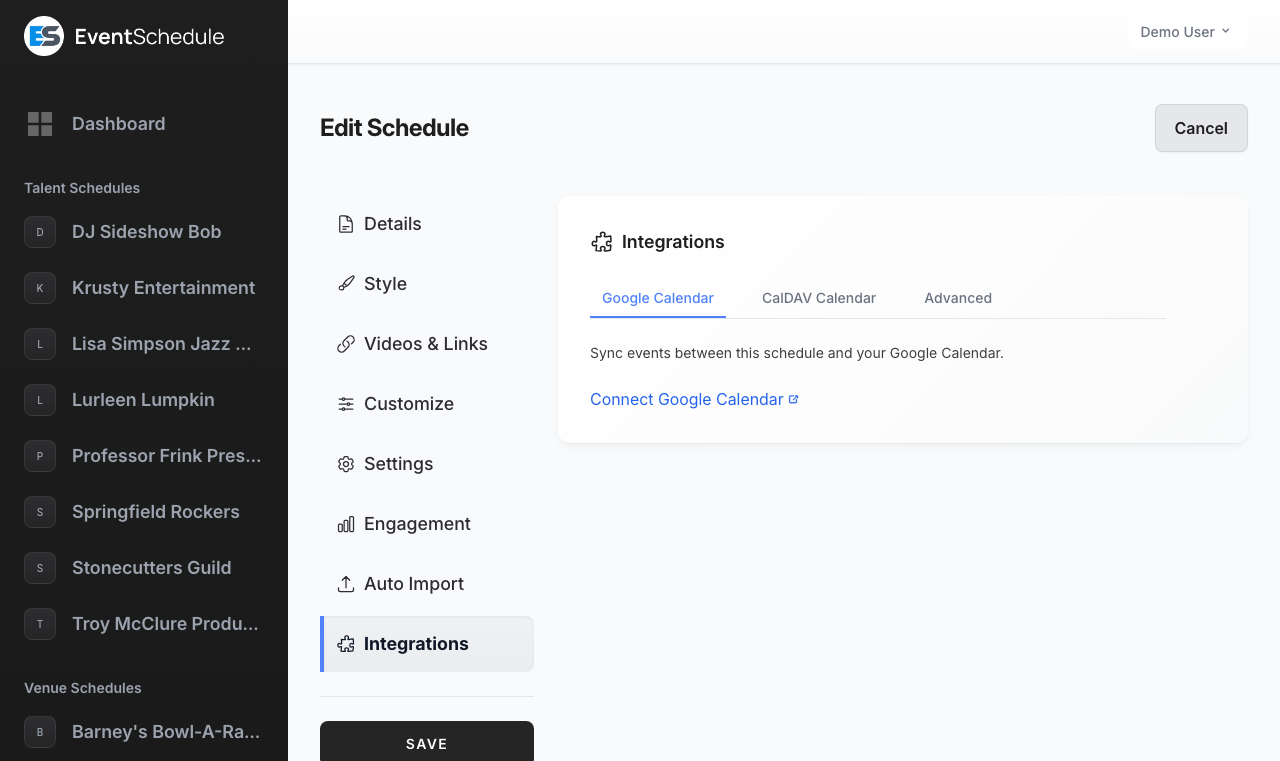
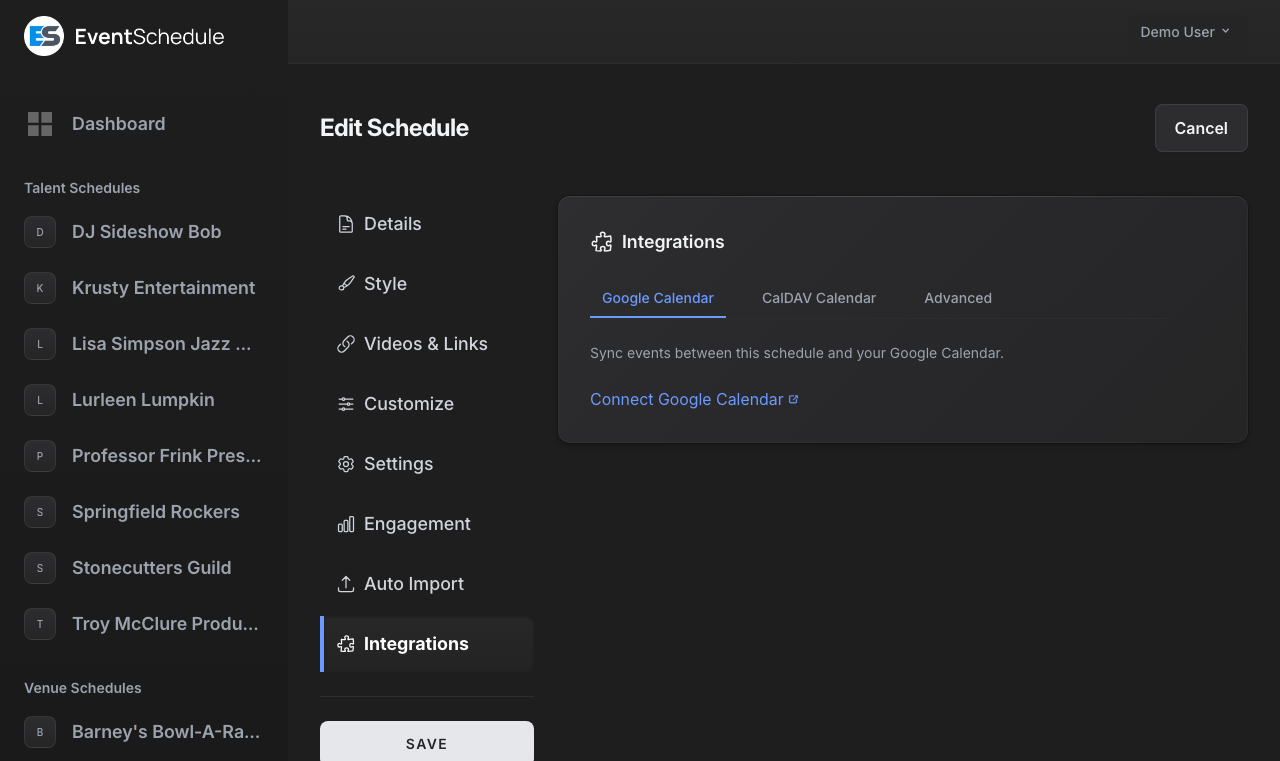
| Edit Schedule → Integrations → Google Calendar row | The schedule's owner picks the calendar, the sync direction, whether new events from it are published automatically and what a deletion in Google does here, and can run Resync to Google Calendar. Other team members get Sync to My Calendar in the same row |
| The schedule's Schedule tab → Review | Events read in from the calendar wait here as drafts. The owner and the schedule's admins publish them or keep them hidden. See Events from your calendar |
| Event form → Listing → Calendar sync | Shows whether this event has a copy on the calendar. Sync Now and Remove are the owner's to use |
| A schedule's page → Actions → Sync Events | The owner runs the schedule's saved direction now |
| Actions → Import Events → Google Calendar | The owner's one-time, read-only import |
| Admin → Manage → Private calendars | The install's administrators. Lists schedules whose synced events show meeting details or an email thread, and can hide those events or pause the sync. See Private calendars |
Google Calendar sync is a free feature, and a selfhosted install resolves to the Enterprise tier, so nothing on this page is held back by a plan. It does need the environment variables below: without them the Connect Google Calendar button has no credentials to use.
Prerequisites
- A Google Cloud Console project
- Google Calendar API enabled on that project
- OAuth 2.0 credentials of type "Web application"
- The Laravel scheduler cron, which drives the inbound poll and the channel renewals
- For near-real-time inbound sync, the app reachable at a public HTTPS URL on a domain you have verified with Google (Google will not create a change channel that points at a private address, a plain-HTTP address or an unverified domain)
Installs without a public HTTPS URL still sync both ways. Instead of near-real-time webhook notifications, inbound changes are picked up by the 15-minute google:sync polling fallback, which needs only the scheduler cron.
Setup Instructions
1. Google Cloud Console Setup
- Go to the Google Cloud Console
- Create a new project or select an existing one
- Go to "APIs & Services" > "Library"
- Search for "Google Calendar API"
- Click on it and press "Enable"
2. OAuth Consent Screen and Scopes
Configure the consent screen and add the scopes Event Schedule requests. Anything missing here shows up later as a failed sync rather than a failed sign-in.
https://www.googleapis.com/auth/calendar.eventsto create, update and delete eventshttps://www.googleapis.com/auth/calendar.readonlyto list calendars and read events for inbound sync and for the import pageopenid,emailandprofileto identify the connecting account
A connection started on the import page asks for read access only: calendar.readonly and the three identity scopes. Every other connection asks for all five.
While the project is in testing mode, add each account that will connect a calendar as a test user. Event Schedule always requests offline access and forces the consent prompt, so a refresh token is issued on every connect.
3. OAuth 2.0 Credentials
- Go to "APIs & Services" > "Credentials"
- Click "Create Credentials" > "OAuth 2.0 Client IDs"
- Choose "Web application" as the application type
- Add the authorized redirect URI that calendar sync and the import page both use:
https://yourdomain.com/google-calendar/callbackfor production, orhttp://localhost:8000/google-calendar/callbackfor development - Add the three redirect URIs of the Google sign-in buttons, on the same host:
/auth/google/callback,/auth/google/connect/callbackand/auth/google/set-password/callback - Save the credentials and note down the Client ID and Client Secret
The same Client ID and Client Secret power signing in with Google, and it is not a separate switch: once GOOGLE_CLIENT_ID is set, the log in page shows Log in with Google, and the sign-up page shows Continue with Google where registration is open. Google Settings shows its Connect Google Account and Connect Google Calendar buttons whether or not the variables are set, so on an install without them those buttons fail. Without the three redirect URIs above, Google refuses those buttons with a redirect URI mismatch. Signing in with Google and connecting Google Calendar stay separate actions, and a user can do either one without the other.
4. Environment Configuration
Add the following environment variables to your .env file. .env.example carries the same four, commented out, in its "Google Calendar sync (optional)" block:
GOOGLE_CLIENT_ID=your_google_client_id
GOOGLE_CLIENT_SECRET=your_google_client_secret
GOOGLE_REDIRECT_URI=https://yourdomain.com/google-calendar/callback
GOOGLE_WEBHOOK_SECRET=a_long_random_string
If you cache your configuration, run php artisan config:cache after editing .env, or the new values will not be picked up.
Variable Reference
| Variable | Description |
|---|---|
GOOGLE_CLIENT_ID |
The Client ID of the "Web application" OAuth client. Setting it is also what shows the Google sign-in buttons and the Google Calendar source on the import page |
GOOGLE_CLIENT_SECRET |
The Client Secret of the same OAuth client |
GOOGLE_REDIRECT_URI |
Must exactly match a redirect URI registered on the OAuth client ({APP_URL}/google-calendar/callback) |
GOOGLE_WEBHOOK_SECRET |
Required for near-real-time inbound sync; not needed for polling-only installs. Any long random string. It is sent to Google as the channel token, Google echoes it back as the X-Goog-Channel-Token header on every change notification, and Event Schedule rejects any notification whose value does not match. Leave it empty and inbound changes only arrive on the 15-minute poll |
5. Scheduler Cron
Inbound polling and channel renewal run through the Laravel scheduler, so the standard cron entry from Installation has to be in place:
* * * * * php artisan schedule:runFeatures
How Sync Works
| Part | What happens |
|---|---|
| Connect an account | Each user connects their own Google account under Settings → Integrations → Google Settings, with Connect Google Calendar. The tokens are stored on that user record |
| Pick a calendar and a direction | The schedule's owner chooses one of their calendars and a sync direction in the Google Calendar row of Edit Schedule → Integrations. The setting belongs to the schedule, so two schedules on the same account can behave differently |
| Outbound | Publishing, editing, cancelling or deleting an event pushes the change to the selected calendar, with no extra step |
| Inbound | Google change notifications post to the webhook endpoint, and Event Schedule reads the changes with an incremental sync. New entries arrive as drafts unless the owner publishes them automatically |
| Polling fallback | The 15-minute google:sync command catches anything the notifications miss, and is the only inbound path on installs without a public URL |
| Channel renewal | The daily google:refresh-webhooks command replaces change channels within three days of expiring |
Sync Direction
Each schedule picks one of four options under Sync Direction. Saving the schedule is what applies the choice and sets up the change channel. Only the schedule's owner sees the controls, and only while their own Google account is connected. To start reading from Google the owner has to choose a calendar: the account's main calendar is never read by default, and a save that starts reading without one is refused with "Choose the calendar to read events from."
| Option | What it does | Change channel |
|---|---|---|
| To Google Calendar | Published Event Schedule events appear in Google Calendar | Not needed, and an existing one is removed |
| From Google Calendar | Events from Google Calendar come in to Event Schedule, as drafts unless Publish new events automatically is on | Created, so edits arrive quickly |
| Bidirectional Sync | Both of the above. New events and edits travel in both directions. Deleting an event here removes its Google copy (cancelling one that came in from Google leaves the owner's entry, see Automatic Sync); deleting one in Google follows the deletion setting | Created |
| No Sync | Google Calendar synchronization is off for the schedule. Nothing is pushed, and inbound notifications are ignored. Events already on the calendar are left alone | Removed when you save, if the schedule was reading from Google before |
Event Information Synced
A Google Calendar entry created by Event Schedule carries:
- The event name, as the Google event title
- The event description. If the schedule has a Calendar Description Template set under Integrations → Calendar text and feeds, the rendered template is sent instead (see the available variables). On an update with no template and an empty description, no description is sent, so notes you typed on the Google copy survive
- Start and end times in the schedule's timezone. The end is the start plus the event duration, and two hours when the event has no stored duration
- Location, taken from the venue's best available address. Events with no venue are sent without a location
- Google visibility: public for normal events, private for unlisted ones
What Is Not Sent
- Everything else about the event. Only the fields above leave Event Schedule: images, ticket types, prices and attendees stay here
- Drafts. A Draft or Internal event is never pushed by a save, so an event first appears on the calendar when you publish it
- Recurrence. Event Schedule does not send a recurrence rule, so a recurring event becomes a single Google entry on the series start date rather than a repeating series. Use the schedule's iCal feed or the .ics download when you need every date of a series in a calendar app
Events That Arrive From Google
What the owner sees is described once, in the schedule guide: new entries arrive as drafts unless Publish new events automatically is on, they wait under Events from your calendar, and some entries are never read in at all (What stays off your page). In Google's terms, an entry is skipped when its visibility is private or confidential, when the calendar's owner declined it, or when it is not an ordinary event (out of office, focus time, working location). An entry that shows meeting details or an email thread is held as a draft even with automatic publishing on.
Inbound sync expands Google's recurring events first, so each occurrence arrives as its own event. Events brought in this way:
- Are added to the schedule as its own events, and use the schedule's slug pattern and default category
- Take their name, description, start time and duration from the Google entry. The description is converted from HTML to Markdown
- Convert the Google location into a venue, reusing one of your existing venues when the name or address matches and creating one when nothing matches. An event that already has a venue keeps it. A meeting link, a dial-in number or a provider's name ("Microsoft Teams Meeting") is never made into a venue
- Are matched to an existing event by name and start time when there is no stored mapping yet, so an event you pushed out does not come back as a duplicate
- Never overwrite an appointment booking. An event created by a booking is owned by Event Schedule: inbound sync does not rewrite its name, description or time, so moving the Google copy will not move a customer's booking
Real-Time Sync and Polling Fallback
- Saving a schedule with an inbound direction creates a Google change channel that posts to the webhook endpoint, so calendar edits show up within moments. If the channel cannot be created the save still succeeds, the failure is logged, and inbound changes fall back to the poll
- The 15-minute
google:synccommand polls for changes as a fallback, and is the main path on installs with no public URL. It uses the schedule owner's connected account - The daily
google:refresh-webhookscommand replaces channels that are within three days of expiring - Inbound sync is incremental: Event Schedule stores Google's sync cursor, so each run fetches only what changed. If Google rejects the stored cursor, which happens after a long gap or a calendar switch, one full sync runs to rebuild it
- The first full sync covers a window from 30 days ago to 365 days ahead
- Each schedule that reads from Google also gets one more full read of that window, so entries read in before the private-entry rules existed are judged by them too. It only re-judges: it takes an entry off the page or puts back one it took off, and never rewrites what the owner edited here. Only the scheduled
google:syncruns it (a webhook or Sync Events never does), at most ten schedules per run, and a read too big for one run carries on in the next - Inbound work is serialized per schedule, so the webhook and the poll cannot import the same event twice
When an Event Is Deleted in the Connected Calendar
Schedules that read from Google also choose When an event is deleted in the connected calendar: Keep it here (the default), Mark as cancelled, or Delete it here. The three choices, and what is never deleted, are described in the schedule guide. It is one setting shared with Outlook, shown in the Google row while the owner's Google Calendar is connected and the direction reads from Google.
Two things an operator should know. Only a real deletion in Google triggers it, and only through the incremental sync, so the schedule needs one completed inbound sync first. And marking an event cancelled this way notifies nobody: the notice to ticket buyers goes out only from Cancel event in the event editor.
Calendar Sync on an Event
Once a schedule has a calendar selected and a direction that includes To Google Calendar, the Listing tab of a saved event ends with Calendar sync. Its Synced and Not synced states, Sync Now and Remove are described in the event guide. Sync Now is not offered, and the server refuses it, for a Draft, Internal or cancelled event.
For an operator, one detail matters: the status is the schedule owner's copy, while Sync Now and Remove act with the Google account of whoever is signed in, so they are the owner's buttons to use.
Personal Calendar Sync for Members
A team member who is not the schedule owner sees a Sync to My Calendar block in the schedule's Google Calendar row. Choosing one of their own calendars mirrors the schedule's events into it, in addition to whatever the owner has configured, and the member gets the same create, update and delete operations even when the owner has left the schedule on No Sync. Turning it back off removes the copies the member received.
- The member needs their own connected Google account, with a connection that may write (see read-only connections)
- The block has its own Save button, separate from the schedule form
- Turning it on does not backfill: events already on the schedule reach the member's calendar the next time they are edited
- This is a Google-only feature, since the Outlook and CalDAV integrations sync the owner's calendar only
- Adding team members beyond the owner is an Enterprise feature on the hosted service, and a selfhosted install resolves to Enterprise
Read-Only Connections
A Google connection made from the import page asks Google for read access only. It can import, and it can sync From Google Calendar, but it cannot add or change anything on a Google calendar. While the owner's connection is read-only:
- In the Google Calendar row, To Google Calendar and Bidirectional Sync are switched off under a notice that reads "This connection can only read your Google Calendar." Allow at Google in that notice runs the full consent and comes back to the row
- Nothing is pushed on save, and Sync Now, Sync Events with an outbound direction and turning on Sync to My Calendar are refused with the same notice
- A schedule saved in that state stores Bidirectional Sync as From Google Calendar, and To Google Calendar as No Sync
Connections made before Event Schedule began recording what Google granted count as full connections.
One-Time Import From Google Calendar
The import page has its own Google Calendar source, for events that live in a calendar that is not public. It is separate from sync: the schedule's owner connects with read access, picks one calendar, and chooses which of its upcoming events to copy. Nothing is written to Google, and events added to that calendar later do not arrive by themselves.
The source appears for a schedule's owner once GOOGLE_CLIENT_ID is set, and it uses the same OAuth client and redirect URI as sync, so there is nothing more to configure. The walkthrough for owners is Importing from Google Calendar.
Usage
Step by Step
Steps 1 and 2 turn sync on. The rest are for events that existed before it was on, for a change of calendar, and for team members.
-
Connect Google Calendar
- Open Settings in the sidebar and choose the Integrations tab
- In Google Settings, under Google Calendar, click Connect Google Calendar
- Approve the request on Google's consent screen. You come back to the same section, which now reads Google Calendar Connected
The Google Account line above it is the separate sign-in connection. Connecting there does not connect a calendar, and you can use either one without the other. Connecting is half of it: nothing syncs until a schedule is told to.
-
Choose a Calendar and Sync Direction
- Open the schedule, click Edit Schedule, choose the Integrations tab and open the Google Calendar row
- Pick the calendar to sync with under Select Google Calendar. A calendar made after the page opened appears after Refresh list. Choosing the account's main calendar shows a warning, because a main calendar usually holds meetings and appointments: make a calendar just for public events in Google Calendar and choose that one
- Choose a Sync Direction: To Google Calendar, From Google Calendar, Bidirectional Sync or No Sync
- With From Google Calendar or Bidirectional Sync selected, decide on Publish new events automatically. Off (the default), new events wait as drafts for you to review; on, they go onto the public page as they arrive, with a warning that says so
- With the same two directions, choose When an event is deleted in the connected calendar: Keep it here, Mark as cancelled, or Delete it here. Keep it here is the default
- Click Save
Saving is what applies the selection and sets up the change channel. When it starts reading from Google, the Schedule tab says that the calendar's events will arrive within 15 minutes. It does not push the events you already have: use step 3, 4 or 5 for those. Only the schedule's owner sees these controls. An owner who has not connected yet sees a Connect Google Calendar button in the row instead, which goes straight to Google and brings them back to this row.
-
Sync a Single Event
Open the event's form and choose the Listing tab; Calendar sync is at its end. On the Google Calendar line, click Sync Now, or Remove to take the copy back off the calendar. It appears once the schedule has a calendar selected and pushes to Google. Sync Now is for an event guests can see: publish a Draft or Internal event first.
-
Sync the Whole Schedule
Open the schedule, click Actions and choose Sync Events, then confirm. The entry is listed for the schedule's owner once their Google account is connected and the schedule has a calendar selected.
- It runs the schedule's saved sync direction now. A schedule left on No Sync is pushed to Google instead, and To Google Calendar is then saved as its direction
- A push only creates events that are missing from the calendar; it does not rewrite copies that are already there
- An inbound direction also imports from the calendar, exactly as the scheduled poll would
-
Resync Everything to Google
Use this after switching Google accounts or target calendars.
- Save the schedule with the new calendar selected. The resync pushes to the saved calendar, and the button stays disabled while the dropdown differs from it
- In the schedule's Google Calendar row, click Resync to Google Calendar and confirm
- Only the schedule owner sees this button, and the request is refused unless the direction includes To Google Calendar
- Events already sitting on the saved calendar are left alone. An event whose copy is on a different calendar has that old copy deleted and a fresh one created, so switching calendars does not leave duplicates behind
- It only ever pushes to Google and never imports, and it only covers published events
- The resync works through the schedule ten events at a time, each batch queuing the next. With
QUEUE_CONNECTION=database, the scheduler's minutely queue worker carries it to the end, which can take a few minutes on a large schedule. On the shippedsyncsetting the batches run one after another once the page has responded, in the same PHP process, so a very large schedule is better served bydatabase. Clicking it again is safe: it only redoes work still outstanding
-
Mirror a Schedule into Your Own Calendar
- As a team member who does not own the schedule, connect your own Google Calendar first (step 1)
- Open the schedule's Edit Schedule → Integrations → Google Calendar row and find Sync to My Calendar
- Pick one of your calendars under Select Your Calendar and click Save. That block saves on its own, so you do not need to save the schedule
Choosing No Sync there and saving removes the events again.
Automatic Sync
Once a schedule pushes to Google, publishing, editing, cancelling and deleting an event change its Google copy with no extra step, and Draft and Internal events are never pushed. The event guide's Calendar Sync section says what is copied when. Members with personal calendar sync receive the same create, update and delete operations even when the owner has not turned on sync for the schedule.
An event the sync read in from Google is a copy of the owner's own entry, and the entry belongs to the owner's calendar, so it is treated differently: publishing it does not create a second entry in Google, and hiding it as a draft or cancelling it never deletes the owner's original. Deleting it deletes the original only when it is published and the schedule's direction sends events to Google (Bidirectional Sync, or To Google Calendar); with From Google Calendar the original stays. A team member's own copy, from Sync to My Calendar, is removed as usual.
For Developers: Sync Helpers on the Event Model
Outbound sync and status checks go through the Event model:
// Push to every schedule that syncs to Google, plus members with personal sync
$event->syncToGoogleCalendar('create'); // or 'update', 'delete'

// Is there a Google copy for a given schedule?
$event->isSyncedToGoogleCalendarForRole($role->id);
$event->isSyncedToGoogleCalendarForSubdomain($subdomain);

// 'not_connected', 'not_synced' or 'synced'
$event->getGoogleCalendarSyncStatus($user, $role->id);
For Developers: How the Work Is Dispatched
The mapping between an event and its Google copy lives in the calendar_syncs table, one row per user, event and schedule, together with the calendar the copy was created on.
SyncEventToGoogleCalendarperforms one create, update or delete. Saving an event runs it inline, so the calendar is up to date by the time the save finishes and a queue worker is not requiredForceResyncGoogleCalendarbacks the Resync to Google Calendar button and is queued. It handles ten events per run and dispatches a follow-up while any remain, so a large schedule finishes across several runs instead of timing out. On thesyncconnection each follow-up waits until the page has responded, by which point the batch before it has released its overlap lock, so the batches run back to back in the same PHP process- Inbound sync is serialized per schedule with a lock, so the webhook and the 15-minute poll cannot import the same event twice
Everyday sync does not need a queue: saving an event pushes it inline, and a change notification from Google is handled inside the webhook request. The bulk resync runs without one too. A very large schedule is better served by QUEUE_CONNECTION=database, where the scheduler's minutely queue worker runs the batches, with no separate php artisan queue:work needed.
API Endpoints
These are the application's own session-authenticated routes, not part of the public REST API. Every route except the two webhook routes requires a signed-in user with a verified email address. The webhook routes are public, and are authenticated by the channel token instead.
| Endpoint | Description |
|---|---|
GET /google-calendar/redirect |
Start the OAuth flow. With from=import and a schedule's subdomain it asks for read access only and returns to the import page; with from=settings it returns to the schedule's Google Calendar row. Both are honoured for the schedule's owner only |
GET /google-calendar/callback |
OAuth callback |
GET /google-calendar/reauthorize |
Re-run consent to obtain a refresh token |
POST /google-calendar/disconnect |
Disconnect Google Calendar: remove the change channels, revoke the grant at Google and clear the tokens and sync records |
GET /google-calendar/calendars |
Get the connected account's calendars |
GET /google-calendar/import/{subdomain}/calendars |
The calendars the import page offers. Owner only, and rate limited to 30 requests per minute |
POST /google-calendar/import/{subdomain}/events |
One calendar's upcoming events, as the import page's list to choose from. Nothing is added by this call. Owner only, rate limited to 30 requests per minute, and to 10 lists per minute per user together with link imports |
POST /google-calendar/sync/{subdomain} |
Sync a schedule in the direction given by sync_direction (to, from or both), and optionally save that direction and the deletion policy. Owner only |
POST /google-calendar/force-sync-to-google/{subdomain} |
Queue a full push of a schedule to Google. Owner only, and rate limited to 5 requests per minute |
POST /google-calendar/member-sync/{subdomain} |
Turn a member's personal calendar sync on or off. For members other than the owner |
POST /google-calendar/sync-event/{subdomain}/{eventId} |
Sync one event, with the caller's own Google connection. Refused for a Draft, Internal or cancelled event |
DELETE /google-calendar/unsync-event/{subdomain}/{eventId} |
Remove one event from Google Calendar |
GET /google-calendar/webhook |
Channel verification challenge, echoed back to Google. Rate limited to 10 requests per minute |
POST /google-calendar/webhook |
Change notification handler, authenticated by the channel token. Rate limited to 60 requests per minute |
Scheduled Commands
These Artisan commands keep inbound sync and the change channels healthy:
| Command | Frequency | Description |
|---|---|---|
google:sync |
Every 15 minutes | Polls Google for changes on every schedule whose direction is From Google Calendar or Bidirectional Sync, using each schedule owner's account. Accepts --role= with a schedule id to limit it to one schedule |
google:refresh-webhooks |
Daily | Replaces change channels within three days of expiring. Accepts --force to rebuild them all, and --role= with a schedule id or subdomain |
Troubleshooting
Common Issues
Pick the line that matches what you see.
"Google Calendar not connected"
- Connect the Google account first, under Settings → Integrations → Google Settings
- Connecting a Google account for sign-in is not the same thing; the Google Calendar line has its own Connect button
- Check that
GOOGLE_CLIENT_ID,GOOGLE_CLIENT_SECRETandGOOGLE_REDIRECT_URIare set and that the redirect URI matches the one registered in Google Cloud Console
"Google did not give permission to see your calendars"
- Google lets a person untick a permission on its consent screen, and a connection without the calendar permission is not kept
- Connect again and leave the calendar permissions ticked
"This connection can only read your Google Calendar"
- The account was connected from the import page, which asks for read access only
- Open the schedule's Google Calendar row and click Allow at Google. See read-only connections
Repeated re-authorization, or "token refresh failed"
- This means no refresh token was stored. Reconnect the account, which forces the consent prompt again
- Revoking access to the app in the Google Account security settings and connecting again clears a stuck grant
Sync stopped, and the schedule is back on No Sync
- Access was removed in the Google account, or the grant lapsed. When Google reports that on the next token refresh, Event Schedule forgets the connection by itself: the tokens, the sync direction, change channel and sync cursor of every schedule that user owns, their event mappings, their calendar selections and their Publish new events automatically choices
- Events here, and copies already on the Google calendar, are not touched
- Connect again, then choose the calendar and direction again and save. Copies pushed before are no longer linked to their events, so a push after reconnecting can create them a second time
- If only the reading stopped, see the next question
Reading stopped, and Bidirectional Sync became To Google Calendar
- Either an administrator paused the sync on Private calendars, or the schedule changed owner. Either way reading stops: From Google Calendar becomes No Sync, Bidirectional Sync becomes To Google Calendar, and pushing out carries on
- The Google Calendar row says which it was, and automatic publishing is off again
- The owner starts again by choosing a calendar that holds only public events and a direction, and saving. An administrator can also undo a pause from the same admin page, unless the owner has changed the direction since
Events from Google are not on the schedule's page
- New entries arrive as drafts unless Publish new events automatically is on. They wait on the schedule's Schedule tab under Review; see Events from your calendar
- Entries Google marks private or confidential, invitations the owner declined, and out-of-office or working-location blocks are not read in at all. An event already on the page is taken off it when Google starts saying so
- An entry with meeting details or an email thread stays a draft even with automatic publishing on, and is published one at a time
- The schedule's Google Calendar row shows when the calendar was last read, how many events were added and how many were left out
Events do not appear in Google Calendar
- The schedule's sync direction has to be To Google Calendar or Bidirectional Sync, and the schedule has to be saved after the change
- Events that already existed when you turned sync on are not pushed in bulk. Use Sync Events from the schedule's Actions menu, Sync Now under Calendar sync on the event's Listing tab, or Resync to Google Calendar
- Draft, Internal and cancelled events are never pushed, and Sync Now is not offered for them. Publish the event first
- A read-only connection pushes nothing. See read-only connections
- Confirm the Google Calendar API is enabled on the project and that the account granted the calendar scopes
- Check the logs for the failing call
Calendar sync is missing from an event's Listing tab
- It only appears on a saved event, when the schedule has a calendar selected and pushes to Google
- Select a calendar under Edit Schedule → Integrations → Google Calendar and save the schedule
Google Calendar changes do not reach Event Schedule
- Inbound sync needs From Google Calendar or Bidirectional Sync
- For real-time notifications, the app needs a public HTTPS URL on a domain verified with Google, and
GOOGLE_WEBHOOK_SECRETmust be set; notifications with a mismatched token are rejected. When Google refuses the channel the save still succeeds and the error is only visible in the log - Without a public URL, rely on the 15-minute
google:syncpoll and confirm the scheduler cron is running - Run
php artisan google:sync --role=with the schedule id to test a single schedule by hand - Inbound sync runs on the schedule owner's Google account, so it stops if the owner disconnects even when other members are still connected
"Resync to Google Calendar" is greyed out or refused
- The button is disabled while the calendar dropdown differs from the saved calendar. Save the schedule first
- Only the schedule owner sees the button, and the server refuses the request unless the direction includes To Google Calendar
- The job runs in batches of ten. On the shipped
syncsetting they run one after another once the page has responded, in the same PHP process, so a very large schedule is better served byQUEUE_CONNECTION=databaseand the scheduler cron
Inbound sync stopped after a while
- Change channels expire. The daily
google:refresh-webhookscommand renews them, so make sure the scheduler is running php artisan google:refresh-webhooks --forcerebuilds them immediately
Leftover events after switching calendars or accounts
- Save the schedule with the new calendar selected, then run Resync to Google Calendar so old copies are removed and fresh ones are created
- Events synced before Event Schedule started recording which calendar each copy lived on cannot be cleaned up automatically. Delete those few leftovers in Google Calendar by hand
- Nothing is removed from the calendar of an account that has already been disconnected, because the app no longer holds a token for it
Deleting in Google removed nothing here, or removed too much
- The deletion policy defaults to Keep it here, which is why nothing changes locally
- The setting is only shown while the direction is From Google Calendar or Bidirectional Sync
- Deletions arrive only through the incremental sync, so the schedule must have completed at least one inbound sync first
- Delete it here cannot be undone. Choose Mark as cancelled if you may want the event back
Logs
Sync operations are logged in the application logs. Check storage/logs/laravel.log for detailed information about sync operations, and storage/logs/scheduler.log for the scheduled sync and channel-renewal runs.
Security Considerations
| Safeguard | What it does |
|---|---|
| Token storage | Google access and refresh tokens are stored per user and encrypted at rest with the install's APP_KEY, and they are hidden from the model's serialized output |
| Scope limitation | Only the calendar scopes the integration needs are requested, plus openid, email and profile to identify the account. A connection started on the import page asks for read access only |
| OAuth state check | The connect flow carries a random state value that is verified on the callback, so a forged callback is rejected |
| Webhook authentication | GOOGLE_WEBHOOK_SECRET is the channel token Google echoes back, and mismatched notifications are rejected. Both webhook routes are rate limited |
| Owner-only controls | A schedule's calendar, its sync direction, Publish new events automatically, its deletion setting, Sync Events, the full resync and the one-time import belong to the schedule's owner, because the standing sync runs on the owner's Google account. A team member's own calendar goes through Sync to My Calendar |
| Token refresh | Access tokens are refreshed automatically before each call that needs one |
| Clean disconnect | Disconnecting removes the change channels, revokes the grant at Google and turns sync and automatic publishing off for the schedules the user owns, clears their sync cursors, and deletes the stored tokens, the user's event mappings and their calendar selection on every schedule they belong to. The same clean-up runs by itself when Google reports the grant withdrawn. It does not delete anything already on the Google calendar |
| Audit trail | Connecting, disconnecting, syncing a schedule and toggling personal member sync are all written to the audit log |
Secrets in .env |
Keep the client secret and webhook secret in .env, and never commit them to source control |