AI Import
Save hours of manual data entry. Paste a link to your events, paste event text or add a flyer image, and the details are filled in for you.
Feature overview: AI event import
The Import Page
The import page takes event information from wherever it already lives and turns it into events you review before adding. It accepts three kinds of input: a link to an events page or a calendar, text you type or paste, and an image such as a flyer or poster. Each event comes back with its name, date and time, venue, description, price and more. One event comes back as an editable card; two or more come back as a list you choose from. Nothing is added to your schedule until you add it.
Importing is free on every plan, within a daily allowance for the reads that use AI; only Import from Eventbrite needs Pro - Requires the Pro plan . The page is for a schedule's owner and its admins.
Opening the Import Page
- Open your schedule in the admin panel
- Click Actions at the end of the schedule's title row
- Choose Import Events
While a schedule has no events the way in is shorter: its Schedule tab asks "Already have your events listed somewhere?" above the calendar, and so does the form for your first event, above its fields. Each answer, Google Calendar, A web page or calendar link or A flyer, screenshot or text, opens this page; Google Calendar opens it at its own steps, starting with Connect Google Calendar until Google is connected. Google Calendar is offered to the schedule's owner, and the flyer choice where AI is set up.
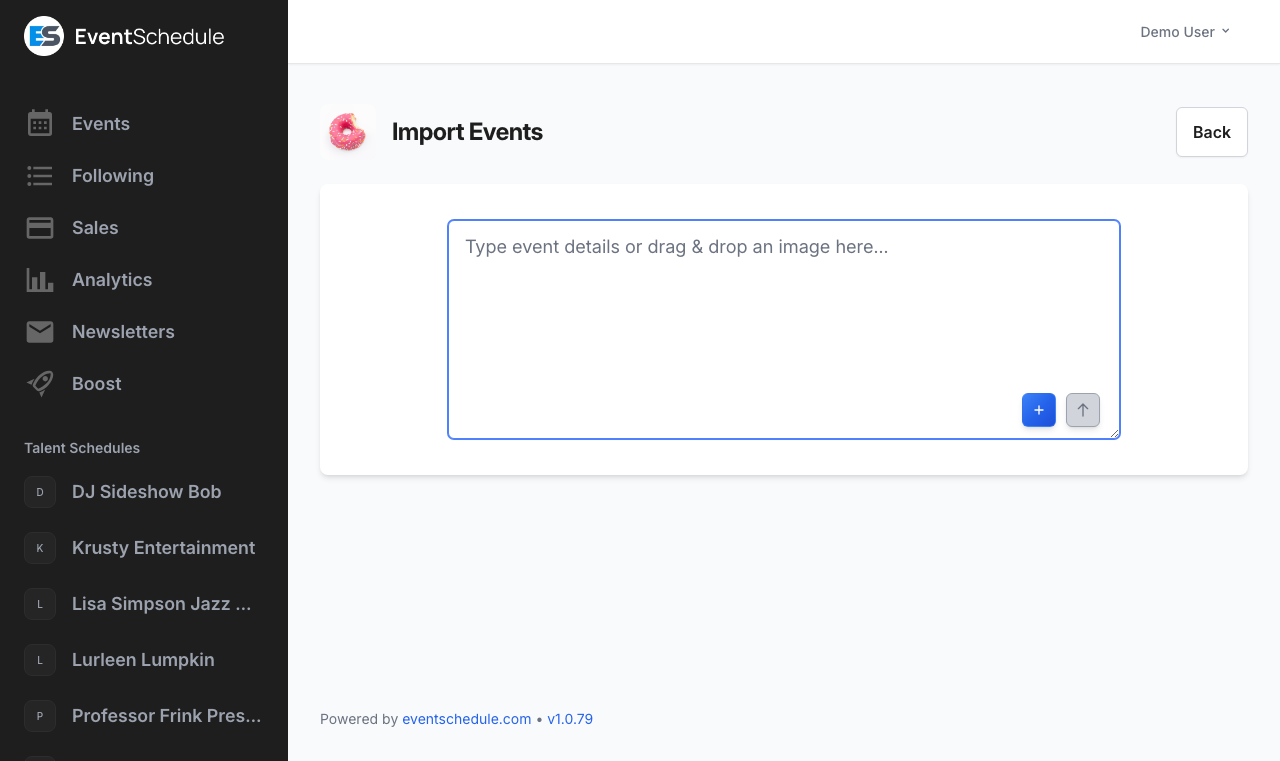
The page has one box, which takes a link, text or an image; its button says which it will read. Under the box, Other ways to bring events in holds Google Calendar, for the schedule's owner, and Import from Eventbrite Pro - Requires the Pro plan . The link above the page's title, named after your schedule, goes back to it; if you have added events it takes you to the panel that lists them, and it asks first when there are events you read and did not add.
Where AI Is Used
Text, images and pages without event data are read by Google Gemini or by OpenAI, whichever is configured, and a line above the box says that what you add there is read by an AI service. A calendar link, or a page that publishes its events as data, is read directly and involves no AI. On the hosted service everything is ready to use. On a selfhosted install with neither GEMINI_API_KEY nor OPENAI_API_KEY set, the box takes links only, and an installation admin sees a Get API Key panel marked Optional, see AI Setup.
What You Can Send
- Link - One web address on its own: an events page, or a calendar. Up to 100 events come back per read
- Text - Up to 10,000 characters per submission
- Image - One JPG, PNG, GIF or WebP file of up to 10 MB per submission. A large photo is shrunk in your browser before it is sent, so a picture straight off a phone camera is fine
- Both together - A flyer plus a line of text covering whatever the flyer leaves out
Daily Limits
Each text or image submission counts as one AI request, whether it is text, an image or both, and one request can return several events. A link counts only when the AI has to read the page: a calendar feed, or a page that publishes its events as data, is read directly and uses none of the allowance. The allowance is counted per schedule per day on the hosted service. When it runs out the page asks you to try again tomorrow.
| Plan | AI import requests per day |
|---|---|
| During a paid-plan trial | 10 |
| Free or Pro | 50 |
| Enterprise | 100 |
| Selfhosted | No limit |
The trial row is checked first, so a schedule inside a paid-plan trial gets the trial allowance rather than its plan's. Separately from the daily count there are two short-term ceilings: 30 submissions a minute, and 10 links a minute. Meeting either shows a message asking you to wait a minute, and it clears on its own.
A venue or curator schedule that accepts event requests without requiring visitors to have an account shows those visitors this same AI box instead of a structured form. Their box takes text and images, not links. Their submissions count against the schedule's daily allowance too. See Requests for the submission form options.
Importing from a Link
Paste the address of the page or calendar where your events are already listed. When the box holds a link and nothing else, a line under it reads We will read this page and the button reads Read link.
A link is a one-time copy of what is listed there now. Events added to that page or calendar later do not appear on your schedule by themselves: read the link again and the ones you already have are left out, or come back unticked. To keep a calendar of your own in step continuously, connect it under Integrations instead. To keep somebody else's calendar or page in step, press Keep this link in sync under that note: the link becomes a feed, which is read about once an hour (Enterprise on eventschedule.com).
- Paste the link into the box. The
https://is optional, soyourvenue.com/eventsworks - Click Read link, or press Ctrl+Enter. The page names the site it is reading, and Cancel stops it
- Review what came back: one event as a card, two or more as a list
- Click Save on a single card, or the button under a list, which carries the number you ticked, for example Add 12 events
| What the link points to | How it is read | Uses AI |
|---|---|---|
A calendar feed: an .ics or webcal:// address |
As written, for the next 12 months | No |
| A public Google Calendar link, or a published Outlook calendar page | Swapped for that calendar's feed address, then read as a feed | No |
| A page that publishes its events as data, the structured event data many website builders and ticketing sites add for search engines | From that data, for the next 12 months | No |
| Any other web page | The page's main text, up to 10,000 characters, is read the way pasted text is | Yes, one request |
Repeating events
A repeating calendar entry arrives as one repeating event when your schedule can express its rule: daily, weekly on chosen days, every few weeks, monthly or yearly, with an end date or a number of occurrences. A rule it cannot express, such as the last Friday of every month, arrives as one row holding its next 12 dates. So does a series with a moved date, and one whose clock time would drift on your schedule because it is set in another time zone.
Time zone
A line above the results reads Times shown in followed by your schedule's time zone, with a link to change it. On a talent or curator schedule, an event that states its own time zone keeps its local clock time, so an 8 PM show in another city stays 8 PM, and its row says so.
All-day entries
Shown as All day, and saved starting at midnight for the full day.
Left out
From a calendar or a page's event data: cancelled entries, entries marked private, past events, and events your schedule already has, including dates a repeating event of the same name already covers. The results say how many were left out because you already have them, and how many entries could not be read at all. From a page the AI read, a likely duplicate comes back unticked instead.
More than 100
A read returns up to 100 events and says how many more there are. Add those, then read the link again for the rest.
Missing some?
When a page's event data does not cover everything on the page, Missing some? Read the whole page reads the page's text with AI instead.
Facebook and Instagram do not let other sites read their pages, so those links are turned down straight away: add a screenshot of your events instead. A Google Calendar that is not public cannot be read from its link. A page behind a sign-in, or one that only fills in its events after it loads, comes back with no events: paste its text or add a screenshot. Links are read on this import page only, not on the public request form.
Importing from Text
Copy event information from an email, a website listing, a social media post or a message, and paste it into the import box.
- Type or paste the event text into the box, which reads Paste a link, paste text, or add a flyer while it is empty
- Click Read text at the end of the box, or press Ctrl+Enter. Enter on its own starts a new line
- Review what the AI found and correct anything it got wrong. One event comes back as a card; two or more come back as a list
- Click Save on the card to create the event
- A saved card turns green and offers Edit, View and Clear so you can move straight on to the next import
Example
Live Jazz Night
Friday, March 15th at 8pm
The Blue Note, 123 Main Street
Featuring the John Smith Trio
Tickets: $20| Field | Notes | From the example |
|---|---|---|
| Event name | A short version is also generated for the event URL | Live Jazz Night |
| Date and start time | When no time is given, 8:00 PM is assumed. Both are editable on the card, the date through a picker and the time through a dropdown | March 15, 8:00 PM |
| End time | Worked out from the length the AI reads out of the text, in hours, and added to the start time. Left blank when no end time or length is mentioned. The event's duration is taken from whatever start and end you save | Left blank |
| Venue and address | Venue name, street address, city, state and postal code, plus a two-letter country code. A curator schedule falls back to its own country when the text does not name one | The Blue Note, 123 Main Street |
| Description | Markdown, plus an optional one-line short description of up to 200 characters | Featuring the John Smith Trio |
| Participants | Performer name, email and website. The name is matched first against talent schedules in your schedule's country, then against talent already connected to your schedule. On a talent schedule every imported event is pinned to that talent instead | John Smith Trio |
| Price | Amount and currency code; blank means unknown and 0 means free | 20 USD |
| Category | Chosen from the categories your schedule uses, including your custom ones. A near-miss is matched back to the closest name on your list | Concerts |
| Registration URL | An external ticket or sign-up link found in the text | None in this text |
| Custom fields Pro - Requires the Pro plan | Your own event fields are filled in too, matched against their allowed options | None defined |
- Several events at once - Paste a whole list. If the text names several distinct performers the AI splits them into separate events, and events that share a start time and address are merged back into one event with several participants
- Sensible dates only - A parsed date that is more than three days in the past is left blank for you to fill in rather than guessed. This applies to whatever the AI reads; a calendar feed or a page's own event data keeps the dates it gives
- Other languages - For a schedule whose language is not English, the AI keeps the original language and adds English translations alongside it
Importing from Images/Flyers
Give the AI a flyer, poster or screenshot and it reads the text out of the image.
- Add the image in whichever way suits you: click Add Image to pick a file, paste an image from your clipboard into the box, or drag and drop the file onto the box
- A thumbnail appears in the corner of the box. Use the red x on it to remove the image if you picked the wrong one
- Optionally type a note in the box as well, for anything the flyer leaves out
- Click Read flyer to submit
- Review the card, then click Save
The image you submitted is carried over as the event's image and shown beside the parsed fields, so a flyer import needs no separate upload. You can remove it there, or drop a different image onto that panel before saving. The one exception is text that also contains a ticket link: that link's own preview image wins, because it is usually the publisher's artwork.
One image per submission, in JPG, PNG, GIF or WebP, up to 10 MB. A large photo is shrunk in your browser before it is sent. Use a clear, high-contrast picture where the text is large enough to read: the AI can only extract what is legible. Photograph the flyer flat and in full frame rather than at an angle.
Photographing a printed agenda to create timed parts inside one existing event is a separate feature. See Scan Agenda Enterprise - Requires the Enterprise plan .
Importing from Google Calendar
When your events live in a Google calendar that is not public, connect it and choose which of its events to bring over. This is for the schedule's owner, and it copies: nothing in your Google calendar is changed.
- On the import page, under Other ways to bring events in, click Google Calendar
- Click Connect Google Calendar. Google asks whether Event Schedule may see your calendars, and nothing more: the page says Read-only. We never change your calendar. and that is what is requested
- Back on the import page, pick one calendar under Choose a calendar. Your own calendars come first and the account's Main calendar last. Google's holiday, birthday and week-number calendars are not offered
- Click Show events, then tick what you want in the list and add it
What comes over
The calendar's events for the next 12 months, up to 100 at a time, read the way a calendar link is: a repeating event as one repeating event, an all-day entry as all day, times in your schedule's time zone.
What is left out
Entries marked private, cancelled entries, invitations you declined, events already on your schedule, and things that are not events: birthdays, working locations, out-of-office and focus-time blocks, and entries Google made from your mail. A very long calendar is read in part, and the list says so.
Use a different account
Offered beside the connected address while none of your schedules is synced with Google Calendar, since a sync runs on the same connection.
A one-time copy
Events added to that calendar later do not arrive by themselves: choose the calendar again to add them, or turn on a sync under Integrations.
A connection made here can read your calendars and cannot write to them. That is enough to import, and to sync from Google Calendar. To send your schedule's events to Google Calendar, open Edit Schedule → Integrations → Google Calendar and click Allow at Google. On a selfhosted install the Google Calendar source appears once Google API credentials are set, see the selfhost Google Calendar docs.
Importing from Eventbrite Pro - Requires the Pro plan
Import from Eventbrite, the second entry under Other ways to bring events in, copies events from your Eventbrite account together with their ticket types and venues. It needs a Pro schedule; on a free schedule the entry is greyed out and carries a Pro badge. It uses no AI and none of the daily allowance.
- On the import page, click Import from Eventbrite
- Paste your Eventbrite Private Token, which Eventbrite shows under Account Settings, Developer Links, API Keys, and click Connect to Eventbrite. The token is used while the page is open and is not saved with your schedule
- The page reads Connected as with your Eventbrite name and lists the account's events, each with its picture, date, venue (or Online), number of ticket types, and whether it is Live, a Draft or Ended. It starts on Upcoming only; Show past events lists the rest
- Tick the events you want, or Select all, and click the button, which carries the count, for example Import selected (12)
- The events are copied one at a time while a bar counts them, as in Imported 3 of 12 events. Each one gets View and Edit links as it lands, or reads Failed. View Schedule appears when the run is complete
| From Eventbrite | On your schedule |
|---|---|
| Name, description, start and end | The event's name, its description, and a one-time date with the same length |
| The event's picture | Its flyer image |
| Venue name and address | The event's venue. Events that follow one another at the same venue share it instead of creating it again |
| An online event | Its Eventbrite page becomes the event's Registration URL |
| Ticket types: name, price, quantity, description | Ticket types on the event, in the Eventbrite currency, with Sell tickets switched on. Open the event's Tickets tab afterwards to check its Payment row |
Orders and attendees are not copied. To bring people over from another ticketing service, see Importing Attendees. An account's first 500 events are listed.
The Event Card
Every event a read finds becomes a card: on its own when there is one event, or opened from its row when there is a list. The card holds the event as it will be saved, and every field on it can be corrected first. What follows is the same whatever the event was read from.
- Which fields appear - Name, date and time, and venue are always on the card. The extra fields (short description, description, price, coupon code and its discount, registration URL, category and sub-schedule) are switched on per schedule, and can be marked required. The sub-schedule field only appears once the schedule has sub-schedules
- Performer videos - On a curator schedule, when a parsed performer does not match a talent schedule you already have, the card searches YouTube for that name and offers up to six clips. Pick one and it becomes the new talent schedule's video
Venue Matching
Rather than creating a duplicate, the import looks for a venue you already have. It checks, in order, a venue schedule you own with the same name, then any venue in the same city (and country, when one is known) with a matching name or street address, then venues connected to your schedule through past events. Matching ignores case, accents, punctuation and a leading "the", so "The Blue Note" and "Blue Note" are the same venue. A hit shows as Matched venue and the card's venue block is set to Use Existing.
- Switch to Create New to enter the name, street address and city yourself
- The venue dropdown groups your options into Member, Following and From past events
- Tick I manage this venue, make me the owner when the new venue is yours to run
- On a venue schedule there is nothing to match: every imported event is pinned to that venue
Duplicate Warning
A card shows Similar event found when your schedule already has an upcoming event with the same registration URL, or with the same start time plus either the same venue address or the same performer name. View opens the existing event so you can decide whether to save the new one. On a curator schedule, Select adds that existing event to your schedule instead of creating a second copy.
New Pages and Requests
Saving a card also reaches the performers and the venue it names, in one of two ways:
- Not on Event Schedule yet - A performer or venue the import did not match gets a schedule page of its own when you save, so your event page can link to them. The page is public but stays out of search engines, says which schedule created it, and offers Claim this page, which works for whoever signs in with the email address on it (or its phone number, when it has no email). If that address already belongs to an account, the page is theirs straight away and the event reaches it as a request, as below. Tick I manage this venue, make me the owner to make a new venue yours instead. See Pages Created for Others for claiming and invitations
- Already running a schedule - The event is on your schedule straight away, but reaches theirs as a request they accept or decline, unless your schedule is on their approved list. A performer's schedule always works this way; a venue can choose to accept requests without approval
Choosing What to Add
When a read finds two or more events, from a link, text, an image or a Google calendar, they come back as one list rather than a card each.
Rows
Each row shows the date, the name, and a line with the time, the venue and how the event repeats.
Ticking
Tick the rows you want. Select all ticks every row that can be added, and the count beside it keeps track, for example 12 of 14 selected.
Details
Click a row to open its full card in place, where every field can be edited. One row is open at a time.
Rows that start unticked
A row missing a name, date or time reads Add a name, date and time. A row that matches an event you already have reads Looks like one you already have. Open the row to fix or check it, then tick it.
Adding
The button at the foot of the list carries the count, for example Add 12 events. While it works a bar reads Saving 3 of 12 and each row shows a tick as it lands. When everything is added you are taken to your schedule.
When something does not save
The page stays, says how many were added and how many need attention, and shows the reason on each row concerned. Such a row stays ticked to be tried again: untick it to leave it out.
A series listed by date
One row stands for all of its dates. Ticking, removing or saving it applies to every date, and what you change on its card (its name, its venue) is carried to every date that had the same. A date the calendar gave its own time, name or venue keeps it.
Start over
Clears the results and returns to the empty box, after asking when there are events you have not added yet.
On the hosted service a schedule can only create so many events in one day. An import that reaches that limit stops there and says so; the rest can be added the next day.
Undoing an Import
An import ends on your schedule, under a panel headed Events added to your schedule with the count, the first three names and your schedule's link to copy. Its buttons, from the start of the row:
- Undo this import - Removes the events that import added, after asking you to confirm
- Import more - Returns to the import page. After an import of fewer than five events this button reads Add more events and is the one highlighted
- View schedule - Opens the public page your guests see
- Add to your website - Opens the embed dialog on the calendar, and is the highlighted button after an import of five events or more. See Embedding on Your Website
Undo only touches what that import added. Events you created by hand stay, earlier imports stay, and an imported event that someone already holds a ticket or a booking for is kept; the page then says how many were removed and how many were kept.
Undo is offered for 24 hours, in the browser you imported with and while you stay signed in. If you left the import page without finishing, the next time you open it your last import is named at the top with the same Undo this import button.
Custom AI Prompts
The import page itself has no prompt box: you type event details, not instructions. What the parser knows about your schedule comes from the settings below, so this is where you steer it when it keeps getting something wrong. Each path starts from Edit Schedule on the schedule's page; the second step is a tab of that form and the third a row inside the tab.
| Setting | Where to find it | What it does |
|---|---|---|
| AI prompt on a custom field Pro - Requires the Pro plan | Edit Schedule → Customize → Custom Fields | An optional instruction, up to 500 characters, on how to extract that one field's value. It is appended to the parser's instructions for that field |
| Event categories | Edit Schedule → Customize → Categories | The parser picks a category from your schedule's own list, so renaming or adding categories changes what it can choose |
| Language | Edit Schedule → Details → Language and time | Sets the language the parser preserves in the event text, with English translations stored alongside |
| Import Form Fields | Edit Schedule → Settings → New events (hosted service) | A toggle per extra field (short description, description, price, coupon code and its discount, registration URL, category and sub-schedules) that chooses which ones appear on each parsed card, each with a Required tick box for fields that must be filled in before the event can be saved |
| Agenda prompt Enterprise - Requires the Enterprise plan | Scan Agenda page → Edit Prompt, or an event's Agenda tab → Import → Instructions for the AI | Free-text instructions for reading an agenda, which creates event parts rather than events. Can be saved as the default for the schedule |
Custom field prompts are worded like instructions to a person. The examples offered in the field editor read "Extract the dress code from the event details" and "Identify the target age group for this event".
AI can also generate a flyer image from event details you already have, and write an event description and category for you. See AI Flyer Generation and AI Details Generator.
See Also
- Creating Events - Add events by hand and configure event settings
- Creating Events via WhatsApp - Send a message or flyer to a WhatsApp number and let AI create the event (Enterprise)
- Scan Agenda - Use AI to read a printed agenda and create event parts (Enterprise)
- Auto Import - Have a selfhosted install import events every day from a list of event URLs
- Custom Fields - Define your own event fields, with AI prompts for each (Pro)