Creating Schedules
Set up and configure your schedule - from basic details and contact info to sub-schedules, calendar integrations, and auto import.
Schedule Types
Event Schedule supports three types of schedules, each designed for different use cases:
| Type | Best For | Key Features |
|---|---|---|
| Talent | Musicians, DJs, performers, speakers | Events display venues, focused on "where you'll be" |
| Venue | Bars, clubs, theaters, event spaces | Full address support, map integration |
| Curator | Promoters, bloggers, community organizers | Aggregate events from multiple sources |
Details
Configure your schedule's core identity in Admin Panel → Profile → Edit. Details are organized into three tabs: General, Localization, and Contact Info.
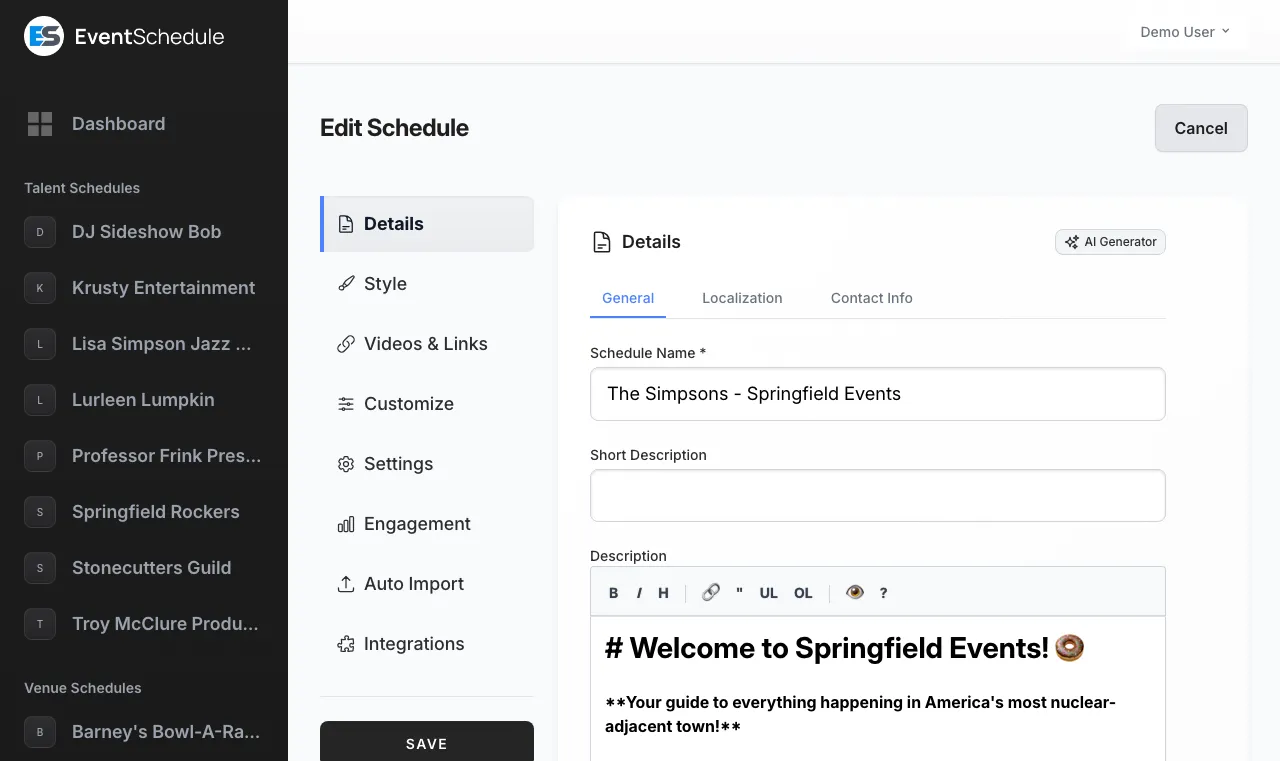

General
Schedule Name
Your schedule's display name. This appears at the top of your schedule page and in search results. Use your band name, venue name, or organization name.
English Name
If your schedule name is in a non-English language, you can provide an English translation. This helps with discoverability and accessibility for international visitors.
Short Description
A brief subtitle for your schedule (up to 200 characters). This appears below your schedule name on the schedule page. If your schedule name is in a non-English language, an additional Short Description (English) field appears for providing an English translation.
Description
A bio or description of your schedule. Supports Markdown formatting for links, bold text, lists, and more. Tell visitors what you're about and what kind of events they can expect.
Localization
Language
Choose from 11 supported languages: English, Spanish, German, French, Italian, Portuguese, Hebrew, Dutch, Arabic, Estonian, and Russian. This affects the interface language on your schedule page.
Timezone
Set your schedule's timezone. All event times are displayed in this timezone. Important for audiences in multiple regions.
Time Format
Choose between 12-hour (2:00 PM) or 24-hour (14:00) time format based on your audience's preference.
AI Details Generator Enterprise
Let AI generate a short description and description for your schedule based on its name and type.
How It Works
Click the AI button in the Details section header, select which fields to generate, and the AI will create content based on your schedule's name and type.
Generated Fields
Short description and description. Fields with existing values show a blue dot indicator; generating will replace their content.
Note: Selfhosted installations require a Gemini API key and an OpenAI API key configured in the environment settings for AI features to work.
Address
For Venue schedules, you can add a full physical address. This enables map integration and helps visitors find your location.


Street Address
Your venue's street address (e.g., "123 Main Street").
City, State/Province, Postal Code
Fill in your city, state or province, and postal/zip code for complete address information.
Country
Select your country from the dropdown. This is used for address formatting and map display.
When you enter an address, Event Schedule validates it and generates map coordinates. This powers the interactive map on your schedule page.
Contact Info
Add contact details in the Details → Contact Info tab so visitors can reach you. These appear on your public schedule page.


Email Address
A public contact email for inquiries. Use the "Show email" toggle to control whether this is visible to visitors.
Phone Number
A contact phone number in international format. Use the "Show phone number" toggle to control whether this is visible to visitors. On the hosted platform, the phone number must be verified via SMS before it will be displayed publicly.
Website URL
Link to your main website. Opens in a new tab when visitors click it.
City/Country
For non-Venue schedules, you can specify location details without requiring a full street address. Curator schedules have both City and Country fields. Talent schedules have a Country field only. This appears on your profile to give visitors a sense of your location.
Style
Customize your schedule's visual appearance including colors, fonts, backgrounds, and layout. See the full Schedule Styling guide for all customization options.
Videos & Links
Manage YouTube videos, social links, and payment links for your schedule. These are displayed on your public schedule page.
- YouTube Videos - Link YouTube videos to showcase on your schedule page. Videos are displayed with thumbnails and titles.
- Social Links - Add social media profile URLs (Instagram, Facebook, Twitter, etc.) so visitors can find you on other platforms.
- Payment Links - Add payment URLs (Stripe, PayPal, Venmo, etc.) that are displayed on your public schedule page.
Customize
Customize your schedule with sub-schedules, custom fields, and sponsors. Access these settings from Admin Panel → Profile → Edit → Customize.
Sub-schedules
Organize your events into sub-schedules (categories). This helps visitors filter and find events that interest them.


Creating Sub-schedules
To create a sub-schedule, go to Admin Panel → Profile → Edit → Customize and select the Sub-schedules tab.
Use Cases
Create sub-schedules like "Live Music", "DJ Nights", "Comedy Shows", or "Workshops". Each sub-schedule gets its own URL and can be filtered.
Sub-schedule Name & English Name
Like schedules, sub-schedules can have localized names with English translations for multilingual support.
URL Slugs
Each sub-schedule gets a URL slug (e.g., /live-music) so visitors can bookmark and share filtered views.
Color
Assign a color to each sub-schedule. Choose from 14 preset colors. The color is used to visually distinguish sub-schedules in calendar views and filter buttons.
Assigning Events to Sub-schedules
When creating or editing an event, select a sub-schedule from the dropdown. Events can belong to one sub-schedule at a time.
Custom Fields Pro
Define Event Custom Fields to add extra data to your events. You can add up to 10 custom fields per schedule. Custom field values can also be used as URL pattern variables.
Each custom field has the following properties:
Field Name & English Name
The display name for the field. For non-English schedules, an English name field also appears for translation.
Field Type
Choose from six types: String (single-line text), Multiline String (multi-line text), Switch (on/off toggle), Date (date picker), Dropdown (single select from predefined options), or Multiselect (multiple selections from predefined options).
AI Prompt
An optional prompt that helps AI fill in this field automatically when using AI Import or the AI Details Generator.
Required
Mark a field as required so that events cannot be saved without providing a value.
Reordering
Drag and drop fields to change the order they appear on event forms.
| Variable | Description | Example |
|---|---|---|
{custom_1} |
Value of the 1st custom field | john-smith |
{custom_2} |
Value of the 2nd custom field | room-101 |
{custom_3} |
Value of the 3rd custom field | workshop |
| ...up to {custom_10} | ||
All variable values are automatically converted to URL-safe slugs: lowercase letters, numbers, and dashes only. For example, "Summer Concert" becomes "summer-concert" and "New York" becomes "new-york".
Sponsors
Showcase your sponsors on your schedule page. Add sponsor logos, names, URLs, and assign tiers (Gold, Silver, Bronze). Sponsors are displayed in a dedicated section on your public schedule page.
Adding Sponsors
Enter a sponsor name, optional URL, tier level, and upload a logo. You can add up to 12 sponsors per schedule.
Reordering
Drag and drop sponsors to change their display order on the public schedule page.
You can also override sponsors for individual events. See Per-Event Sponsors.
Custom Labels Pro
Override any of the default labels displayed on your public schedule page. For example, change "Events" to "Shows", "Follow" to "Subscribe", or "Free entry" to "No cover charge".
Adding a Custom Label
Select a label from the dropdown and click Add. Enter your custom text in the "Custom Value" field. For non-English schedules, you can also provide an English translation or let it be auto-translated.
Available Labels
You can customize labels for buttons (Request to Book, Submit Event, Follow), navigation (Events, Filters, Past Events), event details (Free entry, Schedule, Category, Venue), and more.
Settings
Configure how your schedule works in Admin Panel → Profile → Edit. Settings are organized into four tabs.


General
Schedule URL / Subdomain
Your unique URL identifier. On the hosted version, this becomes yourname.eventschedule.com. Choose something memorable and easy to type.
Custom Domain Enterprise
Use your own domain (e.g., events.yourbrand.com) instead of a subdomain. A custom domain gives your shared schedule URL a more professional look.
There are two modes: Direct mode and Redirect mode. See setup instructions below.
Event URL Pattern
Customize how event URLs are generated. Use variables like {event_name}, {date_dmy}, {venue}, etc.
Example: {event_name}-{date_dmy} creates URLs like my-event-27-1
URL Pattern Variables
Use these variables in your Event URL Pattern. All values are automatically converted to URL-safe format (lowercase, spaces become dashes).
Date & Time
| Variable | Description | Example |
|---|---|---|
{day_name} |
Full day name (translated) | wednesday |
{day_short} |
Short day name (translated) | wed |
{date_dmy} |
Day-month format | 15-3 |
{date_mdy} |
Month-day format | 3-15 |
{date_full_dmy} |
Full date (day-month-year) | 15-03-2025 |
{date_full_mdy} |
Full date (month-day-year) | 03-15-2025 |
{month} |
Month number | 3 |
{month_pad} |
Month number (zero-padded) | 03 |
{month_name} |
Full month name (translated) | march |
{month_short} |
Short month name (translated) | mar |
{day} |
Day of month | 15 |
{day_pad} |
Day of month (zero-padded) | 05 |
{year} |
Year | 2025 |
{time} |
Start time | 20-00 or 8-00-pm |
{end_time} |
End time | 22-00 or 10-00-pm |
{duration} |
Duration in hours | 2 |
Event Information
| Variable | Description | Example |
|---|---|---|
{event_name} |
Event Name | summer-concert |
Venue Information
| Variable | Description | Example |
|---|---|---|
{venue} |
Venue name (translated) | central-park |
{city} |
City | new-york |
{address} |
Street address | 123-main-st |
{state} |
State/Province | ny |
{country} |
Country | us |
Ticket Information
| Variable | Description | Example |
|---|---|---|
{currency} |
Currency code | usd |
{price} |
Lowest ticket price (or price range) | 10 or 10-25 |
{coupon_code} |
Coupon code | SAVE20 |
Custom Domain Setup Enterprise
There are two ways to connect a custom domain to your schedule. Choose the mode that best fits your needs.
Direct Mode (CNAME)
Your schedule is served directly on your custom domain with automatic SSL. This is the recommended option for most users.
- In your schedule settings, enter your domain (e.g.,
events.yourbrand.com) and select Direct. - Go to your domain registrar (e.g., GoDaddy, Namecheap, Cloudflare) and create a CNAME record pointing your domain to
shark-app-gz929.ondigitalocean.app. - Wait for DNS propagation (usually a few minutes, but can take up to 48 hours).
- SSL is provisioned automatically. Once DNS has propagated, your schedule will be accessible at your custom domain over HTTPS.
Redirect Mode (Cloudflare)
Your custom domain redirects visitors to your eventschedule.com URL. Use this if your domain's DNS is managed by Cloudflare. Cloudflare's free plan is sufficient.
- In your schedule settings, enter your domain and select Redirect.
- Add your domain to Cloudflare (if not already). After adding the domain, Cloudflare will provide two nameservers. Go to your domain registrar and update your domain's nameservers to the ones Cloudflare provides. Wait for Cloudflare to confirm the domain is active.
-
Set up DNS records. In your Cloudflare dashboard, go to DNS > Records:
- Delete any existing A or AAAA records for the domain.
- Add an A record with the name
@(root domain) pointing to192.0.2.1. - Add another A record with the name
*(wildcard) pointing to192.0.2.1. - The IP address doesn't matter since traffic will be redirected. Make sure both records are set to Proxied (orange cloud icon) so Cloudflare can intercept and redirect the requests.
-
Create a Page Rule. In your Cloudflare dashboard, go to Rules > Page Rules and create a new page rule:
- URL pattern:
*yourdomain.com/* - Setting: Forwarding URL
- Status code: 301 - Permanent Redirect
- Destination URL:
https://yourname.eventschedule.com/$2
The
$2wildcard preserves the URL path, soyourdomain.com/some-eventcorrectly redirects toyourname.eventschedule.com/some-event. - URL pattern:
- Changes may take a few minutes to several hours to propagate. Once active, visitors who go to your custom domain will be seamlessly redirected to your schedule.
Notifications
Configure which email notifications you receive for schedule activity.
Notify New Request
Receive an email when someone submits a new event request to your schedule.
Notify New Fan Content
Receive an email when someone submits fan content (photos or videos) to one of your events.
Notify New Sale
Receive an email when a ticket sale is completed for one of your events.
Notify New Feedback
Receive an email when an attendee submits post-event feedback for one of your events.
Notify New Poll Option
Receive an email when a visitor suggests a new option on one of your event polls (requires Allow User Options to be enabled).
On the hosted platform, notification emails require Email settings to be configured. Without SMTP settings, notifications will be disabled.
Advanced
Default to Draft
When enabled, new events are created as drafts and stay hidden from the public schedule until you uncheck the Draft toggle on each event. See Draft events.
Hide Videos
Hide the videos panel from your public schedule. Useful for Venue and Curator schedules that don't want to feature video content alongside events.
First Day of Week
Choose which day your calendar week starts on. All seven days are available (Sunday, Monday, Tuesday, etc.).
Default Category
Preselect an event category (e.g. Concert, Workshop) on every new event so you don't have to pick one each time. Once saved, a button appears to apply the default to all existing events in one click.
Import Form Fields
Customize which fields are shown on the event request form. This lets you control what information submitters provide when requesting events.
Link Directly to Registration
When enabled, clicking events on the calendar or scanning QR codes in event graphics will link directly to the event's registration URL instead of showing the event detail page first. Only affects events that have a registration URL configured.
Default Curator Schedules
For non-Curator schedules, if you also manage Curator-type schedules, you can select which curator schedules new events are automatically shared to. This saves you from manually selecting curators on each event. Only shown when you have available curator schedules.
Engagement
Configure how visitors interact with your schedule through event requests, fan content, and feedback.


Requests
Accept Event Requests
Allow others to submit events to your schedule. Submitted events can be reviewed in the pending queue. Perfect for:
- Talent: Allow others to request to book you for events
- Venues: Accept booking requests from bands and performers
- Curators: Let the community submit local events
- Organizations: Collect event submissions from members
Require Account
Require submitters to have an account before they can submit event requests. This helps identify who is submitting events and prevents anonymous submissions.
Require Approval
When enabled, submitted events go to a pending queue for your approval before appearing publicly. Review requests in Admin Panel → Schedule → Pending.
Approved Schedules
When Require Approval is enabled, you can restrict submissions to only pre-approved schedules. Add specific schedules to the approved list, and only those schedules will be able to submit event requests.
Request Terms
Add custom terms or guidelines that submitters must agree to when requesting events. Use this to set expectations about your booking policies, technical requirements, or submission guidelines.
Event Request Form
Choose the type of request form shown to visitors: AI Import (paste event text or upload a flyer and let AI extract the details) or Booking Form (a structured form with predefined fields). Available for Venue and Curator schedules.
Fan Content
Control which types of fan content visitors can submit to your events. Each type has its own toggle and all submissions require your approval before appearing publicly.
Fan Comments
Allow visitors to submit text comments on your events.
Fan Photos
Allow visitors to upload photos to your events.
Fan Videos
Allow visitors to submit YouTube or Vimeo video links on your events.
Feedback
Enable Feedback
Automatically send feedback requests to attendees after events end. Attendees receive an email asking them to rate the event and leave comments.
Feedback Delay
Set how long after an event ends before feedback requests are sent. Choose from 1 hour to 48 hours depending on your preference.
On the hosted platform, feedback emails require Email settings to be configured.
Carpool
Enable Carpool
Turn on carpool matching to let attendees coordinate rides to and from your events. When enabled, a carpool link appears on the event page where attendees can offer rides or request a spot.
How It Works
Drivers create ride offers specifying their city, direction (to event, from event, or round trip), available spots, and optional departure time and meeting point. Attendees browse available offers and request a spot. Drivers then approve or decline requests, and approved riders receive the driver's contact information.
Carpool matching is available on the Pro plan and above.
Auto Import Selfhost
Automatically import events from external sources to keep your schedule up-to-date without manual entry.


Import from URLs
Add URLs of event pages, venue calendars, or artist websites. Event Schedule's AI will automatically parse and import events from these sources on a regular schedule.
Works great with: Venue event pages, artist tour pages, Facebook event listings, Eventbrite organizer pages, Bandsintown profiles, and most websites that list events.
Import by City Search
Search for events by city name to automatically discover and import local events. Great for curators building comprehensive local calendars.
Setting Up Auto Import
- Go to Admin Panel → Profile → Edit
- Scroll to the Auto Import section
- Add URLs or city names you want to import from
- Click Test Import to verify your sources are working correctly before saving
- Events will be automatically checked and imported on a regular schedule
Auto-imported events go to your pending queue if you have Require Approval enabled, so you can review them before they appear publicly.
Integrations
Sync your schedule with external calendar systems for smooth event management.


Sync Direction Options
Choose one-way sync (import only or export only) or two-way sync to keep both calendars in perfect harmony.
Configure email delivery for your schedule's notifications and communications.


Custom email settings are available for selfhosted installations and Pro plans.
SMTP Configuration
Configure your own SMTP server for sending emails. This gives you full control over deliverability and lets you use your email provider.
Custom Sender Address
Send emails from your own domain (e.g., [email protected]) instead of the default Event Schedule address.
Custom email settings also apply to newsletters sent from your schedule.
Setting Up Custom Email
- Go to Admin Panel → Profile → Edit
- Navigate to the Integrations section and select the Email tab
- Enter your SMTP server details (host, port, username, password)
- Set your custom sender name and email address
- Send a test email to verify the configuration
Google Calendar
Connect your Google Calendar for bidirectional sync. Events created in either place stay synchronized automatically. Supports webhook-based real-time updates.
First, make sure you've connected your Google account in Account Settings. Then:
- Go to Admin Panel → Profile → Edit
- Scroll to Integrations
- Click Connect Google Calendar
- Authorize Event Schedule to access your Google Calendar
- Select which calendar to sync and choose sync direction
Each team member on the schedule can connect their own Google Calendar independently. Events are synced per-member, so everyone on the team stays in sync with their personal calendar.
Google Calendar integration requires API credentials configuration. See the selfhost Google Calendar docs for setup instructions.
CalDAV
Connect to any CalDAV-compatible calendar (Apple Calendar, Fastmail, Nextcloud, etc.) for cross-platform synchronization.
- Go to Admin Panel → Profile → Edit
- Scroll to Integrations
- Enter your CalDAV server URL, username, and password
- Select which calendar to sync with
- Choose your sync direction: to CalDAV, from CalDAV, or bidirectional
Once connected, the integration status shows your server host. You can disconnect at any time to stop syncing.
Advanced
The Advanced tab contains the calendar description template and feed URLs for your schedule.
Calendar Description Template
By default, events synced to Google Calendar or CalDAV use the event description as the calendar entry's description. With the Calendar Description Template, you can customize what information appears using the same variable system as event graphics.
Leave the template empty to use the event description as-is (default behavior). When a template is set, all events synced outbound from Event Schedule to your connected calendar will use the interpolated template.
A template like:
{event_name}
{date_full_dmy} {time}
{venue} | {city}

{description}

{url}
Would produce a calendar description like:
Summer Concert
15/03/2025 20:00
Central Park | New York

Join us for a night of music...

example.eventschedule.com/summer-concert
Available Variables
Date & Time
| Variable | Description | Example |
|---|---|---|
{day_name} |
Full day name (translated) | Wednesday |
{day_short} |
Short day name (translated) | Wed |
{date_dmy} |
Day/month format | 15/3 |
{date_mdy} |
Month/day format | 3/15 |
{date_full_dmy} |
Full date (day/month/year) | 15/03/2025 |
{date_full_mdy} |
Full date (month/day/year) | 03/15/2025 |
{month} |
Month number | 3 |
{month_pad} |
Month number (zero-padded) | 03 |
{month_name} |
Full month name (translated) | March |
{month_short} |
Short month name (translated) | Mar |
{day} |
Day of month | 15 |
{day_pad} |
Day of month (zero-padded) | 05 |
{year} |
Year | 2025 |
{time} |
Start time (uses schedule's 24h setting) | 20:00 or 8:00 PM |
{end_time} |
End time (uses schedule's 24h setting) | 22:00 or 10:00 PM |
{duration} |
Duration in hours | 2 |
Event Information
| Variable | Description | Example |
|---|---|---|
{event_name} |
Event Name | Summer Concert |
{short_description} |
Short Description | Live jazz with local artists |
{description} |
Description | Join us for a night of music... |
{url} |
Event URL | https://... |
Venue Information
| Variable | Description | Example |
|---|---|---|
{venue} |
Venue name (translated) | Central Park |
{city} |
City | New York |
{address} |
Street address | 123 Main St |
{state} |
State/Province | NY |
{country} |
Country | US |
Ticket Information
| Variable | Description | Example |
|---|---|---|
{currency} |
Currency code | USD |
{price} |
Lowest ticket price (or "Free") | 10 |
{coupon_code} |
Event coupon code | SAVE20 |
Custom Fields Pro
If you have defined Event Custom Fields in your schedule settings, you can include their values using numbered variables.
| Variable | Description | Example |
|---|---|---|
{custom_1} |
Value of the 1st custom field | John Smith |
{custom_2} |
Value of the 2nd custom field | Room 101 |
{custom_3} |
Value of the 3rd custom field | Workshop |
| ...up to {custom_10} | ||
Feeds
The Advanced tab also provides read-only feed URLs that let others subscribe to your schedule's events from external applications.
- iCal Feed - Subscribe to your schedule's events from any calendar app (Google Calendar, Apple Calendar, Outlook, etc.). The calendar will automatically stay up to date as you add or change events.
- RSS Feed - Follow your schedule's events using any RSS reader. Useful for staying notified about new events.
Each feed has a copy button to quickly copy the URL to your clipboard for sharing or pasting into another app.
Feed URLs are only available after the schedule has been saved. Create and save your schedule first, then return to the Advanced tab to find your URLs.
See Also
- Schedule Styling - Colors, fonts, backgrounds, and visual customization
- Creating Events - Add events to your schedule
- Sharing Your Schedule - Embed and share your schedule
- Selling Tickets - Set up ticketing for your events
- Managing Schedules - View events, manage team, set availability, and more