Selling Tickets
Set up ticketing for your events with zero platform fees. Connect payment processing, create ticket types, and keep 100% of your sales.
General
Event Schedule includes full ticketing functionality. Sell tickets directly from your event pages with secure payment processing, automatic confirmation emails, and QR code tickets. Keep 100% of your ticket sales - we never charge platform fees.

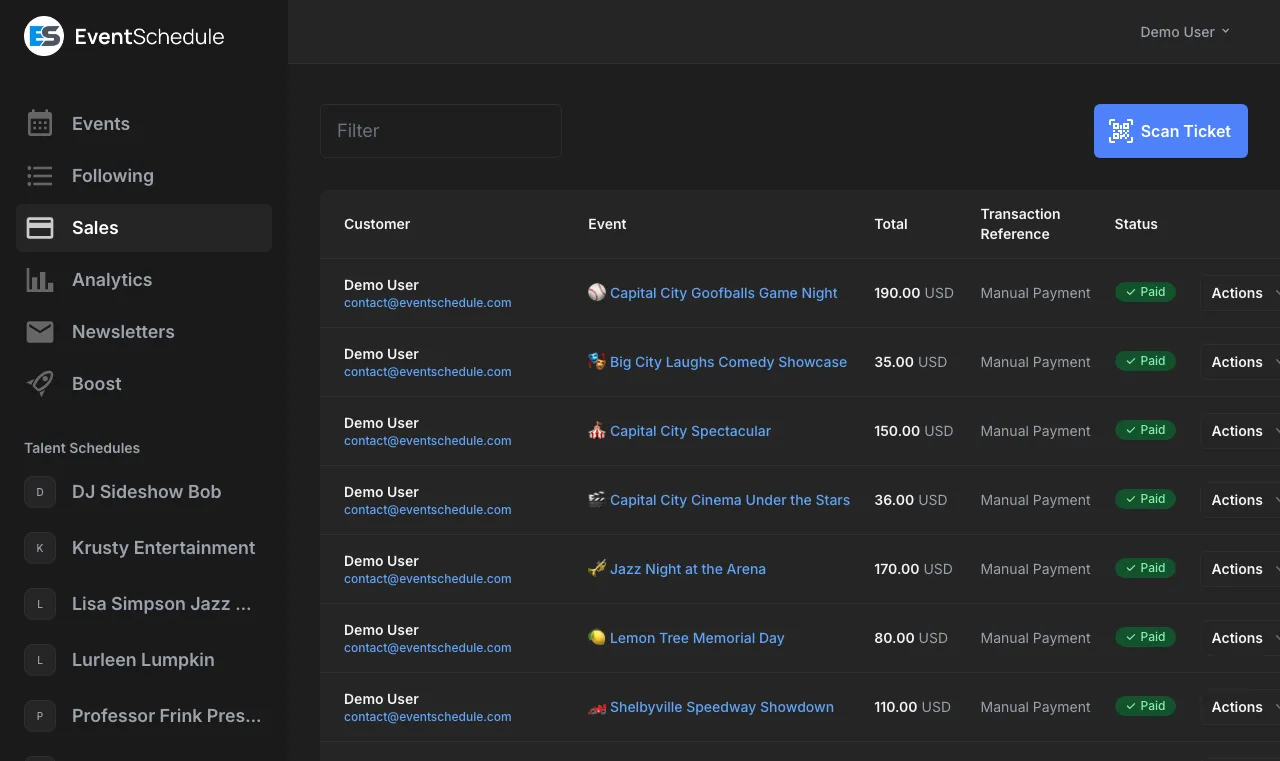
Unlike other ticketing platforms that take a cut of every sale, Event Schedule charges nothing. You only pay standard payment processor fees (like Stripe's 2.9% + $0.30).
Features
- Multiple ticket types per event
- Quantity limits and sales deadlines
- QR code tickets for easy check-in
- Automatic confirmation emails
- Sales tracking and reporting
- Mobile-friendly checkout
- Pay-what-you-wish pricing option
- Custom checkout fields for attendee info
- Promo codes with percentage or fixed discounts
- Ticket waitlist for sold-out events
- Real-time check-in dashboard
- Sale notification emails for organizers
When editing an event, the Tickets section offers three modes: External, Registration, and Tickets. Choose the mode that fits your event.
External
The default mode. Use this when tickets are sold through an external platform (e.g., Eventbrite, Ticketmaster) or when no ticketing is needed. No payment processing is handled within Event Schedule.
Fields
- Registration URL: A link to your external ticketing page. Displayed as a button on your event page.
- Price: An informational display price shown on the event page. Select a currency and enter the amount.
- Coupon Code: Displayed alongside the registration URL for attendees to use on the external platform.
External mode is available on all plans, including Free.
Registration
A lightweight RSVP system for free events. Attendees sign up with their name and email - no payment setup required.
- Edit your event and scroll to the Tickets section
- Select the Registration mode
- Optionally set an RSVP Limit for capacity management
- Optionally add Custom Fields to collect extra information from registrants
- Save the event
Visitors will see a "Register" button on your event page. After registering, they receive a confirmation email with a QR code for check-in. You can view all registrations in your sales list.
Attendees can cancel their own registration from the confirmation page linked in their email.
For recurring events, capacity is tracked per occurrence, so each date has its own registration count against the RSVP limit.
If you have
webhooks
configured, registrations trigger sale.created and cancellations trigger sale.cancelled webhook events.
Registration is available on all plans, including Free. It's perfect for meetups, community events, and open gatherings where you want to know who's coming without the formality of tickets.
Tickets
Full ticketing for paid or multi-type events. Create ticket types, connect a payment method, and sell directly from your event page.
Ticketing is available on Pro plans. Starting at just $5/month with a 7-day free trial - and zero platform fees on your ticket sales.
- Edit your event and scroll to the Tickets section
- Select the Tickets mode
- Click "Add Ticket Type"
- Enter ticket details:
- Name (e.g., "General Admission", "VIP")
- Price (or $0 for free tickets, or leave blank for pay-what-you-wish)
- Quantity available (leave blank for unlimited)
- Description (optional)
- Save the event
Once tickets are added, a "Get Tickets" button appears on your event page.
The Tickets mode has four sub-tabs for configuration:
- General: Add and manage ticket types
- Payment: Choose your payment method (Stripe, Invoice Ninja, Payment URL, or Cash)
- Options: Custom checkout fields, ticket notes, terms, and expiration settings
- Promo Codes: Create discount codes for your tickets
Ticket Types
Create multiple ticket types to offer different options:
| Example | Use Case |
|---|---|
| General Admission | Standard entry ticket |
| VIP | Premium tickets with extra benefits |
| Early Bird | Discounted tickets for early buyers |
| Student/Senior | Discounted tickets for specific groups |
| Table | Reserved seating for groups |
| Pay What You Wish | Let attendees choose their price (set minimum optional) |
Ticket Settings
- Quantity: Limit how many tickets can be sold (leave blank for unlimited)
- Per-person limit: Limit how many one person can buy
- Sales end date: Set a per-ticket-type cutoff to stop selling at a specific time
- Combined inventory: Set a total ticket limit across all ticket types for your event
Free Tickets
If you need multiple ticket types (e.g. General and VIP) or promo codes for a free event, use the Tickets mode and set the price to zero:
- Select the Tickets mode in the Tickets section
- Create a ticket type
- Set the price to $0 (or leave it blank)
- Set a quantity limit if you have capacity constraints
- Save the event
Visitors can "purchase" free tickets to RSVP. They'll receive a confirmation email with a QR code, and you'll have a list of who's coming.
For simple free events where you only need a headcount, use the Registration mode instead - it's simpler and available on all plans.
Registration and ticketing are mutually exclusive on a single event. If you need both free and paid options, use the ticketing system with a $0 ticket type alongside your paid tickets.
Payment
Before you can sell tickets, you need to connect a payment method. Event Schedule supports several options:
Stripe
Accept credit card payments directly. Money goes straight to your Stripe account. Set up Stripe in Account Settings.
Invoice Ninja
Connect your Invoice Ninja account for invoicing and payment tracking.
Payment URL
Use any payment link (PayPal, Venmo, Square, etc.) by entering the URL.
Cash
Accept payment at the door. Add optional payment instructions for attendees.
Connecting Stripe
- Go to Admin Panel → Plan
- Click "Connect Stripe"
- Complete the Stripe onboarding process
- Once connected, Stripe will be available as a payment option
We recommend using Stripe with Invoice Ninja for the best experience. Invoice Ninja provides additional features like invoicing, payment reminders, and financial reporting.
Invoice Ninja Modes
When using Invoice Ninja, choose between two checkout modes in your payment settings.
Invoice Mode
Ticket selection and promo codes are handled in Event Schedule. An invoice is created in Invoice Ninja for each purchase. Supports multiple promo codes and per-ticket promo targeting. Buyers can optionally create an Event Schedule account during checkout.
Payment Link Mode
Buyers select tickets and enter promo codes on the Invoice Ninja purchase page. Invoices are grouped in Invoice Ninja, making bulk management easier. Supports one promo code per event (applied to all tickets). Buyers can optionally create an Event Schedule account during checkout. See the Invoice Ninja payment link docs for more details.
| Invoice | Payment Link | |
|---|---|---|
| Ticket selection | Event Schedule | Invoice Ninja |
| Promo code entry | Event Schedule | Invoice Ninja |
| Multiple promo codes | Yes | One per event |
| Per-ticket promo targeting | Yes | No |
| Invoices grouped in IN | No | Yes |
| Account creation | Yes | Yes |
Start with invoice mode for maximum flexibility. Switch to payment link mode if you want invoices grouped together in Invoice Ninja.
Options
Configure additional checkout settings for your event's tickets.
Custom Checkout Fields
Collect additional information from attendees during checkout. You can add up to 10 custom fields per event.
- Edit your event
- Go to the Tickets → Options tab
- Add field labels (e.g., "Dietary Requirements", "T-Shirt Size")
- Mark fields as required or optional
- Save the event
Common Use Cases
- Dietary restrictions for catered events
- T-shirt sizes for swag
- Company name for business events
- Emergency contact information
- How did you hear about us?
Responses are stored with each sale and can be viewed in your sales dashboard or exported.
In addition to event-level custom fields, you can also add custom fields to individual ticket types. When editing a ticket type, look for the Custom Fields (Per Ticket) section. These fields are collected once per ticket purchased, rather than once per order, and are useful when each attendee needs to provide individual information (e.g., meal choice, name for badge).
Additional Settings
- Ticket notes: Add notes that appear on the ticket (e.g., parking instructions, what to bring)
- Terms URL: Link to your terms and conditions. Buyers must agree before purchasing.
- Ticket sales end: Set a date and time per ticket type when sales automatically stop. Use this to create time-based pricing tiers (e.g. early bird ending before regular tickets).
- Expire unpaid tickets: Automatically release unpaid tickets after a set number of hours, making them available for other buyers
Promo Codes
Offer discounts to attendees with promo codes. Buyers enter a code during checkout to receive a discount on their purchase.
Adding a Promo Code
- Edit your event
- Go to the Tickets → Promo Codes tab
- Click "Add Promo Code"
- Enter the code (e.g., "EARLYBIRD", "VIP50")
- Choose the discount type and value
- Save the event
Discount Types
- Percentage: A percentage off the ticket price (e.g., 20% off)
- Fixed amount: A flat amount off the ticket price (e.g., $10 off)
Promo Code Settings
- Max uses: Limit how many times the code can be used (leave blank for unlimited)
- Expiration date: Set a date and time when the code stops working
- Active/inactive: Toggle the code on or off without deleting it
- Applies to: Apply the code to all ticket types, or target specific tickets only
Each promo code generates a shareable link that pre-fills the code at checkout, making it easy to distribute to your audience.
When using Invoice Ninja in payment link mode, only one promo code per event is supported and it applies to all ticket types. Use invoice mode for multiple promo codes with per-ticket targeting.
Add-ons
Add-ons are optional purchasable items that customers can include with their ticket order, such as parking passes, merchandise, or meal packages.
Creating an Add-on
- Edit your event
- Go to the Tickets → Add-ons tab
- Click "+ Add Add-on"
- Fill in the add-on details and save the event
Add-on Fields
- Name: The name displayed to customers (e.g., "Parking Pass", "Event T-Shirt")
- Price: The price per unit (leave blank or set to 0 for free add-ons)
- Quantity: The total number available (leave blank for unlimited)
- Description: An optional description with additional details
How Add-ons Work
- Add-ons appear in the checkout form only after the customer selects at least one ticket
- Customers choose a quantity for each add-on (or leave it at 0 to skip)
- Add-on totals are added to the ticket total at checkout
- Promo codes do not apply to add-ons
- Add-ons are tracked separately in sales records and confirmation emails
Managing Sales
Track and manage your ticket sales from Admin Panel → Sales.
What You Can See
- List of all purchases with buyer details
- Payment status (paid, pending, refunded)
- Check-in status
- Total revenue
Filtering Sales
Use the filter input at the top of the sales list to search by buyer name, email, or event name. The filter updates results in real time. When exporting sales data, only the currently filtered results are included in the export.
Actions
- Resend tickets: Send confirmation email again
- Mark as paid: For cash or external payments
- Cancel/refund: Cancel a sale (refunds handled in Stripe)
- Delete: Permanently remove a sale record
Sale Notification Emails
Opt in to receive an email notification every time a ticket sells. Each notification includes:
- Buyer name and email
- Ticket type and quantity
- Total amount
- Payment status
- Discount or promo code applied
How to Enable
Go to Admin Panel → Schedule → Settings → Notifications and enable sale notification emails.
If you have a custom sender email configured for your schedule, sale notifications are sent from that address. All notification emails include an unsubscribe link for compliance.
Exporting Sales Data
Export your sales data for accounting, tax purposes, or to import into other systems.
- Go to Admin Panel → Sales
- Filter by event or date range if needed
- Click the "Export" button
- Download your sales data as a spreadsheet
Export Includes
- Buyer name and email
- Ticket type and quantity
- Purchase date and amount
- Transaction reference
- Payment method and status
- Promo code and discount amount
- Check-in status
- Custom checkout field responses (event-level and ticket-level)
The CSV includes a byte order mark (BOM) for Excel compatibility. Export your sales data regularly for your records - this is especially useful for tax reporting and financial reconciliation.
Check-in at the Door
Use your phone to scan tickets at the door. No special hardware needed.
- Go to Admin Panel → Sales on your phone
- Click "Scan Tickets"
- Point your camera at the QR code on the ticket
- The app shows the ticket details and marks it as checked in
Any team member with access to your schedule can scan tickets. Just have them log in on their phone.
Ticket Security
Each ticket has a unique QR code that can only be scanned once. If someone tries to use a ticket that's already been checked in, you'll see a warning.
Check-in Dashboard
Monitor attendance in real time from Admin Panel → Check-in. The dashboard provides a live overview of check-in progress for your event.
- Overall progress bar with percentage of attendees checked in
- Per-ticket-type breakdown showing check-in counts for each ticket type
- Recent activity feed showing the last 10 check-ins with attendee names and times
- Filter by event and event date to view specific event dates
The dashboard auto-refreshes every 10 seconds, so you always see the latest check-in data. It works on any device, including phones and tablets.
Ticket Waitlist
When tickets sell out, fans can join a waitlist to be notified when spots become available.
How It Works
- When all tickets sell out for an event date, a "Join Waitlist" button appears on the event page
- Guests enter their name and email
- When tickets become available (sale cancelled, refunded, or expired), the next person in line is notified via email
- They receive a 24-hour link to purchase
- If they don't purchase in time, the next person in line is notified
Managing the Waitlist
View and manage the waitlist from Admin Panel → Waitlist. The table shows each entry's name, email, event, date, and status.
Only one person is notified at a time to prevent overselling. The next person is notified only after the current person's 24-hour window expires or they complete their purchase.
Post-Event Feedback Pro
Automatically collect ratings and comments from attendees after your events end. Feedback emails are sent to ticket buyers and RSVP attendees, linking to a simple form where they can rate their experience.
Enabling Feedback
- Go to your schedule's edit page in the admin panel
- Open Settings → Notifications
- Enable Post-event feedback
- Choose a delay (how long after the event ends before emails are sent). The default is 24 hours.
- Save your changes
You can override the schedule-level setting for individual events. In the event edit page, scroll to the Feedback section and choose "Enabled" or "Disabled" to override, or "Use schedule default" to follow the schedule setting.
How It Works
- After an event ends and the configured delay passes, feedback request emails are automatically sent to attendees
- Each email contains a link to a feedback form branded with your schedule's logo and colors
- Attendees rate their experience from 1 to 5 stars and can leave an optional comment
- Each attendee can only submit feedback once
Viewing Feedback
View all feedback from Admin Panel → Sales → Feedback tab. The page shows:
- Summary card with average rating, total responses, and response rate
- Feedback table listing each response with attendee name, event, date, star rating, comment, and submission time
Exporting Feedback
Click Export Feedback on the Feedback tab to download a CSV file with all feedback data.
Feedback Notifications
To receive an email when new feedback is submitted, enable New feedback in Settings → Notifications. Each notification includes the event name, attendee name, star rating, and comment.
Financial Information
Important information about payments, refunds, and taxes.
Refunds
Refunds are handled through your payment provider (Stripe or Invoice Ninja). Event Schedule marks the sale as cancelled, but you must process the actual refund in your Stripe Dashboard or Invoice Ninja account. Stripe refunds appear on customer statements within 5-10 business days.
Taxes
Event Schedule does not automatically calculate or collect sales tax. Set your ticket prices inclusive of any applicable taxes. For tax reporting, export your sales data from the Sales page. Consult a tax professional for your specific obligations.
Payment Processing Fees
Stripe charges their standard processing fees (typically 2.9% + $0.30 per transaction in the US). These fees are deducted from your payouts. Event Schedule does not charge additional fees for ticketing.
Cancelled or Deleted Events
If you delete an event with sold tickets, ticket holders are not automatically notified or refunded. Before deleting, you should: (1) contact ticket holders about the cancellation, (2) process refunds through your payment provider, and (3) then delete the event. Sales data is preserved even after event deletion.
Payout Schedule
Stripe pays out on a rolling basis (typically 2 business days in the US, varies by country). View your payout schedule and history in your Stripe Dashboard. Invoice Ninja follows your configured payment terms.
Export your sales data regularly from Admin Panel → Sales for your records. This includes buyer information, ticket types, and payment status.
Embed Widget Pro
Embed a ticket purchase or RSVP form directly on your own website using an iframe. Visitors can buy tickets or register without leaving your site.
Getting the Embed Code
- Open your event in the admin panel and go to the Tickets section
- Enable Tickets or Registration mode
- Click the Embed Tickets (or Embed Registration) link next to the section heading
- Copy the iframe code and paste it into your website's HTML
URL Parameters
You can customize the embed URL with these parameters:
| Parameter | Description |
|---|---|
tickets=true |
Show the ticket purchase form |
rsvp=true |
Show the RSVP registration form |
embed=true |
Enable embed mode (compact layout, no navigation) |
dark=true |
Force dark mode |
promo=CODE |
Pre-fill a promo code |
lang=xx |
Set the widget language (e.g., lang=es for Spanish) |
The embed widget is not available for private events since they require authentication to access.
Stripe, Invoice Ninja, and custom payment URL checkouts will open in the parent window (outside the iframe) since external payment portals may not support being loaded inside iframes. Cash and free ticket checkouts complete inside the embed.
See Also
- Creating Events - Add events to sell tickets for
- Sharing Your Schedule - Promote your events
- Event Graphics - Create promotional images
- Analytics - Track conversion rates and revenue per view
- Account Settings - Set up your payment method
- Newsletters - Send newsletters to promote ticket sales
- Embed Tickets - Embed a ticket form on your website