Schedule Styling
Customize your schedule's visual appearance with colors, fonts, backgrounds, and more. All changes preview in real-time.
Overview
Make your schedule uniquely yours with extensive styling options. Access styling settings in Admin Panel → Profile → Edit, then scroll to the styling section.

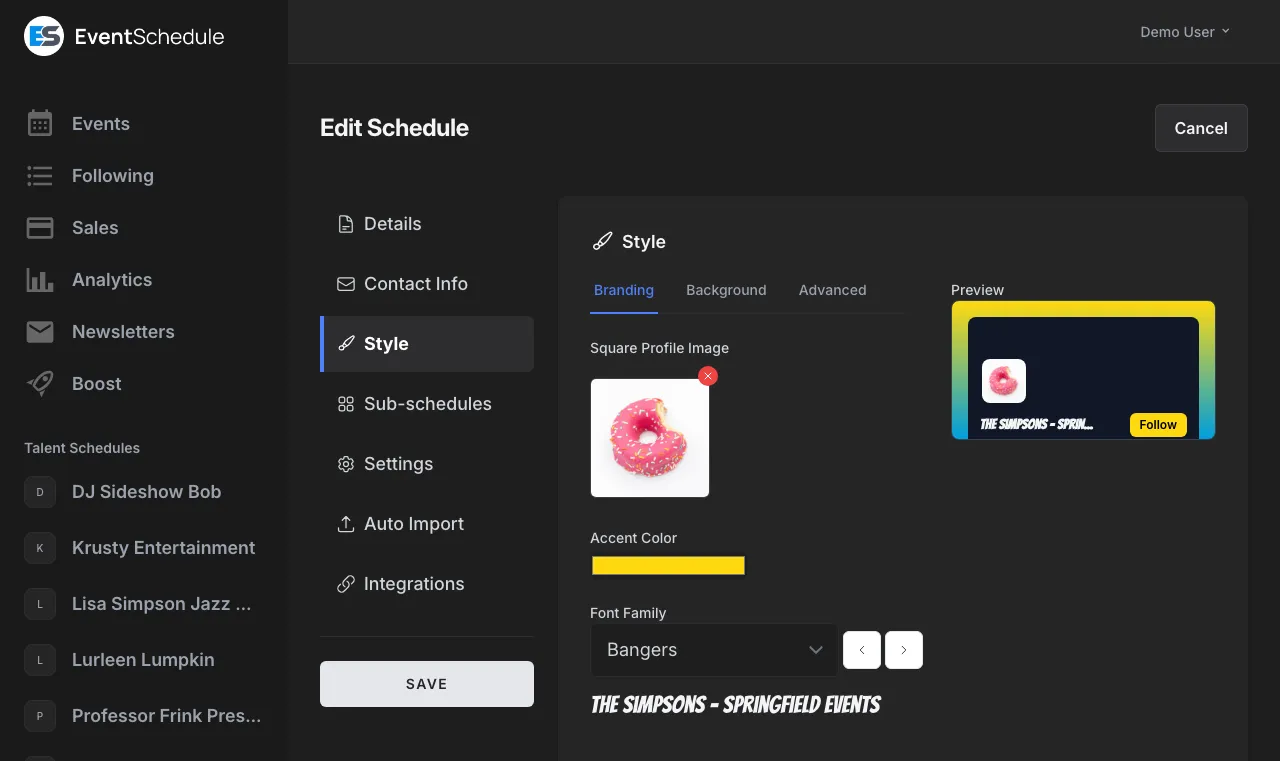
All styling changes update in real-time, so you can experiment freely and see exactly how your schedule will look before saving.
If you haven't created your account and first schedule yet, start with Getting Started.
If you haven't set up your schedule's basic information yet, see Creating Schedules first.
Event Layout
Choose how your events are displayed on your schedule page:
Grid Layout
Events displayed in a card grid. Best for schedules with event images and visual appeal.
List Layout
Events displayed in a compact list. Best for text-heavy schedules or when you have many events.
Profile Image
Upload a profile image (logo, photo, or avatar) that represents your schedule. This appears at the top of your schedule page and in social media previews.
Use a square image (1:1 aspect ratio) for best results. Recommended minimum size is 400x400 pixels. PNG or JPG formats work best.
Header Images
Add a header image to create a visual banner at the top of your schedule page. You have three options:
Preset Headers
Choose from 31 professionally designed headers including: 5am_Club, Arena, Fitness_Morning, Concert, Festival, Jazz_Club, Neon_Lights, Skyline, Stadium, and many more. Perfect for getting started quickly.
Custom Header Upload
Upload your own header image. Recommended dimensions: 1200x400 pixels or similar wide aspect ratio.
No Header
Opt for a cleaner look without a header image. Your profile image and name take center stage.
Background Options
Customize your schedule's background with colors, gradients, or images.
Solid Color
Choose any color using the hex color picker. Enter a specific hex code (e.g., #1a1a2e) or use the visual picker.
Gradient Backgrounds
Choose from 200+ beautiful preset gradients or create your own:
Preset Gradients
Browse gradients by name: Omolon, Purple Dream, Netflix, Sunset, Ocean Blue, Emerald Water, Cosmic Fusion, and 190+ more. Hover to preview, click to apply.
Custom 2-Color Gradients
Pick two colors to create your own gradient. Perfect for matching your brand colors exactly.
Rotation Control
Adjust the gradient angle from 0 to 360 degrees. Create vertical, horizontal, diagonal, or any angle you want.
Background Images
Add depth with background images:
Preset Backgrounds
Choose from 37 preset backgrounds including: Abstract_Sunrise, Ocean, Mountains, City_Lights, Stars, Geometric, Marble, and more. All optimized for performance.
Custom Image Upload
Upload your own background image. Images are automatically optimized. Dark, subtle patterns work best to maintain readability.
Color Scheme
Set your accent color to match your brand:
Accent Color
This color is used for buttons, links, icons, and interactive elements throughout your schedule. Event Schedule automatically calculates contrasting text colors for accessibility.
Choose an accent color with good contrast. Event Schedule automatically adjusts text colors to ensure readability, but vibrant, saturated colors tend to work best.
Typography
Choose from 200+ Google Fonts to give your schedule a unique personality:
Font Categories
Sans-serif (clean, modern), Serif (classic, elegant), Display (bold, attention-grabbing), Decorative (unique, artistic).
Live Preview
See how each font looks on your schedule in real-time before committing. Test readability with your content.
AI Style Generator Enterprise
Let AI generate a cohesive visual style for your schedule. The AI style generator can create a matching accent color, font selection, profile image, header image, and background image based on your schedule's name and type.
How It Works
Click the AI button in the Style section header, select which elements to generate, and optionally provide style instructions (e.g., "modern and minimal with blue tones"). The AI will generate all selected elements with a consistent visual theme.
Generated Elements
Accent color and font are generated first, then images are created using the chosen color for a cohesive look. You can select any combination of profile image, header image, background image, accent color, and font.
Note: Selfhosted installations require a Gemini API key and an OpenAI API key configured in the environment settings for AI style features to work.
Remove Branding Pro
By default, schedules display a small "Powered by Event Schedule" badge. With the Pro plan, you can remove this branding for a fully white-labeled experience.
White-Label Your Schedule
When branding is removed, your schedule appears entirely as your own - no Event Schedule branding is visible to visitors. This is ideal for businesses, venues, and organizations that want a professional, branded presence.
Branding is automatically removed for all Pro and Enterprise plans. Selfhosted installations also have branding removed by default.
Custom CSS
Custom CSS is available on Pro plans and for selfhosted installations.
For advanced customization, write your own CSS to modify any aspect of your schedule's appearance:
- Override default styles for complete control
- Add custom animations and effects
- Fine-tune spacing, borders, and shadows
- CSS is sanitized for security - modern properties supported
Live Preview
All styling changes update in real-time. The preview panel shows exactly how your schedule will look to visitors, so you can experiment freely without publishing incomplete changes.
Don't forget to click Save when you're happy with your changes. The preview is just a preview - nothing is saved until you explicitly save.
See Also
- Creating Schedules - Configure details, settings, sub-schedules, and integrations
- Event Graphics - Generate shareable images for social media
- Sharing Your Schedule - Embed and share your schedule
- Creating Events - Add events to see your styling in action