Creating Events
Add events to your schedule and configure event settings like venue, participants, tickets, and more.
Creating Events Manually
The simplest way to add an event is to create it manually from your schedule's admin page.

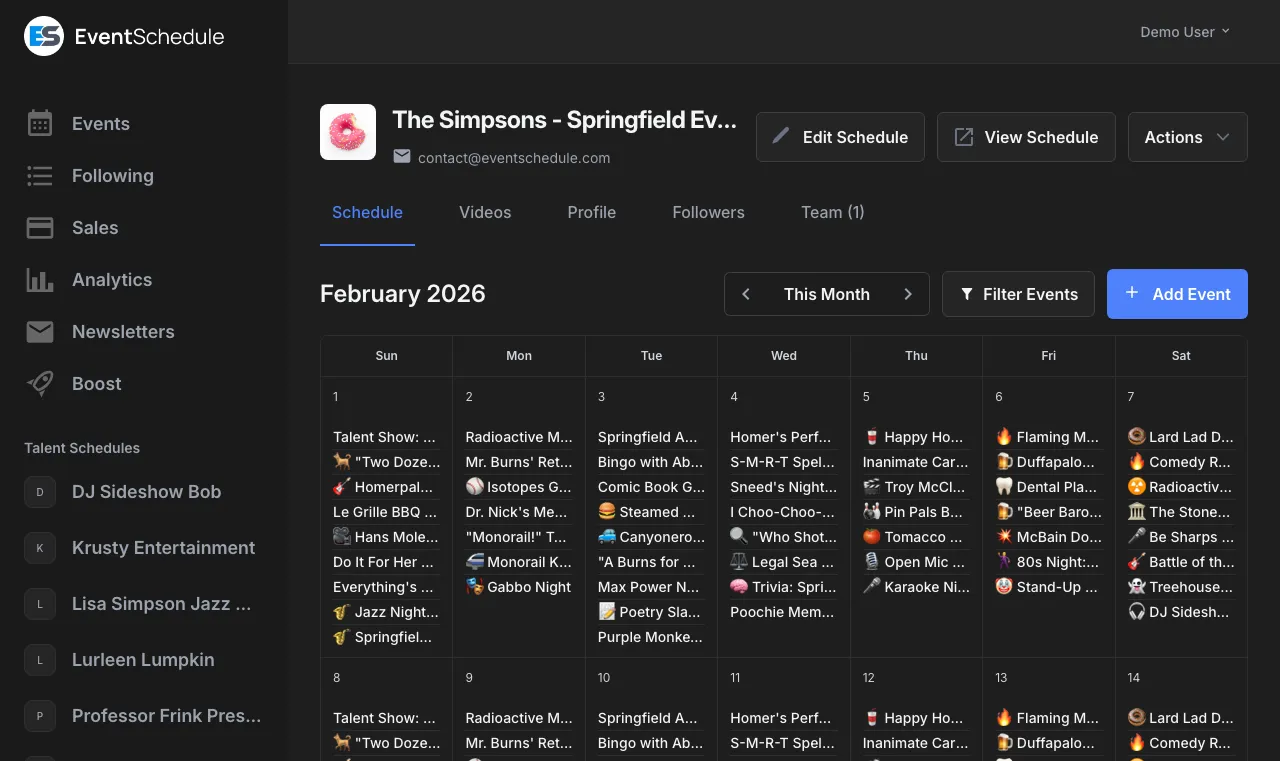
- Go to Admin Panel → Schedule
- Click "Add Event"
- Fill in the event details:
- Event name (required)
- Date and time
- Duration
- Venue/location
- Description
- Event image
- Click "Save" to publish the event


Don't want to type everything manually? You can also import events using AI from text or images.
If you have Require Approval enabled, submitted events appear in a pending queue. Review them in Admin Panel → Schedule → Pending and approve or reject each one.
Details
The Details tab contains the core information for your event:
| Field | Description |
|---|---|
| Name | The event title (required) |
| Category | Select an event category from the dropdown (e.g. Concert, Workshop, Conference) |
| Date, Start Time & End Time | The event date, start time, and end time. Duration is calculated automatically from the start and end times. |
| Short Description | A brief summary of the event (up to 200 characters). Appears as a subtitle on the event page. |
| Description | Details about the event (supports markdown formatting) |
| Image | A flyer or photo for the event. Enterprise users can also click Generate AI Flyer to automatically create a professional flyer from the event details using AI. You can optionally describe your preferred style (e.g. "minimalist, blue and white") before generating. |
| Sub-schedule | Organize events by type (e.g., "Live Music", "Comedy"). See Sub-schedules |
| Event URL / Slug | For existing events, the event URL is displayed with a copy button. You can click Edit to customize the URL slug. |
| Draft | Mark the event as a draft to keep it private while you finish editing. Draft events are hidden from the public schedule, event feeds, RSS, event graphics, newsletters, and Google Calendar/CalDAV sync. Admins see a banner indicating the event is still in draft. Uncheck to publish. |
You can make all new events default to draft from Schedule Settings → Advanced. See Advanced Settings.
AI Details Generator Enterprise
Let AI generate a sub-schedule, short description, and description for your event based on its name and your schedule's context.
How It Works
Click the AI button in the Details tab header, select which fields to generate, and the AI will create content based on your event's name and your schedule's context.
Generated Fields
Sub-schedule, short description, and description. Fields with existing values show a blue dot indicator; generating will replace their content.
Note: Selfhosted installations require a Gemini API key and an OpenAI API key configured in the environment settings for AI features to work.
Venue
The Venue tab lets you specify where your event takes place. Events can be in-person, online, or both.
In-Person Events
Choose Use Existing to select a venue that has appeared on your schedule before, or Create New to enter a new venue name and address. An interactive map is displayed on the public event page.
Address Validation
After entering an address, click Validate Address to verify the location and generate map coordinates. Use the View Map button to preview the location on a map before saving.
Online Events
Toggle the online event option and provide a URL (e.g., a Zoom or Google Meet link). The link is displayed on the event page for guests to join.
Venue Contact
Optionally add the venue's email and website so guests can contact the venue directly. On the hosted platform, you can check "Send email to notify" to send the venue an email about the event.
Participants
The Participants tab lets you tag performers, speakers, or other participants on an event. Participants appear on the public event page with links to their profiles.
Adding Participants
Search for existing members on your schedule or add new ones. Each participant is linked to their schedule profile page. You can also provide an email address and a YouTube video URL for each participant.
Notify Participants
On the hosted platform, you can check "Send email to notify" for each participant to send them an email about the event.
When to Use
Participants are most useful for Talent and Curator-type schedules where events feature specific performers, speakers, or artists. For Venue-type schedules, this tab is optional.
Recurring
The Recurring tab lets you create events that repeat on a regular schedule. Instead of manually adding each date, you set a recurrence pattern and Event Schedule generates all the individual event dates for you.
To add multiple dates, click "Add Dates" on the Recurring tab and choose a frequency pattern. You can also add individual dates manually.
| Frequency | Description |
|---|---|
| Daily | Repeats every day |
| Weekly | Repeats every week. Select which days of the week the event occurs on using the day checkboxes (Sun, Mon, Tue, etc.). |
| Every N weeks | Repeats every 2, 3, or more weeks (e.g., biweekly). Includes day-of-week checkboxes to select which days. |
| Monthly (same date) | Repeats on the same date each month (e.g., the 15th) |
| Monthly (same day) | Repeats on the same weekday each month (e.g., the second Tuesday) |
| Yearly | Repeats once a year on the same date |
Each recurrence pattern has an end condition that controls when the series stops:
- Never - The event repeats indefinitely until you stop it manually.
- On a specific date - The event repeats until the given end date.
- After N occurrences - The event repeats a fixed number of times.
You can also fine-tune the generated dates by adding date exceptions. Exclude specific dates when the event will not take place (e.g., holidays), or include extra dates that fall outside the regular pattern.
If you have Google Calendar sync enabled, recurring events are synced as individual occurrences so each date appears separately in both calendars.
Agenda
The Agenda tab lets you break an event into individual parts or segments, such as performances, sessions, or talks. Each part appears on the public event page so guests can see what to expect.
Adding Parts
Click "Add Part" on the Agenda tab and fill in the details:
- Name (required) - The title of the part (e.g., "Opening Keynote", "DJ Set")
- Start & End Time (optional) - When this part takes place within the event
- Description (optional) - Additional details about this part
Reordering
Rearrange parts using drag-and-drop or the up/down buttons to control the order they appear on the event page.
Display Options
You can choose whether to show or hide times and descriptions for event parts on the public event page.
AI Import
You can import event parts using AI in two ways:
- Import from Image - Upload a photo of a printed agenda or schedule and AI will extract each part automatically.
- Import from Text - Paste agenda text (e.g., a lineup list) and AI will parse it into individual parts.
Additional AI options:
- AI Agenda Prompt - Add custom instructions to help AI interpret your specific agenda format (up to 500 characters).
- Save Agenda Image - Save the uploaded agenda image as the event's featured image.
- Save as Default - Save the AI prompt as the default for all future events on this schedule.
AI agenda import requires a Gemini API key to be configured.
Schedules
The Schedules tab lets you share events to other Curator-type schedules you manage. This is useful when you want an event to appear on multiple schedules at once.
For each curator schedule you select, you can also choose which sub-schedule the event should be assigned to on that curator's schedule (if the curator has sub-schedules configured).
This tab only appears when you manage multiple Curator-type schedules. If you only have one schedule, you will not see this tab.
Google Calendar
The Google Calendar tab lets you sync individual events to or from Google Calendar. When calendar sync is enabled, events created in either place will appear in both.
To use this tab, you must first set up calendar sync in your schedule settings. See Calendar Integrations for setup instructions.
Recurring events sync to Google Calendar as individual occurrences, so each date appears separately in both calendars.
Creating Events via WhatsApp Enterprise
Creating events via WhatsApp is an Enterprise feature. It requires Twilio integration.
Send a WhatsApp message to create events directly from your phone. You can send event details as text, or send a photo of a flyer or poster and AI will extract the information automatically.
How It Works
- Verify your phone number in Account Settings
- Send a WhatsApp message to the Event Schedule number
- Include event details as text, or send a photo of a flyer or poster
- AI parses the details and creates the event on your default schedule
- You receive a confirmation message with the event name, date, and link
What AI Extracts
- Event name
- Date and time
- Duration
- Venue (name, address, city, state)
- Description
- Flyer image
- Category
Works great with event flyers - snap a photo and send it via WhatsApp to create your event in seconds.
WhatsApp event creation requires Twilio to be configured. See the Twilio setup guide for configuration details.
Tickets Pro
Sell tickets directly from your event pages with built-in Stripe payments. Set up ticket types, manage sales, and check in attendees at the door. See the full Selling Tickets guide for setup, sales management, and check-in details.
If you are not using built-in ticketing or RSVP, the Tickets section shows fields for external ticketing: a Registration URL (link to your external ticketing page), Ticket Price (with currency selector, used in event graphics text templates), and an optional Coupon Code.
Event Settings
Configure custom data fields, sponsors, and event-level privacy.
Custom Fields Pro
Add custom data fields to your events to capture additional information beyond the standard fields.
Setting Up Custom Fields
- Go to Admin Panel → Profile → Edit
- Scroll to Custom Fields
- Add fields with a name and type (string, multiline string, switch, date, dropdown, or multiselect)
- Save your settings
Once configured, custom fields appear on the event creation and edit forms. You can define up to 10 custom fields per schedule.
Use Cases
Track performer names, room numbers, age restrictions, dress codes, or any event-specific data. Custom field values are available as variables in event graphics text templates.
Field Types
String: Single-line text input. Multiline String: Multi-line text area. Switch: On/off toggle. Date: Date picker. Dropdown: Single select from predefined options. Multiselect: Multiple selections from predefined options.
Privacy Enterprise
Control event visibility with per-event privacy settings. Private events are hidden from your public schedule and require a password to view.
Making an Event Private
- When creating or editing an event, toggle the "Private" option
- Set a password for the event
- Save the event
Private events are hidden from your public schedule page and calendar views. Visitors can only access them via a direct link and must enter the correct password to view the event details.
Mix Public and Private
Privacy is set per event, not per schedule. You can freely mix public and private events on the same schedule. Public events appear normally while private events remain hidden.
Sharing Private Events
Share the event's direct link and password with your intended audience via email, messaging, or any other channel. Only people with both the link and the correct password can view the event.
For schedule-level settings, see Advanced Settings.
Sponsors Pro
Override sponsor display for individual events. By default, events inherit the sponsors configured on the schedule.
Sponsor Mode
In the Sponsors tab under Event Settings, choose one of three modes:
Use Schedule Default
The event page displays the same sponsors configured on the schedule. This is the default.
Show No Sponsors
Hide sponsors entirely on this event's page.
Customize
Define event-specific sponsors. Add logos, names, URLs, and tiers just like schedule-level sponsors. Up to 12 sponsors per event.
To set default sponsors for all events, configure them at the schedule level. See Schedule Sponsors.
Engagement
Add interactive features to your events including fan content, polls, and post-event feedback.
Fan Content
Fan Content lets your audience submit YouTube or Vimeo videos and text comments on event pages. This is available for Curator-type schedules and gives fans a way to share their experience while keeping you in control of what appears publicly.


All fan submissions go through an approval workflow. Nothing appears on your public event page until you approve it.
Fan Content is available for schedules with the Curator type. You can change your schedule type in the schedule settings.
Enabling Fan Content
- Go to your schedule's admin panel
- Open Settings
- Set the schedule type to Curator
- Save your changes
Once the schedule type is set to Curator, the Videos tab appears in your admin panel and fans can submit content on your public event pages.
Content Types
Three types of fan content are available, each controlled by a separate toggle at the schedule level:
- Fan Comments - Text comments on events and event parts
- Fan Photos - Photo uploads on events
- Fan Videos - YouTube or Vimeo video links on events and event parts
Per-Event Overrides
On the event edit page, each content type has a dropdown to override the schedule-level setting: Use Schedule Default, Enabled, or Disabled. This lets you enable fan content for specific events while keeping it off schedule-wide, or vice versa.
Moderation
You have full control over which fan content appears on your event pages:
- Admin panel - Go to the Videos tab in your admin panel to see all pending submissions. You can approve or reject each one individually.
- Email notifications - When a fan submits content, you receive an email notification with links to approve or reject the submission directly.
Approved content appears on the public event page immediately. You can remove previously approved content at any time from the Videos tab in your admin panel.
Polls Pro
Add interactive multiple-choice questions to your events and let your guests vote on the options that matter most.
Event Polls is a Pro feature. Upgrade your schedule to Pro to start creating polls on your events.
Creating Polls
- Go to the event edit page in your admin panel
- Scroll down to the Polls section
- Enter your question
- Add between 2 and 10 options for voters to choose from
- Save the event
You can add up to 5 polls per event. Each poll has its own question and set of options.
How Voting Works
- Sign in required - Guests must be signed in to vote, which ensures each person can only vote once.
- One click to vote - Guests simply click on the option they want to vote for.
- One vote per poll - Each guest can cast one vote per poll. Votes cannot be changed after submission.
- Instant results - After voting, results are shown immediately so guests can see how others voted.
Viewing Results
After a guest casts their vote, poll results are displayed with progress bars showing the count and percentage for each option. The leading option is highlighted so it is easy to see which choice is ahead.
As an organizer, you can always see poll results in the event edit page of your admin panel, regardless of whether you have voted.
User-Suggested Options
You can allow guests to suggest their own poll options:
- Allow User Options - Enable this toggle to let guests add their own options to the poll.
- Require Option Approval - When enabled (appears after enabling Allow User Options), user-suggested options go to a pending queue for your approval before appearing in the poll. Review pending options on the event edit page and approve or reject each one.
Closing and Reopening
You can control whether a poll is accepting votes by toggling it between active and closed states:
- Active polls - Guests can vote and results update in real time.
- Closed polls - Results are still visible, but no new votes can be cast.
You can reopen a closed poll at any time if you want to allow voting again. Toggle the poll status from the event edit page in your admin panel.
Feedback Pro
Control whether attendees receive a feedback request email after this event ends. By default, events inherit the schedule-level feedback setting.
Post-event feedback is a Pro feature. Enable it at the schedule level in Settings → Notifications, then optionally override per event here.
Per-Event Override
The Feedback section on the event edit page offers three options:
- Use schedule default - Follows whatever you have set at the schedule level.
- Enabled - Feedback emails will be sent for this event regardless of the schedule setting.
- Disabled - No feedback emails will be sent for this event regardless of the schedule setting.
For more details on viewing and managing feedback, see Selling Tickets → Post-Event Feedback.
See Also
- AI Import - Import events from text or images using AI
- Selling Tickets - Add tickets to your events
- Event Graphics - Create promotional images
- Sharing Your Schedule - Share and embed your events
- Calendar Integrations - Set up Google Calendar and CalDAV sync