Event Graphics
ProGenerate shareable images and formatted text for your upcoming events. Perfect for social media, messaging apps, and newsletters.
Overview
The Event Graphics feature generates a visual collage of your upcoming events along with formatted text that you can copy and share. It's perfect for:
- Social media posts (Instagram, Facebook, Twitter)
- WhatsApp and Telegram messages
- Email newsletters
- Website embeds

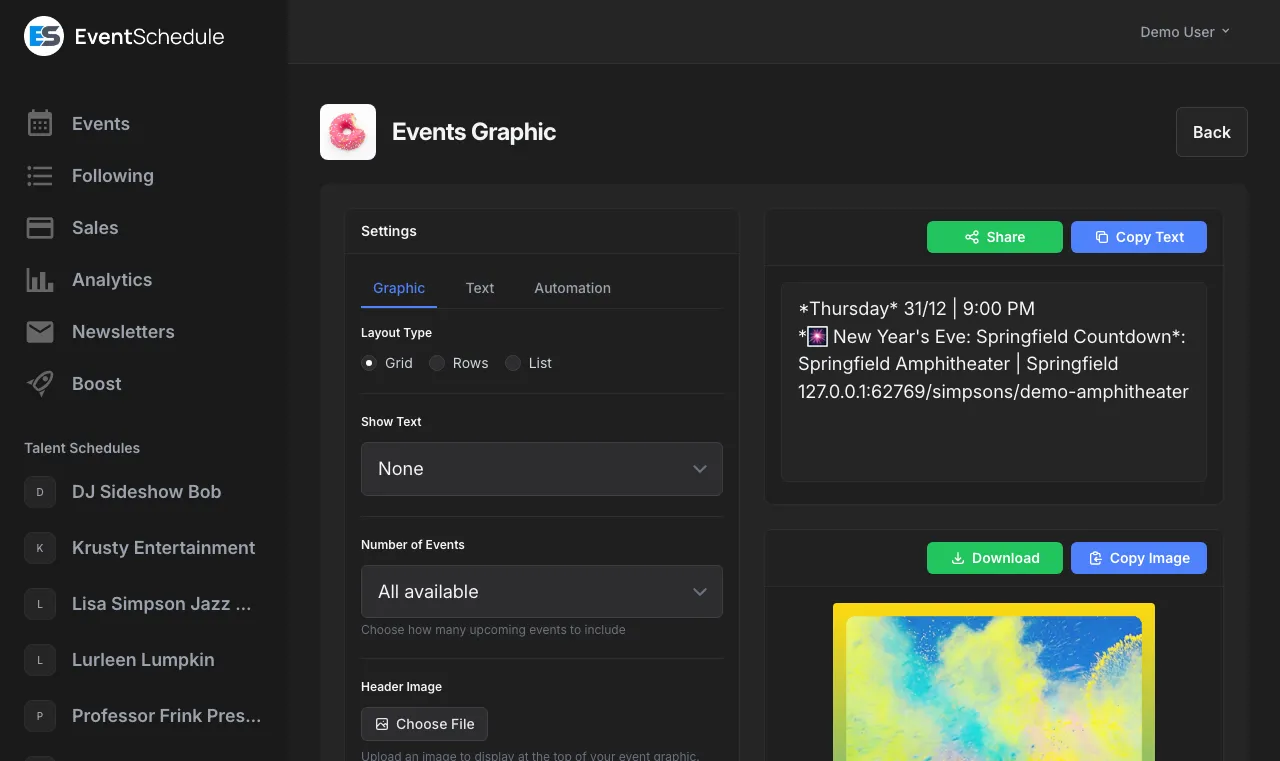
The generated graphic displays up to 10 upcoming events with their flyer images in a grid or list layout. The text output provides event details in a format optimized for copying and pasting.
Text Template
The text template defines how each event is formatted in the generated text output. You can customize this template using variables that are automatically replaced with event data.


Default Template
If you leave the template blank, the following default format is used:
*{day_name}* {date_dmy} | {time}
*{event_name}*:
{venue} | {city}
{url}
Example Output
*Wednesday* 15/3 | 20:00
*Summer Concert*:
Central Park | New York
https://example.com/event/summer-concertUse *text* for bold formatting on WhatsApp and Telegram, or _text_ for italics.
Quick Reference
Most templates only need these essential variables. Copy the ones you need:
Event Basics
{event_name} Event Name{short_description} Short Description{url} Event link{description} DescriptionDate & Time
{day_name} Wednesday{date_dmy} 15/3{time} 20:00Location
{venue} Venue name{city} City{address} StreetTickets
{price} 10 or Free{currency} USD{coupon_code} SAVE20See All Variables below for the complete list including date formats, end times, and more.
All Template Variables
Use these variables in your template. They will be replaced with the actual event data when generating text.
Date & Time
| Variable | Description | Example |
|---|---|---|
{day_name} |
Full day name (translated) | Wednesday |
{day_short} |
Short day name (translated) | Wed |
{date_dmy} |
Day/month format | 15/3 |
{date_mdy} |
Month/day format | 3/15 |
{date_full_dmy} |
Full date (day/month/year) | 15/03/2025 |
{date_full_mdy} |
Full date (month/day/year) | 03/15/2025 |
{month} |
Month number | 3 |
{month_pad} |
Month number (zero-padded) | 03 |
{month_name} |
Full month name (translated) | March |
{month_short} |
Short month name (translated) | Mar |
{day} |
Day of month | 15 |
{day_pad} |
Day of month (zero-padded) | 05 |
{year} |
Year | 2025 |
{time} |
Start time (uses schedule's 24h setting) | 20:00 or 8:00 PM |
{end_time} |
End time (uses schedule's 24h setting) | 22:00 or 10:00 PM |
{duration} |
Duration in hours | 2 |
Event Information
| Variable | Description | Example |
|---|---|---|
{event_name} |
Event Name | Summer Concert |
{short_description} |
Short Description | Live jazz with local artists |
{description} |
Description | Join us for a night of music... |
{url} |
Event URL | https://... |
Venue Information
| Variable | Description | Example |
|---|---|---|
{venue} |
Venue name (translated) | Central Park |
{city} |
City | New York |
{address} |
Street address | 123 Main St |
{state} |
State/Province | NY |
{country} |
Country | US |
Ticket Information
| Variable | Description | Example |
|---|---|---|
{currency} |
Currency code | USD |
{price} |
Lowest ticket price (or "Free") | 10 |
{coupon_code} |
Event coupon code | SAVE20 |
Custom Fields Pro
If you have defined Event Custom Fields in your schedule settings, you can include their values in graphics using numbered variables.
| Variable | Description | Example |
|---|---|---|
{custom_1} |
Value of the 1st custom field | John Smith |
{custom_2} |
Value of the 2nd custom field | Room 101 |
{custom_3} |
Value of the 3rd custom field | Workshop |
| ...up to {custom_10} | ||
Custom field variables correspond to the order your fields are defined in schedule settings. For example, if your first custom field is "Speaker Name", then {custom_1} will show the speaker's name.
Date and time variables like {day_name}, {month_name}, and {time} are automatically translated to your schedule's language and respect its 24-hour time setting.
Enterprise In addition to auto-generated event graphics, Enterprise users can generate individual event flyers using AI directly from the event edit page.
AI Text Prompt
Enterprise Feature Use AI to transform the generated text with custom instructions.
How It Works
After the text is generated from your template, you can apply AI transformations using the AI Text Prompt field. This allows you to:
- Add emojis to make posts more engaging
- Translate text to another language
- Adjust formatting for specific platforms
- Add hashtags or mentions
Example Prompts
Add a calendar emoji before each date and a pin emoji before each venue
Translate to Spanish
Add relevant hashtags for Instagram
Choosing an AI Model
The AI Model dropdown lets you pick which Gemini model processes the prompt. Faster, lighter models work well for short transformations like adding emojis or translating; higher-capability models are better for longer text that needs nuanced rewriting.
Email Scheduling
Enterprise Feature Automatically send event graphics to your followers on a schedule. For designed email campaigns with more formatting options, see Newsletters.
Configuration Options
| Option | Description |
|---|---|
| Frequency | Daily, Weekly, or Monthly |
| Send On | Day of week (for weekly) or day of month (for monthly) |
| Send At | Hour of day to send the email |
| Recipients | Comma-separated list of email addresses |
Test Email
Use the "Send Test Email" button to preview exactly what recipients will receive. The test email is sent to your account email address.
See Also
- Sharing Your Schedule - More ways to share your events
- Creating Events - Add events to generate graphics for
- Schedule Styling - Customize your schedule's appearance
- Analytics - Track views and engagement from shared graphics
- Newsletters - Send designed email campaigns to your audience