Admin Panel
Monitor your platform's users, revenue, and analytics, and manage system settings from the admin panel.
Overview
The admin panel provides platform-wide visibility and management tools for your Event Schedule installation. It is organized into four areas:
- Dashboard - at-a-glance key metrics for your platform
- Insights - detailed breakdowns of users, revenue, analytics, and usage
- Manage - configure boost settings, newsletters, and (in SaaS mode) plans, domains, and the blog
- System - audit log, background queue, and application logs
Every page in the admin panel supports a date-range filter so you can view data for any time period.
Accessing /admin
The admin panel is available at /admin and is restricted to users whose is_admin column is set to true in the database.
To grant admin access to a user, update the users table directly:
UPDATE users SET is_admin = 1 WHERE email = '[email protected]';Only grant admin access to trusted users. Admins can see all platform data including user details, revenue, and system logs.
Dashboard
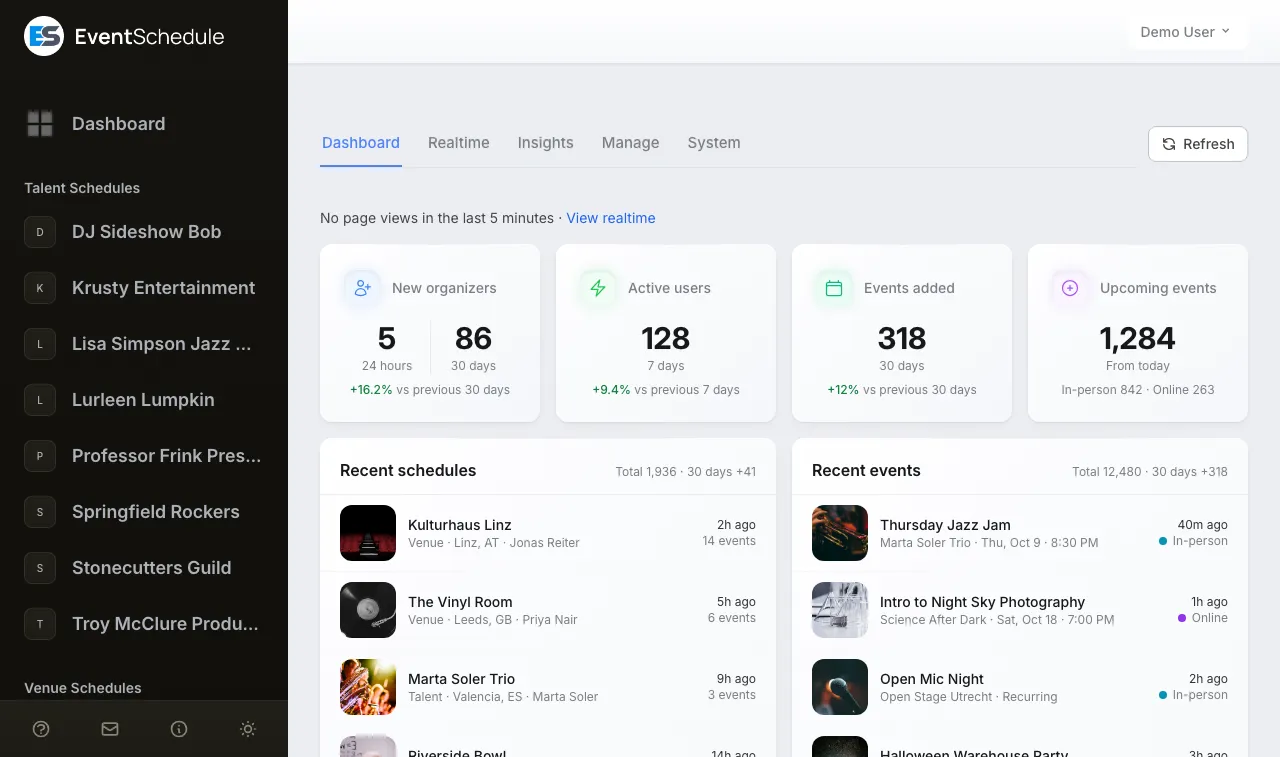
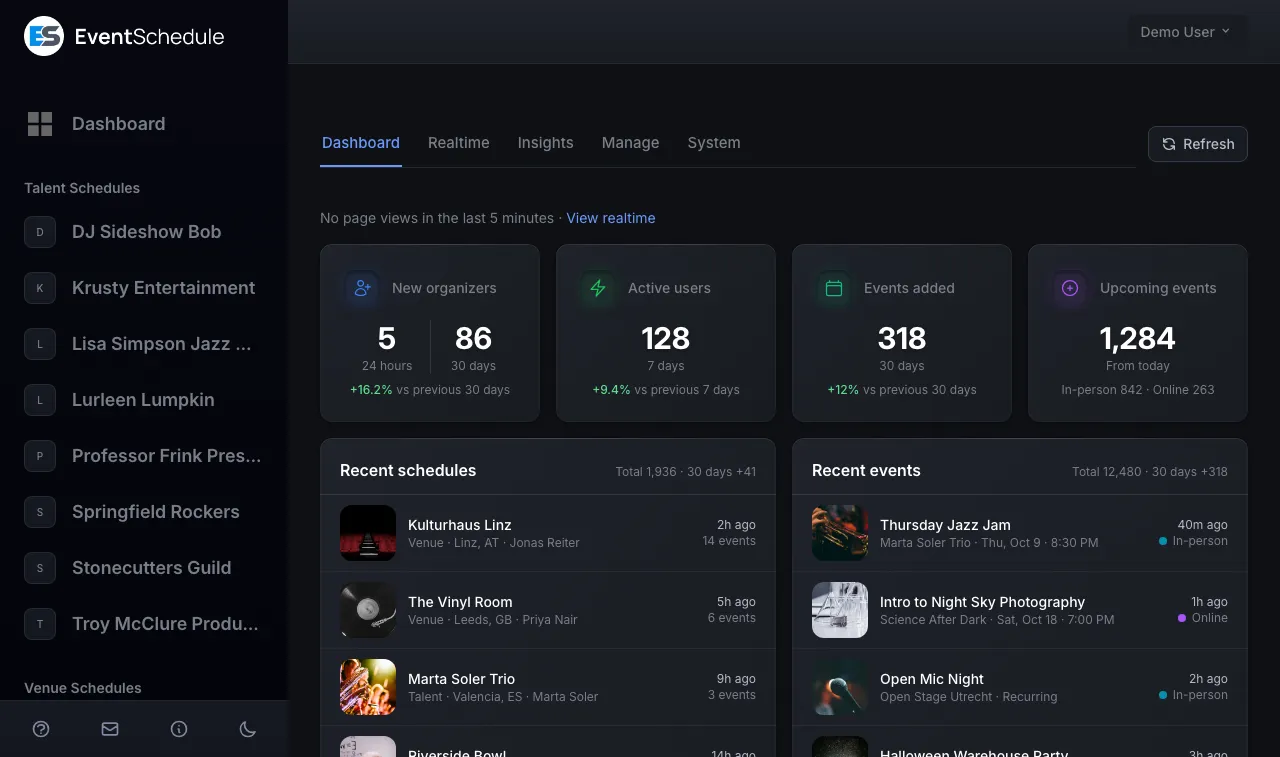
The dashboard is the landing page of the admin panel. It shows key metrics at a glance including:
- Total users, schedules, and events with period-over-period change
- New signups chart over the selected date range
- Recent activity feed showing the latest user actions
Users (Insights)
The Users page lists every registered user on the platform with search and filtering capabilities.
- Search users by name or email
- View each user's schedules, plan tier, and registration date
- See login activity and email verification status
- Click a user row to view their full profile and associated schedules


Revenue (Insights)
The Revenue page provides a financial overview of ticket sales across the platform.
- Total revenue, ticket sales count, and average order value
- Revenue chart over the selected date range
- Breakdown by schedule showing which schedules generate the most sales


Analytics (Insights)
The Analytics page shows platform-wide traffic and engagement data.
- Page views and unique visitors across all schedules
- Traffic trends over the selected date range
- Top schedules by page views
- Geographic distribution of visitors


Usage (Insights)
The Usage page tracks how actively the platform's features are being used.
- Feature adoption rates (e.g. Google Calendar sync, ticket sales, event graphics)
- Active schedules and events created over time
- API usage and integration activity


Boost (Manage)
The Boost management page lets you view and manage all active and past boost campaigns across the platform.
- View all boost campaigns with their status, budget, and performance metrics
- Monitor active campaigns and their delivery progress
- Review completed campaigns and their results
The boost feature requires Meta/Facebook API configuration. See the Boost Setup guide for configuration instructions.


Plans (Manage) SaaS only
The Plans page lets you manage subscription plans and pricing tiers for your SaaS platform.
- View and edit plan tiers (Free, Pro, Enterprise)
- Configure pricing, trial periods, and feature limits for each plan
- See how many schedules are subscribed to each plan
This section is only available when IS_HOSTED=true. Selfhosted installations have all features unlocked by default and do not use plan tiers.
Domains (Manage) SaaS only
The Domains page manages custom domain mappings for schedules on the SaaS platform.
- View all custom domains connected to schedules
- Monitor DNS verification status for each domain
- Manage SSL certificate provisioning
This section is only available when IS_HOSTED=true. Selfhosted installations use their own domain directly.
Newsletters (Manage)
The Newsletters page lets you create and send email newsletters to platform users.
- Create newsletters with a rich text editor
- Target specific user segments or send to all users
- View delivery statistics and open rates for sent newsletters
- Manage subscriber segments for targeted communication


Blog (Manage) SaaS only
The Blog section lets you publish and manage blog posts on the marketing site.
- Create and edit blog posts with a rich text editor
- Manage post categories and tags
- Control post visibility with draft and published states
This section is only available when IS_HOSTED=true. Selfhosted installations do not include a built-in blog.
Audit Log (System)
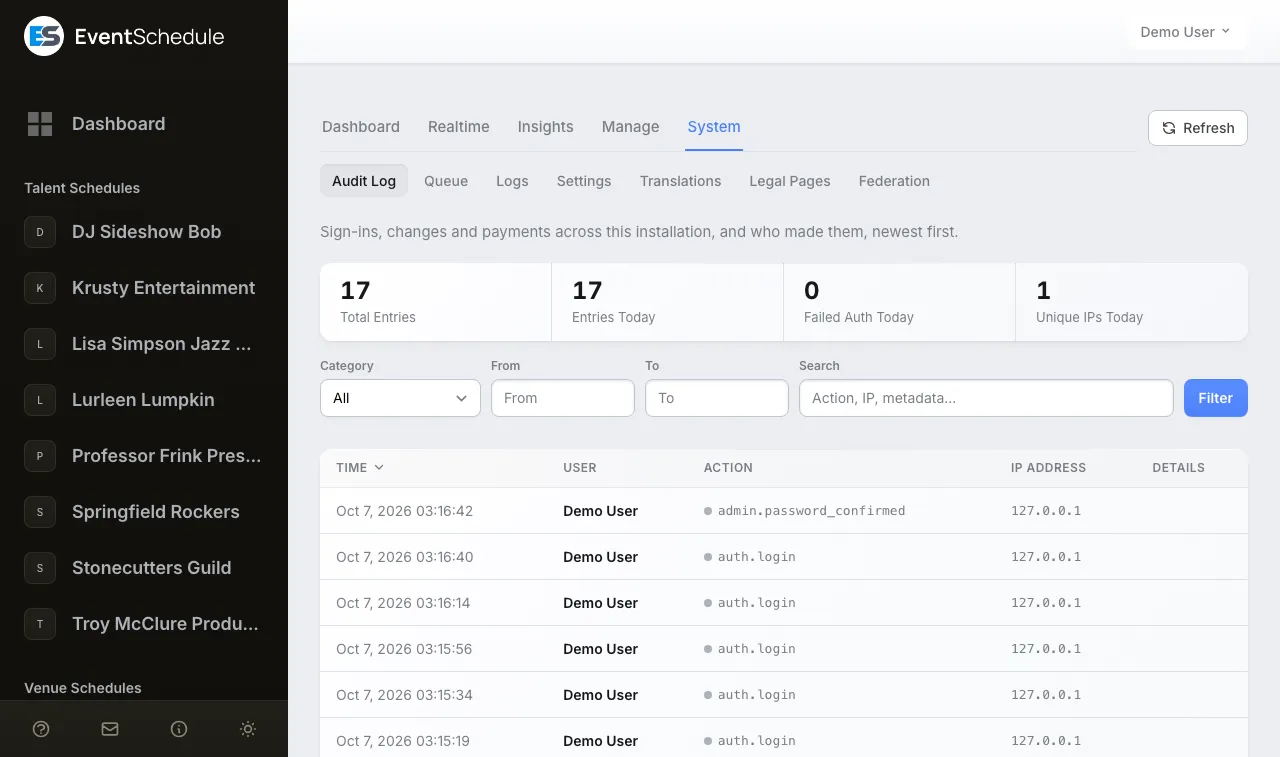
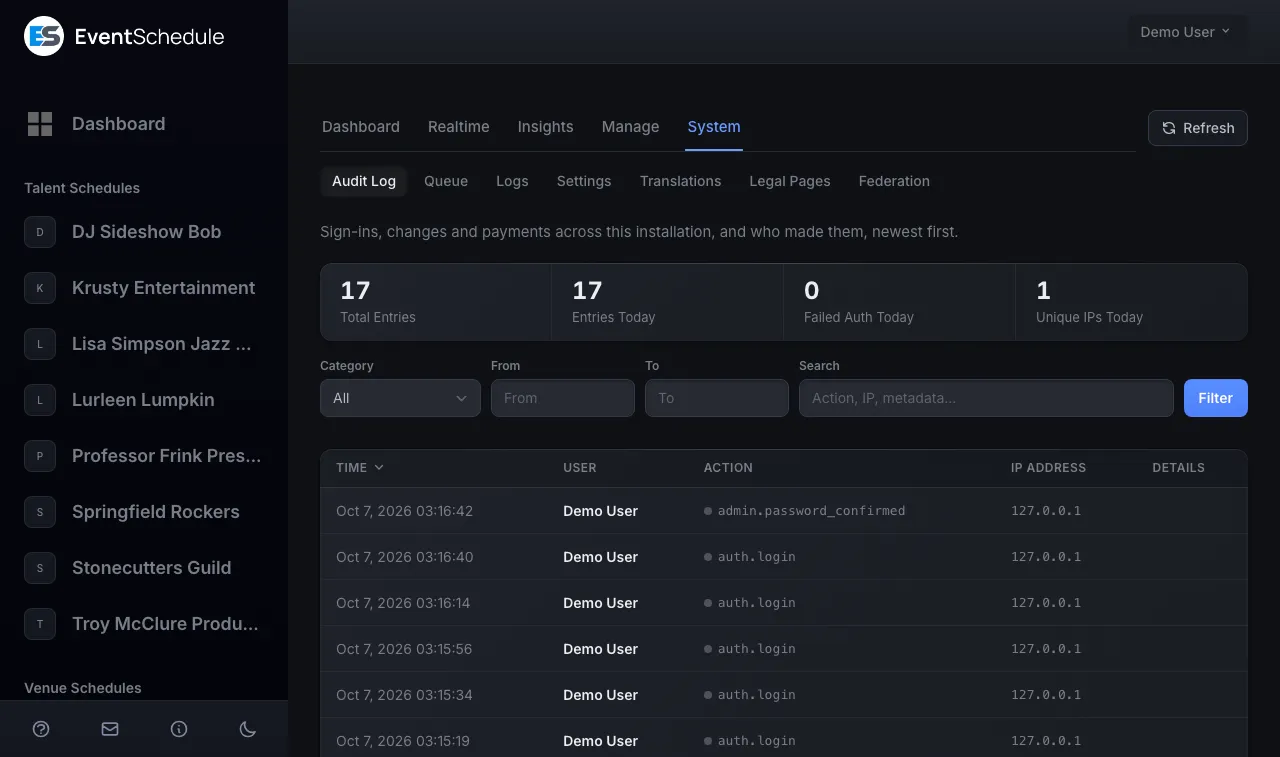
The Audit Log provides a chronological record of important actions taken across the platform.
- Track user logins, schedule changes, and administrative actions
- Filter by action type, user, or date range
- View detailed information for each log entry including IP address and user agent
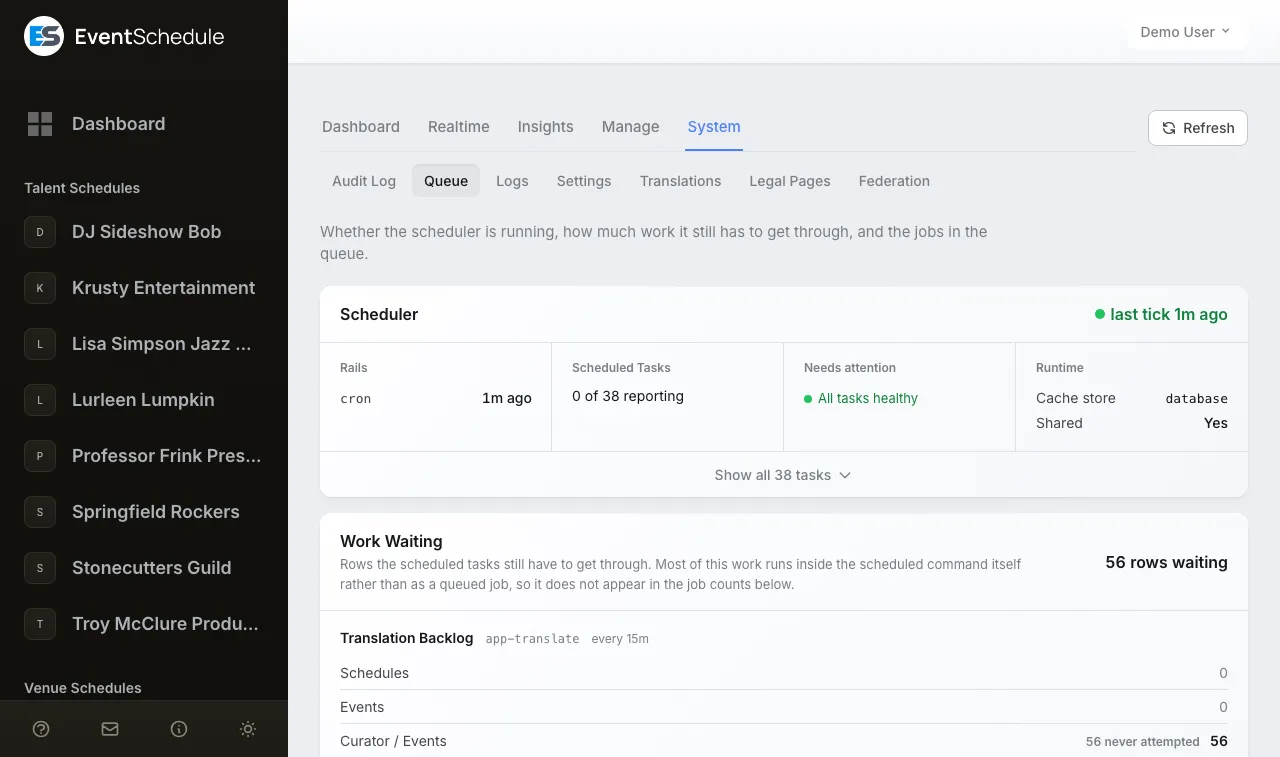
Queue (System)
The Queue page shows the status of background jobs processed by the Laravel queue worker.
- View pending, processing, and failed jobs
- Monitor queue throughput and processing times
- Retry or delete failed jobs
- See job details including payload and error messages for failed jobs
Make sure the Laravel scheduler is running (* * * * * php artisan schedule:run) for background jobs to be processed.
Logs (System)
The Logs page displays recent application log entries, useful for debugging issues on your selfhosted installation.
- View log entries with severity levels (info, warning, error, critical)
- Filter logs by severity level
- Search log entries by message content
- Expand entries to view full stack traces for errors

